
截图


介绍
__The best modpack for people who want high FPS and lots of handy features like zoom, a minimap, and shaders!__
__If your world doesn’t load, remove the C2ME OpenCL Acceleration Module mod!__
Performance:

I’ve rounded up the best performance mods and added a few handy ones that’ll still let you maintain high FPS (see image)
Still Low FPS:
If your FPS is still low, try disabling the following mods:
- Concurrent Chunk Management Engine (Fabric)
- C2ME OpenCL Acceleration Module
- Fastnoise
Vanilla:
This modpack is designed to be as vanilla as possible. That’s why I decided not to include Freecam, etc. Still, there are a few mods that add some handy features.
If you want the modpack on Curseforge, click here
Versions:
I’ll try to downgrade this modpack to the older versions. If you have any requests regarding the version, please let me know on Discord.
Settings:
I’ve published a guide on GitHub where you can find help (I’m also happy to help on Discord).
Inspiration
I drew some inspiration from Remarkably Optimized. If you’re just looking for raw performance and don’t want any extra mods, shaders, or texture packs, I highly recommend Remarkably Optimized.
Help?
Just message me on Discord and let me know how you’d like to help. Please send feedback and constructive criticism—no hate.
AI?
I only use AI for translation. When I translate something, I only use Deepl.
Different performance settings
These settings are recommended for the best performance, but you can of course choose whichever settings you find most useful. Keep in mind that some of these settings may have little to no impact on FPS.
Potato Settings:
- Render Distance = 8
- Simulation Distance = 5
- Clouds = OFF
- Cloud Distance = 0
- Weather Effect Radius = 3
- See-Through Leaves = OFF
- Particles = Minimal
- Biome Blend = None
- Entity Distance = 50%
- Entity Shadows = OFF
- Mipmap Levels = 0
- Better Grass Mode = FAST
- (BetterRenderDistance) Preset = Performance
Very Low Settings:
- Render Distance = 12
- Simulation Distance = 7
- Clouds = Fast/OFF
- Cloud Distance = 4
- Weather Effect Radius = 3
- See-Through Leaves = OFF
- Particles = Minimal
- Biome Blend = 3×3
- Entity Distance = 50-75%
- Entity Shadows = OFF
- Mipmap Levels = 0
- Better Grass Mode = FAST
- (BetterRenderDistance) Preset = Performance
Low Settings (Default Setting):
- Render Distance = 14
- Simulation Distance = 8
- Clouds = Fast
- Cloud Distance = 30
- Weather Effect Radius = 3
- See-Through Leaves = OFF
- Particles = Decreased
- Biome Blend = 3×3
- Entity Distance = 75-100%
- Entity Shadows = OFF
- Mipmap Levels = 1
- Better Grass Mode = FAST
- (BetterRenderDistance) Preset = Balanced
Mid Settings:
- Render Distance = 18
- Simulation Distance = 10
- Clouds = Fast
- Cloud Distance = 50
- Weather Effect Radius = 3
- See-Through Leaves = OFF
- Particles = Decreased
- Biome Blend = 3×3
- Entity Distance = 100%
- Entity Shadows = OFF
- Mipmap Levels = 2
- Better Grass Mode = FAST
- (BetterRenderDistance) Preset = Balanced
High Settings:
- Render Distance = 24
- Simulation Distance = 14
- Clouds = Fancy
- Cloud Distance = 60
- Weather Effect Radius = 7
- See-Through Leaves = ON
- Particles = Decreased
- Biome Blend = 5×5
- Entity Distance = 100-125%
- Entity Shadows = ON
- Mipmap Levels = 3
- Better Grass Mode = FAST
- (BetterRenderDistance) Preset = Balanced
Ultra Settings:
- Render Distance = 30
- Simulation Distance = 20
- Clouds = Fancy
- Cloud Distance = 80
- Weather Effect Radius = 7
- See-Through Leaves = ON
- Particles = Decreased
- Biome Blend = 9×9
- Entity Distance = 125-150%
- Entity Shadows = ON
- Mipmap Levels = 4
- Better Grass Mode = FANCY
- (BetterRenderDistance) Preset = Balanced
God Settings:
- Render Distance = 32
- Simulation Distance = 26
- Clouds = Fancy
- Cloud Distance = 120
- Weather Effect Radius = 10
- See-Through Leaves = ON
- Particles = All
- Biome Blend = 15×15
- Entity Distance = 150-250%
- Entity Shadows = ON
- Mipmap Levels = 4
- Better Grass Mode = FANCY
- (BetterRenderDistance) Preset = Quality
包含的模组 160 个
 Alternate Current
 Anvian's Lib
 苹果皮
 Architectury API
 AsyncParticles
 Audition
BadOptimizations
 Balm
 Bare Bones
 Better Advancements
 Better Render Distance
 BetterGrassify
 Bliss Shaders
 Block Entity Render Distance
 Bloop Shaders
 Bobby
 Borderless Fullscreen
 BSL Shaders
 C2ME OpenCL Acceleration Module
 CalcMod
 Chat Animation [Smooth Chat]
 Chat Heads
 Cherished Worlds
 Chunky
 Clean PvP texturepack
 Clean Wool
 Cloth Config API
 Collective
 Complementary Shaders - Reimagined
 Concurrent Chunk Management Engine (Fabric)
 Continuity
 Controlling
 Craft Config Lib
 CraftGlow Round Shield
 CreamyKeys
 Crosshair TXF
 Cubic Sun & Moon
 Cursors Extended
 Default HD 128x
 Default Options
展开全部 160 个
 Deimos
 Detail Armor Bar Reconstructed
 DIEGETIC GUI - immersive crafting menus
 Drippy Loading Screen
 Durability Tooltip
 E-LITE shaders (MakeUp edit)
 EclipseUI
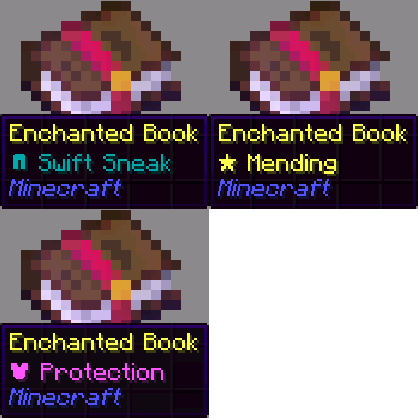 Enchant Icons
 Enchantment Descriptions
 Enchantment Level Cap Indicator
 Enchantment Outlines
 实体剔除
 Essential Mod
 EXP Counter
 Fabric API
 Fabric Language Kotlin
 Faithful 32x
 Faithful 64x
 FancyMenu
 Fast IP Ping
 Fast Noise
 FASTJSON2 Serializer for YACL
 FastQuit
 FerriteCore
 Flowering Crops
 Forge Config API Port
 Fzzy Config
 Gnetum
 Held Item Info
 Iceberg
 ImmediatelyFast
 Iris Shaders
 Item Borders
 Item Highlighter
 Ixeris
 Jade 🔍
 Konkrete
 Language Reload
 LIGHT Shaders
 Lite FPS
 锂
 Log Cleaner
 Lomka
 Low Fire
 Low Shield
 MakeUp - Ultra Fast
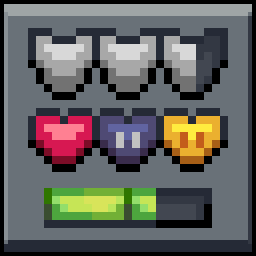 Mandala's GUI - Dark mode
 Mello
 Mellow
 Melody
 Mercurizer
 Mini Items
 Mini Totem
 模组菜单
 ModernFix-mVUS
 More Chat History
 More Culling
 Nether Coords
 New Glowing Ores
 No Chat Reports
 NoDynamicFps
 Optimized Block Entities [OBE]
 Optimized Fullbright
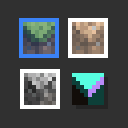 Packed Packs
 PackForge - Optimized Resource Pack Loading Time
 Particle Core
 Particle Rain
 Photon Shaders
 Pick Up Notifier
 Pickup Animations: Subtle, Tiny, Satisfying Inventory Item QoL
 Potato Shaders
 Prickle
 Prime's HD Textures FREE [32x]
 Prism
 Puzzles Lib
 qrafty's Capitalized Font
 quick pack
 Reese's Sodium Options
 RenderScale
 Resourceful Config
 Resourcify
 Roundista - LabPBR
 ScalableLux
 Searchables
 Server Pinger Fixer
 Shulker Box Tooltip
 Signs Faster
 Sildur's Enhanced Default Shaders
 Silicon
 Simple Armor Hud
 Simple Outlined Ores - Blue Netherite Edition
 Simple Voice Chat
 Smooth Hover
 Smooth Scrolling Refurbished
 Smooth Swapping
 钠
 Sodium Extra
 Sodium FPS Cap Fix
 Sodium Fullbright
 Squareful
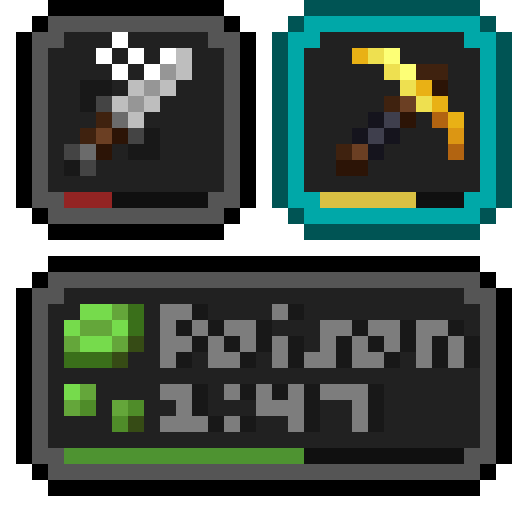 Status Effect Bars
 Status Effect Timer
 Super Duper Vanilla
 SuperMartijn642's Config Lib
 Text Placeholder API
 Too Many Entities
 Tool Stats
 Totem Tweaks
 ukia's spears & lances
 Visual Vibrance
 Visual: Armor Trims
 Vocal Villagers
 VoxelMap-Updated
 Wavey Capes
 Yeetus Experimentus
 YetAnotherConfigLib (YACL)
 Your Options Shall Be Respected (YOSBR)
 ZConfig
 Zoomify (Zoom)
 🌧️ Clear Weather
绿色边框的模组本站有收录,点进去看中文介绍;其余跳转到 Modrinth。
常见问题
Osmium Light 支持哪些 Minecraft 版本?
Osmium Light 基于 Minecraft Java 版 26.2,使用 Fabric 加载器。
Osmium Light 怎么安装?
点本页「前往下载」拿到整合包文件(Modrinth 的是 .mrpack,CurseForge 的是 .zip),在 PCL2 或 HMCL 启动器里选择「导入整合包」,启动器会自动装好 Minecraft、加载器和全部模组。这个整合包有 160 个模组,建议在启动器里给游戏分配 6–8 GB 内存。
Osmium Light 开服需要多大内存?
推荐服务器内存 12 GB。在线人数多、或者建了大量机器和区块加载器时,可以再加 2–4 GB。
怎么和朋友一起玩 Osmium Light?
点本页的「一键开服」,选好配置后会自动安装 Osmium Light 的服务端,几分钟就能开好。把服务器地址发给朋友,大家用同一个版本的整合包连进去就行。

评论
登录后评论和评分