
截图

介绍
Overview
This modpack is designed for easy split-screen multiplayer. It focuses on the Create mod and its add-ons. This pack also includes various structure mods to encourage exploration.
The pack is playable with up to 4 players using controllers on a single (preferably large) screen. Optionally, one player can use the keyboard/mouse. For controller players, the mouse/keyboard can be swapped to focus on another window if a mod requires them.
Performance
Because of the way Minecraft handles running the server (Host World) and client (Other Players), this pack runs much faster (TPS/CPU) than 4 separate instances. It does, however, still take additional power from the GPU (FPS) to render 4 clients. Because of this, it is recommended to lower the resolution of the game since each window is reduced to a quarter of the original size.
How to use
Playing Together
Use the PrisimMC (or MultiMC) launcher to import this pack from Modrinth. PrisimMC allows you to create separate instances (or multiple running copies) of Minecraft. You will need to download this pack for each instance that will be running.
To play on an external server, either the server must disable online mode or each player must use a different Minecraft account. You can also install the E4MC mod, which makes LAN worlds joinable by anyone like a server.
For local play, host a LAN server on the main instance of the pack. All of the other instances will need to join that local server.
If you only have one account to use, you will need to use the AuthMe mod to enable Offline Mode for both online and local multiplayer. Click on the lock icon in the Multiplayer menu to enter Offline mode. If you enter the name of a Minecraft Account, their skin will be used.
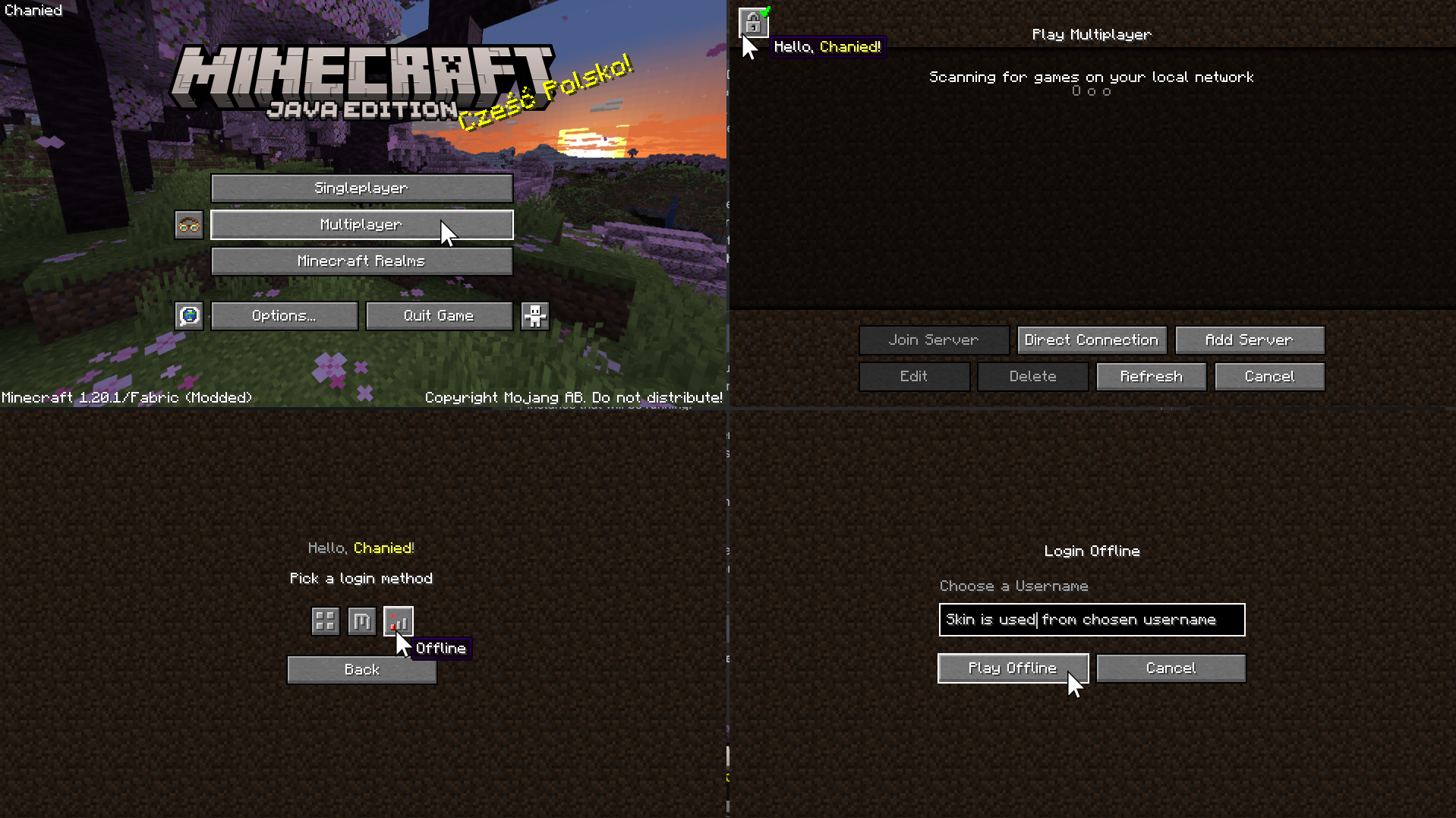
Using Splitscreen
To put the windows into Split Screen, press F11. This cycles between different positions and sizes for each instance.
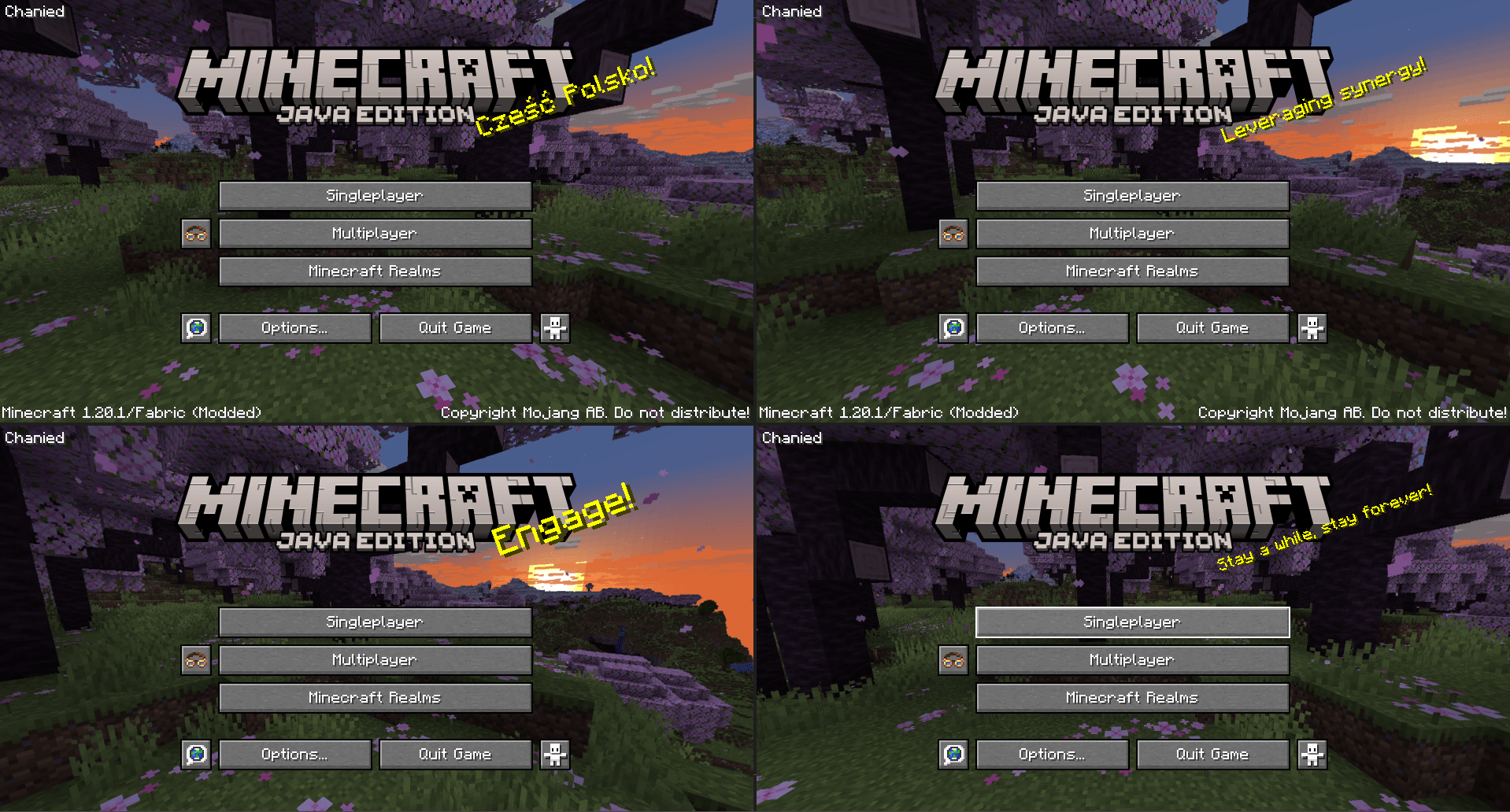
You may need to hide the taskbar to see the bottom of the screen.
To prevent the escape menu from automatically appearing, press F3+P to disable
pauseOnLostFocus.
options.txt
Instead of using the shortcut, you can run each instance once to generate the options.txt file. Open the modpack folder and edit options.txt. Change the value of pauseOnLostFocus from true to false.

Assigning Controls
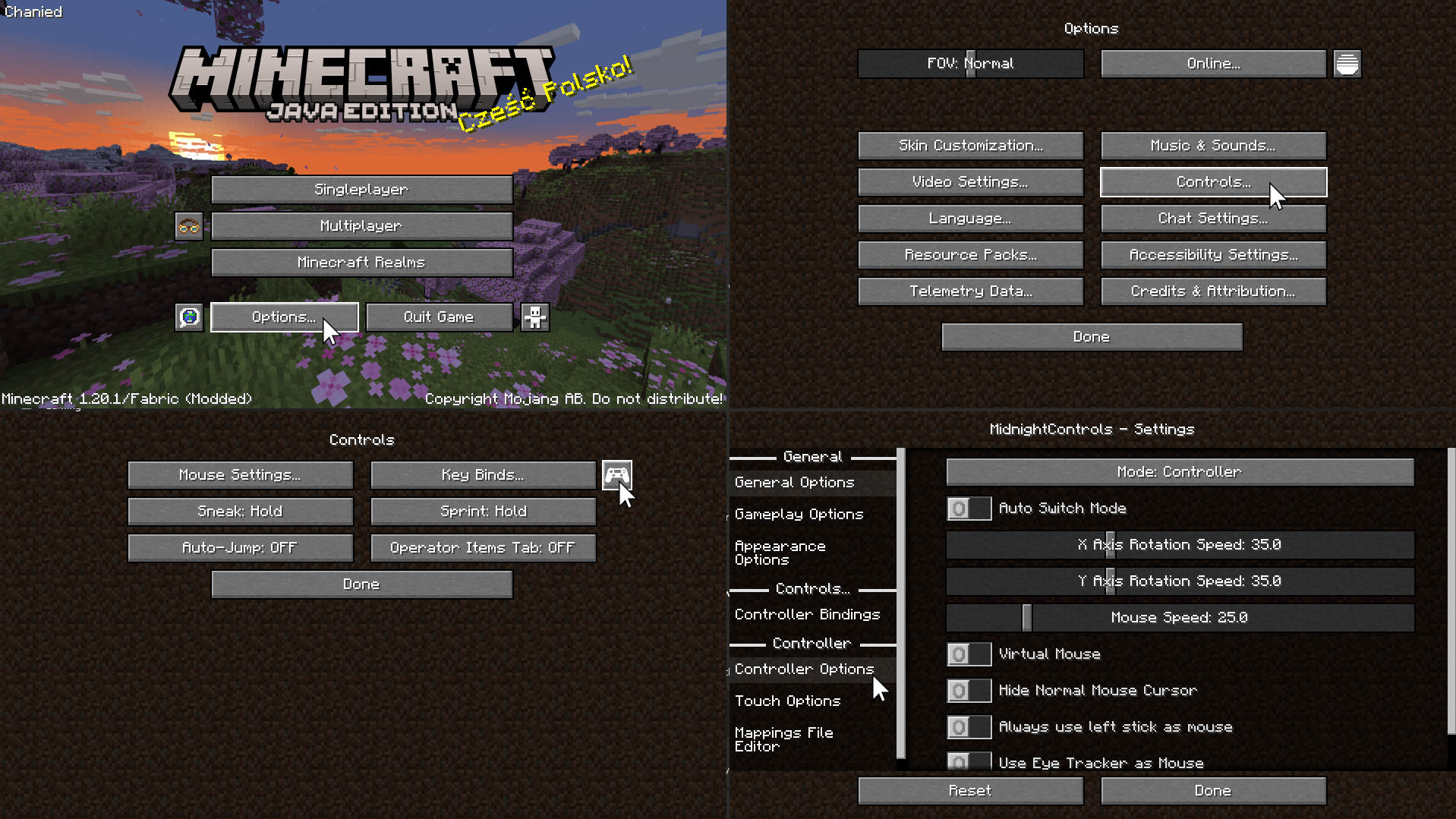
On the Minecraft menu, click Options -> Controls -> and the Controller Icon to enter the Midnight Controls menu.
If that instance will be using a keyboard/mouse, turn off Auto Switch Mode.
If that instance will be using a controller, turn on Virtual Mouse. Then, open Controller Options on the sidebar to enable unfocused input.
If you only plan on playing with 1 controller, you can skip this step. We need to assign a controller to each instance of Minecraft. Switch the selected controller at the top of Controller Options to the controller for that instance.
Advanced Controller Options
For more controller options (such as mappings), you will need to download GamepadTool. Copy your mapping code and paste it into the Mappings File Editor inside Moonlight Controls
Other Guides
GamepadTool\
Midnight Controls Settings
options.txt\
1 controller only
包含的模组 98 个
 3D Skin Layers
 [DEPRECATED]Create Enchantment Industry - Fabric Legacy
 [EMF] Entity Model Features
 [ETF] Entity Texture Features
 Additional Structures
 Advancement Plaques
 Almanac
 苹果皮
 Architectury API
 Auth Me
 Cardinal Components API
 CC: Tweaked
 CC:C Bridge
 Chat Heads
 CICADA
 Cloth Config API
 Collective
 Continuity
 Controlling
 Create Deco
 Create Deco Additions
 Create Fabric
 Create: Animatronic Conductor
 Create: Armor Trims
 Create: Bells & Whistles
 Create: Copycats+
 Create: Crystal Clear
 Create: Dreams & Desires
 Create: Numismatics
 机械动力:蒸汽与铁路
 Create: Structures
 Create: Ultimate Factory
 Creeper Overhaul
 Dungeons and Taverns
 e4mc
 Eating Animation
 Embedded Computer
 EMI
 Enhanced Block Entities
 实体剔除
展开全部 98 个
 Fabric API
 Fabric Language Kotlin
 FerriteCore
 Forge Config API Port
 Fresh Animations
 Geckolib
 Iceberg
 ImmediatelyFast
 Indium
 JEI物品管理器
 LambDynamicLights - Dynamic Lights
 Legendary Tooltips
 Let Me Despawn
 锂
 Lootr
 Memory Leak Fix
 MidnightControls
 MidnightControlsExtra
 MidnightLib
 Model Gap Fix
 Modern KeyBinding
 Moonlight Lib
 鼠标微调
 Mouse Wheelie
 Not Enough Animations
 Nvidium
 OfflineLAN
 Prism
 Regions Unexplored
 Resourceful Config
 Resourceful Lib
 Searchables
 Show Me Your Skin!
 Skin Restorer
 钠
 Spelunkery
 Splitscreen Support
 TerraBlender
 Terrestria
 Thorough Keybindings
 Tidal Towns
 True Ending - Ender Dragon Overhaul
 Villager Names
 Villages&Pillages
 Visuality
 YetAnotherConfigLib (YACL)
 YUNG's API
 YUNG's Better Desert Temples
 YUNG's Better Dungeons
 YUNG's Better End Island
 YUNG's Better Jungle Temples
 YUNG's Better Mineshafts
 YUNG's Better Nether Fortresses
 YUNG's Better Ocean Monuments
 YUNG's Better Strongholds
 YUNG's Better Witch Huts
 YUNG's Bridges
 YUNG's Extras
绿色边框的模组本站有收录,点进去看中文介绍;其余跳转到 Modrinth。
常见问题
Split Screen Create 支持哪些 Minecraft 版本?
Split Screen Create 基于 Minecraft Java 版 1.20.1,使用 Fabric 加载器。
Split Screen Create 怎么安装?
点本页「前往下载」拿到整合包文件(Modrinth 的是 .mrpack,CurseForge 的是 .zip),在 PCL2 或 HMCL 启动器里选择「导入整合包」,启动器会自动装好 Minecraft、加载器和全部模组。这个整合包有 98 个模组,建议在启动器里给游戏分配 4–6 GB 内存。
Split Screen Create 开服需要多大内存?
推荐服务器内存 12 GB。在线人数多、或者建了大量机器和区块加载器时,可以再加 2–4 GB。
怎么和朋友一起玩 Split Screen Create?
点本页的「一键开服」,选好配置后会自动安装 Split Screen Create 的服务端,几分钟就能开好。把服务器地址发给朋友,大家用同一个版本的整合包连进去就行。

评论
登录后评论和评分