
截图
介绍
CUBES
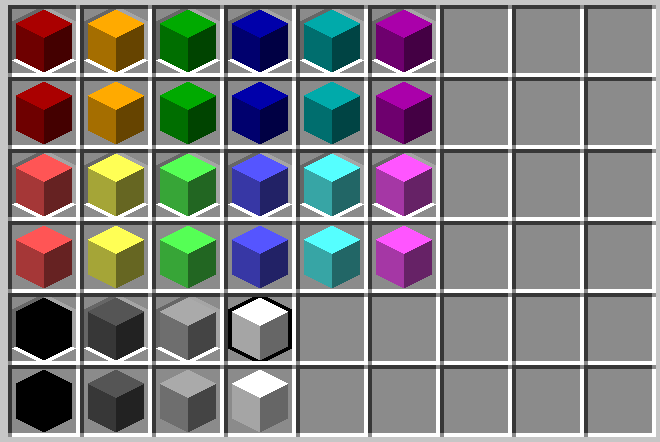
Adds various cubes that you can have as items. They don’t really do anything.
But they look cool
Give yourself a cube:
/give @p minecraft:acacia_boat[item_model="cubes:aqua_bordered"]Cube colors:
aquablackbluedark_aquadark_bluedark_graydark_greendark_purpledark_redgoldgraygreenlight_purpleredwhiteyellow
You can also add _bordered to the end of any color to get a cube with a border.
All borders are white except for the white_bordered cube, which has a black border.
I provide the main 16 chat colors as usable textures. Feel free to add your own.
Adding a custom cube:
- Unzip the pack
- Go to the
assets/cubes/models/blockfolder - Create a new file. Name it whatever you like, just make sure it ends in “.json”
- Copy the following code:
    {
    "format_version": "1.21.11",
    "credit": "Made with Blockbench",
        "parent": "cubes:block/cube_bordered",
        "textures": {
            "border": "cubes:block/<color>",
            "color": "cubes:block/<color>"
        }
}- Edit the file (use notepad, vscode, whatever) Paste the copied code and make the following changes: Set
"parent"to either"cubes:block/cube"or"cubes:block/cube_bordered"If you aren’t making a bordered cube, remove the line with"border"in it. Then, replace both instances of<color>with any of the named chat colors. Use the Minecraft Wiki if you don’t know them. Now, save and close the file - Next, go to the
assets/cubes/itemsfolder - Create a file with the SAME NAME as the file you made in step 3.
- Copy the following code:
    {
      "model": {
        "type": "minecraft:model",
        "model": "cubes:block/<file>"
      }
}- Replace
<file>with the EXACT name of the file you created in step 3, but without “.json” at the end. - Save and close the file
- Enjoy your custom cube!
Adding a custom color
- Go to your favorite image editer (I like https://piskelapp.com).
- Create a new 16×16 image, and color the entire thing with one solid color.
- Save the photo as a png and put it into the
assets/cubes/textures/blockfolder. - Use the name of the photo without “.png” to replace
<color>in any new cube you make.
(You can also add a design to the texture, but it will apply the texture to all sides of the block.)
常见问题
CUBES 支持哪些 Minecraft 版本?
CUBES 支持 Minecraft Java 版 1.21–1.21.11,共 12 个版本。下载时注意选择和你游戏版本一致的文件。
CUBES 怎么安装?
把下载的 .zip 文件(不用解压)放进游戏目录的 resourcepacks 文件夹,进游戏后在「选项 → 资源包」里把它移到右边启用。
TurboJax 的其他作品
查看全部 →
InfuseSMP Texture Pack
The texture pack for CatAdmirer's Infuse SMP plugin

NoFog
Removes fog from the game. Pretty simple.

PsychisSMP Client-side Mod
The required client-side mod for the Psychis SMP, updated to support newer versions.

Infuse V1
A recreation of the Infuse SMP S1 plugin.
评论
登录后评论和评分