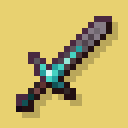
截图
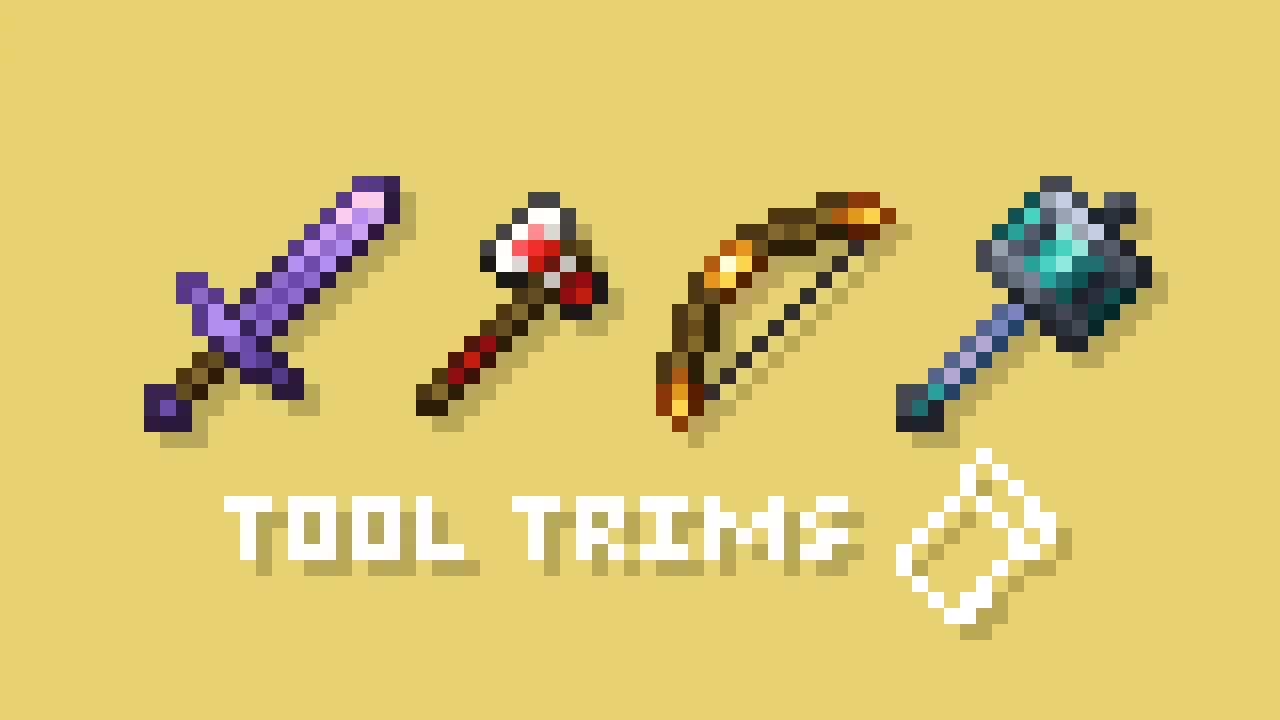
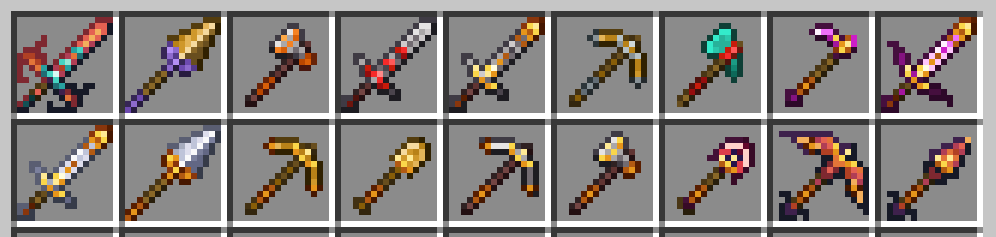
介绍
A fabric port of JoeFly’s Tool Trims datapack. Check the project page for more details.
Making it a mod allows a few improvements:
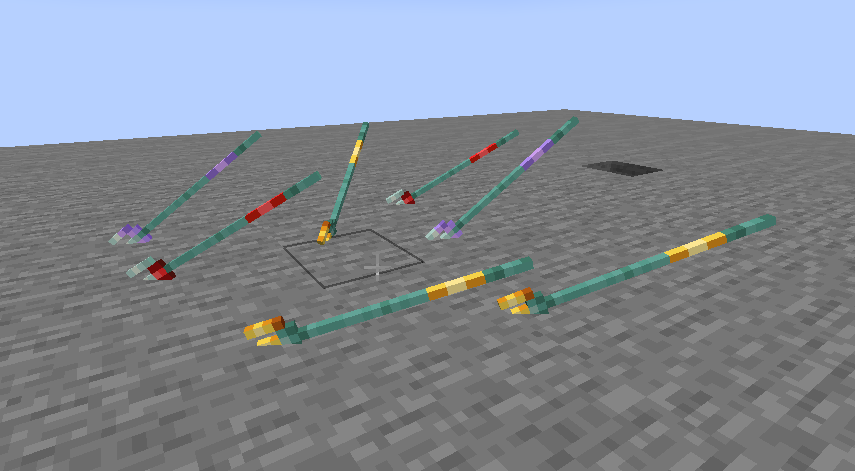
- Trident trims display on thrown tridents
- Trims can be applied to modded tools
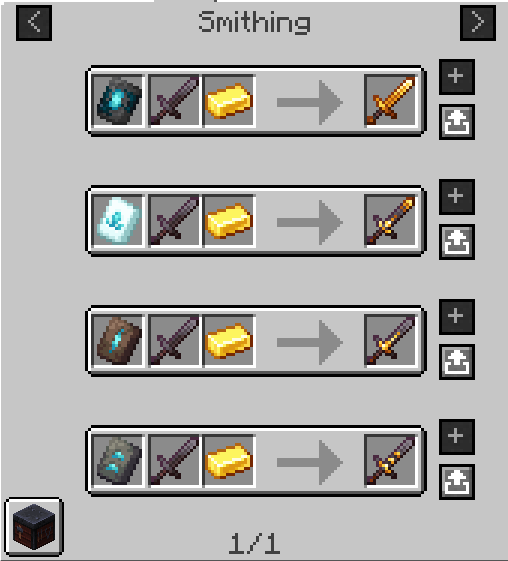
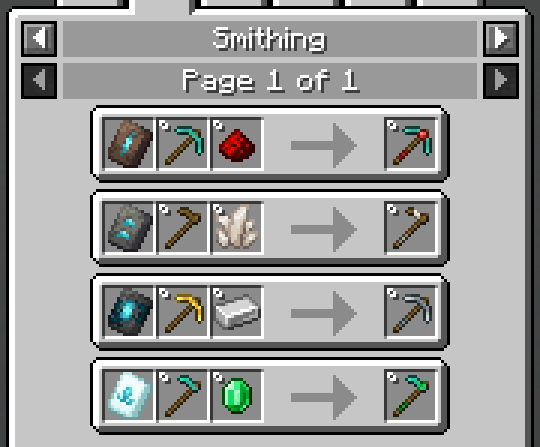
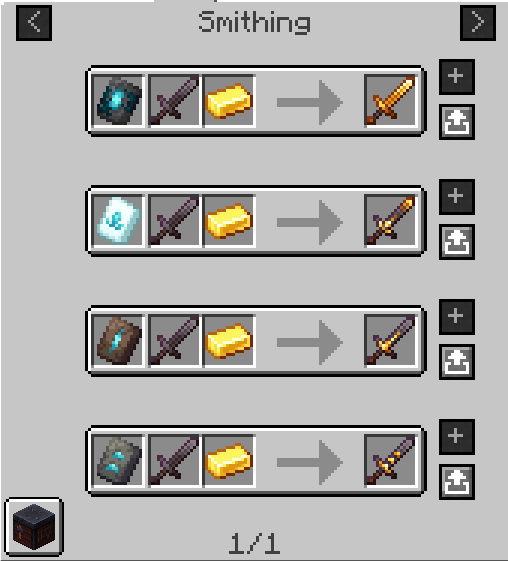
- The trim templates show up in the proper location in the creative inventory and are displayed correctly in recipe viewers like RRV
- Loot tables are injected into instead of overwritten
⚠️ Note this page only applies to mod version 2.x.x. Open the dropdown at the bottom for the old description that applies to mod version 1.x.x.
Migrating from the Datapack
The mod contains backwards compatability mechanics for the datapack. Trimmed tools do not need to be migrated, as they both use the same vanilla trimming system. Templates, however, require migration and cannot be used in the smithing table until migrated.
- Make a backup. It’s always good practice to make a backup.
- If you are coming from datapack 2.x.x, you must use datapack 3.x.x to migrate your trimmed tools and templates first. The items must be in your inventory or picked up by your cursor to be migrated.
- Next, you should install the mod and then remove the datapack. (Make sure you don’t run the world with neither installed.)
- Use the command
/tooltrims migrateto migrate the template you are holding.
Demigrating from the mod
If you want to revert back to using the datapack, install the datapack at the same time as the mod (ignoring the warning message) and use the command /tooltrims demigrate to demigrate all your templates. Once you have demigrated all your items, uninstall the mod and install the normal tool trims resourcepack.
Compatibility
Currently incompatible with the Dynamic Resources optimization from ModernFix, which is enabled by default in certain modpacks such as Adrenaline.
To request compat with a modded trim material, add a comment to this issue. Most modded tools that do not match a vanilla tool shape will not receive official compat, but they can be added through resourcepack.
Compatibility with modded trim patterns, trim materials, and trim shapes can now be added via resourcepack, see the wiki for details.
Note this only applies to 2.0.0 and above, which is only available on Minecraft 26.1+ and above.
Credits
All textures are created or otherwise owned by JoeFly and used with permission.
Support
For now I support 26.1.2, the latest version of Minecraft (currently 26.3), and their corresponding hotfix versions (26.1, 26.1.1). All other versions are unsupported. All issues pertaining to unsupported versions will likely not be addressed.
Please report issues on my repository and not to JoeFly.
1.x.x Description
Migrating from the Datapack
The mod contains backwards compatability mechanics for the datapack.
First, you should remove the datapack, as the mod and datapack are not intended to be used in tandem (It doesn’t matter if you remove the datapack before or after installing the mod).
If it detects the datapack was previously used, it will enable the tooltrims_deleteToolsmithingTable gamerule, which destroys smithing tables within 6 blocks of players and drops its ingredients (2 copper and 4 planks). This can be reversed using /gamerule tooltrims_deleteToolsmithingTable false. You can also enable the legacy resource pack, which makes templates and toolsmithing tables look right before they are upgraded or deleted.
You can use the command /tooltrims migrate to migrate the tool or template you are holding so it uses the modded trim system instead of the datapack trim system. Templates from the datapack cannot be used in the smithing table until you upgrade them. For tools, the difference is only noticeable if you look at the NBT/component data or if you try to re-trim the tool, in which case both the old and new trims will show up in the tooltip.
Demigrating from the mod
If you want to revert back to using the datapack, install the datapack at the same time as the mod (ignoring the warning message), enable the legacy resource pack, and use the command /tooltrims demigrate to demigrate your tool or template. Once you have demigrated all your items, uninstall the mod and install the normal tool trims resourcepack.
Compatability
Compatible with EMI (trimming recipes show up) and Enchancement (crossbow texture works correctly). Currently incompatible with Trimmable Tools.
Credits
The Enchancement compat textures were created by doctor4t and cybercat5555 for the mod Enchancement, and were edited and used with permission.
All other textures were created or otherwise owned by JoeFly and used with permission.
常见问题
Tool Trims Mod 支持哪些 Minecraft 版本?
Tool Trims Mod 支持 Minecraft Java 版 1.20–26.3,共 24 个版本,可用的加载器:Fabric / NeoForge / Quilt。下载时注意选择和你游戏版本一致的文件。
Tool Trims Mod 怎么安装?
先用 PCL2 或 HMCL 启动器安装对应版本的 Fabric / NeoForge / Quilt,再把下载的 .jar 文件放进游戏目录的 mods 文件夹,重新启动游戏即可。开启了版本隔离的,mods 文件夹在 versions/版本名 下面。运行环境:客户端和服务端都要装。
ThePotatoArchivist 的其他作品
查看全部 →
Kitchen Projectiles
Make Farmer's Delight knives throwable

OmniCrossbow
Shoot every item from a crossbow, with a multitude of custom effects!

Classic Farlands
Brings the classic style of Far Lands to 1.21+

Gravestones Fix
Fixes Gravestones (by Geometrically) so they don't get destroyed by water or explosions and work with Trinkets
评论
登录后评论和评分