
TinyHUD
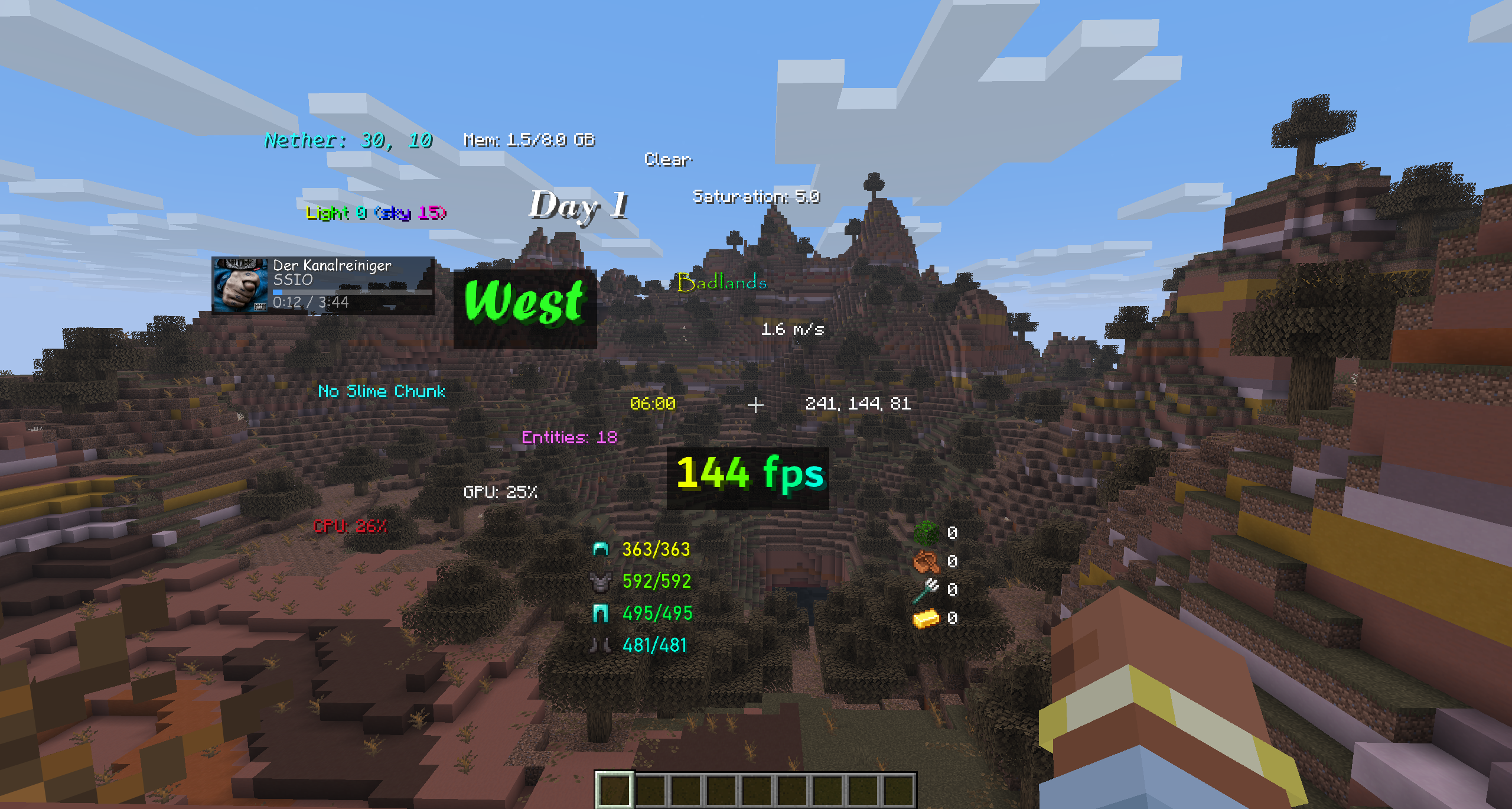
A lightweight, fully customizable HUD for NeoForge. Add the information you want to your screen, place it exactly where you like with a drag-and-drop editor.
截图

介绍

A lightweight, fully customizable HUD for NeoForge. Add the information you want to your screen, place it exactly where you like with a drag-and-drop editor, and style every element down to the font and color — no config files required.
Default Keybind is ‘H‘
TinyHUD is client-side only and works on Windows, macOS, and Linux.
HUD Elements
World
- Time — in-game time. Formats: 24h, 12h, 24h+seconds, 12h+seconds.
- Day — current world day count.
- Weather — current weather state.
- Biome — the biome you’re standing in.
- Light Level — light level at your position.
- Looking At — the block you’re currently targeting.
- Slime Chunk — shows whether your current chunk can spawn slimes.
- Entity Count — number of loaded entities around you.
Player
- Coordinates — your X/Y/Z. Formats: whole numbers, decimals, and variants that include the dimension.
- Direction — the way you’re facing. Formats: short (N/E/S/W), full (North/East…), or degrees.
- Velocity — your current speed. Formats: m/s, horizontal m/s, km/h.
- Portal Coordinates — the corresponding Nether/Overworld coordinates for easy portal linking.
- Armor Durability — remaining durability of your equipped armor. Formats: X/Y or percent.
- Saturation — your hidden saturation value.
- Item Tracker — track the total count of any items across your inventory.
- Pick any number of items from a searchable item list.
- “Hide when 0” option — automatically hides items you’re not currently carrying.
System
- FPS — current frames per second.
- Ping — your latency to the server.
- CPU Usage — system CPU load.
- GPU Usage — GPU utilization (NVIDIA, AMD, and Intel supported across Windows/Linux/macOS).
- Memory Usage — the Minecraft instance’s heap usage (used vs. allocated). Formats: percent, MB, GB.
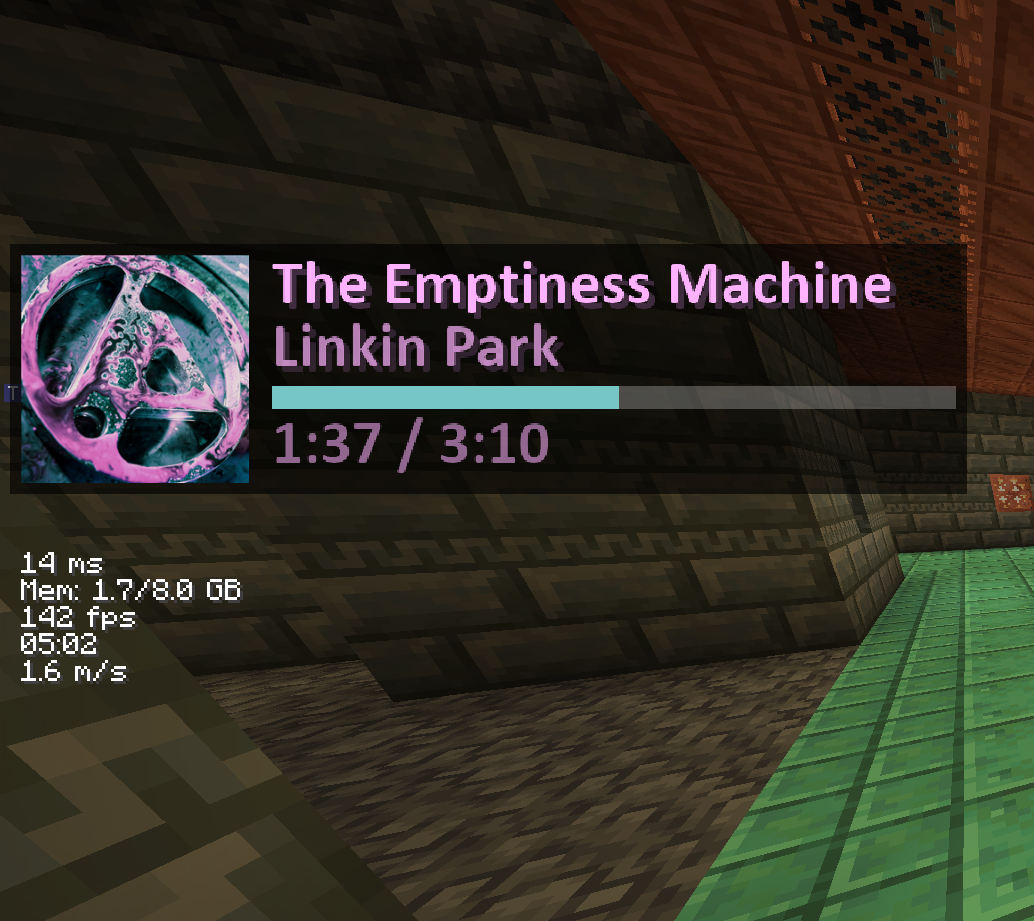
- Media — a now-playing widget for whatever you’re listening to (see below).
Media element
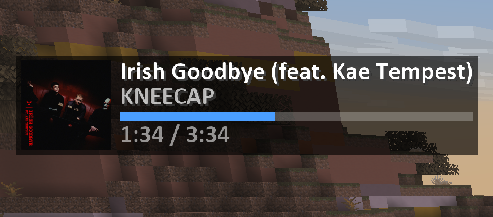
A compact “now playing” display that reads directly from your operating system’s media API:
- Windows — System Media Transport Controls (works with Spotify, browsers, and any media app).
- macOS — Spotify.
- Linux — MPRIS (
playerctl).
Features:
- Track title and artist.
- Album cover art, pulled straight from the OS media session (toggleable).
- Smooth, synchronized progress bar that stays in sync with actual playback.
- Source selection — Auto (whatever is currently playing) or Spotify-only.
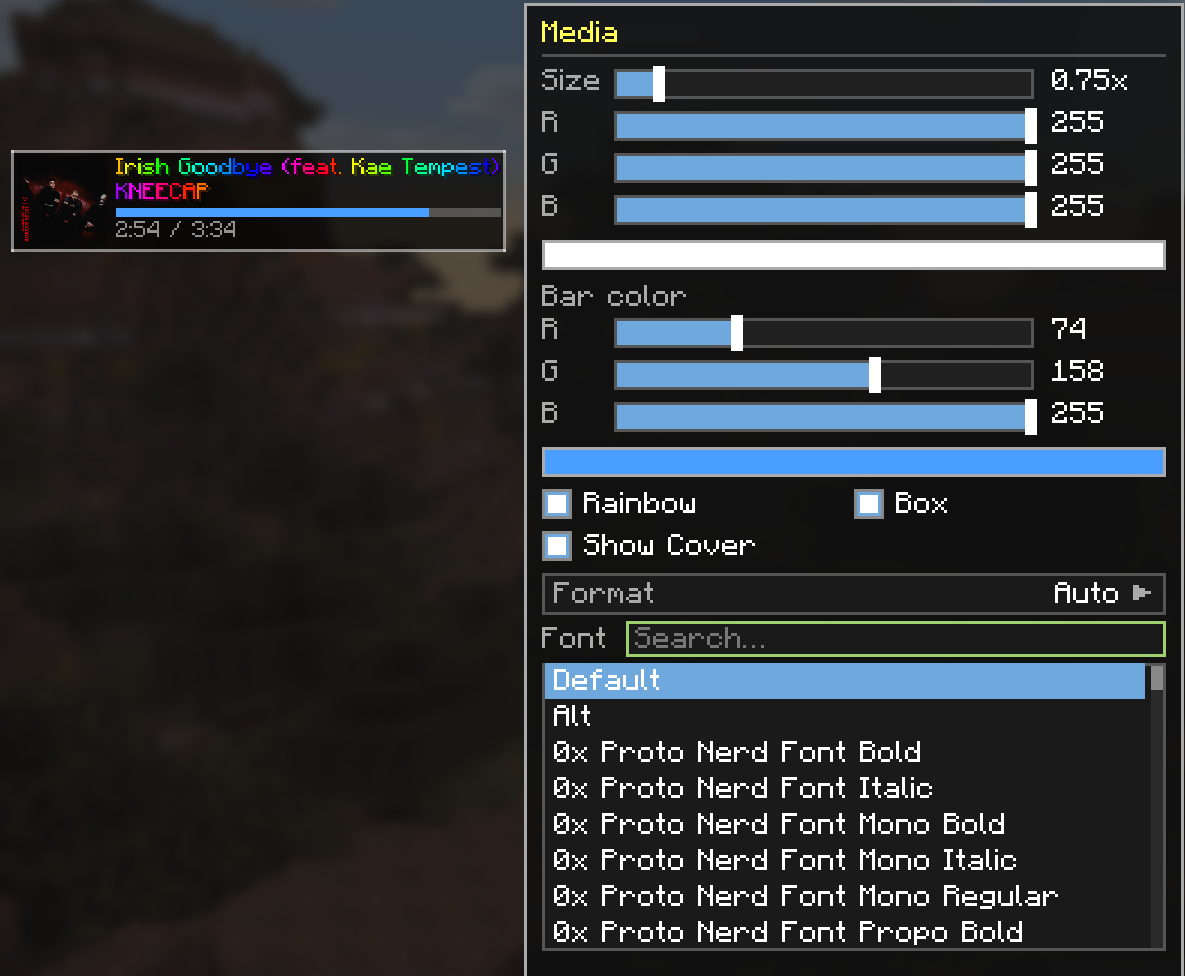
- Full styling support, including rainbow title/artist and a custom accent color for the progress bar.
In-game editor
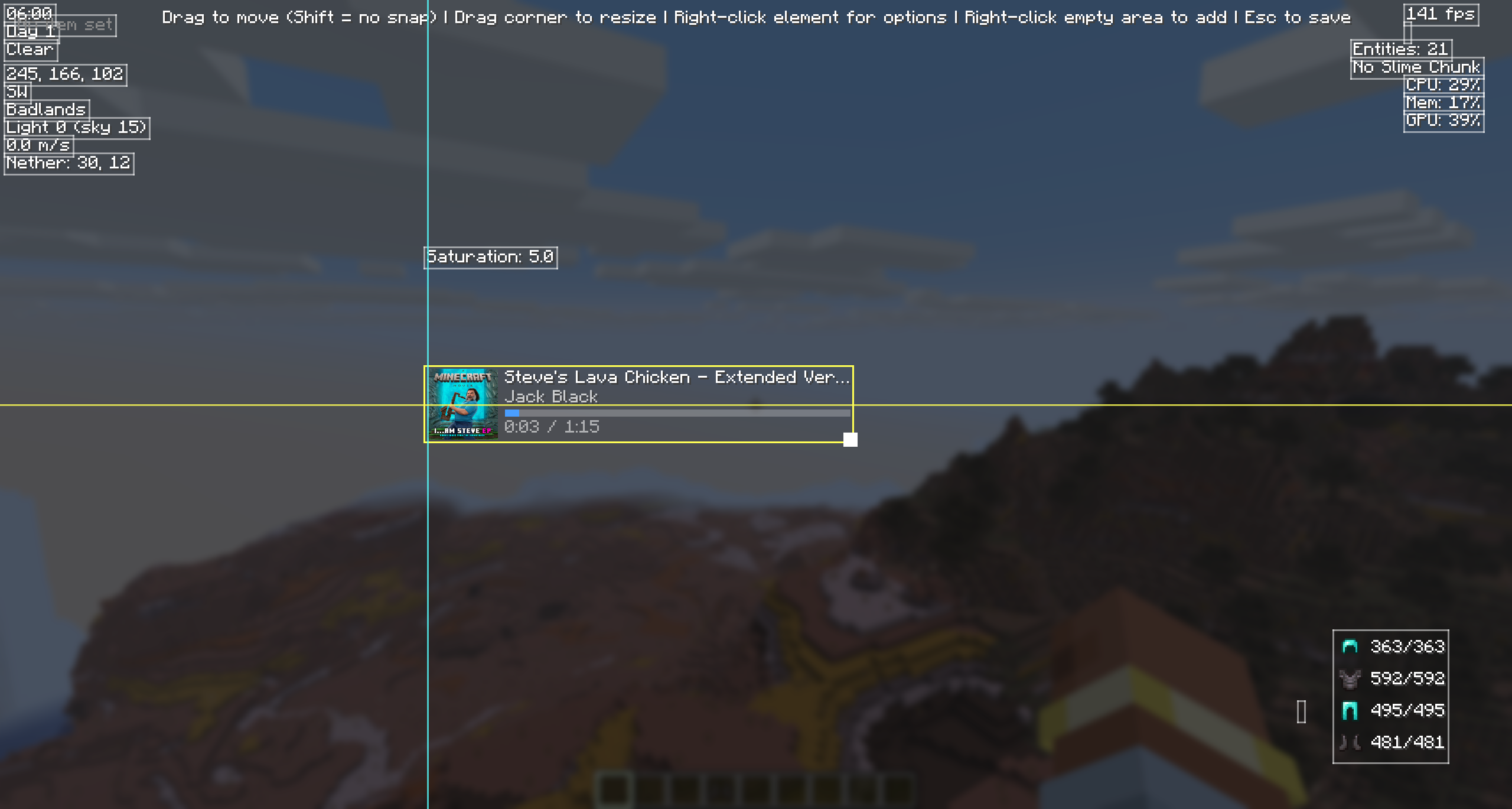
Everything is configured through a built-in visual editor (open it with the keybind, default unbound — set it in Controls).
- Drag-and-drop placement — move any element anywhere on screen.
- Smart snapping — elements snap to screen edges, screen center, and to the edges/centers of other elements, with on-screen alignment guides. Hold Shift to disable snapping for free placement.
- Resize by dragging — grab the bottom-right corner of any element to scale it up or down.
- Right-click an element for quick options (edit style, hide).
- Right-click empty space to add elements from a searchable, categorized menu (World / Player / System).
- Live preview — see exactly how everything looks while you edit.
Per-element styling
Every element can be individually styled:
- Size — scale from 0.5x to 3.0x.
- Color — full RGB color picker.
- Accent color — a second color for elements with bars (e.g. the media progress bar).
- Rainbow mode — smooth, animated per-character rainbow text.
- Background box — toggle a semi-transparent backdrop for readability.
- Custom fonts — use any font installed on your system (TrueType
.ttf/.ttc), with a searchable font picker, in addition to Minecraft’s default and alt fonts. - Format options — many elements offer multiple display formats (see below).
常见问题
TinyHUD 支持哪些 Minecraft 版本?
TinyHUD 支持 Minecraft Java 版 26.1.2–26.2,共 2 个版本,可用的加载器:NeoForge。下载时注意选择和你游戏版本一致的文件。
TinyHUD 怎么安装?
先用 PCL2 或 HMCL 启动器安装对应版本的 NeoForge,再把下载的 .jar 文件放进游戏目录的 mods 文件夹,重新启动游戏即可。开启了版本隔离的,mods 文件夹在 versions/版本名 下面。运行环境:仅客户端。

评论
登录后评论和评分