
截图
介绍
Based on Slideshow(Fabric)
Slideshow is a Minecraft mod that adds a Slideshow Projector block. This block can project online images (including GIF’s) into the world.
This project has more functions:
- Load image from local resource packs.
- Export Image Items and put them in an container block under a Projector and make it load image from them.
- Switch images with a Flipper to make it like a genuine slide show.
- WebP support.
How to use a Projector?
- In Creative Inventory, Projector and Flipper items are located in “Tools” or “Tools and Utilities” tab.
- Only Creative mode players with permission level of 2 can use a Projector.
- Notice that a Projector has 6 orientations.
- Place a Projector.
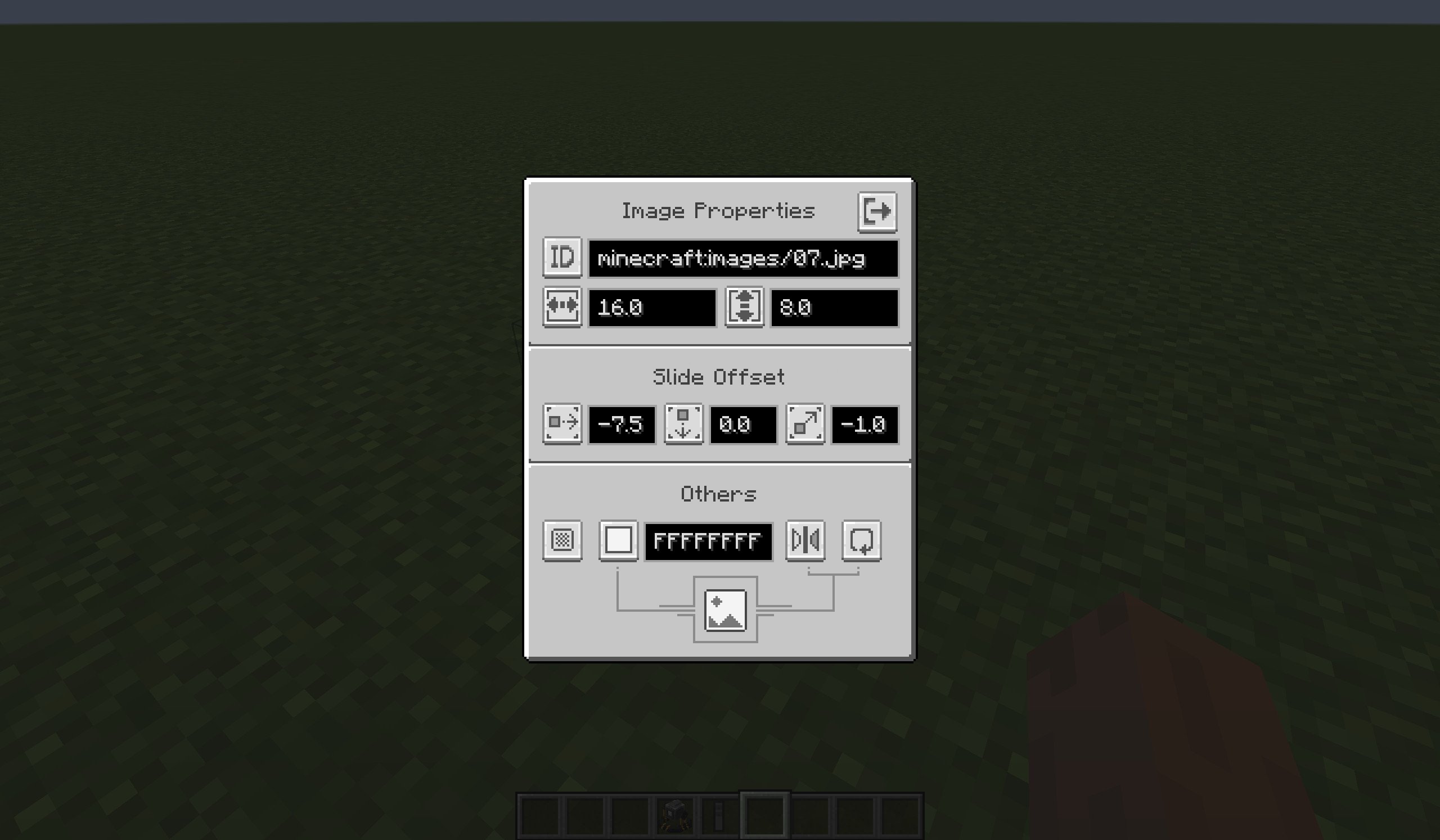
- Right-click this Projector then you can configure the Image Properties in the Projector Screen. New properties will only be applied when you close the Projector Screen.
- Use upper-left button to switch modes of the Projector, then enter the attribute in the input field on the right (see the table below):
- The descriptions of each mode are as follows:
| Mode | Description | Enter in the input field |
| ——————- | ———————————————————— | ———————————————————— |
| URL | Fetch ONE online image from the Internet and render it. | The URL of the Image. |
| ID | Fetch ONE local image from the game resoureces and render it.
Other players can not see this image if they had no this image in their game resources. | The ID of the Image.
(e.g. minecraft:images/01.png) |
| Container Block | Read Image items in the specified Container and render them.
See more infomation at below. | The position of the Container Block.
Default is the block under it.
Use ^ to indicate relative position.
(e.g. 1 5 13)
(e.g. ^ ^1 ^1) |
How to use Container Block mode?
- Get Image Item through:
- the Export button in Projector Screen (in URL or ID mode).
/imagecommand (requires permission level of 2).
- Put Image Items in a container block (like Chest).
- Switch to Container Block mode in Projector Screen, and enter the position of the container block.
- Close the Projector Screen, the Projector render the first image in the container block.
- Get a Flipper Item (requires survival or creative mode), use it on the Projector to bind them. Then you can operatethe Projector using this Flipper Item:
- Left click(Attack, Break Key): switch to the previous image.
- Right click(Use, Interact Key): switch to the next image.
- Shift + Right click(Sneak + Use, Interact Key): switch to the first image.
- If you have permission level of 2, you can also use command
/projectorto flip a projector.
Multi-screen
A projector can hava multi screens to show same images, while their positions, angles and sizes are different.
Note: This new feature in 1.1.0 make it a little incompatible with older versions.
Configs
Client-side
Path: <minecraft_root>/config/slideshow.json.
You can specify:
- proxy to get image from Internet.
- image’s view distance.
Client-side config is loaded when the client started or it reloaded resources.
Server-side
Path: <minecraft_root>/saves/<your_save>/config/slideshow.json.
(If dedicated server: <server_root>/world/config/slideshow.json)
You can specify: permisson levels of some behavior or the commands.
Server-side config is loaded when the server started(world loaded) or it reloaded resources.
常见问题
Slide Show Pro 支持哪些 Minecraft 版本?
Slide Show Pro 支持 Minecraft Java 版 1.16.4–1.21.8,共 19 个版本,可用的加载器:Fabric / Forge / NeoForge。下载时注意选择和你游戏版本一致的文件。
Slide Show Pro 怎么安装?
先用 PCL2 或 HMCL 启动器安装对应版本的 Fabric / Forge / NeoForge,再把下载的 .jar 文件放进游戏目录的 mods 文件夹,重新启动游戏即可。开启了版本隔离的,mods 文件夹在 versions/版本名 下面。运行环境:客户端和服务端都要装。
whyvo 的其他作品
查看全部 →
Chat Screen
A modern chat screen in Minecraft

Dynamic In-Game NBT Editor
Edit NBT dynamically and multis-creen.

Chaos World
Add a list of weapons with great abilities. A struction and a powerful boss.

Styled Boss Bar API
Design your Styled Boss Bar!
评论
登录后评论和评分