
ScreenCraft
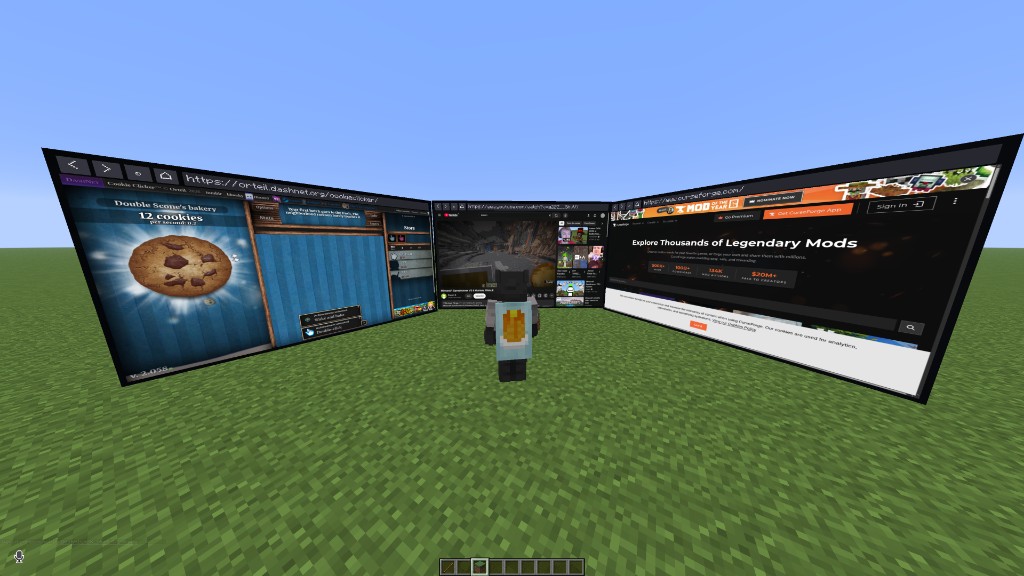
Watch videos and browse the web on screens you place in your world, or in a mini player while you play. Client-side, works on any server.
截图
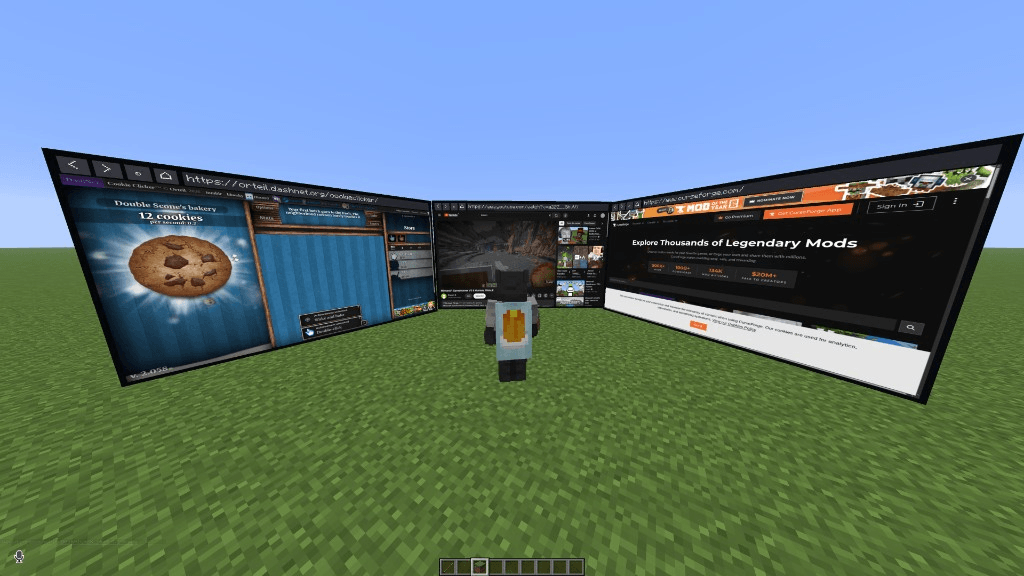
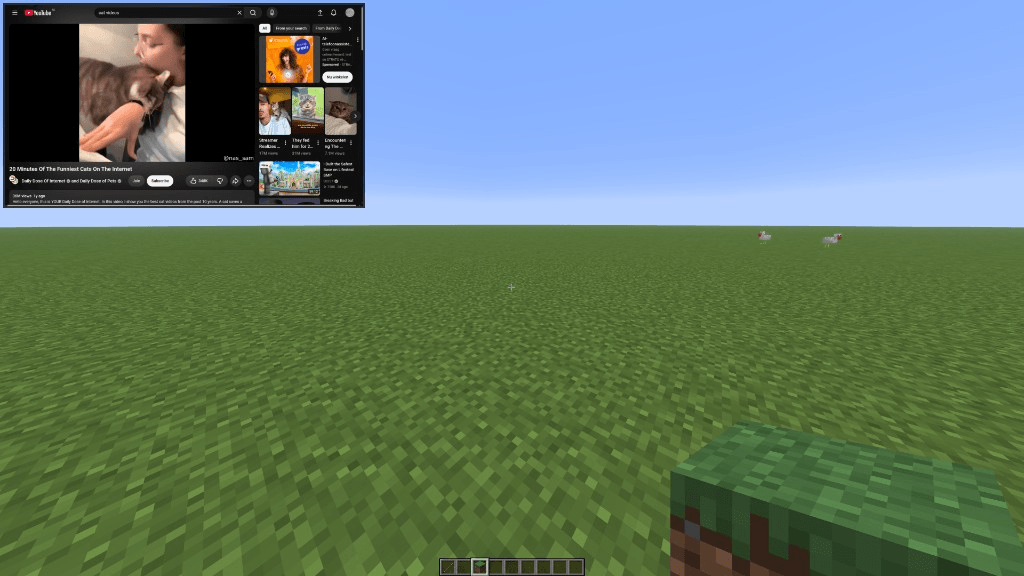
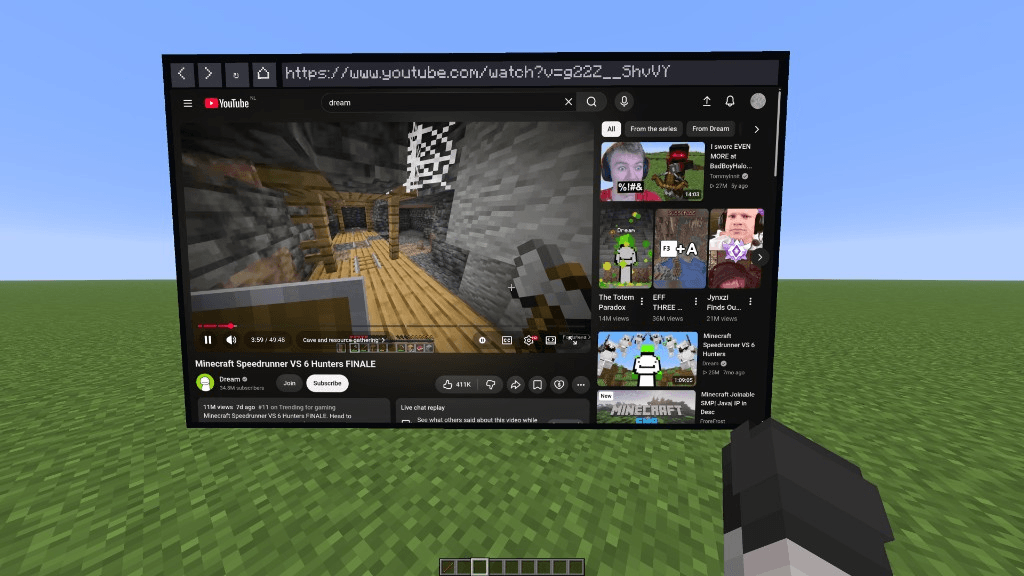
介绍
Screencraft
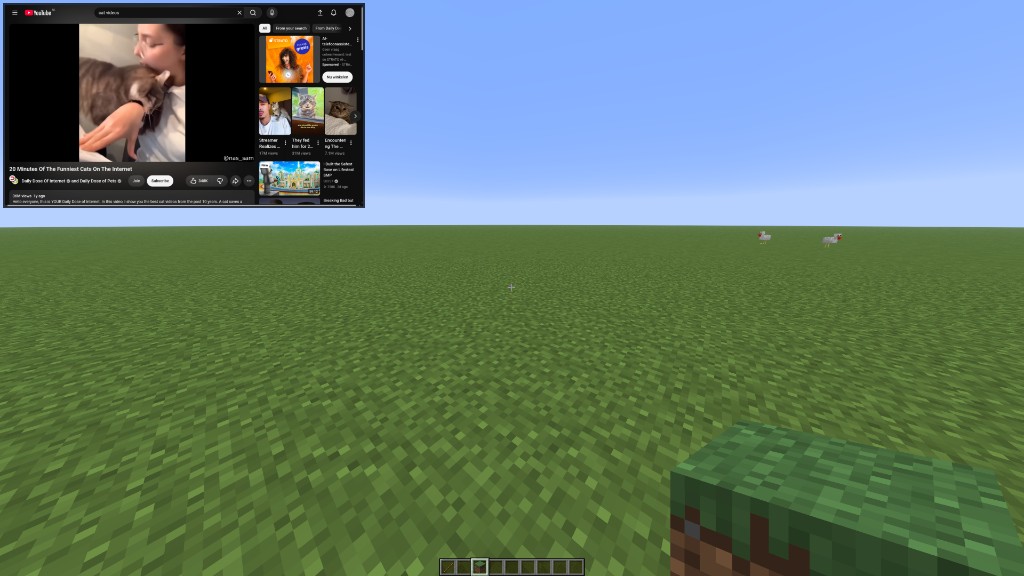
Watch videos and browse the web inside Minecraft, on screens you place in the world or
in a mini player that follows you while you play.
Client-side only. Works on any server, including Paper and Spigot, and nobody else
needs to install anything. Only you can see your screens.
Screenshots
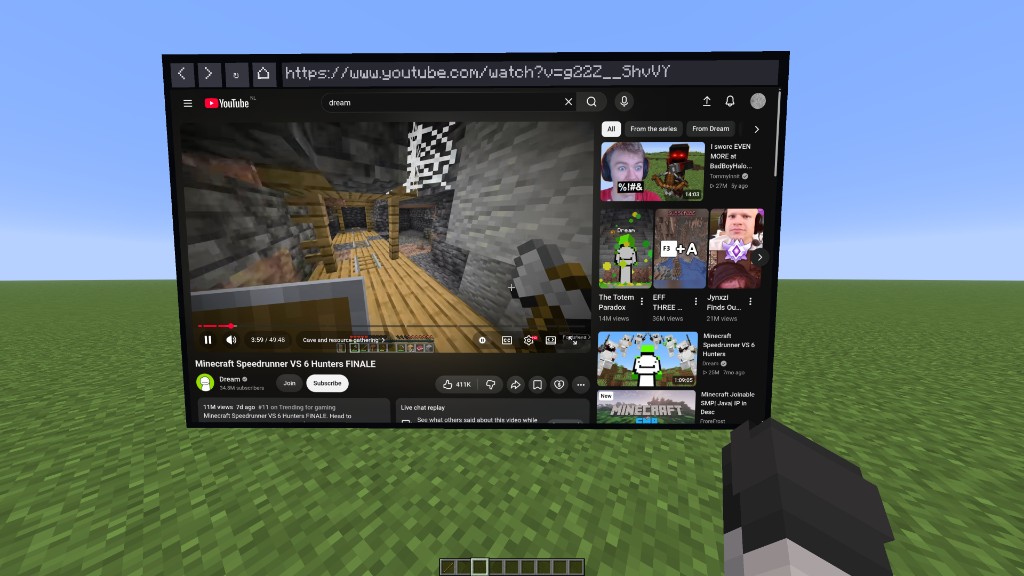
Required: MCEF Modern
Screencraft needs MCEF Modern 0.3.3 or newer, which provides the Chromium browser.
It is not on CurseForge, so download it here and put it in your mods folder next to
Screencraft:
On first launch it downloads Chromium (about 150 MB). The older “MCEF” mod on
CurseForge is a different mod and does not work with Screencraft.
You also need Fabric API.
Features
- Several in-world screens (3 by default, up to 5 in the settings, more through the
config file). Hang them on walls, stand them on the floor or let them float in the air.
Each one has its own browser, so they can all play something different. - Touchscreen controls. Left-click a screen to click on the page. Right-click it to
get your mouse cursor and click, drag, scroll and type right on the screen. - Address bar on every screen, plus back, forward, reload and home buttons.
- Tabs on every screen (up to 8). Click a tab to switch, + to open one, and
x to close it. In control mode, Ctrl+T opens a tab, Ctrl+W closes it,
and Ctrl+Tab goes to the next. - Volume slider on every screen, and the same control in the panel you get by
right-clicking a screen (and in the settings list). - Camera for sites that ask for one. Turn it on in the control panel or in Screen
Settings. It is not a real webcam: the feed is the game itself, with terrain, players,
mobs, weather and shaders, so video calls and photo sites work with the game as the
picture. It shows your own view of the world. A camera mounted on the screen is planned
for a later update; it needed a second render pass that conflicted with Sodium and Iris
and could crash the game, so it is not in this release. - Microphone for sites that ask for one. Turn it on in the control panel or in
Screen Settings. It uses your real microphone. - Speaker and mic input in Screen Settings, so you can pick which devices site
audio and the microphone use. - Bring here is in the control panel and the settings list. It puts that screen in front of you.
- Full browser window.
/screencraftopens a browser with an address bar: type a
website or anything you want to search. - Mini player. Press K to keep the video in a corner of your screen while you
walk, fight and build. Press Left Alt to click and type on it without stopping. - Settings menu with performance profiles (Low, Balanced, High), sharpness
(720p to 1440p), address bars on or off, screen sizes and keybinds. - Your screens are saved per world and server, and come back when you rejoin.
How to use
- Hold a stick (you can pick another item in the settings, e.g. if you use
Litematica) and right-click to start placing a screen. Aim at a wall, floor or
the air and click again to place it. - Click the screen’s address bar and type a website or a search, or run /screencraft.
- Press K to show the mini player.
| Action | How |
|---|---|
| Move a screen | Aim at it with the stick and right-click |
| Remove a screen | Aim at it with the stick, sneak + right-click |
| Use the mouse and keyboard on a screen | Right-click it (without the stick), ESC to stop |
| Open a tab on a screen | Click + on the screen, or Ctrl+T in control mode |
| Close a tab | Click the x on that tab, or Ctrl+W in control mode |
| Change a screen’s volume | Drag the volume slider on the screen, or the one in the control panel |
| Let a site use your camera | Camera in Screen Settings, or Camera in the control panel |
| Let a site use your microphone | Microphone in Screen Settings, or Mic in the control panel |
| Pick the speaker or microphone | Speaker and Mic input in Screen Settings |
| Bring a screen to you | Bring here in the control panel, or Here in the settings list |
| Change the placement item | “Placement item” in the settings menu: search any item, modded ones included |
| Place screens without an item | Set “Placement item” to None and use the “Place / move screen” key |
| Settings | /screencraft settings, or the Settings button in the browser window |
| Open a page or search | /screencraft <url or words> |
| Remove all screens | /screencraft remove |
| Click/type on the mini player | Left Alt (you can still walk), Left Alt or ESC to go back |
All keys can be changed with the “Keybinds…” button in the settings menu, or in
Options > Controls > Screencraft.
More than 5 screens: open config/screencraft/settings.json, set "screenHardLimit"
to the number you want (up to 64), restart the game, then raise “Max screens” in the
settings menu. Each screen is a full browser, so many screens need a strong PC.
Performance
Each screen is a real browser. Screens you are not looking at slow down automatically,
and the Balanced profile (default) keeps several screens smooth. Pick High in the
settings for full 60 fps everywhere and the best video quality on a strong PC, or Low
on a weaker one.
Notes
- Works on Minecraft 1.21.10, 1.21.11, 26.1, 26.1.1, 26.1.2, 26.2 and 26.3. On CurseForge there is a separate
download for each (including one file per 26.1 patch). Use the MCEF Modern file made for
the same Minecraft version. - On 26.3 with the Vulkan renderer, far-away screens are a little less smooth-looking
than with OpenGL. - Screencraft is not affiliated with or endorsed by Google or YouTube.
常见问题
ScreenCraft 支持哪些 Minecraft 版本?
ScreenCraft 支持 Minecraft Java 版 1.21.10–26.3,共 7 个版本,可用的加载器:Fabric。下载时注意选择和你游戏版本一致的文件。
ScreenCraft 怎么安装?
先用 PCL2 或 HMCL 启动器安装对应版本的 Fabric,再把下载的 .jar 文件放进游戏目录的 mods 文件夹,重新启动游戏即可。开启了版本隔离的,mods 文件夹在 versions/版本名 下面。
评论
登录后评论和评分