
截图


介绍
🔍 Item Finder
Never lose track of your items again.
Item Finder lets you search for any item across all your nearby storage containers: press a key, pick the item, and the mod tells you exactly where it is, highlights it in the world, and guides you there with a particle trail.
📸 Screenshots
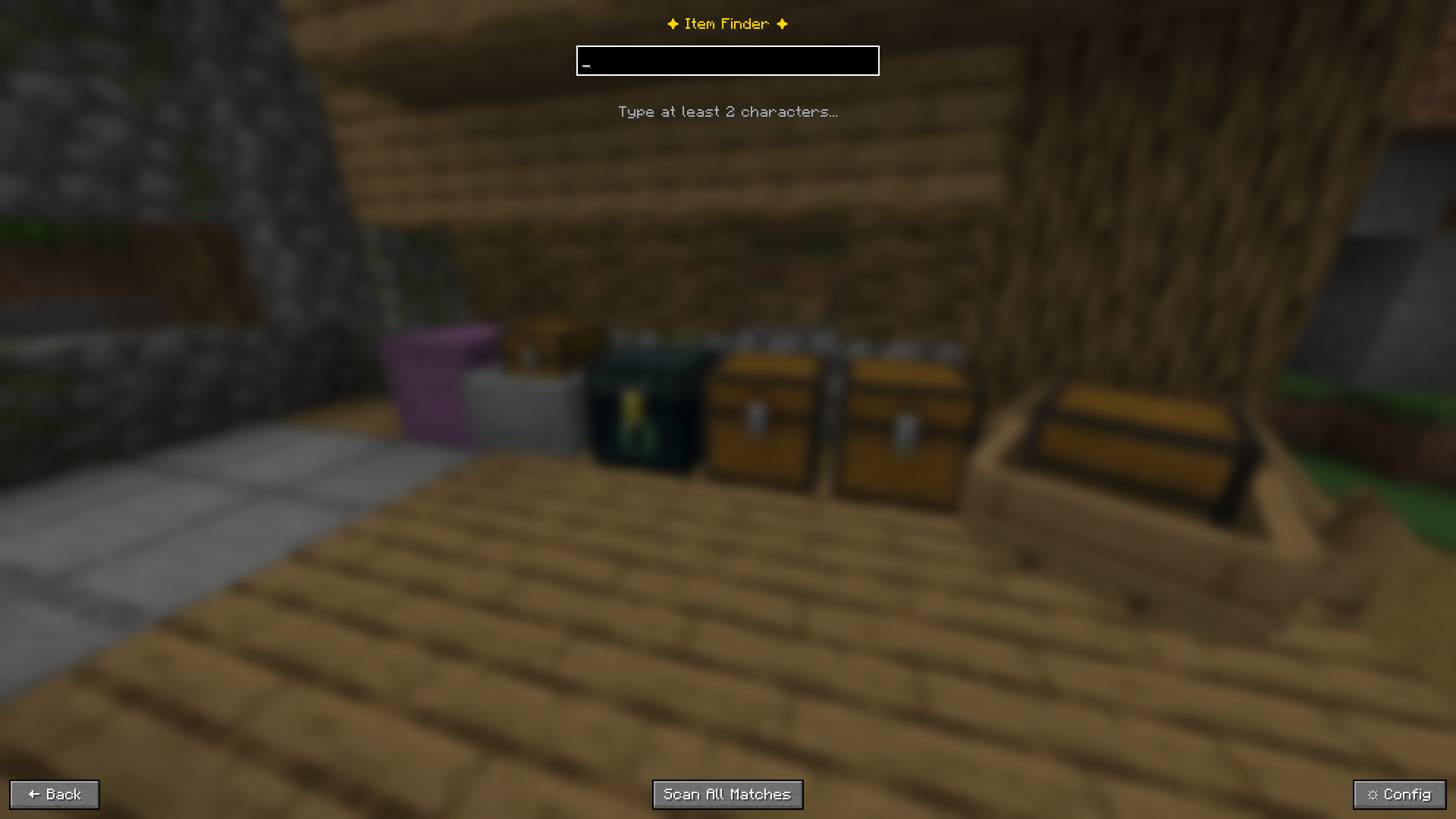
Open the search screen with a single keypress, the game keeps running in the background
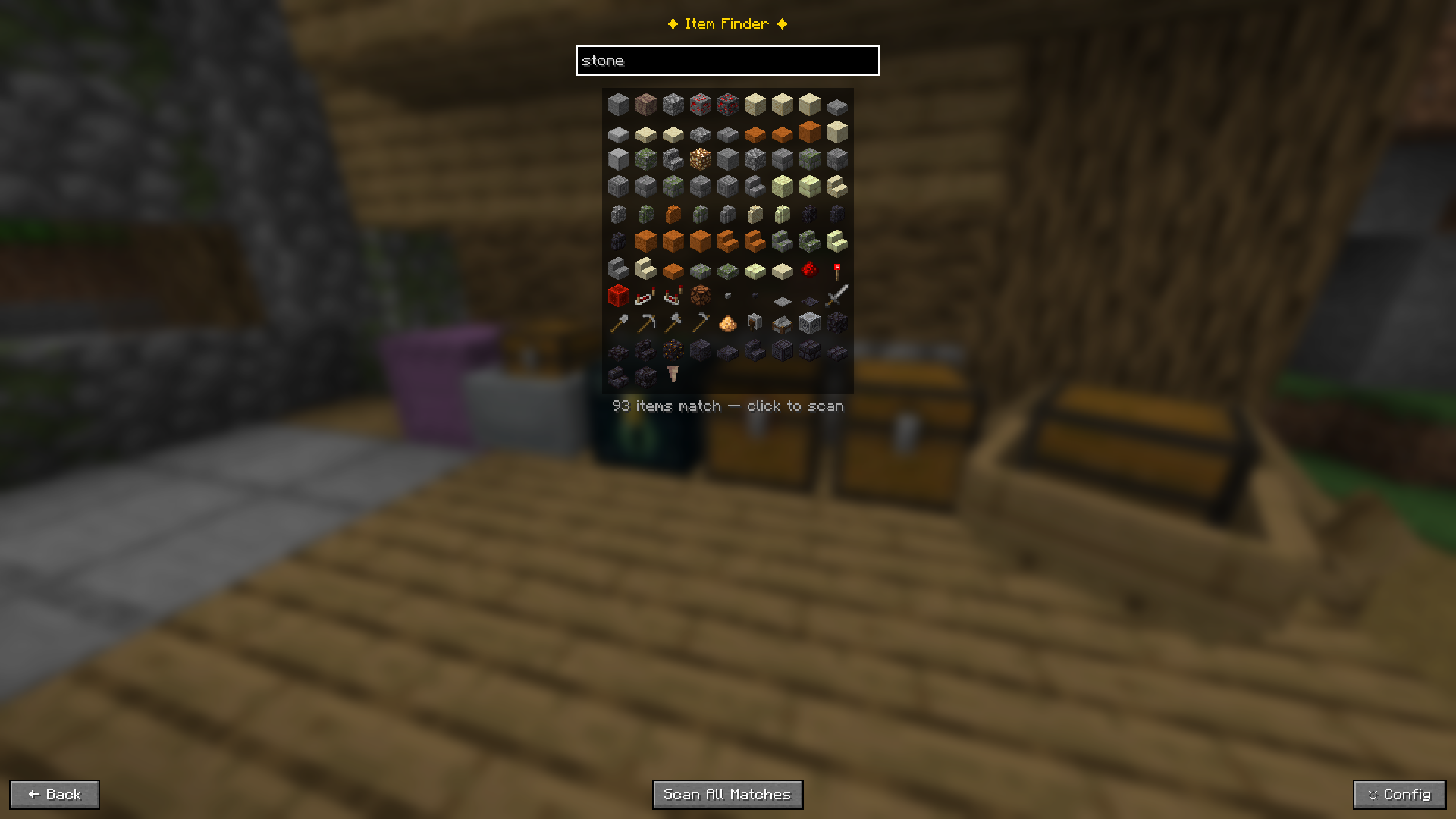
Type “stone” and see 93 matching items as icons. Click one to scan, or press Enter to search instantly
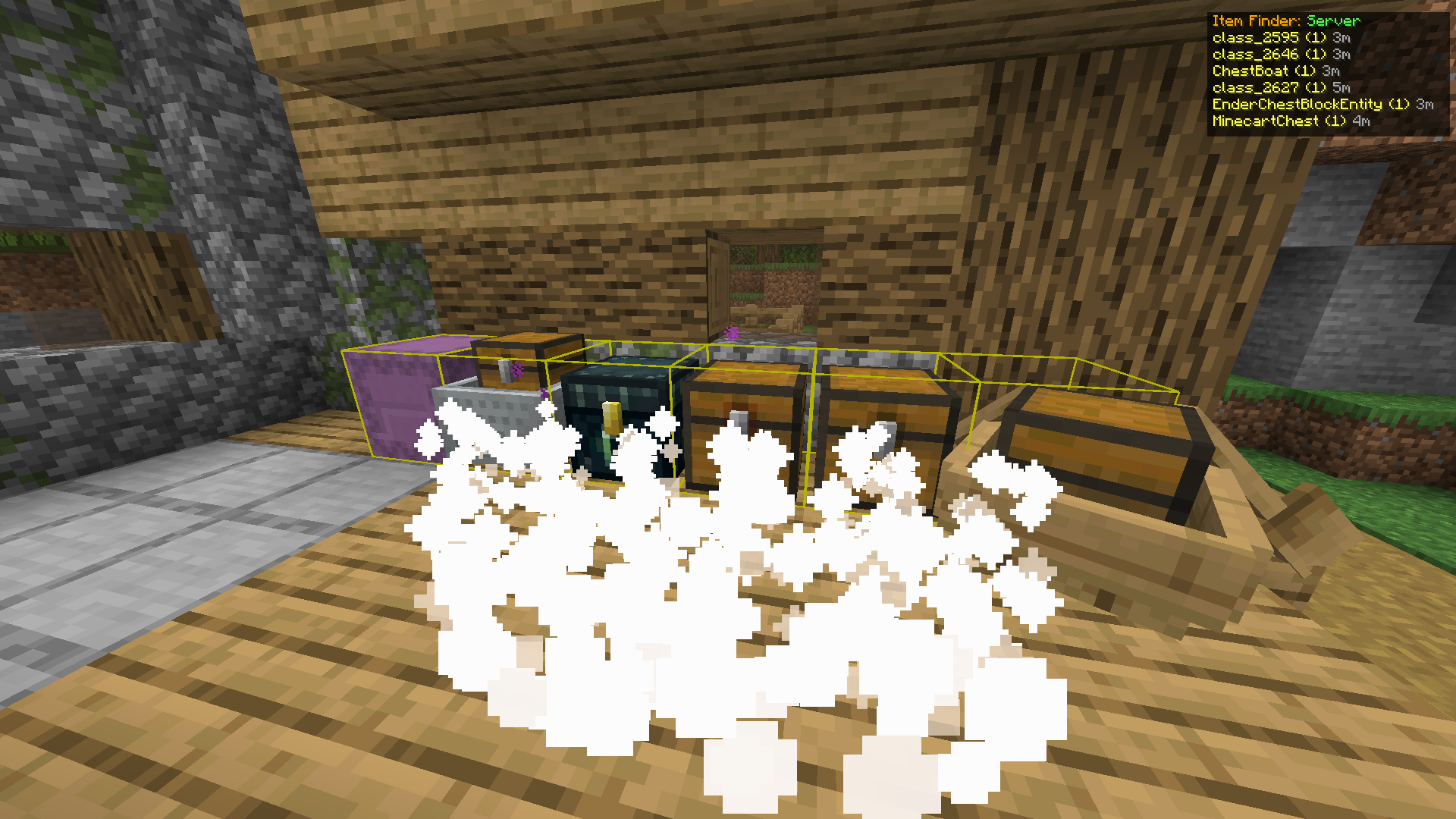
Found containers glow yellow. Particles stream toward them. The HUD shows name and distance for each
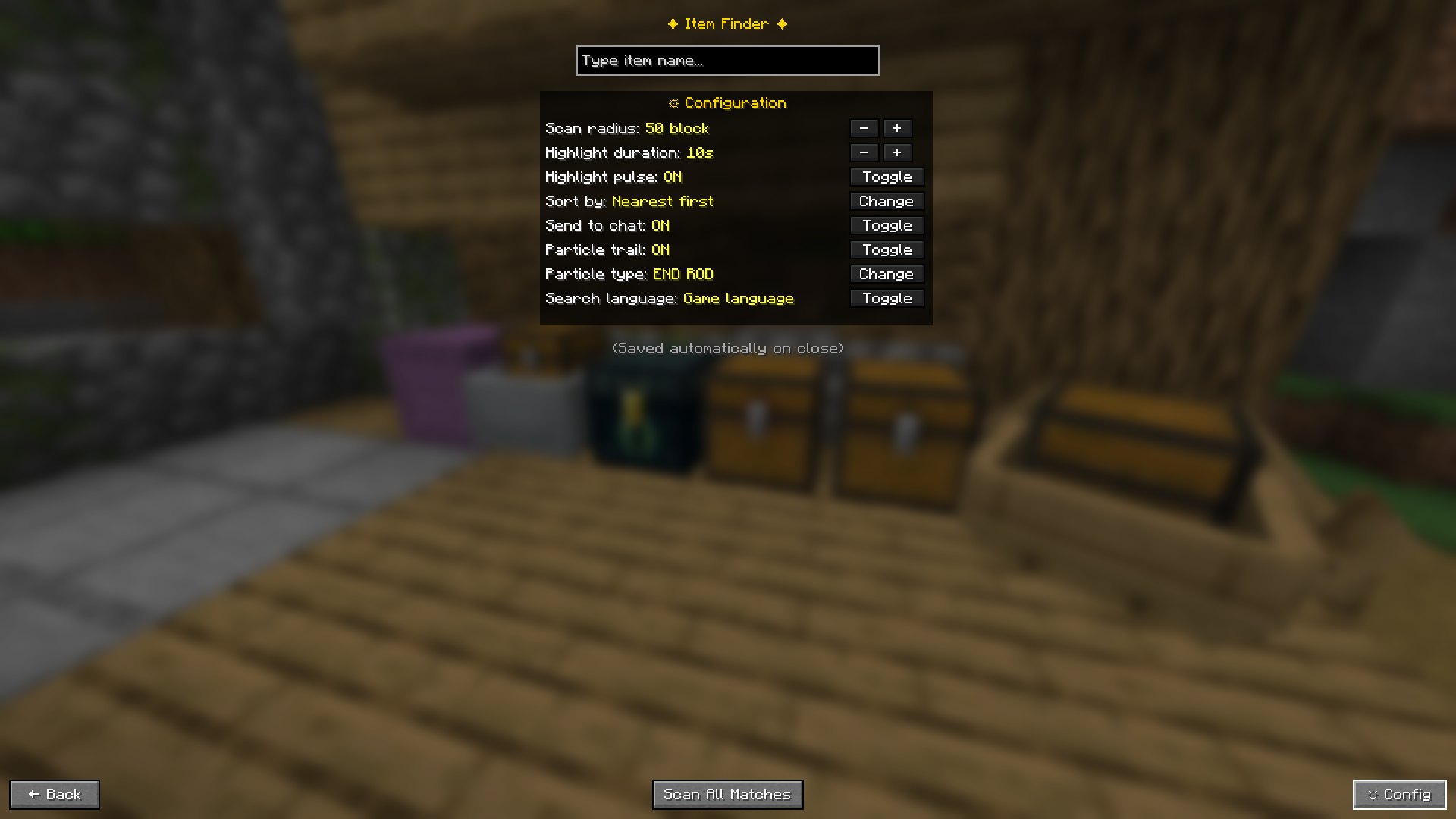
Everything is configurable in-game, no config files to edit
🎬 How It Works
- Press Y to open the search screen
- Type a keyword, a grid of matching items appears instantly
- Click an item to scan for that exact item, or press Enter to search without touching the mouse, or press Scan All Matches to find every container holding anything with that keyword
- Results appear in the GUI and optionally in chat
- Matching containers glow yellow in the world
- A particle trail flows from you toward each container
- Open a highlighted container and it automatically clears from the list
✨ Features
🔎 Smart Search
Two search modes:
- Exact pick: click an item icon from the visual grid for a precise match
- Scan All Matches: search by keyword across all containers at once, perfect when you only remember part of a name (type
oakto find oak logs, planks, and slabs all at once)
Enter key shortcut: configurable behavior when you press Enter:
- Off: Enter does nothing, use mouse as normal
- Pick first result: instantly scans for the top item in the grid without clicking
- Scan all matches: instantly runs a keyword scan across all containers
Search language toggle: search by English item IDs or your game’s display language
📦 Supports All Storage Types
| Container | ✅ |
|—|—|
| Chest | ✅ |
| Trapped Chest | ✅ |
| Barrel | ✅ |
| Shulker Box | ✅ |
| Ender Chest | ✅ |
| Furnace | ✅ |
| Smoker | ✅ |
| Blast Furnace | ✅ |
| Hopper | ✅ |
| Dispenser | ✅ |
| Dropper | ✅ |
| Minecart with Chest | ✅ |
| Chest Boat | ✅ |
🟡 Container Highlighting
- Matching containers get a glowing yellow outline in the world
- Pulse animation (toggleable)
- Auto-fades after a configurable duration
✨ Particle Trail
- Particles stream from your position toward each found container
- The nearest container gets a stronger, brighter trail
- 8 particle types: Flame · Enchant · End Rod · Soul Fire · Witch · Dragon Breath · Portal · Happy Villager
📋 HUD Overlay
- Panel in the top-right corner shows container names and distances while highlights are active
- Shows whether results are from Server (real-time) or Cache (local)
- Disappears automatically when highlights expire
💾 Local Cache (Multiplayer without server mod)
When playing on a server without the mod installed server-side, Item Finder falls back to a local cache:
- Every container you open gets its contents saved locally
- Cache is persistent, data from weeks ago is still remembered
- Each server has its own separate cache file
- Results show how old the data is (e.g.
3d ago) so you know how fresh it is - A warning is always shown when results come from cache
⚙️ Configuration
Press ⚙ Config in the search screen, or access it via Mod Menu.
| Setting | Description | Default |
|—|—|—|
| Scan Radius | How many blocks away to search | 50 |
| Highlight Duration | How long the glow stays (seconds) | 10 |
| Highlight Pulse | Animate the outline | ON |
| Sort By | Nearest first or most items first | Nearest |
| Send to Chat | Print results in chat | ON |
| Particle Trail | Show particle path to containers | ON |
| Particle Type | Which particle effect to use | END ROD |
| Search Language | English ID or game display language | English |
| Enter Key | What pressing Enter does: Off / Pick first / Scan all | Pick First Result |
All settings save automatically when you close the config panel.
⌨️ Keyboard Controls
| Action | Default Key |
|—|—|
| Open Item Finder | Y |
| Search / Confirm | Enter (configurable behavior) |
| Back / Close | ESC |
Change the open key in Options → Controls → Key Binds → Item Finder.
🎮 Controller Support
Item Finder works with controllers via Controllify (install separately).
Once Controllify is installed, map the following in its settings:
| Action | Suggested Button |
|—|—|
| Open Item Finder | Y (Xbox) / Triangle (PlayStation) |
| Confirm / Enter | A (Xbox) / Cross (PlayStation) |
| Back / Close | B (Xbox) / Circle (PlayStation) |
Tip: Set Enter Key to “Pick first result” or “Scan all matches” in Item Finder config so you can search entirely without a mouse, just open, type, and press confirm on your controller.
🖥️ Server Support
| Scenario | Works? | Mode |
|—|—|—|
| Singleplayer | ✅ | Real-time scan |
| Open to LAN (you are host) | ✅ | Real-time scan |
| Server with mod + your client has mod | ✅ | Real-time scan |
| Server without mod + your client has mod | ✅ | Cache mode |
| Your client does not have mod | ❌ | — |
For server owners: install the mod
.jarin your server’smods/folder. Players who also have the mod will get real-time accurate results. Players without the mod are completely unaffected.
Cache mode note: only containers you have personally opened are searchable. Data may be outdated if others have changed contents since your last visit. A warning is always shown when results come from cache.
📥 Installation
- Install Fabric Loader for your Minecraft version
- Download Fabric API and put it in your
mods/folder - Download Item Finder (pick the file matching your Minecraft version from the Versions tab) and put it in
mods/ - Launch Minecraft with the Fabric profile
Optional but recommended:
- Mod Menu: access config from the mods list
- Controllify: controller support
Supported Minecraft versions and required Fabric Loader version are listed on the Versions tab.
🌐 Languages
Fully translated into 15 languages, follows your Minecraft language setting automatically.
English · Indonesian · Malay · Chinese (Simplified) · German · Japanese · Portuguese (Brazil) · Russian · Spanish · French · Italian · Korean · Dutch · Polish · Turkish
Change at Options → Language.
⚠️ Known Limitations
- In cache mode, only containers you have personally opened are searchable
- Cache data can be outdated if other players changed container contents
- Shulker Boxes inside your inventory are not scanned — only placed ones in the world
- Ender Chest shows only your own items
- Containers outside your loaded chunk radius cannot be detected
📜 License
This project is licensed under the MIT License.
You are free to use, modify, and include this project in modpacks.
Attribution is appreciated.
🐛 Issues & Feedback
Found a bug or have a suggestion? Open an issue on GitHub.
Please include your Minecraft version, mod version, and steps to reproduce.
常见问题
ItemFinder 支持哪些 Minecraft 版本?
ItemFinder 支持 Minecraft Java 版 1.21.5–26.3,共 7 个版本,可用的加载器:Fabric / NeoForge。下载时注意选择和你游戏版本一致的文件。
ItemFinder 怎么安装?
先用 PCL2 或 HMCL 启动器安装对应版本的 Fabric / NeoForge,再把下载的 .jar 文件放进游戏目录的 mods 文件夹,重新启动游戏即可。开启了版本隔离的,mods 文件夹在 versions/版本名 下面。运行环境:客户端 / 服务端。
评论
登录后评论和评分