Image Block
Adds persistent multiplayer image and video displays with a visual editor and spatial audio.
截图
介绍
Image Block
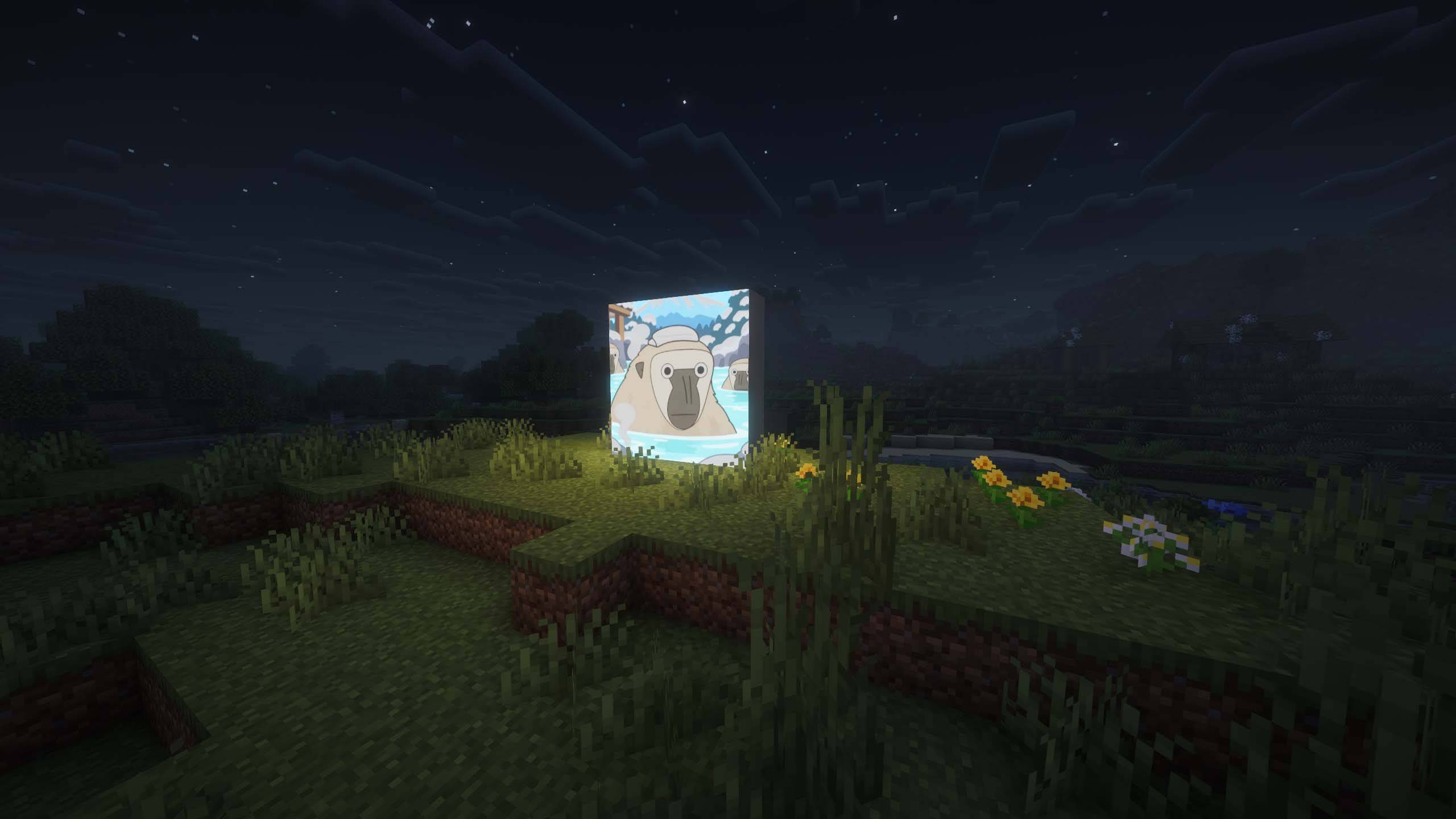
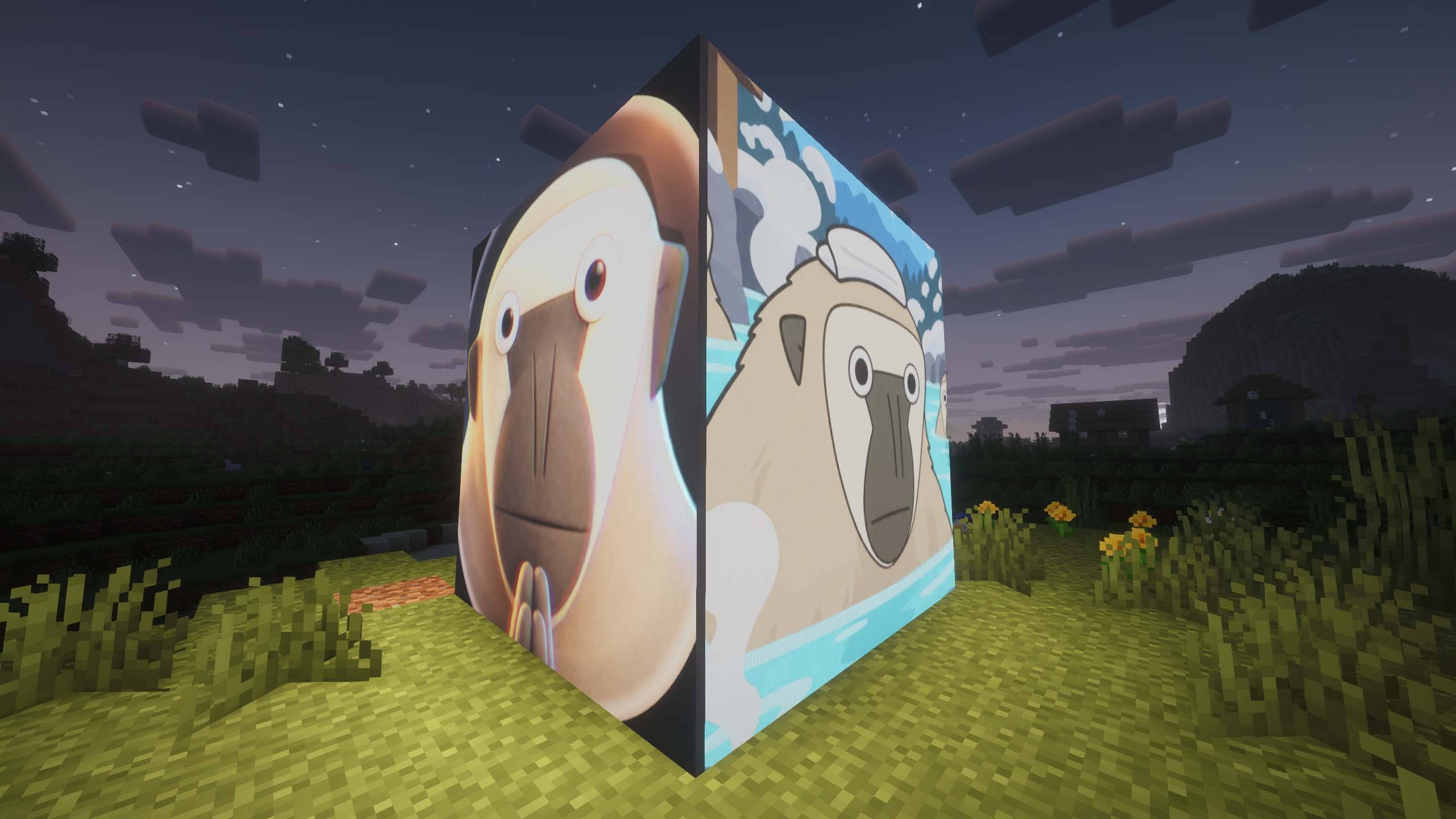
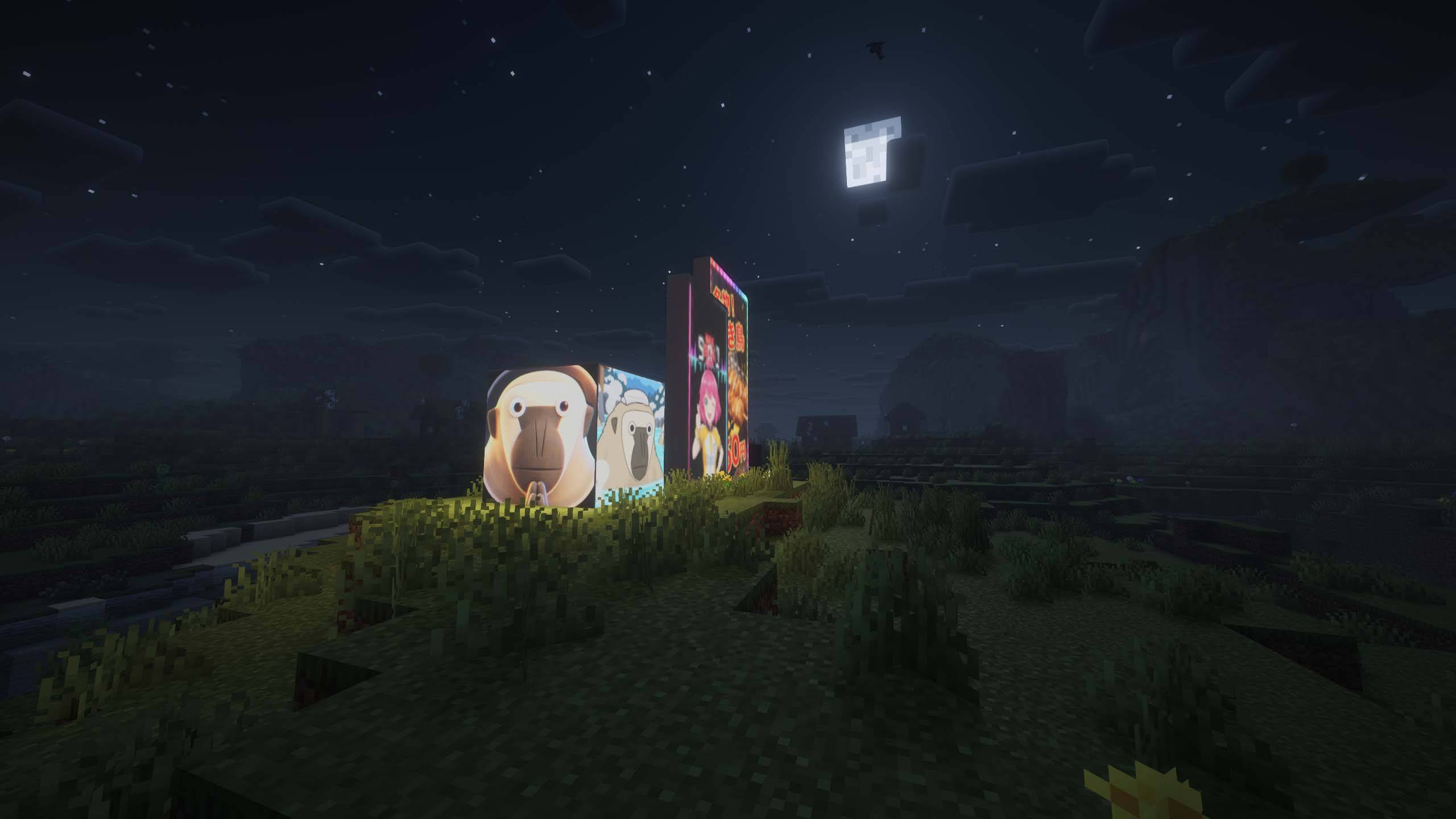
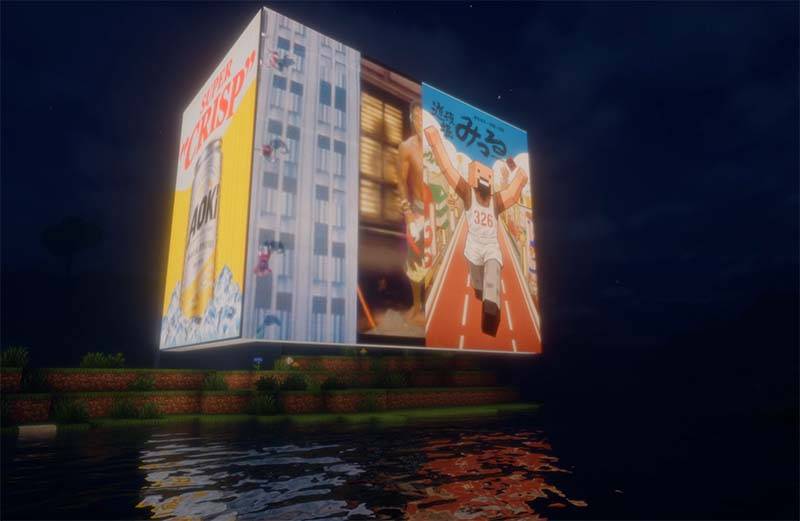
Image Block lets you build persistent image and video displays directly inside your Minecraft world.
Create anything from a single-block picture to large multi-block screens using dedicated display blocks, then use the Image Wand to define exactly which blocks should act as one display. Displays can be placed on walls, floors, ceilings, and other supported orientations.
Creating a Display
Place Image Block display blocks where you want your screen.
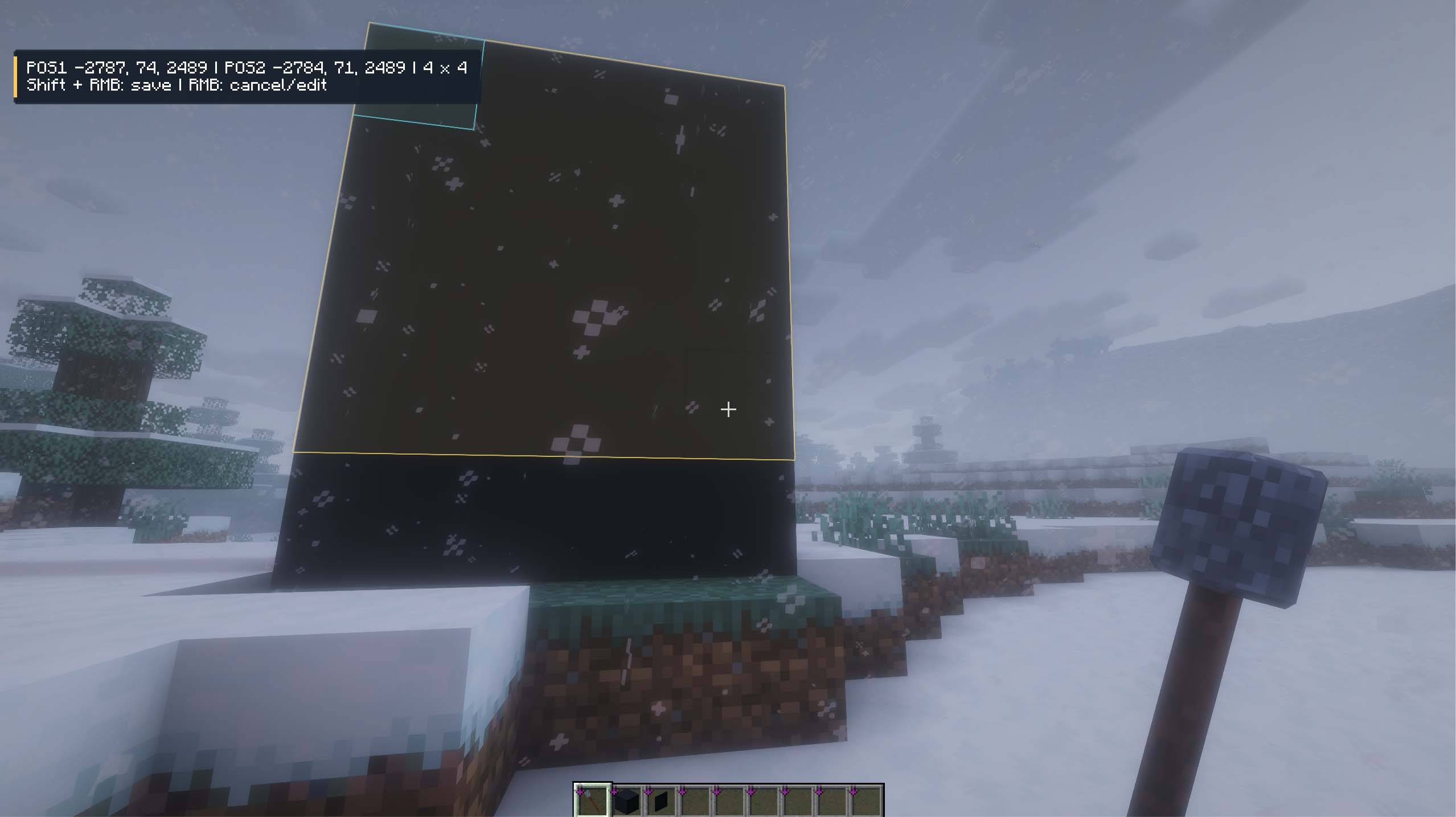
Hold the Image Wand and sneak-right-click two corners to define a rectangular display area. The selection is shown in-world so you can see the display boundary before saving it.
Right-click the display with the Image Wand to open the visual editor.
Images and Videos
Images can be imported directly into the editor by dragging and dropping a local file.
Image Block also supports importing media from web URLs.
Videos can be displayed and automatically loop on the screen. Video playback is synchronized with the display instead of behaving like a temporary client-side overlay, and imported media is stored with the world so displays continue working after restarting the server.
Visual Editor
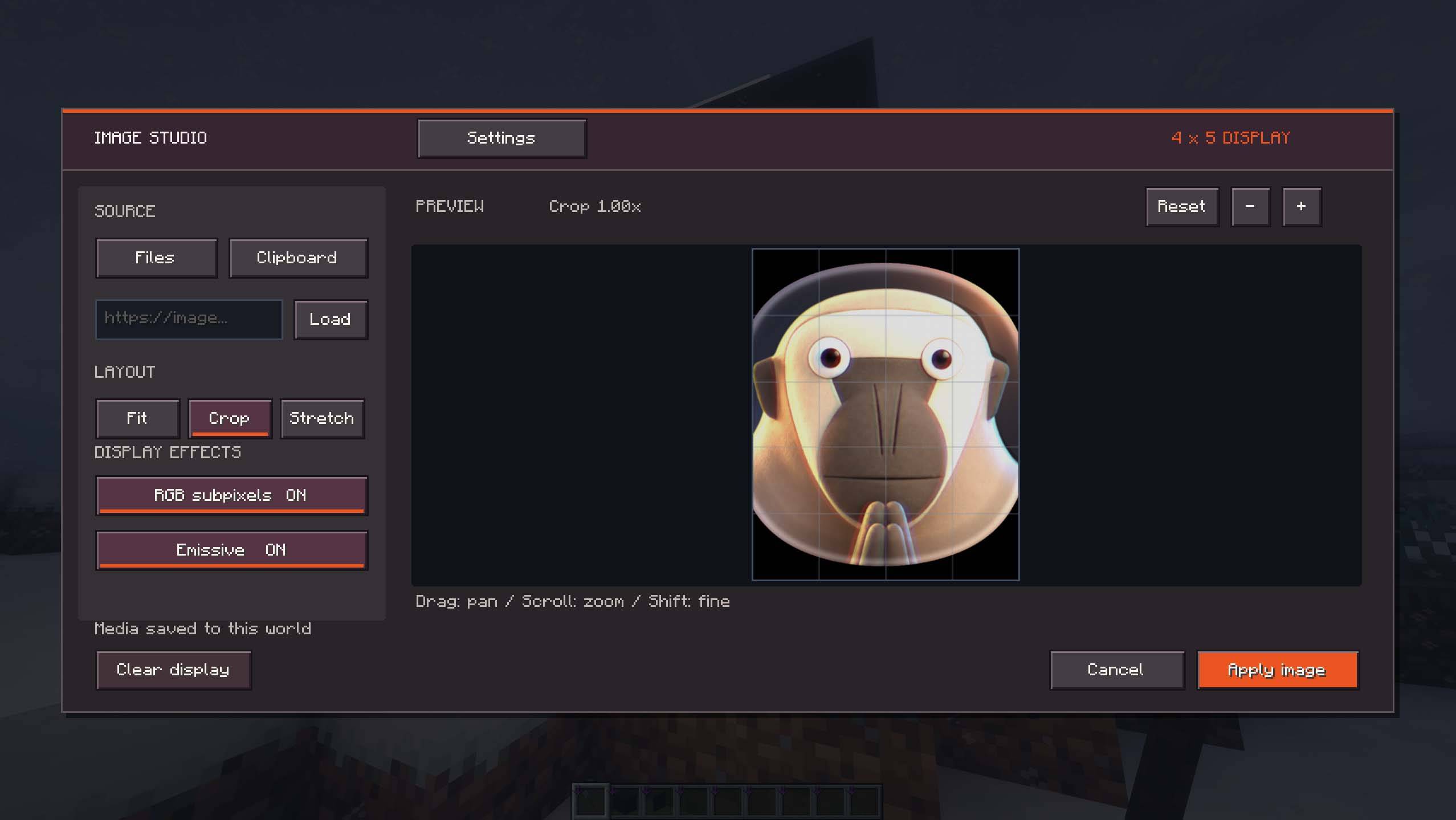
The editor includes a live preview so you can configure the media before applying it to the display.
Images can be fitted using stretch, contain, or crop-style modes, with adjustable crop positioning and zoom.
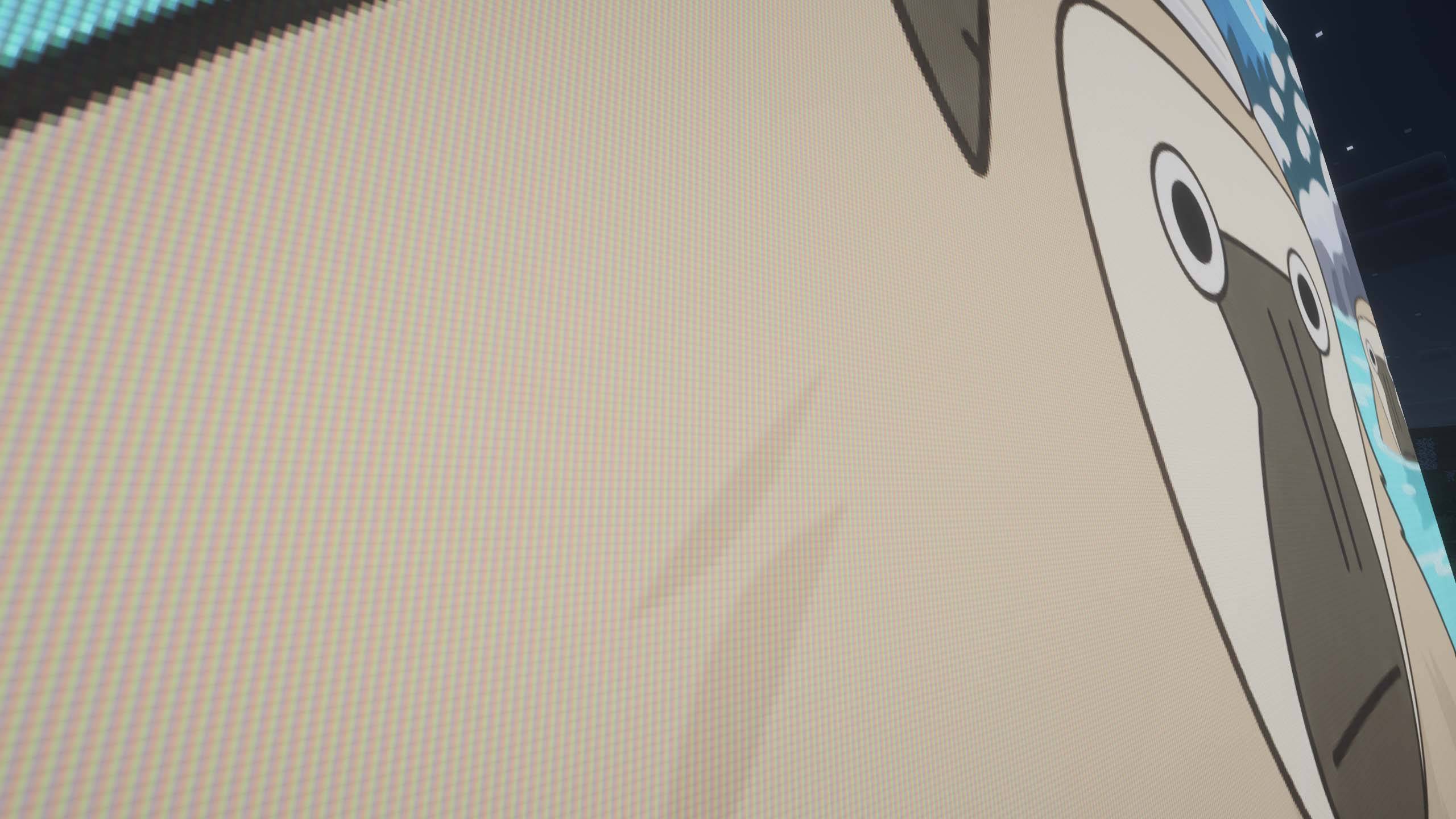
Displays can also use emissive rendering for bright screens and an optional RGB subpixel mode for a more physical display-like appearance.
A separate client setting controls emissive display brightness.
Video Audio
Videos with audio can play sound directly from their display.
Sound can be enabled or disabled per display, and audio settings allow you to adjust both volume and audible range.
Audio is spatial, so the sound comes from the position of the screen in the world and changes as you move around it.
Multiplayer and Persistence
Image Block is designed for multiplayer worlds. Display media, dimensions, visual settings, ownership data, video audio settings, and multi-block display boundaries are stored persistently.
Media is distributed to clients as needed, so players joining or reconnecting can see existing displays without manually importing the original file themselves.
Large adjacent screens can be separated into independent displays, and existing display areas can be reselected with the Image Wand when you want to change their boundaries.
Controls
Sneak + Right-click with the Image Wand selects the first and second corners of a display.
Right-click with the Image Wand opens the selected display in the visual editor.
Drag and drop a media file onto the editor to import it.
常见问题
Image Block 支持哪些 Minecraft 版本?
Image Block 支持 Minecraft Java 版 1.21–26.3,共 17 个版本,可用的加载器:Fabric / NeoForge。下载时注意选择和你游戏版本一致的文件。
Image Block 怎么安装?
先用 PCL2 或 HMCL 启动器安装对应版本的 Fabric / NeoForge,再把下载的 .jar 文件放进游戏目录的 mods 文件夹,重新启动游戏即可。开启了版本隔离的,mods 文件夹在 versions/版本名 下面。
MonkeyBo42 的其他作品
查看全部 →
Compact Mob Health Bar
Displays health bars and damage prediction for living entities.
Villager Lead
Allows players to attach leads to villagers.
OB backpack
Adds wearable, upgradeable backpacks for portable item storage.
villager phone
Turns villagers into a remote trading network with contacts, markets, maps, and deliveries.
评论
登录后评论和评分