
f2-screenshot-clipboard
Press F2, paste anywhere — screenshots go straight to your clipboard. 截图自动复制,直接粘贴到微信/QQ/Discord
截图
介绍
中文介绍正在准备中,下面暂时显示原文。
按 F2 截图后,自动把截图图片复制到系统剪贴板,可直接粘贴到微信、QQ 等软件。
功能
- F2 截图完成后自动复制到剪贴板
- 复制成功播放轻快 UI 点击音效,并在聊天栏显示绿色“已复制”提示与文件名
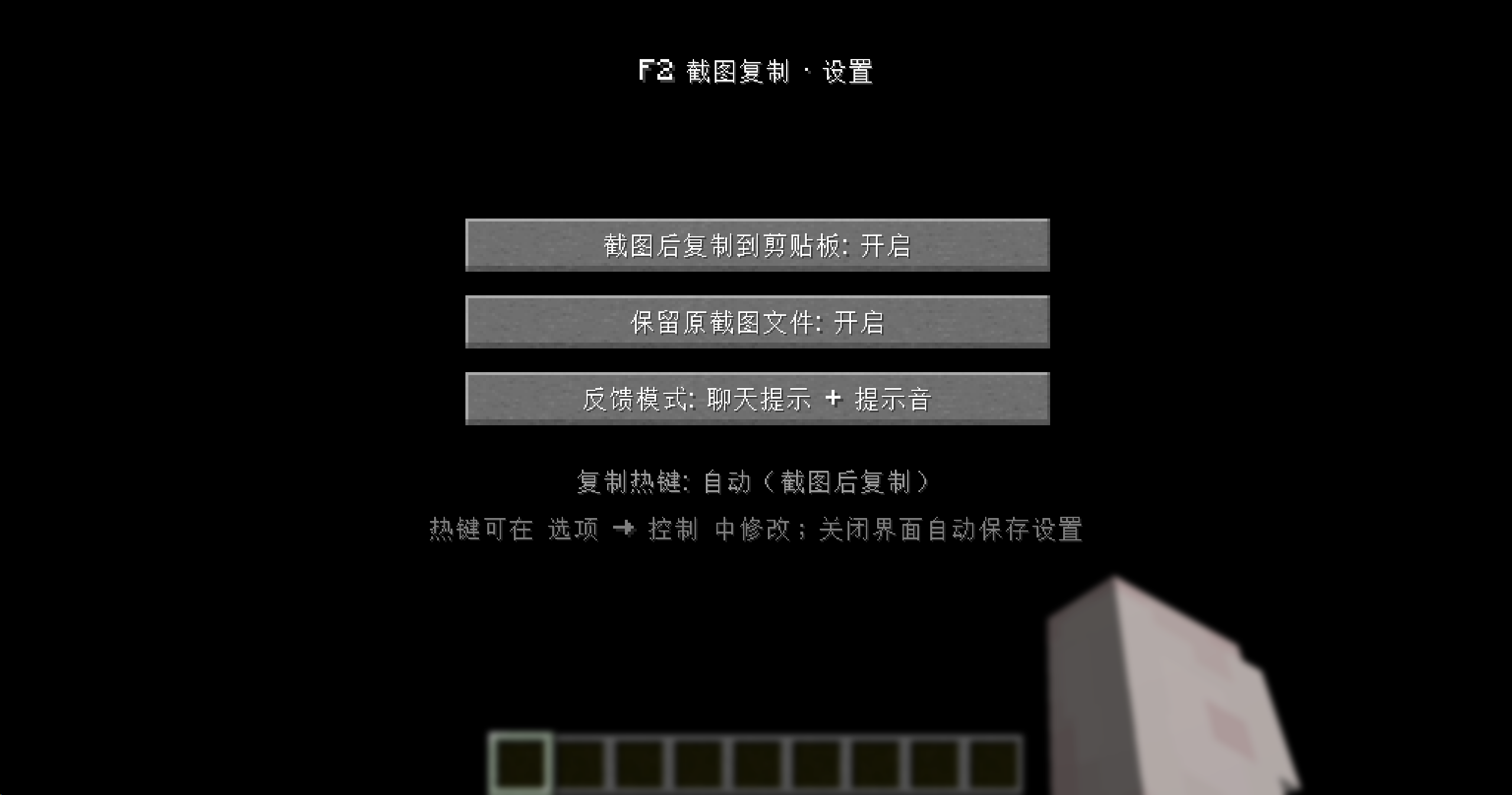
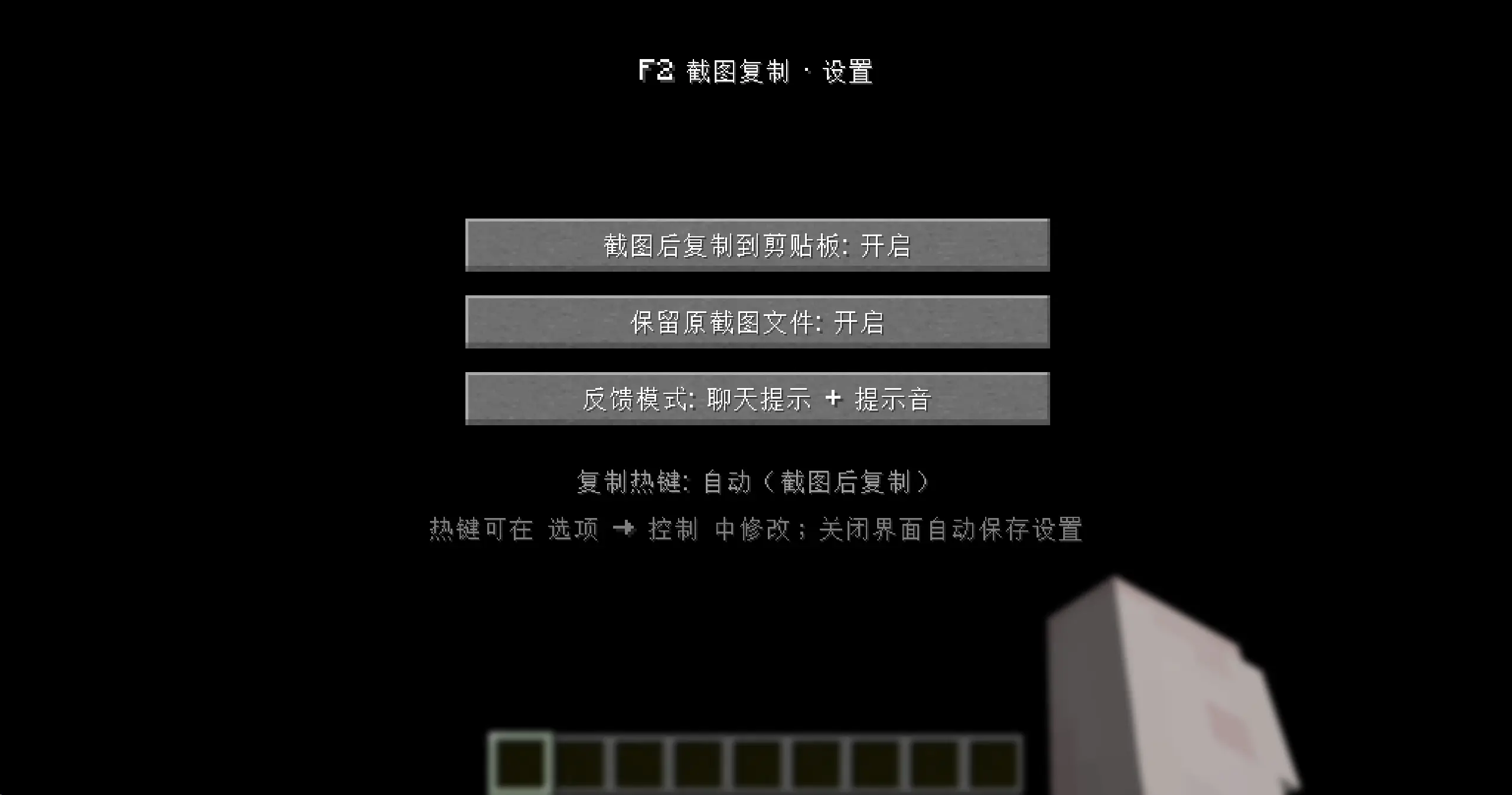
- 设置界面:复制开关 / 保留原文件 / 反馈模式(按 K 打开,关闭时自动保存)
- 复制热键默认 F2,可在 选项 → 控制 中修改;截图复制器物品右键可快速复制最近截图
- 配置文件
config/f2.json
使用
- 直接按 F2 截图即可,截图完成后图片已在剪贴板
- 按 K 打开设置界面,可切换“复制到剪贴板”“保留原文件”“反馈模式”
语言
目前仅支持中文与英文,未来将支持更多语言
Pressing F2 to take a screenshot automatically copies the image to the system clipboard, allowing you to paste it directly into applications like WeChat or Discord.
Features
- Automatically copies the screenshot to the clipboard upon completion (executed in a background thread to avoid impacting frame rate).
- Plays a crisp UI click sound upon successful copying and displays a green “Copied” notification along with the filename in the chat area.
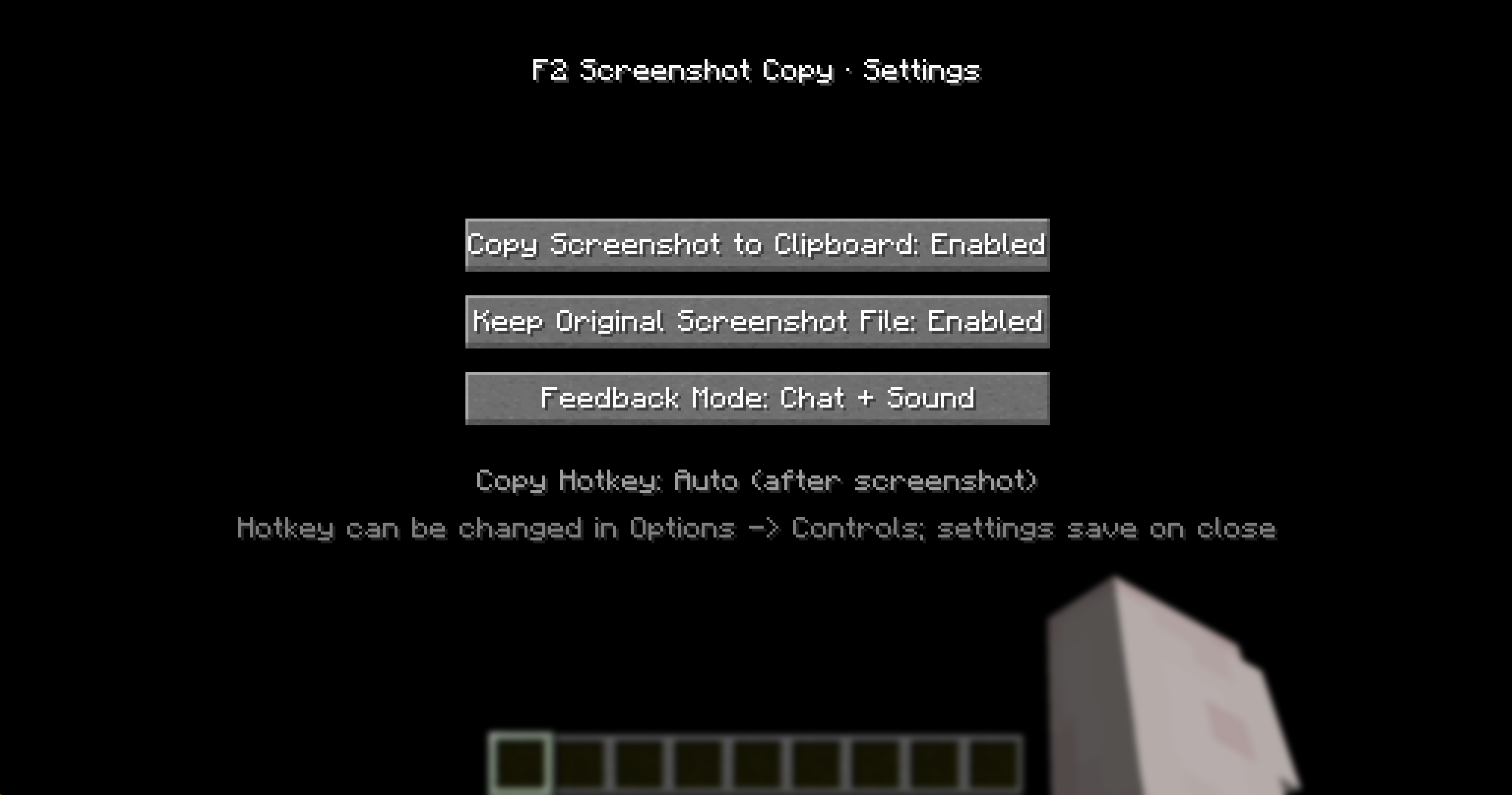
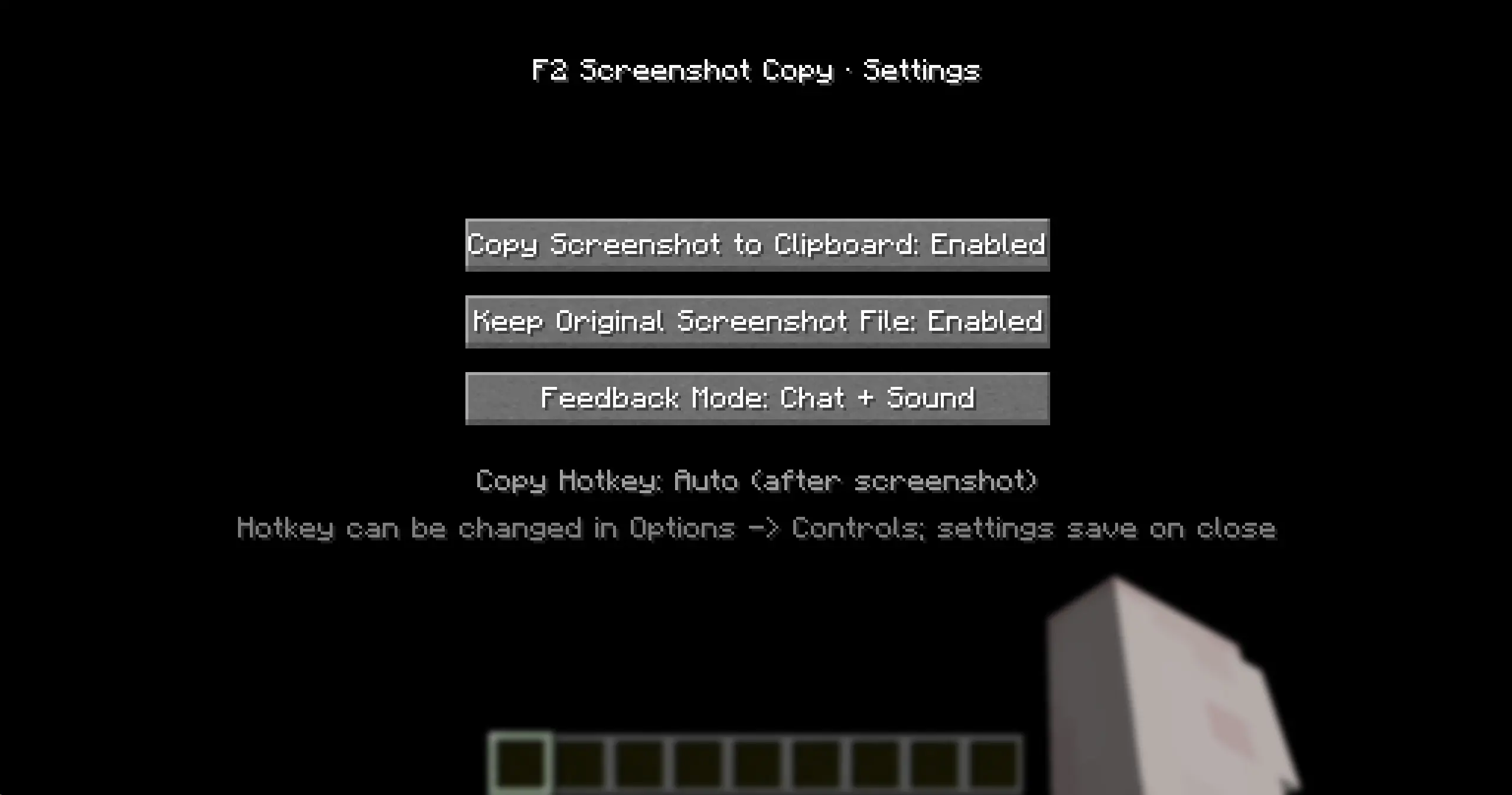
- Settings menu: Toggle copy function / Keep original file / Feedback mode (Press K to open; settings save automatically upon closing).
- Default copy hotkey is F2 (customizable under Options → Controls); right-clicking the “Screenshot Copier” item allows for quick copying of the most recent screenshot.
- Configuration is persisted to
config/f2.json.
Usage
- Simply press F2 to take a screenshot
- Press K to open the settings menu to toggle “Copy to clipboard,” “Keep original file,” and “Feedback mode.”
Language
Currently, only Chinese and English are supported; support for more languages will be added in the future.
常见问题
f2-screenshot-clipboard 支持哪些 Minecraft 版本?
f2-screenshot-clipboard 支持 Minecraft Java 版 1.21–26.2,共 16 个版本,可用的加载器:Fabric。下载时注意选择和你游戏版本一致的文件。
f2-screenshot-clipboard 怎么安装?
先用 PCL2 或 HMCL 启动器安装对应版本的 Fabric,再把下载的 .jar 文件放进游戏目录的 mods 文件夹,重新启动游戏即可。开启了版本隔离的,mods 文件夹在 versions/版本名 下面。运行环境:仅客户端。


评论
登录后评论和评分