
Easy Configs
Easy Configs easily save and change between different configs—and export and import to your configs to share with friends.
截图
介绍
EasyConfigs
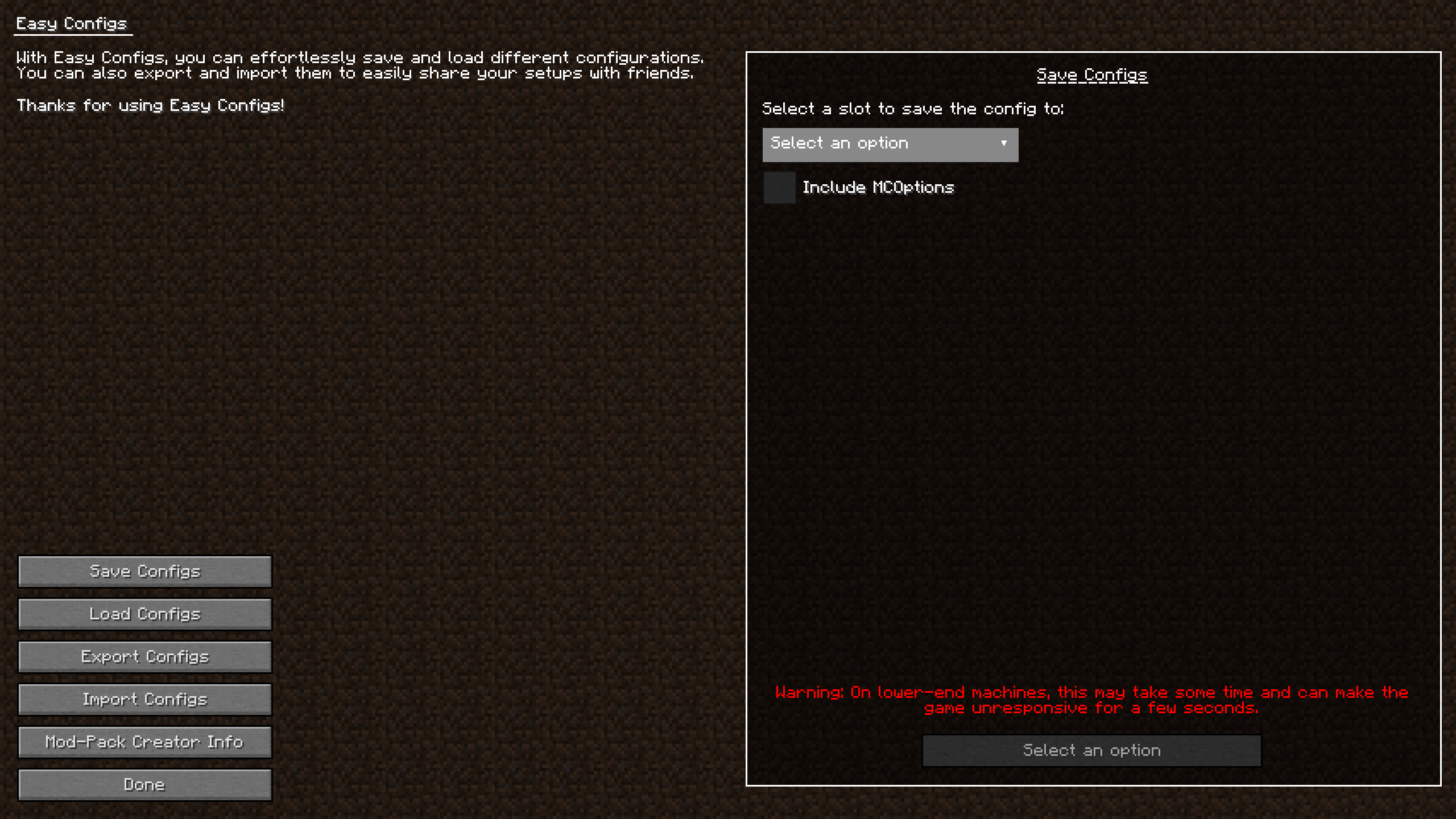
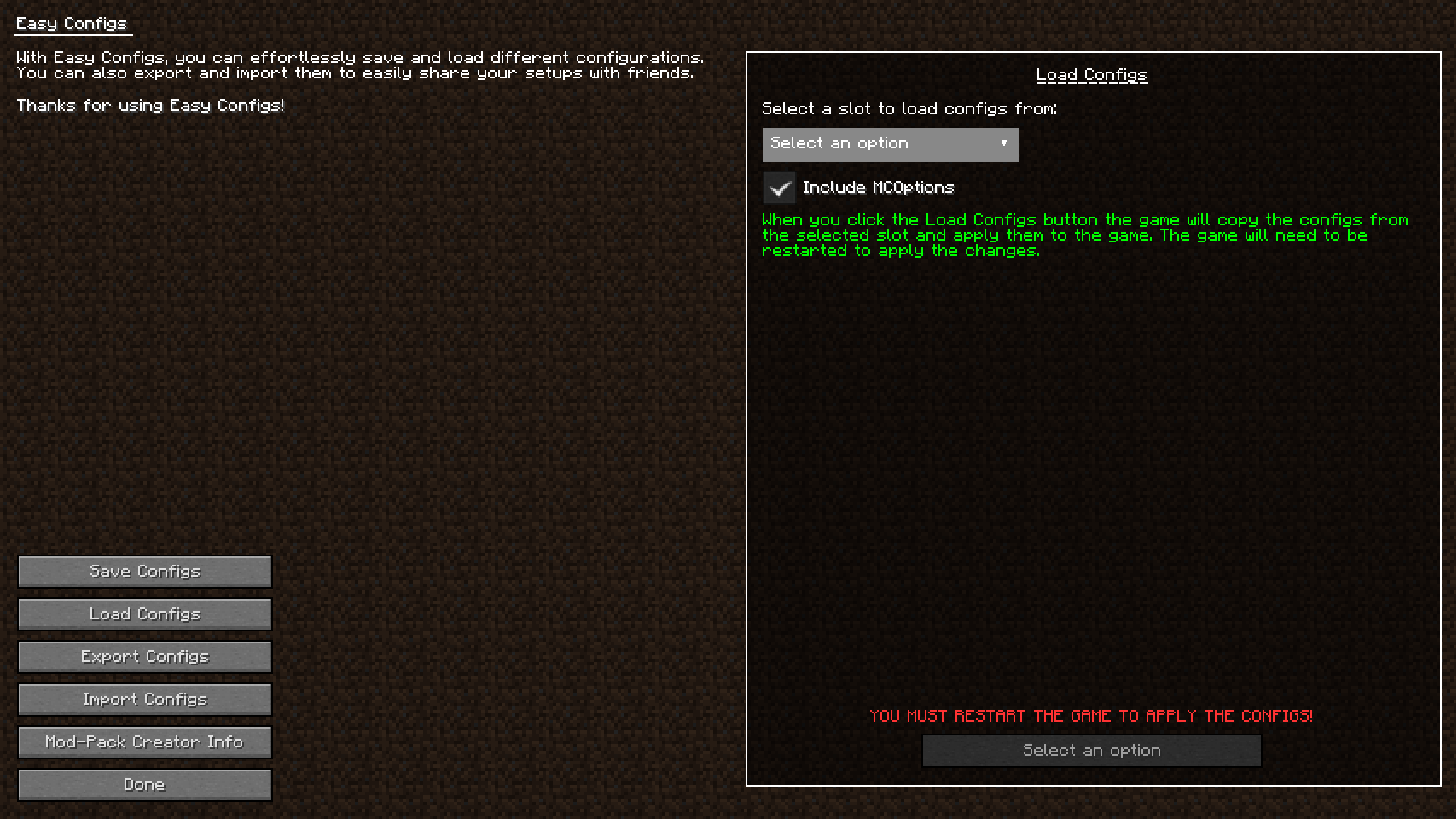
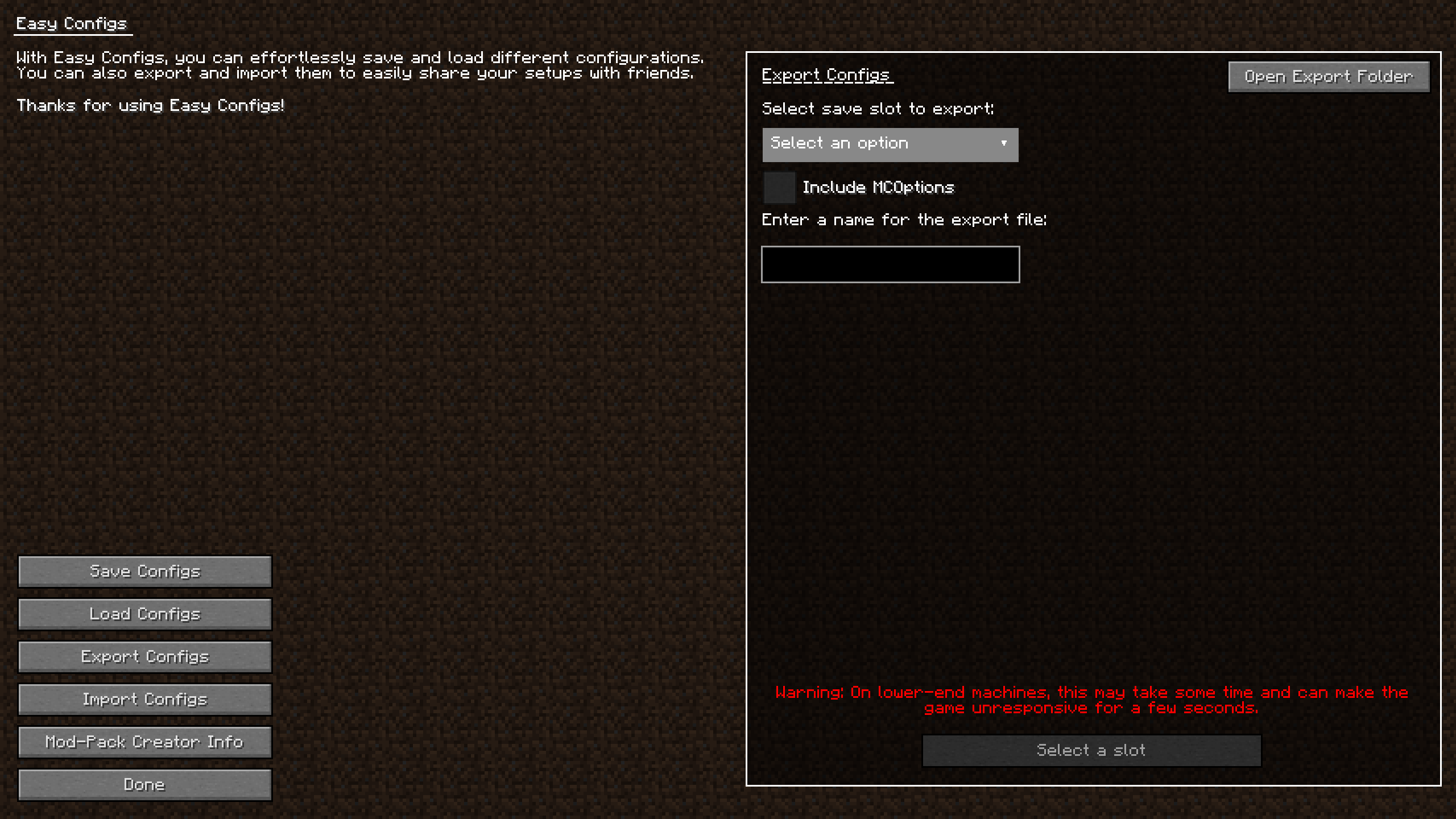
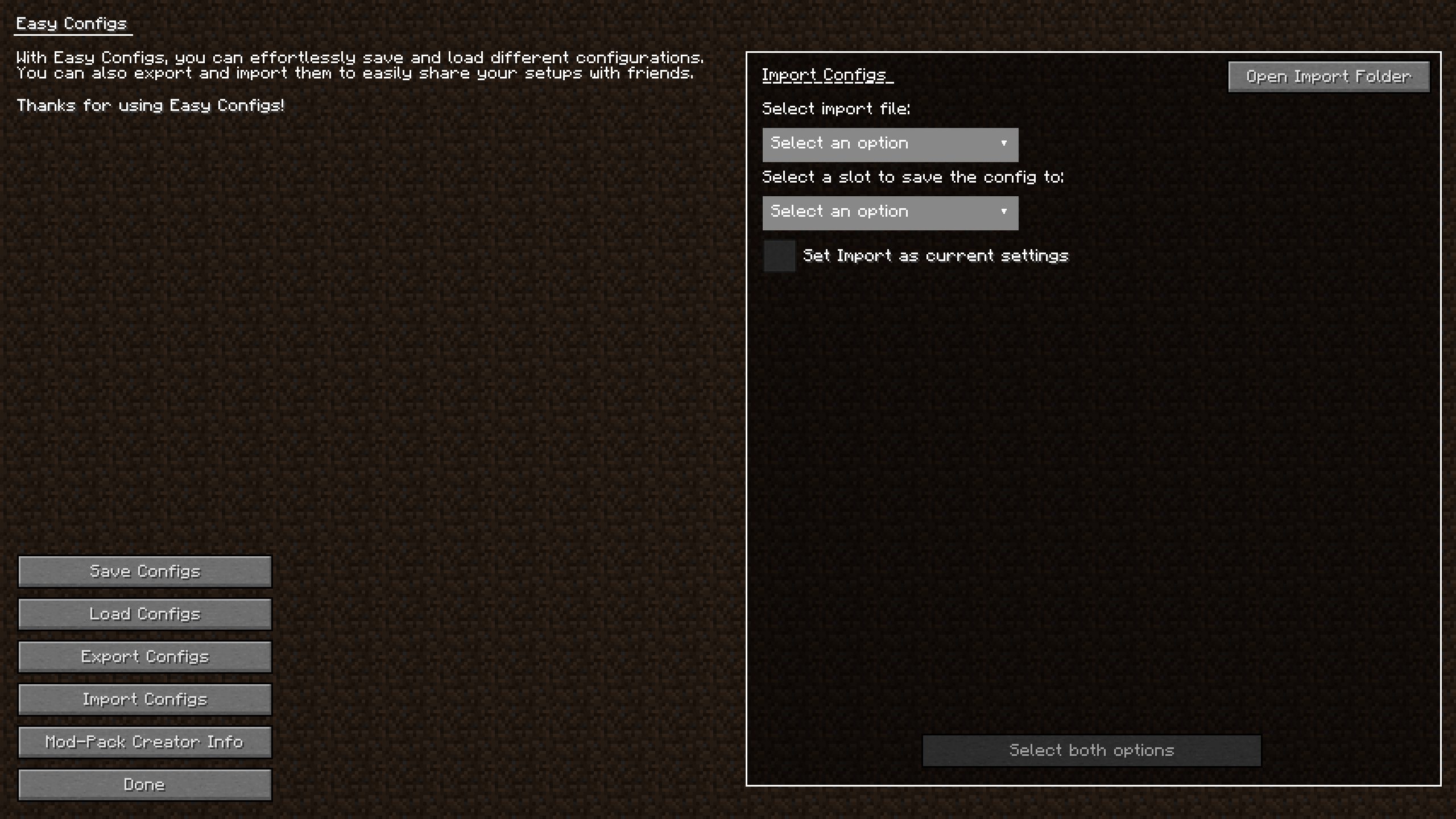
EasyConfigs is a Minecraft mod designed for modpack creators and regular users alike. It simplifies the configuration process by providing a GUI for managing configurations and supports exporting and importing of configuration files. This allows modpack creators to ship default settings without fear of them being reset with every update. Regular users can also benefit from this mod by easily switching between different sets of configurations or sharing their configurations with friends.
Features
- Save and load configurations with ease.
- Import and export configuration files.
- GUI for managing configurations.
- Ideal for mod pack creators to ship default settings.
- Allows regular users to switch between different configurations or share their configurations.
Installation
- Download the latest release of EasyConfigs from the releases page.
- Place the downloaded
.jarfile into your Minecraft’smodsfolder. - Run Minecraft with the Forge mod loader.
Usage
After installing the mod, you can access the EasyConfigs GUI from the Minecraft pause menu. From there, you can manage your configurations.
Some other notes to consider
In the config folder will there be a file that you can but files and folder that you don’t want to copy or export. Some mods makes files that don’t have configs and are no need to copy them.
Commands
- Save Configurations:
/EasyConfigs saveConfigs [1-9] [addMCOptions|don'tAddMCOptions]– Saves the current configurations to a specified slot (1-9). You can also specify whether to include Minecraft options in the save.
- Load Configurations:
/EasyConfigs loadConfigs [1-9] [loadMCOptions|don'tLoadMCOptions]– Loads configurations from a specified slot (1-9). You can also specify whether to load Minecraft options.
- Load Default Configurations:
/EasyConfigs loadDefaultConfigs [loadMCOptions|don'tLoadMCOptions]– Loads the default configurations. You can specify whether to include Minecraft options.
- Confirm Overwrite:
/EasyConfigs confirmOverwrite [1-9] [addMCOptions|don'tAddMCOptions]– Confirms the overwrite of a specified slot (1-9) when saving configurations. You can also specify whether to include Minecraft options in the save.
- Export Configurations:
/EasyConfigs exportConfigs [sourceFolder] [zipFileName] [addMCOptions|don'tAddMCOptions]– Exports configurations from a specified source folder to a zip file. You can also specify whether to include Minecraft options in the export.
- Import Configurations:
/EasyConfigs importConfigs [1-9] [setAsCurrentConfigs|onlyImportToSaveSlot] [zipFileName] [loadMCOptions|don'tLoadMCOptions]– Imports configurations from a specified zip file to a slot (1-9). You can specify whether to set the imported configurations as current or only import to the save slot. You can also specify whether to load Minecraft options.
Please replace the placeholders with the actual values when using these commands.
For Mod Pack Developers
EasyConfigs is a powerful tool for mod pack developers. It allows you to create a consistent configuration setup across all instances of your mod pack, ensuring that every player has the same gameplay experience. Here’s how you can use EasyConfigs:
- Setup Your Configurations: Start by setting up all the configurations for your mods and the vanilla game. Make sure everything works as you want it to.
- Open EasyConfigs GUI: Once your configurations are set, open the EasyConfigs GUI. You can do this from the Minecraft pause menu.
- Create Default Configurations: In the EasyConfigs GUI, click on the “Modpack” button. Then, click on the “Create Default Configs” button. This action will copy all the configurations from the game (including your mods and the vanilla game settings) to the default configs folder located at
easyconfigs/easyconfigsave0.
- Review the Default Configurations: Go through the
easyconfigs/easyconfigsave0folder and ensure all necessary configuration files are present. Some mods create multiple files, and not all of them might be necessary. Delete any files that are not needed.
- Export Your Configurations: Now that your default configurations are set, you’re ready to export. When including files in your mod pack, do not select the
configsfolder or theoptions.txtorserver.datfiles. Instead, include theeasyconfigsfolder.
Bonus Step for Mod Pack Developers
If you want to provide your users with the ability to choose between different configuration setups, you can do so by using the save slots feature of EasyConfigs:
- Save Different Configurations: Set up different configurations for your mods and the vanilla game. For each setup, save the configurations to a different slot using Save Configs option in the menu.
- Inform Your Users: In your mod pack description, inform your users about the different configuration setups available. Tell them they can load the different setups by using the EasyConfigs GUI.
- Export Your Configurations: Now export just as before.
By following these steps, you can ensure that your mod pack users have a consistent configuration setup, and they don’t have to worry about losing their settings when updating the mod pack.
Written by: Kd_Gaming1 and ChatGPT (I was lazy)
常见问题
Easy Configs 支持哪些 Minecraft 版本?
Easy Configs 支持 Minecraft Java 版 1.8.9,可用的加载器:Forge。下载时注意选择和你游戏版本一致的文件。
Easy Configs 怎么安装?
先用 PCL2 或 HMCL 启动器安装对应版本的 Forge,再把下载的 .jar 文件放进游戏目录的 mods 文件夹,重新启动游戏即可。开启了版本隔离的,mods 文件夹在 versions/版本名 下面。运行环境:仅客户端。
Kd_Gaming1 的其他作品
查看全部 →
SkyBlock Enhanced
你唯一需要的 Hypixel SkyBlock 整合包。专为现代 Minecraft 打造——60+ 优化模组、引导式安装向导,以及其它整合包难以企及的配置系统。

PackCore
PackCore 是 SkyBlock Enhanced 整合包的配套模组,提供以 Hypixel SkyBlock 为主题的主菜单,还有更多内容!

Scale Me
通过平滑动画、挥击速度控制和简洁的游戏内菜单,将自己、其他玩家和物品的大小调整为 0.1 倍至 3 倍。

SkyBlock Enhancements
一款小巧易用的模组,通过便捷功能与实用工具改善你的 Hypixel SkyBlock 体验。
评论
登录后评论和评分