BSP REGION GUARD
A claims and regions guard system made for the official BSP server and Forge.
介绍
BSP Region Guard
World protection, banned blocks, land claims with eye-catching plot markers, a map that draws and edits every region, automated mines and linked servers for Minecraft 1.20.1, all run from in-game screens.
BSP Region Guard looks after the world on a Build Secure Protect server:
- Admins draw regions and decide what may happen inside them, down to which blocks and items may be placed, used, broken or even carried in. Players can always look up what’s banned where they stand.
- Players buy land and run their own plots. Plots for sale stand out in the world with a marker and their name until someone buys them, and each Land Office can sell its own chosen plots.
- Admins draw, reshape, copy, move and back up regions, plots and mines on one full-window map.
- Mines refill themselves on a timer, from blocks picked in a creative-style browser.
- Several servers share regions, and players can walk from one server’s world into the next.
It takes WorldGuard’s ideas to Forge and drives them from screens rather than long commands.
It is made for the Build Secure Protect modpack and works closely with its sister mods: BSP-Core (required), and BSP-Teleport and BSP-RankUp (optional).
Version 0.6.0. The screens in this description are drawn from the mod’s own layout and colours, as illustrations.
At a glance
| Minecraft | 1.20.1, Forge 47.4.10 or newer; runs on Mohist |
| Install on | the server and every player (the screens and in-world drawing are client side) |
| Requires | BSP-Core 1.4.6 or newer |
| Works with | BSP-Teleport, BSP-RankUp, LuckPerms (Forge mod or the Bukkit plugin on Mohist) |
| Optional | MySQL and Redis, only for several servers |
1. Draw your first region
Everything starts with the Region Wand (/rg wand):
- Left-click one corner of the area you want and right-click the opposite corner.
- The box appears in the world as a glowing wire cube.
- Open the admin screen and press + NEW, or type
/rg define <name>, and the box becomes a region.
No wand outline? Press + NEW anyway: the region is made without corners (it protects nothing yet) and the region map opens, so you click its two corners there instead of flying to the spot. You can also draw regions straight onto the region map (section 8).
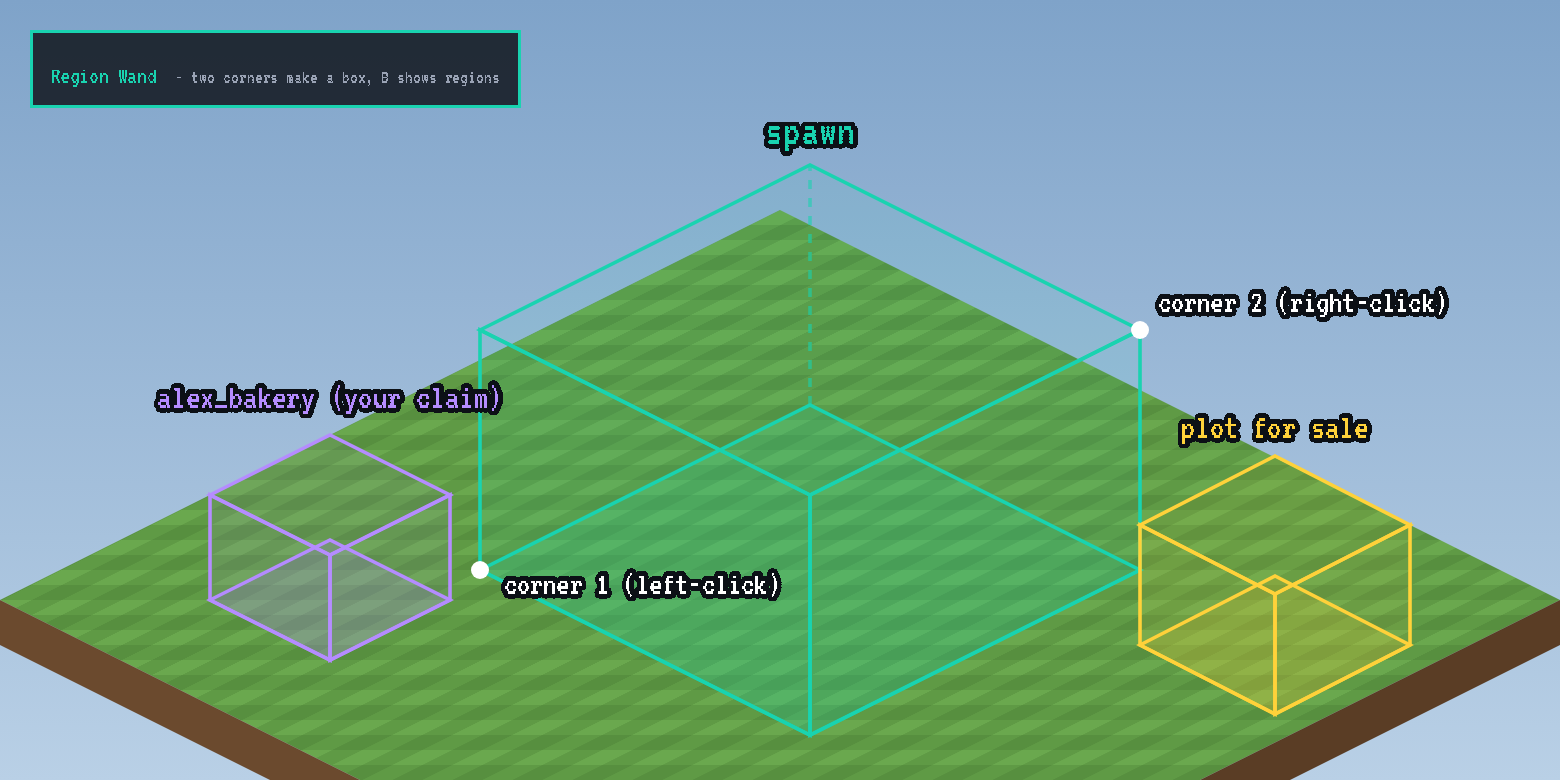
Regions are drawn as see-through boxes in their type colour:
- teal: protected areas
- violet: players’ claims
- gold: mines (plots for sale have a colour of their own, section 7)
When they show: hold the Region Wand (in either hand) and every region shows; put it away and they’re gone, so finished regions never get in the way. Press B to show them without the wand. Players holding the plot tool see their own claims. Plots for sale always show, to everyone, until they’re bought.
2. The admin screen
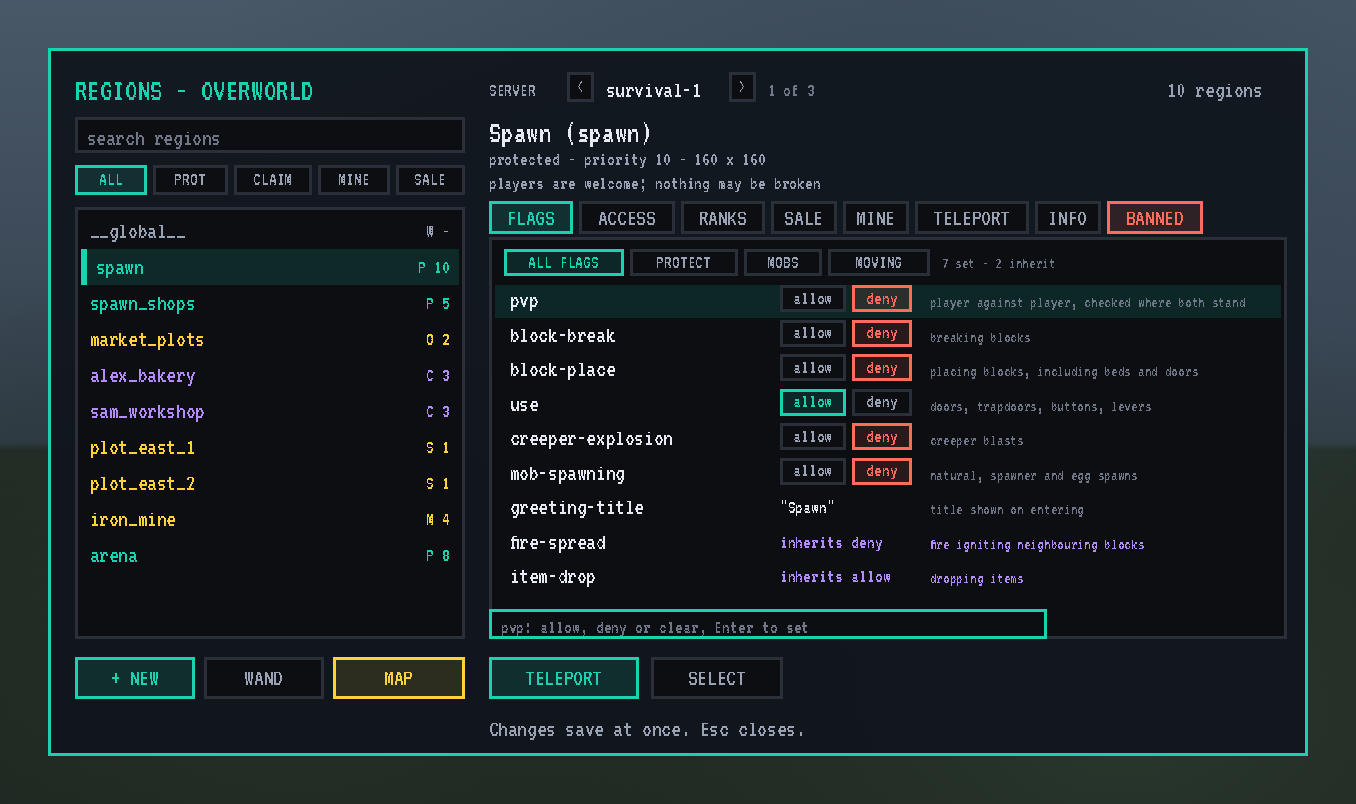
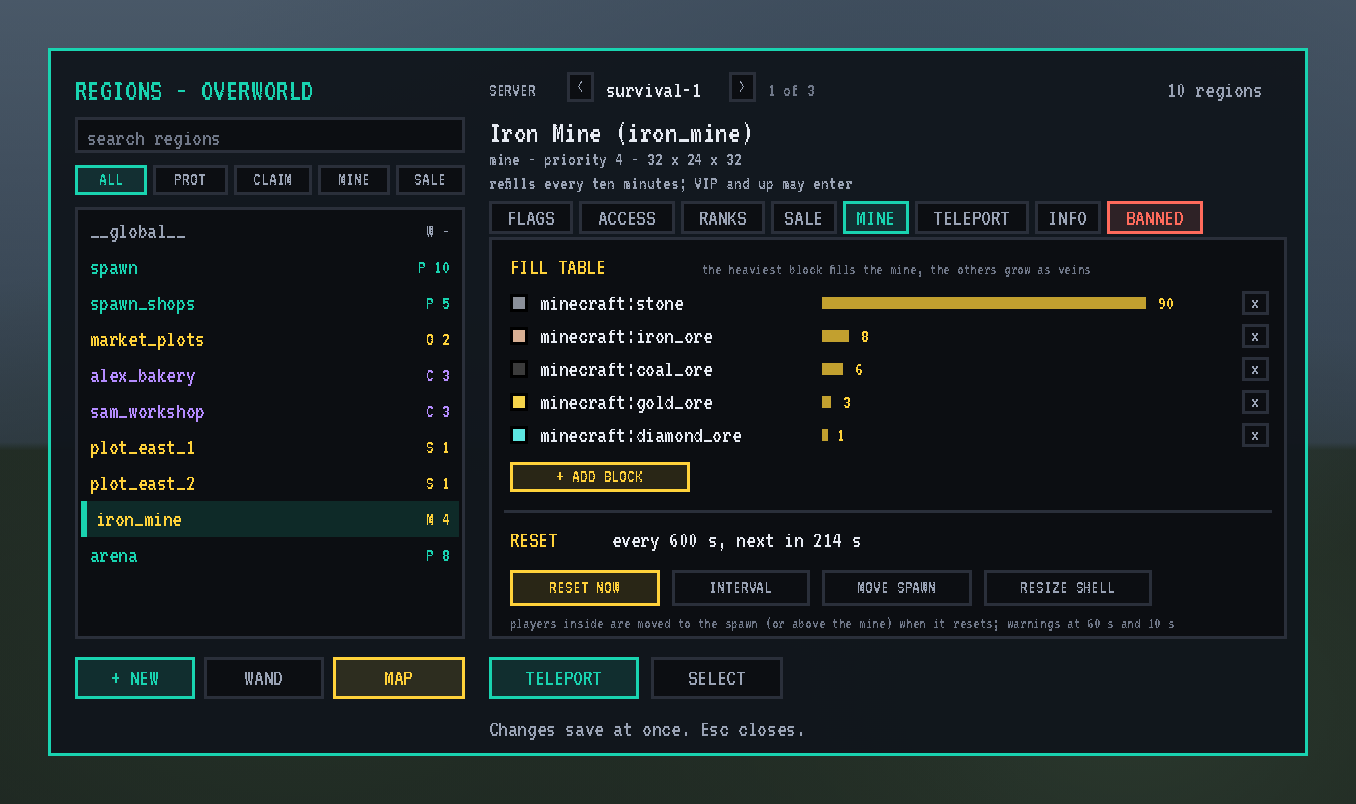
Open it with /rg gui, or sneak and right-click with the wand. It fills the window. Every region in the world is listed on the left by its name, with a search box (names and ids) and filters (protected, claims, mines, for sale). The tabs on the right hold the picked region’s settings: FLAGS, ACCESS, RANKS, SALE, MINE, TELEPORT, INFO, and BANNED for its banned blocks (sections 3 to 10 below).
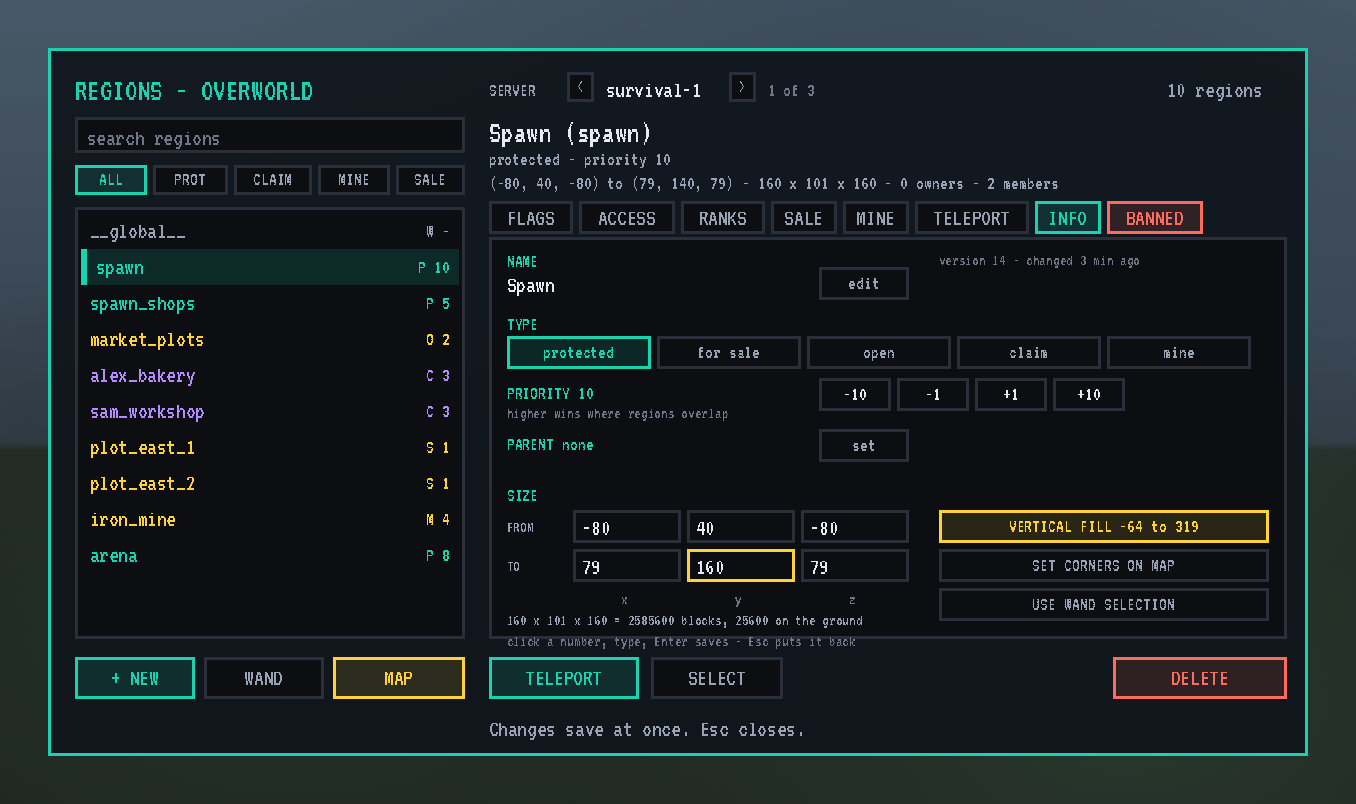
Under the region list:
- + NEW: makes a region from the wand outline, or, without one, a region whose corners you then click on the map.
- WAND: gives you a wand.
- MAP: opens the region map on the picked region (section 8).
Renaming on the INFO tab: a new name renames the region’s id too, so “Market Hall” becomes market_hall and the old id is free again. Everything the region holds comes along, including a mine’s shell, child regions, plot backups and the map’s undo history.
Size on the INFO tab:
- The corners: six numbers. Click one, type, and press Enter to save it.
- VERTICAL FILL: stretches the region from the bottom of the world to the top.
- SET CORNERS ON MAP: click new corners on the region map.
- USE WAND SELECTION: takes the wand’s outline.
The buttons under the pane:
- TELEPORT: go to the picked region.
- SELECT: put its corners back into the wand.
Every change saves as soon as you make it. A button lights up when clicked, and the server’s answer (“iron_mine is resetting”) shows in the line along the bottom.
The screens are drawn larger than a normal Minecraft screen: twice as big, and the admin screen and the map’s cards a little less so they fit more. They shrink to fit smaller windows. Each player can change that with ui.scale in config/bsp_region_guard-client.toml.
3. Set the rules: flags
Each region carries flags, rules such as pvp deny, block-break deny or greeting-title "Spawn". The FLAGS tab lists every flag with a one-line explanation:
- Click allow or deny, or type a value.
- Flags you leave unset show what they inherit, in violet.
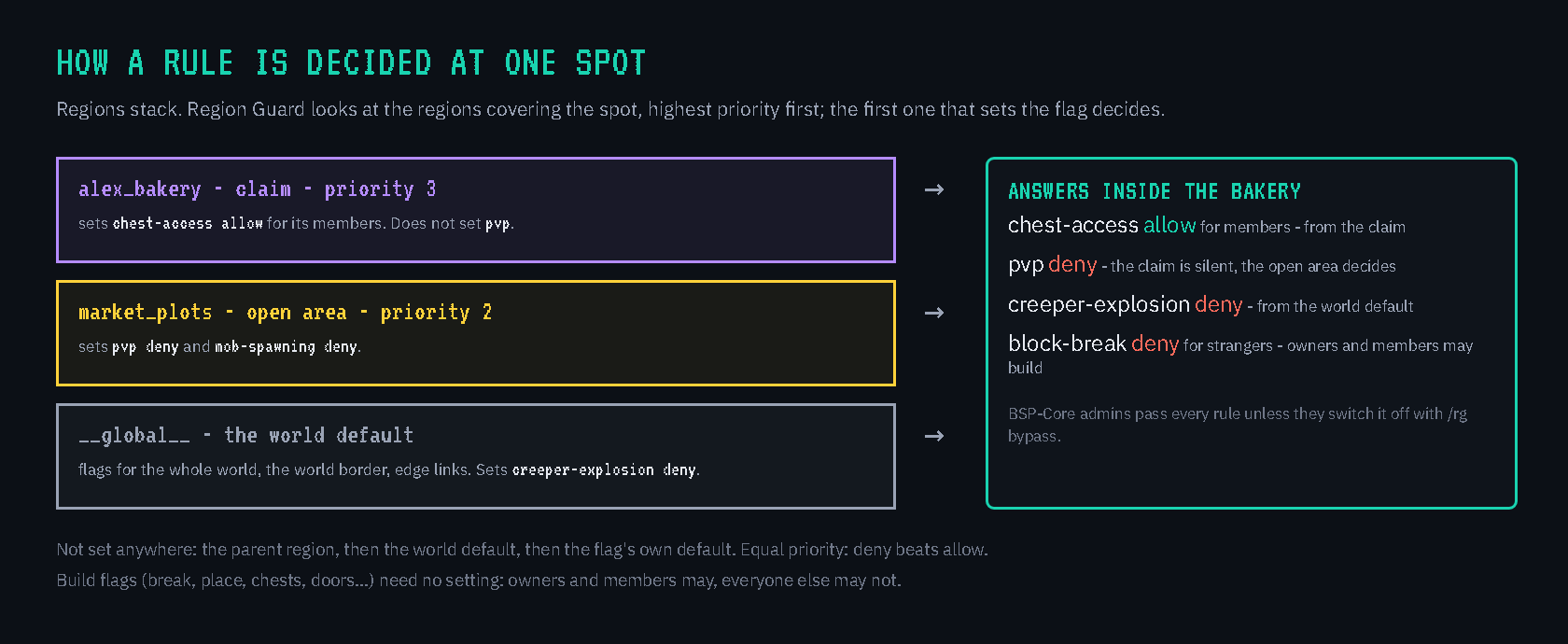
When regions overlap, the one with the higher priority decides. A region left silent on a flag passes the question on to its parent and then to the world default. Building needs no flag at all: a region’s owners and members may build, and everyone else may not.
The 115 flags
| Group | Flags |
|---|---|
| Building | build, block-break, block-place, interact, use, chest-access, ride, sleep, respawn-anchors, vehicle-place, vehicle-destroy, lighter, block-trampling, item-frame-rotation, use-anvil, use-dripleaf, damage-animals, pistons, passthrough |
| Fighting | pvp, mob-damage, firework-damage, invincible, fall-damage, potion-splash |
| Explosions and mobs | tnt, creeper-explosion, ghast-fireball, wither-damage, enderdragon-block-damage, other-explosion, enderman-grief, ravager-grief, snowman-trails, mob-spawning, deny-spawn, entity-painting-destroy, entity-item-frame-destroy |
| Fire and nature | fire-spread, fire-burn, lava-fire, lightning, water-flow, lava-flow, snow-fall, snow-melt, ice-form, ice-melt, frosted-ice-form, frosted-ice-melt, crop-growth, grass-growth, mycelium-spread, vine-growth, mushroom-growth, leaf-decay, rock-growth, sculk-growth, soil-dry, coral-fade, copper-fade, dispenser-use, falling-blocks |
| Coming and going | entry, exit, exit-via-teleport, exit-override, entry-deny-message, exit-deny-message, greeting, farewell, greeting-title, farewell-title, notify-enter, notify-leave, enderpearl, chorus-fruit-teleport, teleport, spawn, teleport-message, allowed-ranks |
| Map making | item-pickup, item-drop, exp-drops, deny-message, game-mode, time-lock, weather-lock, natural-health-regen, natural-hunger-drain, heal-delay, heal-amount, heal-min-health, heal-max-health, feed-delay, feed-amount, feed-min-hunger, feed-max-hunger, blocked-cmds, allowed-cmds, send-chat, receive-chat, sale-group |
| BSP | border-warning, border-message, teleport-in, teleport-out, set-home, totem-place, totem-drop, mine-only-break |
| Banned blocks (section 6) | deny-place, deny-use, deny-break, deny-carry |
Where Forge has no event to cancel (fire spreading, water flowing in, snow forming, grass spreading, dispensers, falling sand), Region Guard uses 29 small server-side patches. Each group can be switched off in the server config.
BSP-Core admins pass every rule so they can build anywhere. /rg bypass switches that off for testing.
4. The world itself: the world default and the border
Every world has a world default (<span style="text-decoration: underline;">global</span>): flags set on it apply everywhere that no region decides, so it’s where whole-world rules go.
It also holds the world’s border, a square set with /rg border set <width> or from its BORDER tab:
- Players are warned 10 blocks before the edge and pushed back at it.
- Anyone found outside is put back on solid ground.
- In the Overworld, Minecraft’s own wall is moved to match so everyone can see it.
- Teleports and homes outside the border are refused.
The BORDER tab also has a PLOTS HERE card that decides land for players in this world (section 7):
- ALLOW, REFUSE or CONFIG: whether plots may be made and bought in a world where Shatter Totems can be placed.
- MAX: how many plots one player may own in this world.
5. Who may come in: members and ranks
- ACCESS tab: a region’s owners and members. They pass entry rules and may build.
- RANKS tab: with LuckPerms, pick the groups that may enter, for a VIP lounge, a staff room or a members-only market. Members always pass.
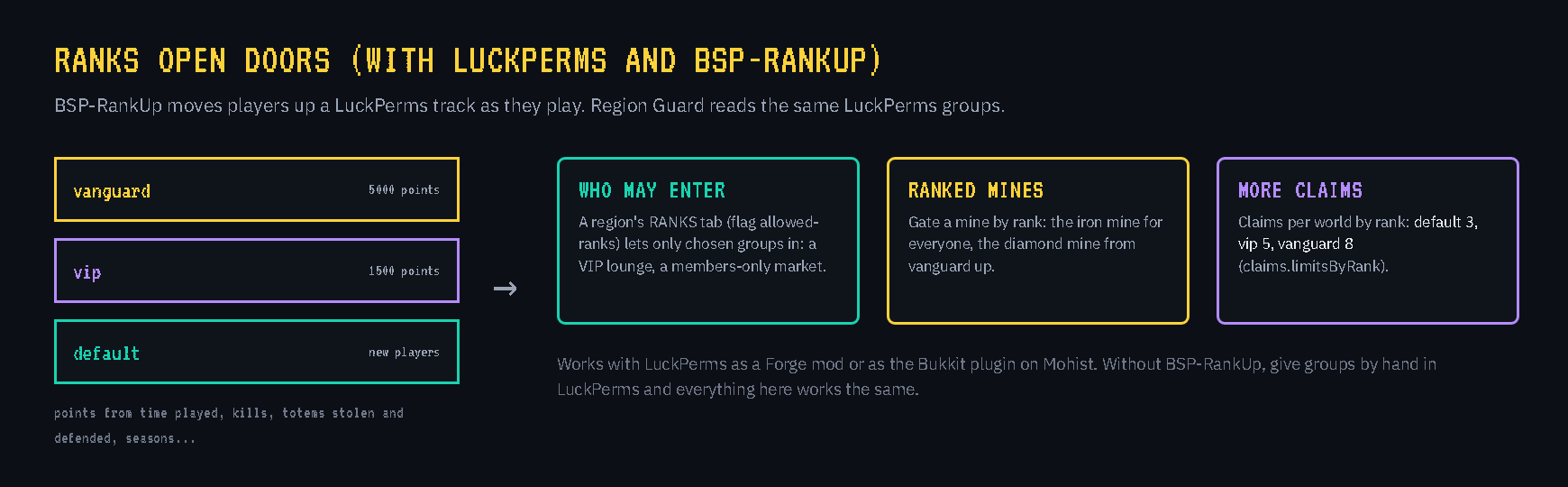
With BSP-RankUp, players climb a LuckPerms rank ladder by playing: time online, fights, Shatter Totems stolen and defended, and seasons survived. Region Guard reads those same groups, so ranking up actually opens doors:
- Rank-gated regions let a player in once they reach the rank.
- Rank-gated mines unlock better ores at higher ranks.
- Claim limits rise with rank: 3 claims per world by default, more for higher groups (
claims.limitsByRank).
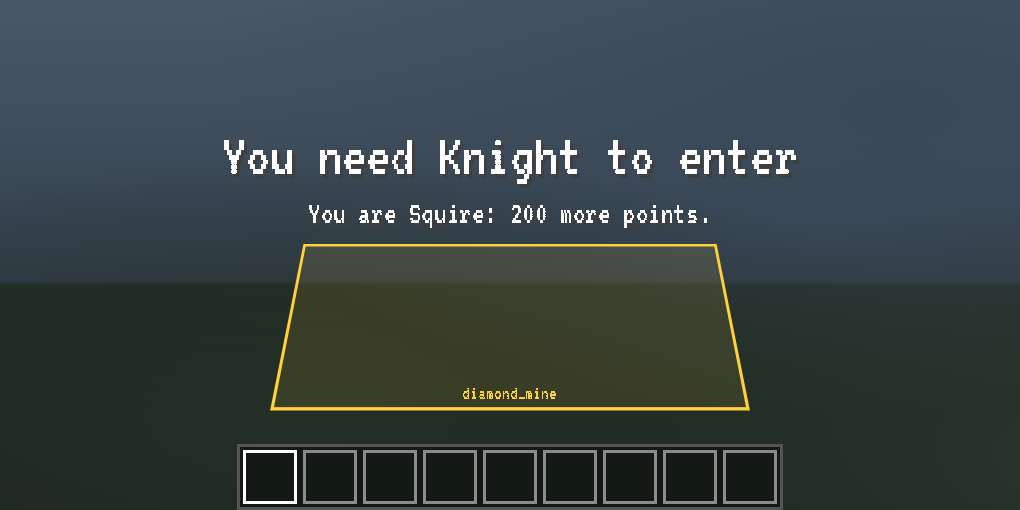
Players are told the rank they need. A player turned back at a ranked region sees why in the middle of the screen, the way /title shows text:
- A rank on a BSP-RankUp ladder is named with where they stand: “You need Knight to enter”, and under it “You are Squire: 200 more points.” or “You are Peasant, 2 ranks to go.”.
- A rank on no ladder: “You need to be VIP to enter”.
- Higher ranks get in too: list only the lowest rank that may enter, and every rank above it on the ladder passes, even when the LuckPerms groups don’t inherit from each other.
- A region’s own
entry-deny-messagestill wins;{rank}in it becomes the rank needed.
Without RankUp, give groups by hand in LuckPerms and everything works the same; the refusal then names the LuckPerms groups.
6. Banned blocks: keep chosen blocks and items out
Some things don’t belong in some places: TNT at spawn, a quarry in the market, a chunk loader in a claim, lava buckets in the arena. Each region can ban chosen blocks and items, with its own rules for each one.
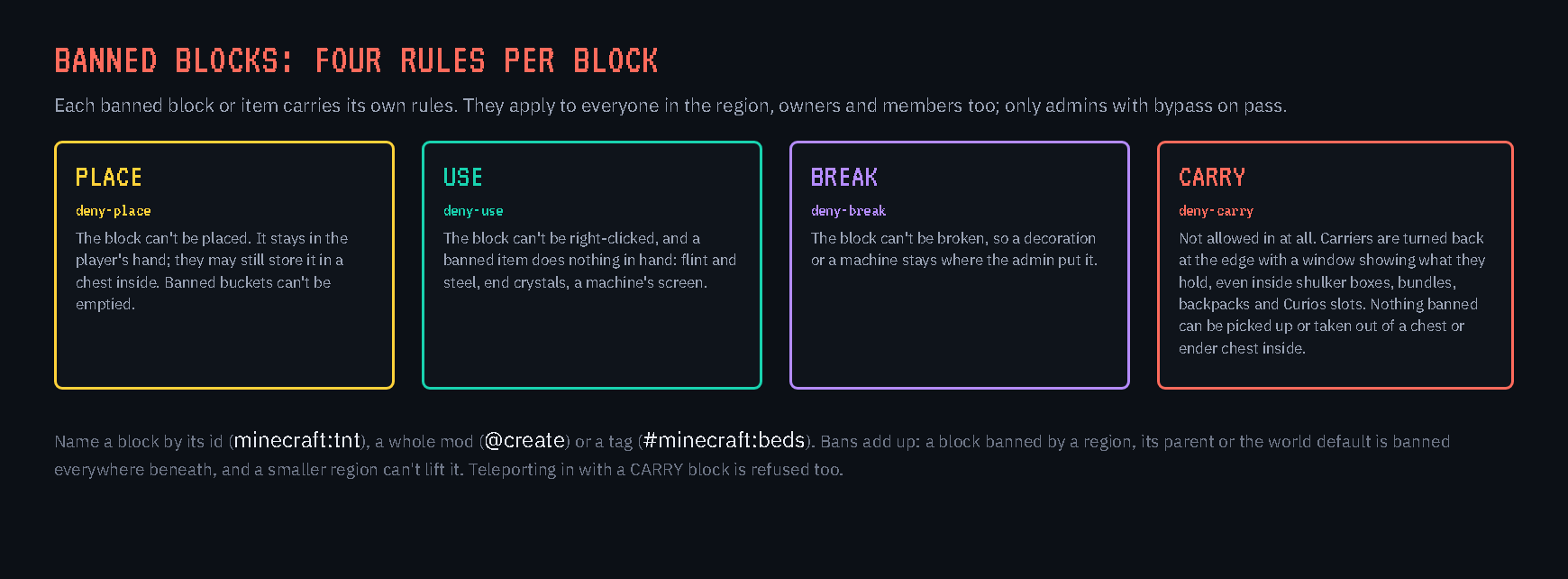
| Rule | What happens in the region |
|---|---|
| PLACE | It can’t be placed; it stays in the player’s hand, and they may still store it in a chest inside. Banned buckets can’t be emptied. |
| USE | It can’t be right-clicked, and a banned item does nothing in hand (flint and steel, end crystals, a machine’s screen). |
| BREAK | It can’t be broken. |
| CARRY | It isn’t allowed in at all (this covers the other three). |
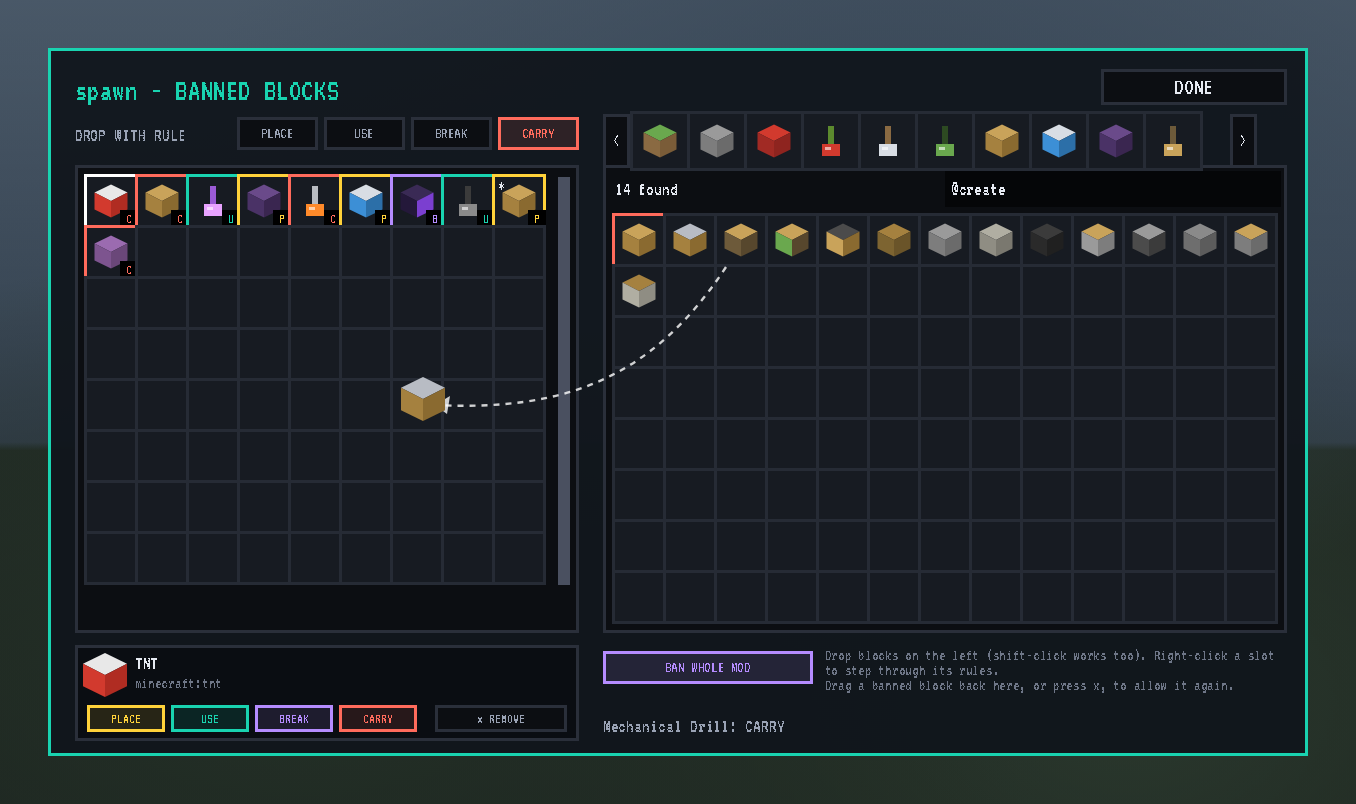
Banning blocks: the BANNED tab. The admin screen’s last tab opens the banned blocks editor:
- The grid on the left holds the region’s banned blocks, each framed in its rule’s colour.
- Minecraft’s own creative tabs are on the right, vanilla and modded.
- To ban something: pick a rule on the bar (PLACE, USE, BREAK or CARRY), then drag blocks across, or shift-click them.
- To change or remove one:
- right-click a banned block to step through its rules
- hover it for its four switches
- drag it back, or press x, to allow it again
- Search works as in JEI:
@createlists only Create’s blocks,@create drillnarrows that down, and plain words search every name and id. - BAN WHOLE MOD bans every block of the mod you last pointed at, as one entry.
Every change saves at once.
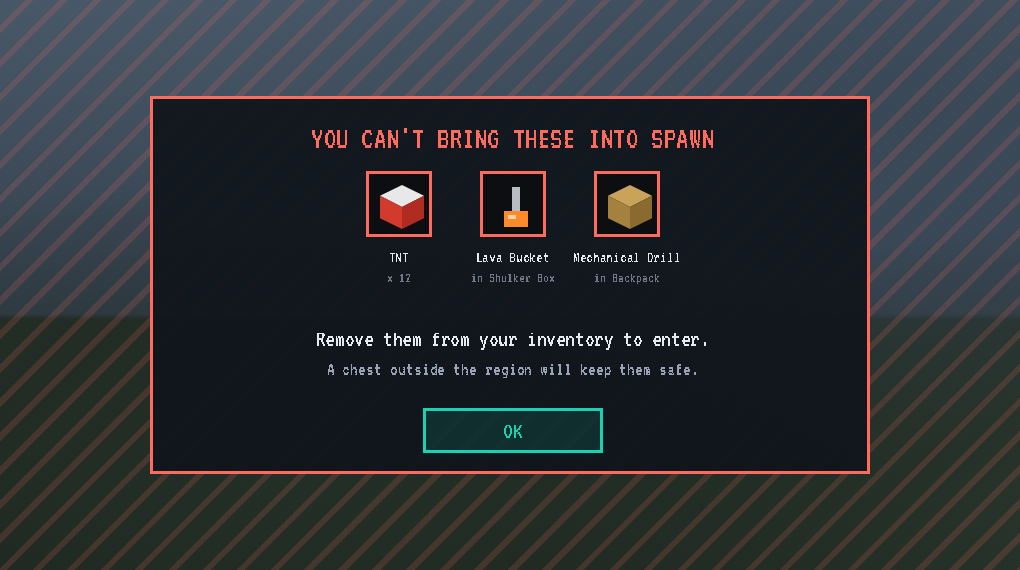
Carrying banned things in. With a CARRY ban:
- At the edge: a player carrying the item is turned back, and a window shows a picture of each banned thing they hold and where it is (“x 12”, “in Shulker Box”), with OK to close.
- What’s checked: their inventory, armour, off-hand and Curios slots, and anything packed inside carried shulker boxes, bundles and backpacks.
- Teleports: teleporting in with one is refused too.
- Inside the region:
- banned items lying on the ground can’t be picked up
- no chest or other container hands one out, the ender chest included
- anyone found holding one (they logged in there, or were given one) is moved just outside
Who and where:
- Who: bans apply to everyone, a region’s owners and members included. Only BSP-Core admins with bypass on pass, and the Shatter Totem rule still keeps a steal possible.
- Where: bans add up. A block banned by a region, its parent or the world default is banned everywhere beneath, so banning TNT on the world default bans it in the whole world, and a smaller region can’t lift it.
- By command:
/rg flag spawn deny-carry minecraft:tnt,@create. Entries are ids, whole mods (@createorcreate:*) or tags (#minecraft:beds).
Players can see what’s banned. Nobody has to find out by trying to place something:
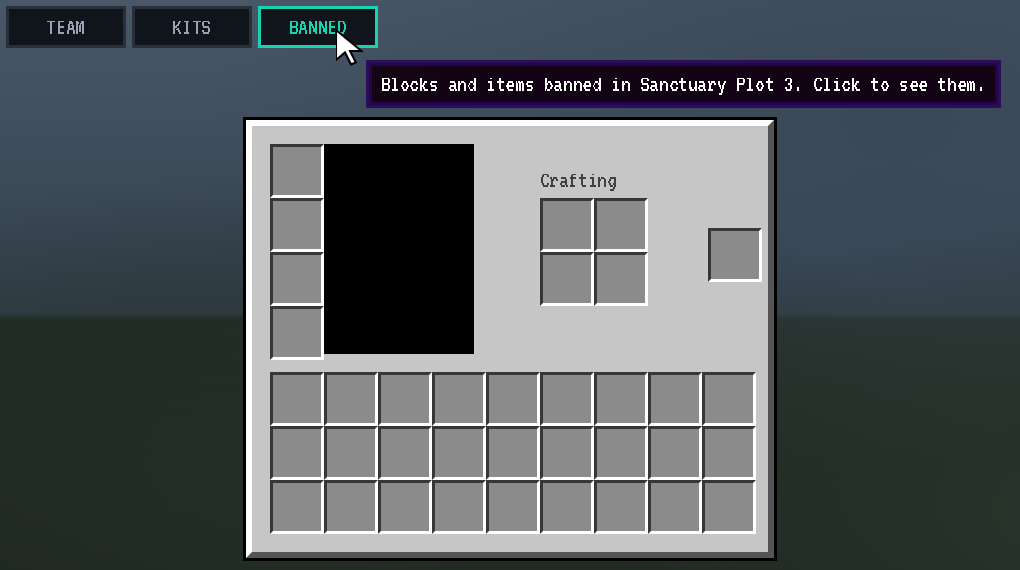
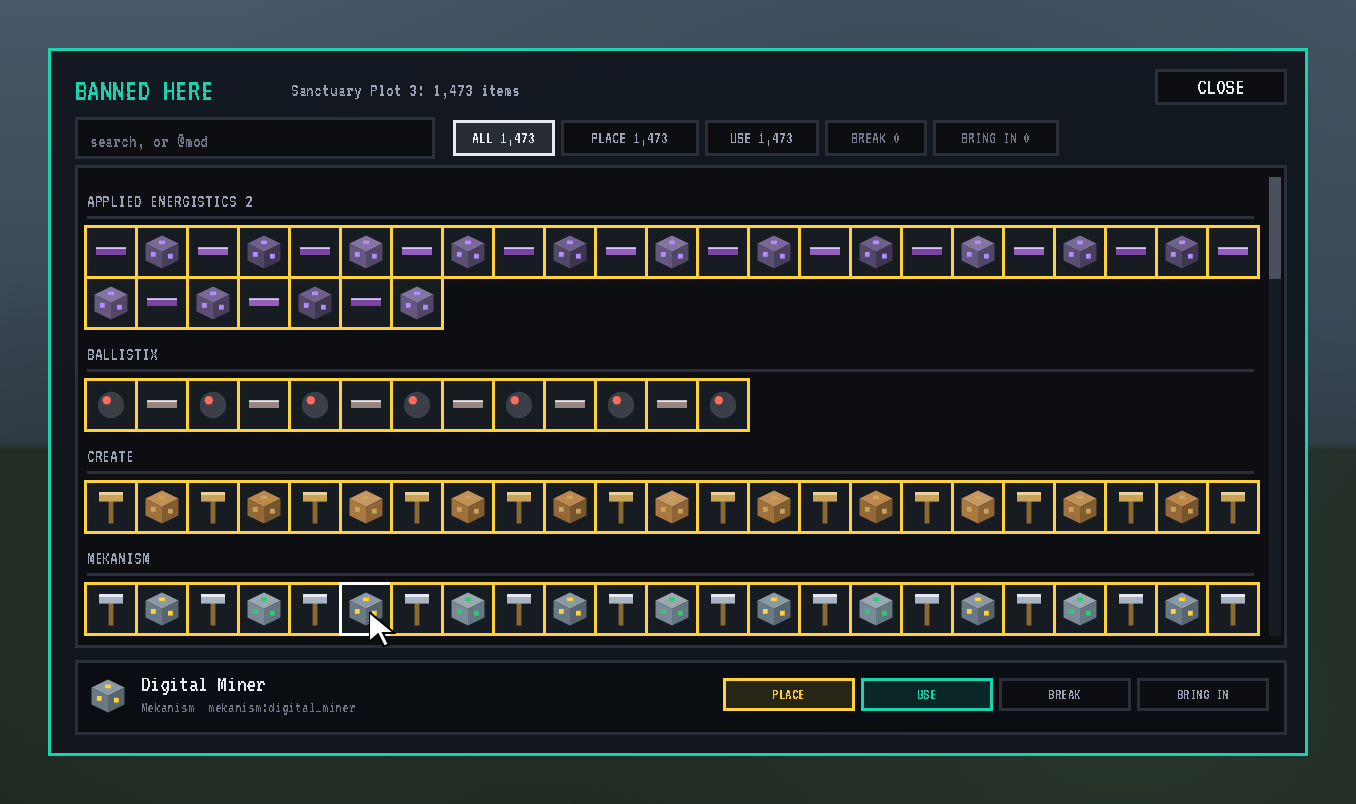
- The BANNED button. While you stand where anything is banned, a BANNED button shows in the top left of your inventory, beside BSP-Core’s TEAM and KITS buttons. Point at it to see which region’s list it is; click it to open BANNED HERE. Players who don’t want it can turn it off with
ui.bannedButton = falseinconfig/bsp_region_guard-client.toml.
- BANNED HERE shows every banned item in one grid, grouped by mod. Tags and whole mods are opened up into their items, matched just as the server checks them.
- Search works as in JEI (
@mekanism). - Chips show one rule at a time, with counts: PLACE, USE, BREAK, BRING IN.
- Point at an item and the card underneath shows which rules stop it.
- Search works as in JEI (
- Before and after buying: the Land Office’s plot card says how many things are banned on a plot and has a BANNED key, and the “you bought it” window says it again with a BANNED HERE button (section 7).
- By command:
/claim bannedfor where you stand,/claim banned <plot>for a plot.
7. Land for players: claims
Admins sell land in two ways:
- Plots for sale: an admin outlines a plot and sets its price. The admin also picks which rules the buyer may change.
- Open areas: an admin marks an area as open and sets a price per block. Players outline their own plot inside it (5 x 5 up to 64 x 64 blocks by default, full height). Plots may touch but never overlap.
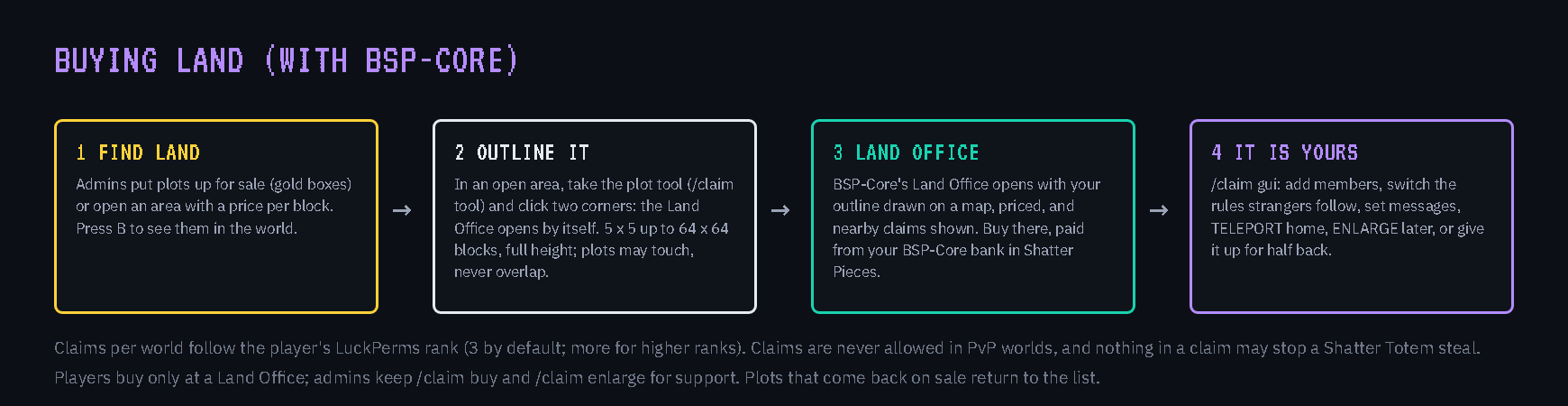
Buying, with BSP-Core:
- A player takes the plot tool (
/claim tool) and clicks two corners. - BSP-Core’s Land Office opens with that ground drawn on a map, priced, and with nearby claims shown.
- The player buys it there.
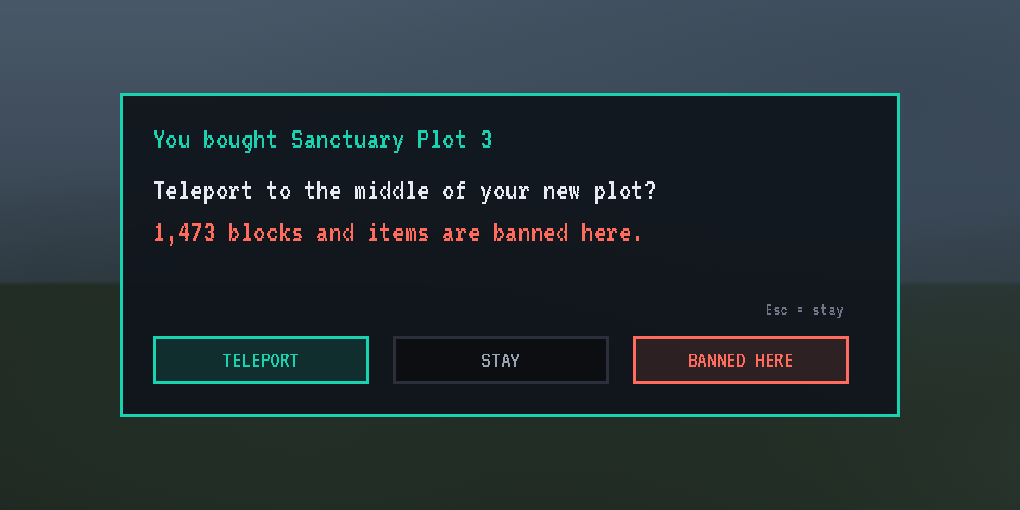
- A window asks whether to TELEPORT to the middle of the new plot (or to its teleport point), or STAY. If anything is banned there, it says how many blocks and items, with a BANNED HERE button.
Plots for sale are bought at the Land Office block too, with the same offer to teleport. Its plot card shows “N BANNED” under the price and a BANNED key, so players know a plot’s bans before they pay.
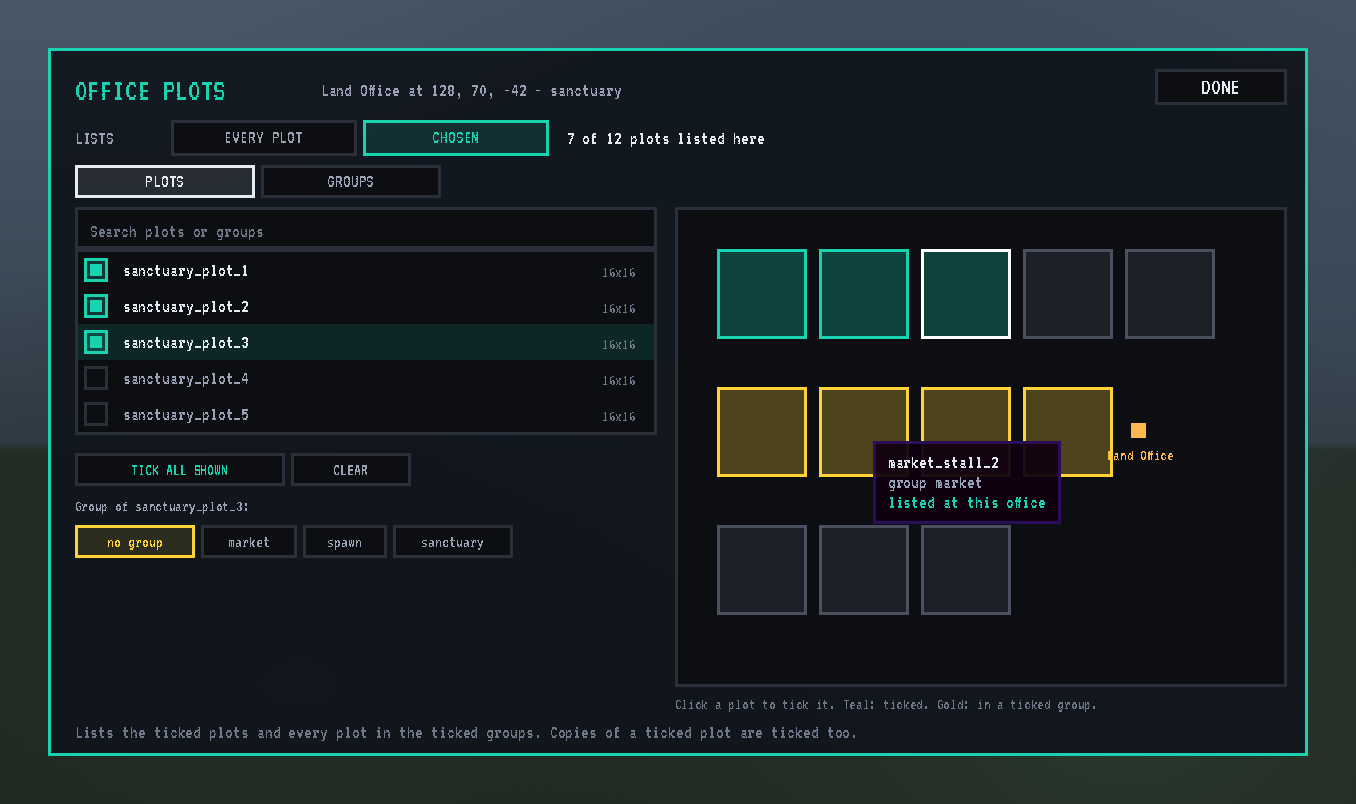
Which plots each Land Office sells. By default a Land Office lists every plot for sale and open area in its world. Admins can give each office its own list in the OFFICE PLOTS window: sneak and right-click the Land Office with the Region Wand, or press the ADMIN key on the Land Office screen (only admins and operators see it).
- EVERY PLOT or CHOSEN: a CHOSEN office lists the plots ticked there and every plot in the sale groups ticked there. Tick a plot in the list or click it on the map.
- Sale groups: put plots in a group (“market”, “spawn”) on the PLOTS tab or with
/rg flag <plot> sale-group market, then tick the group on the GROUPS tab. Several offices can list the same group. - Copies and renames: a copy of a ticked plot made on the region map is ticked at the same offices and keeps its group; a renamed plot stays ticked. A broken Land Office forgets its list.
- An office sells only what it lists, even if a player’s game asks for another plot.
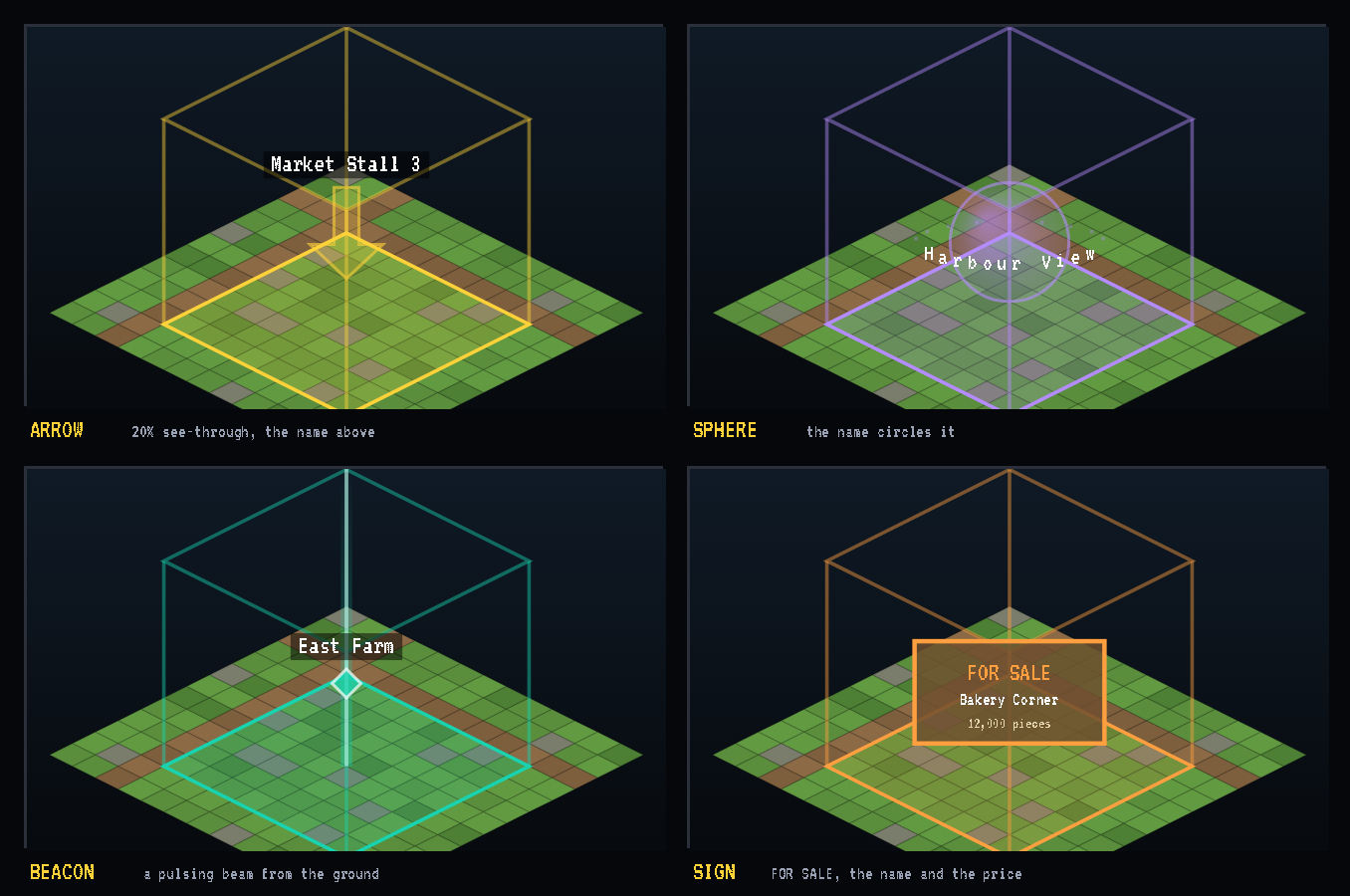
Plots for sale stand out. Every plot for sale and open area shows to every player in its own colour, with a marker over its middle carrying its name, until it’s bought; then it disappears so it’s never in the new owner’s way:
- ARROW (the default): a big arrow pointing down at the ground, 20% see-through, with the name above it.
- SPHERE: a glassy sphere with the name’s letters circling it.
- BEACON: a thin beam of light rising from the plot, pulsing slowly, with a turning crystal.
- SIGN: a big floating board with FOR SALE, the name and the price.
- OUTLINE ONLY: just the coloured outline and the name.
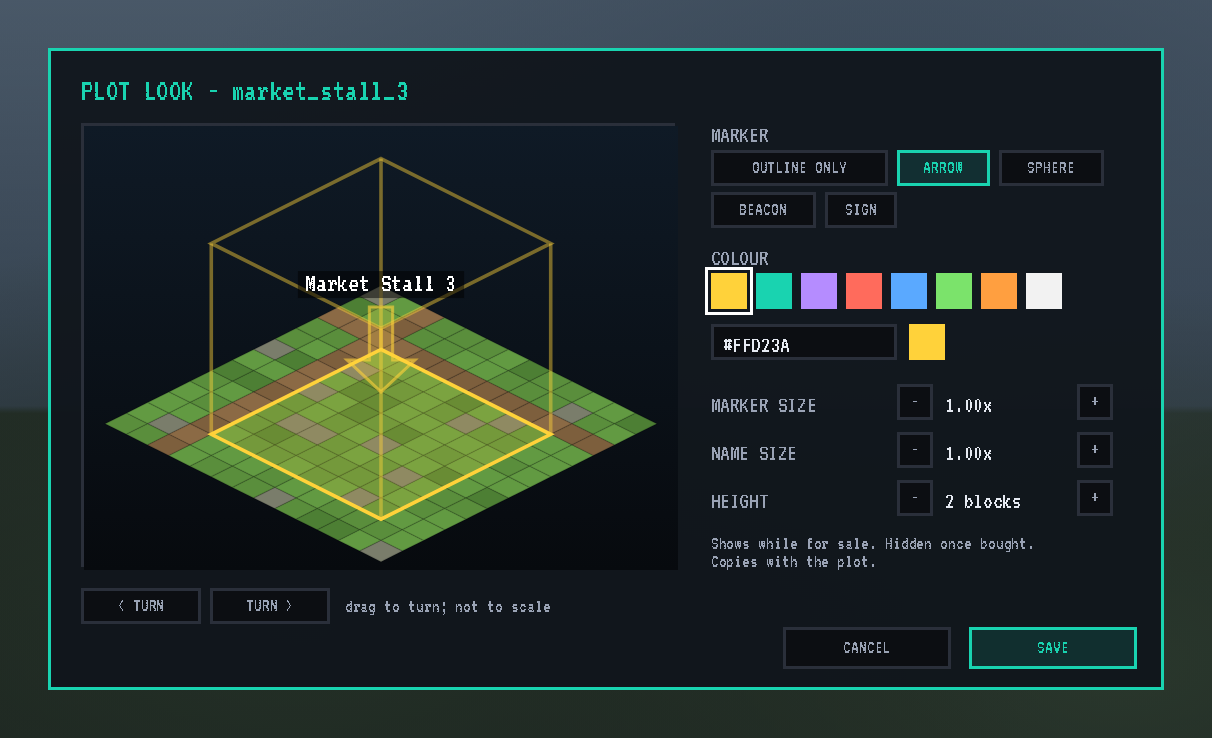
Admins pick a plot’s look in the PLOT LOOK window (LOOK on the SALE tab, or on the region map’s plot card): the marker, its colour (eight colours or any hex code), the marker’s size and the name’s size (0.5x to 3x), and how high it floats above the ground (never above the plot’s top). A preview shows it and turns as you drag it. A copied plot takes the same look and shows its own name. Markers show within 96 blocks, and only what’s in view is drawn, so they stay light on frame rate.
Pieces or coins: plots are paid from the player’s BSP-Core bank in Shatter Pieces by default.
- Set
claims.currency = "coins"and they cost Shatter Coins from the player’s inventory instead. - A price is then a number of coins of one tier, such as “3 gold coins”. Choose the tier per plot or open area on the SALE tab.
- Any coins adding up to the price will do, and change comes back.
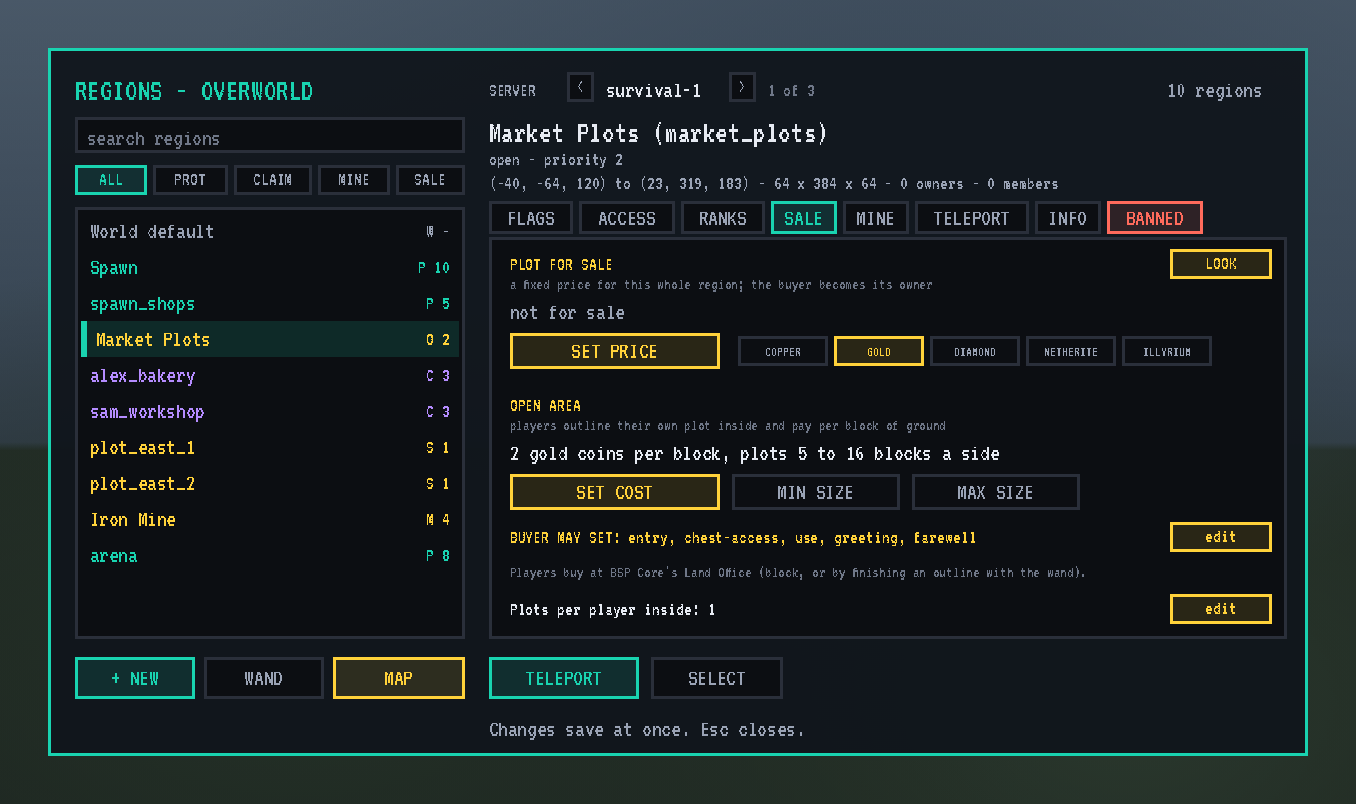
How many plots each:
- Any region can limit the plots one player may own inside it (“Plots per player inside” on its SALE tab): one shop each in the market, two plots each in the village.
- The world has its own limit, which ranks can raise.
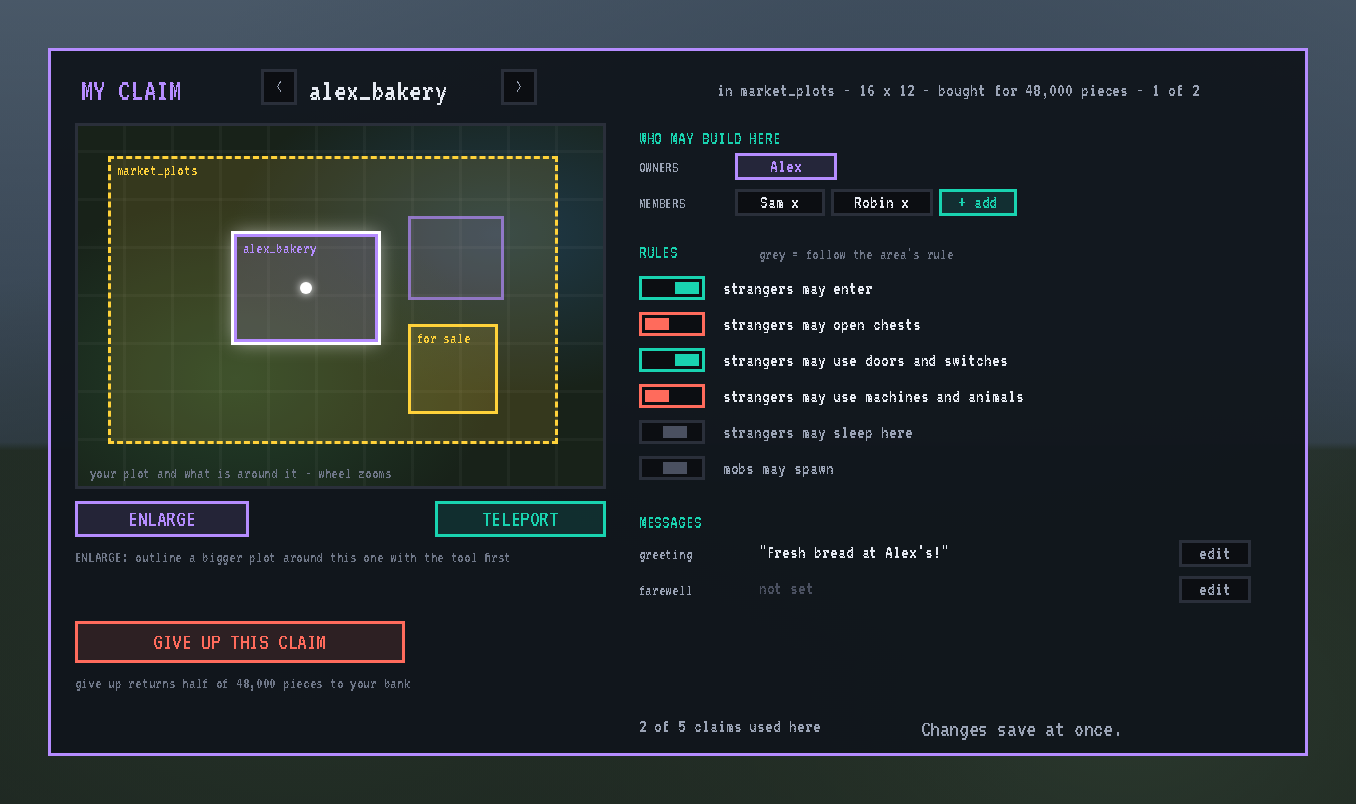
Running your claim: /claim gui (or sneak and right-click the plot tool) opens your claim card:
- Who may build: add members.
- Rules: written as plain sentences (“strangers may open chests”). Each switch is on, off, or grey (follow the area’s rule).
- Messages: a greeting and a farewell for visitors.
- Buttons: TELEPORT to the claim, ENLARGE it later by paying for the extra ground, or GIVE UP for half the price back.
Fair play for raiders:
- In a world where Shatter Totems can be placed, plots are refused unless PvP is denied on the world default or the world’s PLOTS HERE card allows them.
- A claim may not hold a Shatter Totem while any of its rules would stop a steal.
- Near another player’s placed totem, regions never stop a raider.
Starting a new season: admins can wipe one world’s claims from the admin screen or /rg claims wipe. You type back a one-time code, a backup is written first (/rg claims restore brings it back), and every admin online is told. Other worlds and servers are never touched.
8. The region map: draw, reshape, copy and move
One full-window map for every region, plot and mine in the world. Open it with the admin screen’s MAP button (it opens on the picked region), or /rg map.
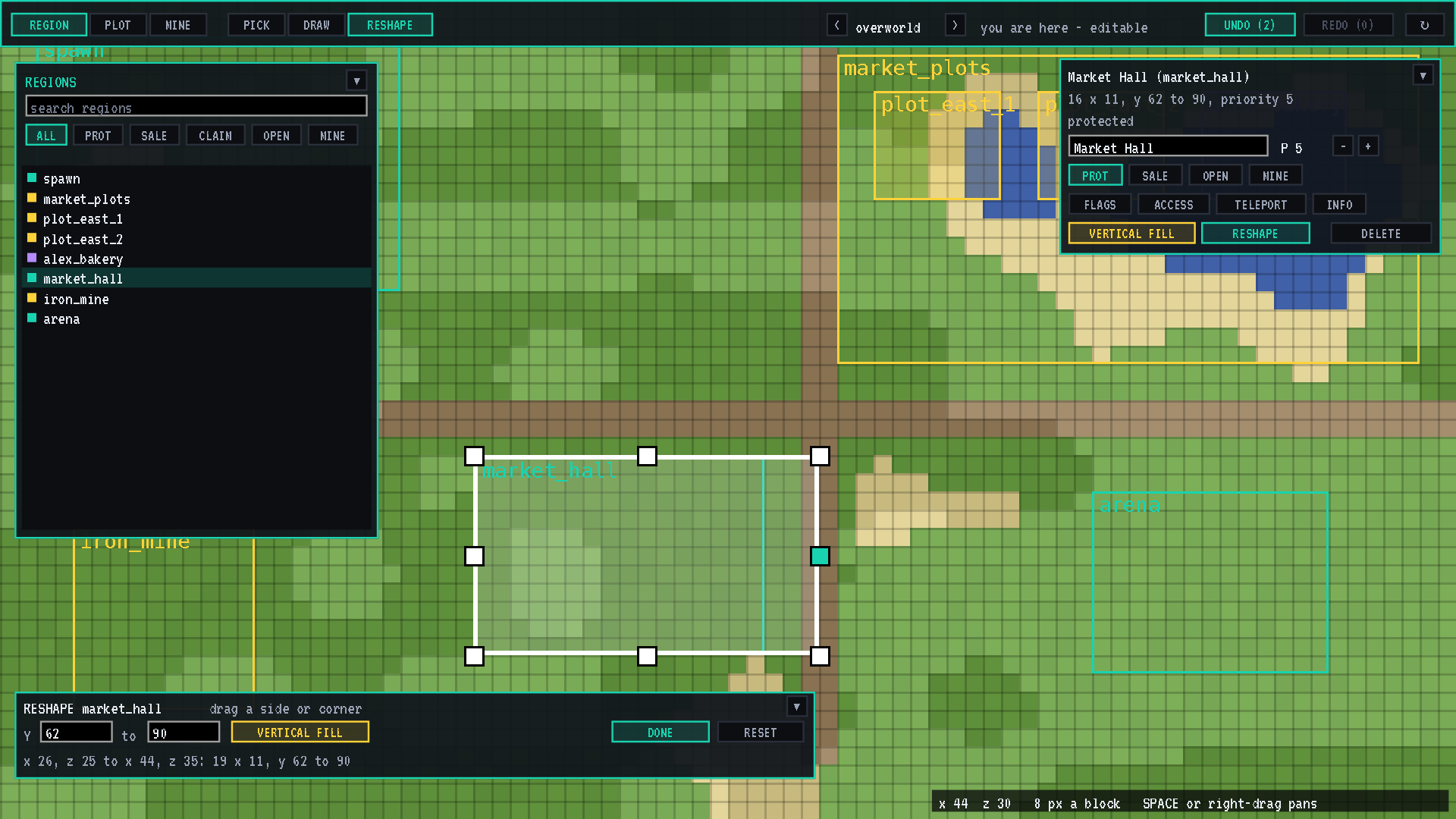
The map:
- What it shows: the whole window is the world, drawn the way a Minecraft map draws it, with every region on top in its colour.
- Zoom: from 1 pixel a block up to 16, with a block grid and the exact x/z under the cursor, so you can place to the block.
- Panning: hold SPACE and drag, or drag with the right mouse button.
- Far-away ground: places you’ve never visited are read from the saved world. Ground that was never generated stays dark and is never generated.
- Finding regions: the folding REGIONS card searches and filters them. Click one to snap the map to it.
Modes along the top:
- REGION: every region.
- PLOT: plots for sale, claims and open areas.
- MINE: mines and their shells.
Each mode dims the other kinds of region.
Tools in every mode:
- PICK: click a region to open its card.
- On every card: its name, priority, VERTICAL FILL, RESHAPE and DELETE (click twice).
- REGION mode: the type.
- PLOT mode: copy, lock, backups, and LOOK for a plot for sale’s marker.
- MINE mode: EDIT FILL for the mine’s blocks.
- Admin screen tabs: buttons open the region’s FLAGS, ACCESS, SALE, MINE, TELEPORT or INFO tab, and Esc there brings you back to the map.
- DRAW: drag a box, or click two corners. Panning with SPACE in between lets you reach far corners. A card asks for an id, a priority and a height, plus a price in PLOT mode. CREATE makes a protected region, a plot for sale or a mine, depending on the mode.
- RESHAPE: drag the handles on the picked region’s sides and corners, set its height, then DONE. CANCEL (or Esc) stops reshaping and keeps the region as it was.
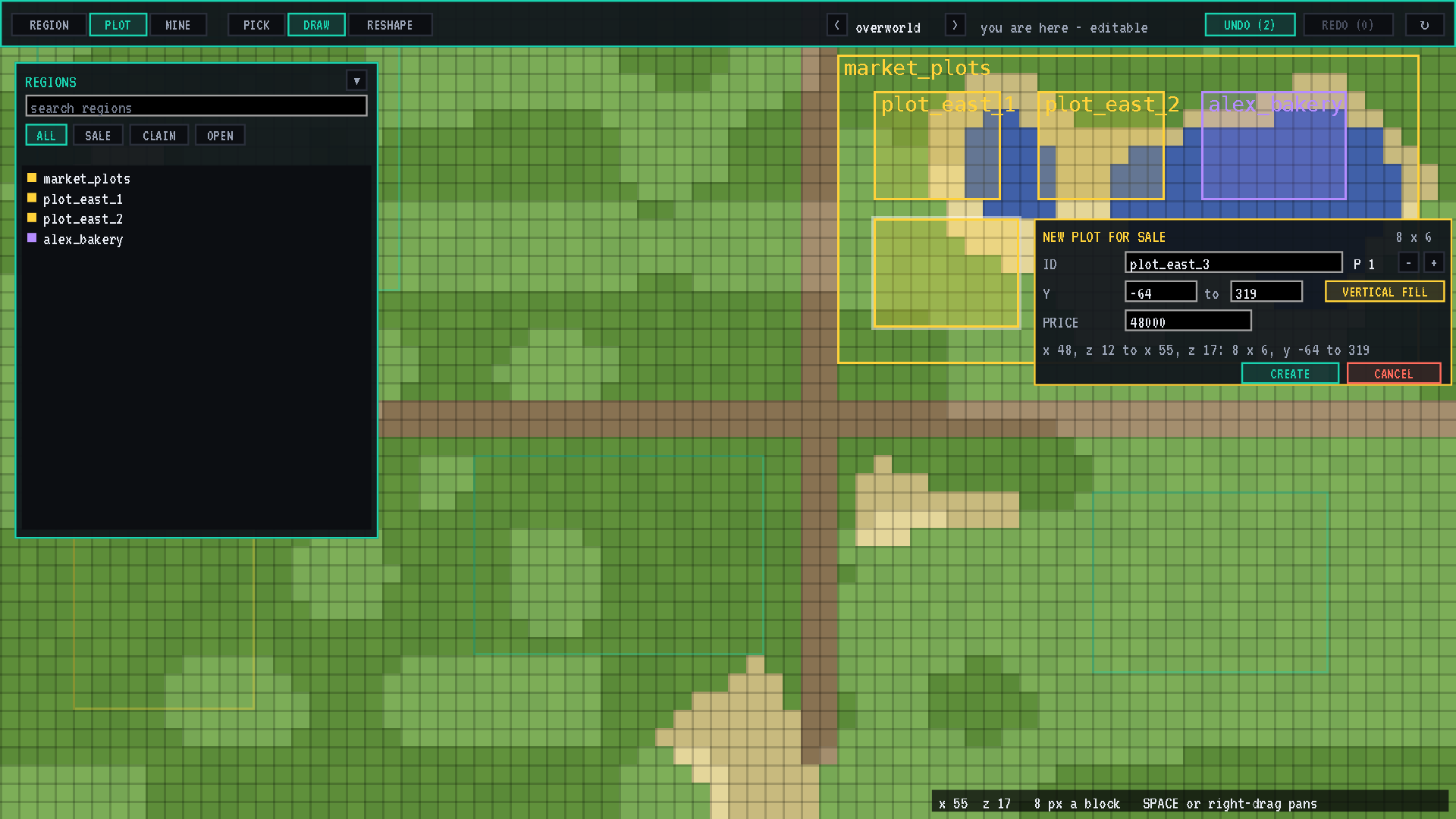
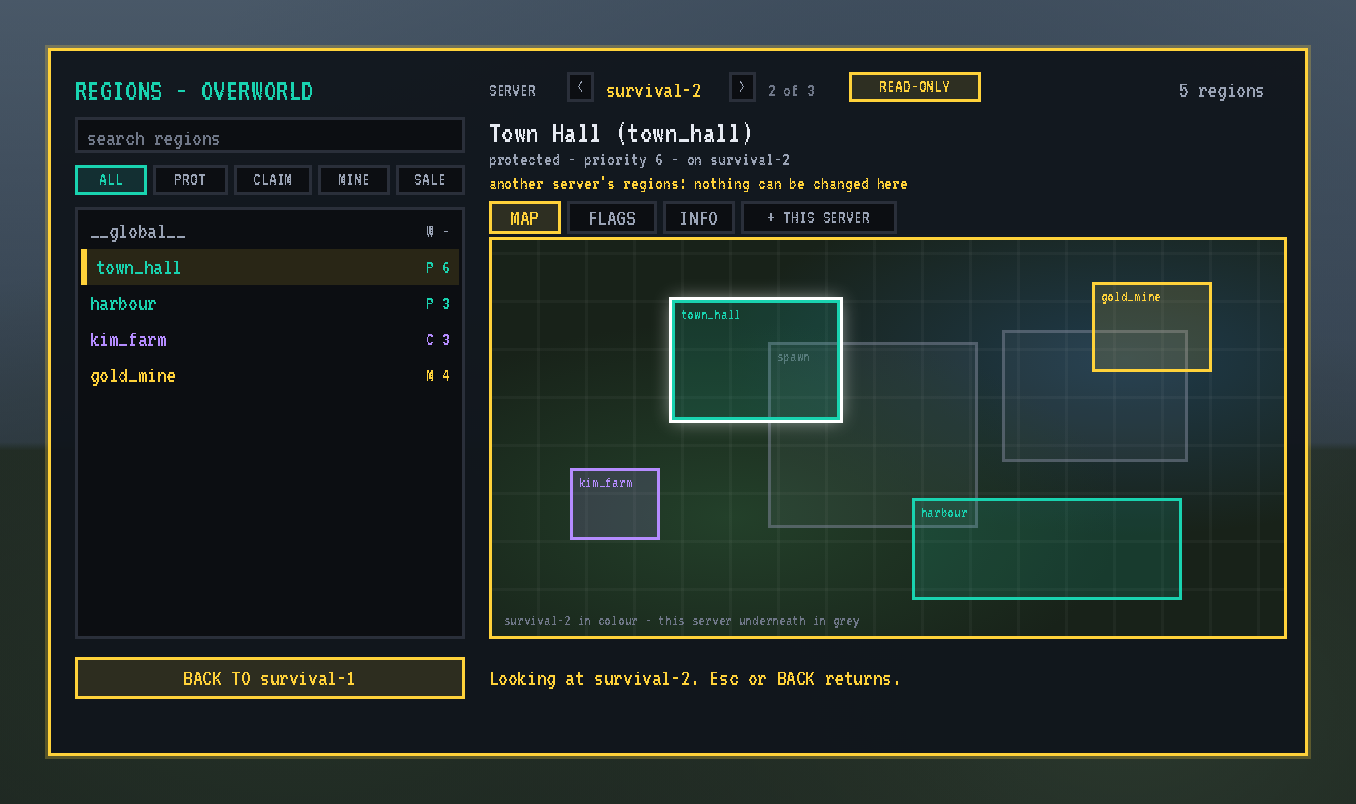
UNDO and REDO take back or redo your last 15 actions on the map: regions drawn, reshaped, deleted, pasted and moved. A deleted region comes back with its flags, owners and everything else. Other worlds can be viewed read-only (gold frame); only the world you stand in can be edited.
Copying a plot (PLOT mode):
- Click a plot, then COPY on its card. The copy follows your mouse.
- Click to drop it, then drag it into place. ROTATE (or R) turns it, ▲/▼ shift its height, and SNAP lines its edges up with its neighbours (hold SHIFT to place freely).
- Give it a new name and press CONFIRM.
The copy becomes a new plot for sale with the original’s size, flags, banned blocks, the buyer’s allowed flags, price, messages, triggers and priority. Owners and members are never copied.
Moving a plot: plots are locked so nothing moves by accident. Press UNLOCK, drag the plot to its new place and CONFIRM; it locks again. A claim someone owns asks before it moves.
Plots inside plots: a plot may sit wholly inside another plot, claim or open area when its priority is higher, and there its own flags win, like a market stall inside a market. A plot may never partly overlap another; the copy turns red, with the reason, until it fits.
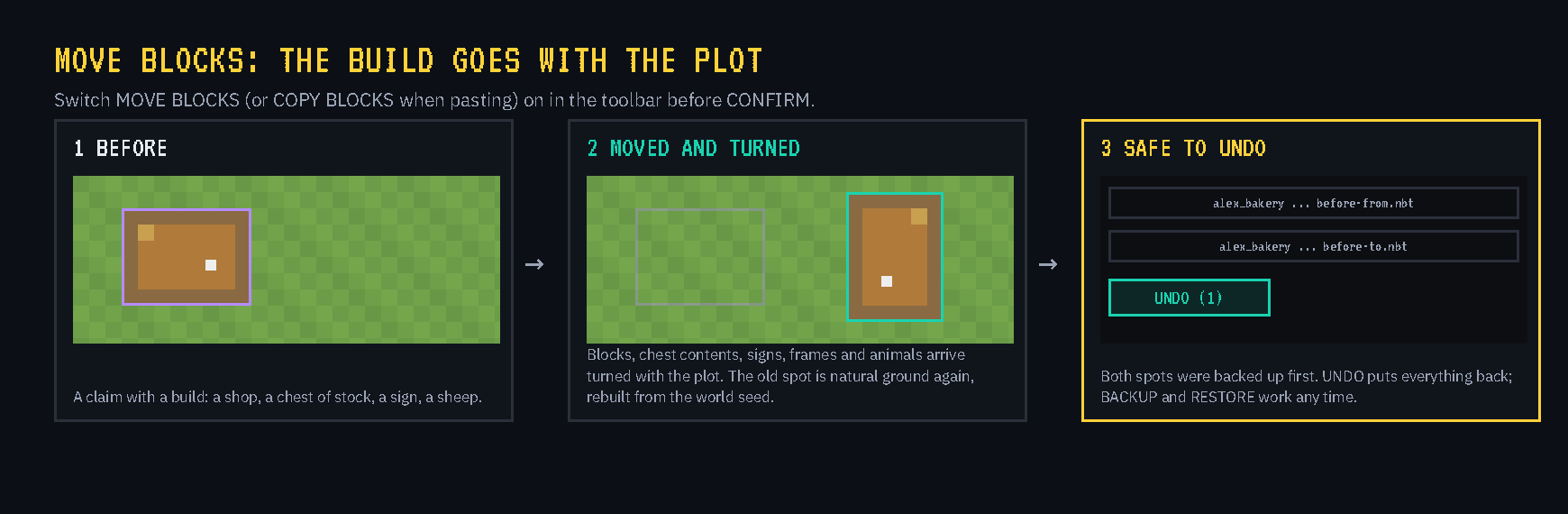
Moving the build too. Switch MOVE BLOCKS (or COPY BLOCKS when pasting) on in the toolbar, and the plot’s build goes with it:
- What goes: blocks, chest contents, signs, item frames, armour stands and animals, all turned with the plot.
- Big plots move a little each tick, so the server keeps running, and players standing inside go along.
- The old spot is rebuilt as natural ground from the world’s generator: its shape, water and caves, with the biome’s surface. Trees, ores and structures don’t regrow.
- Backups first: both spots are backed up before anything is overwritten, so UNDO puts everything back.
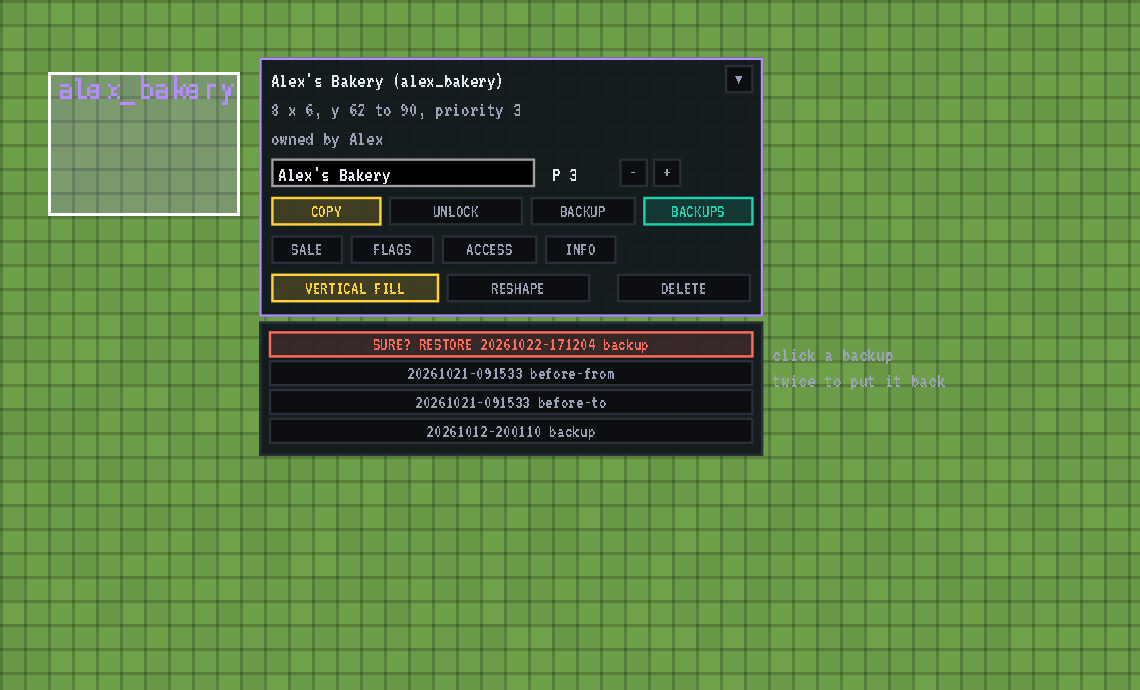
Backups any time: a plot’s card has BACKUP (save its blocks now) and BACKUPS (list them). Click a backup twice to put it back.
9. Mines that refill themselves
Any region can become a mine:
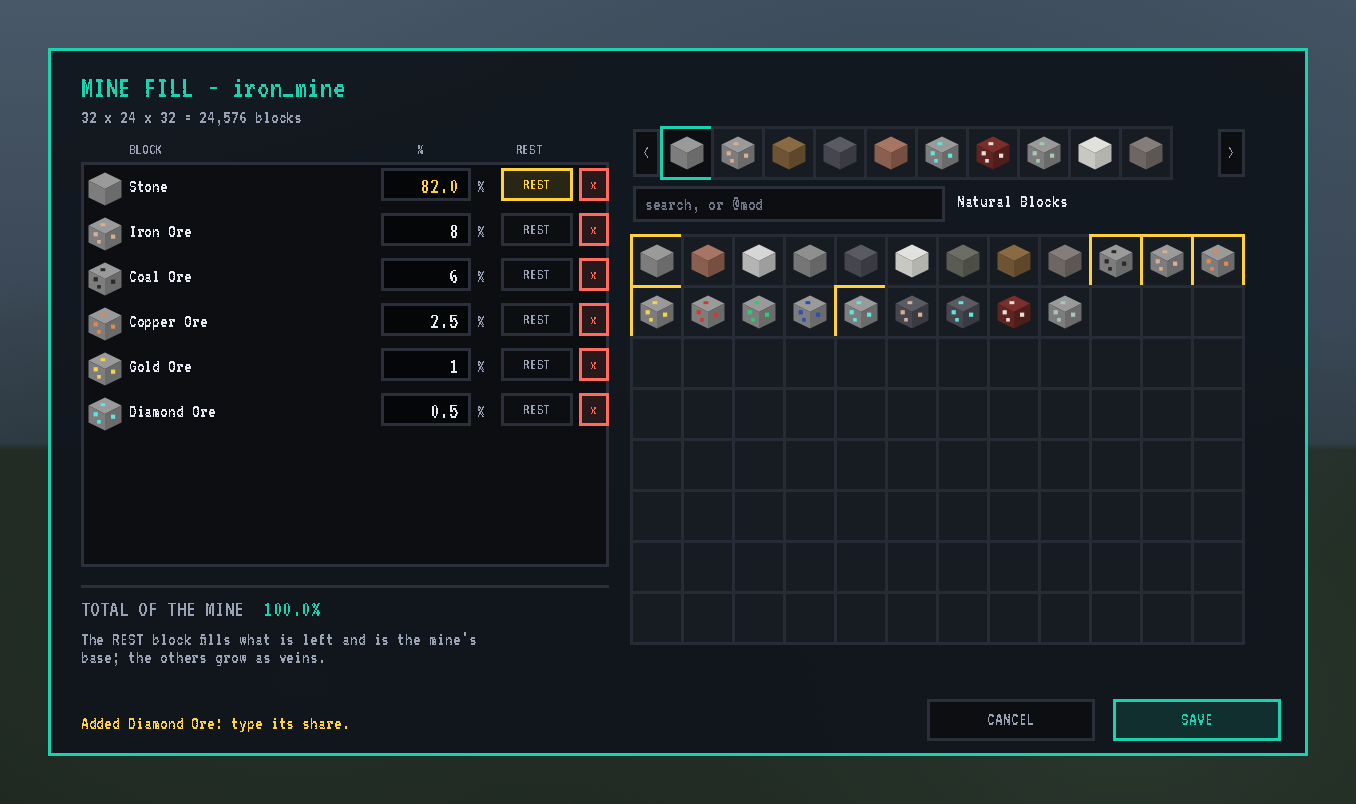
- What it’s made of: EDIT FILL opens the MINE FILL window. Pick blocks from a creative-style browser (the creative tabs, search, and
@modfor one mod’s blocks), give each a share in percent (down to 0.5% for a rare ore), and watch the mine’s total at the bottom. SAVE works once it makes 100%. - Fill the rest: mark one block REST and it takes whatever share is left: it’s the mine’s base, and the others grow as fresh veins through it at every reset, so no two resets look alike. Without a REST block, the biggest share is the base.
- Resets: on a timer, with warnings at 60 and 10 seconds, or straight away with RESET NOW. Players inside are moved to the mine’s spawn point.
- Shell: an optional ring around the mine where only the mine’s blocks may be dug.
- On the region map: in MINE mode, draw a new mine where you want it, and use RESET and SHELL on the picked one.
- Ranks: with LuckPerms or BSP-RankUp, keep the best mines for the higher ranks.
10. Region triggers: move players automatically
A region can move players when they enter, leave, stay a while (every so many seconds) or when the server shuts down. The destination can be a spot on the same server, or a world on another server; use the latter to send everyone to a lobby before a restart. Set triggers from the TELEPORT tab or /rg trigger add, with tab completion.
Same-server moves work on their own. BSP-Teleport carries out cross-server moves through the proxy.
11. Many servers, one network
On a network of servers, turn on the optional shared storage:
- MySQL: every server keeps its own regions and can see everyone else’s.
- Redis: carries messages (mine resets, triggers, travellers) between servers in milliseconds, with MySQL as a safety net.
A single server needs neither. Region Guard bundles no database or Redis library, so nothing clashes with Mohist or other mods. The connection details and passwords live in their own file, config/bsp_region_guard-network.toml, which is never sent to players.
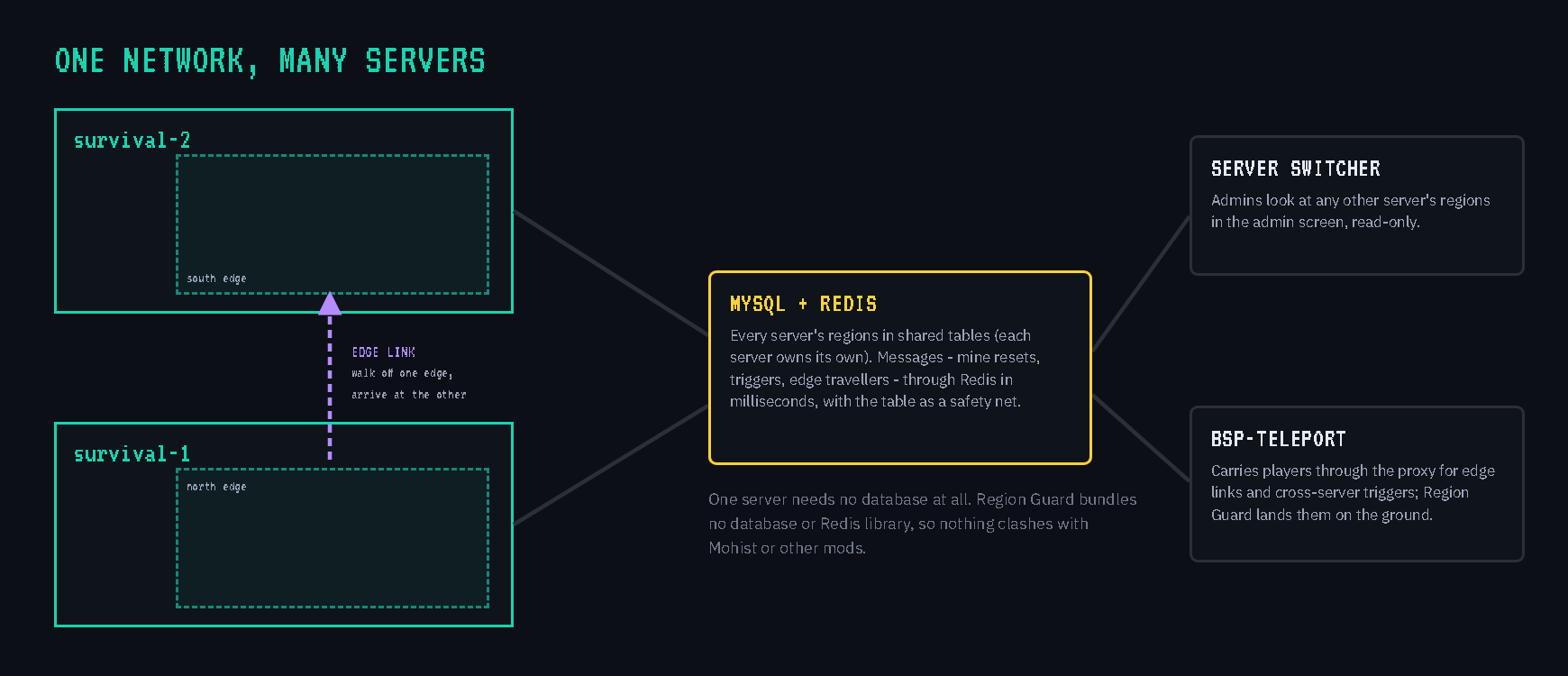
Server switcher. The admin screen’s SERVER picker shows any other server’s regions on the map, read-only, with this server laid underneath in grey.
Edge links: walk from one server into the next. On the world default’s BORDER tab, link an edge of this world’s border to an edge of another server’s world. Links work both ways.
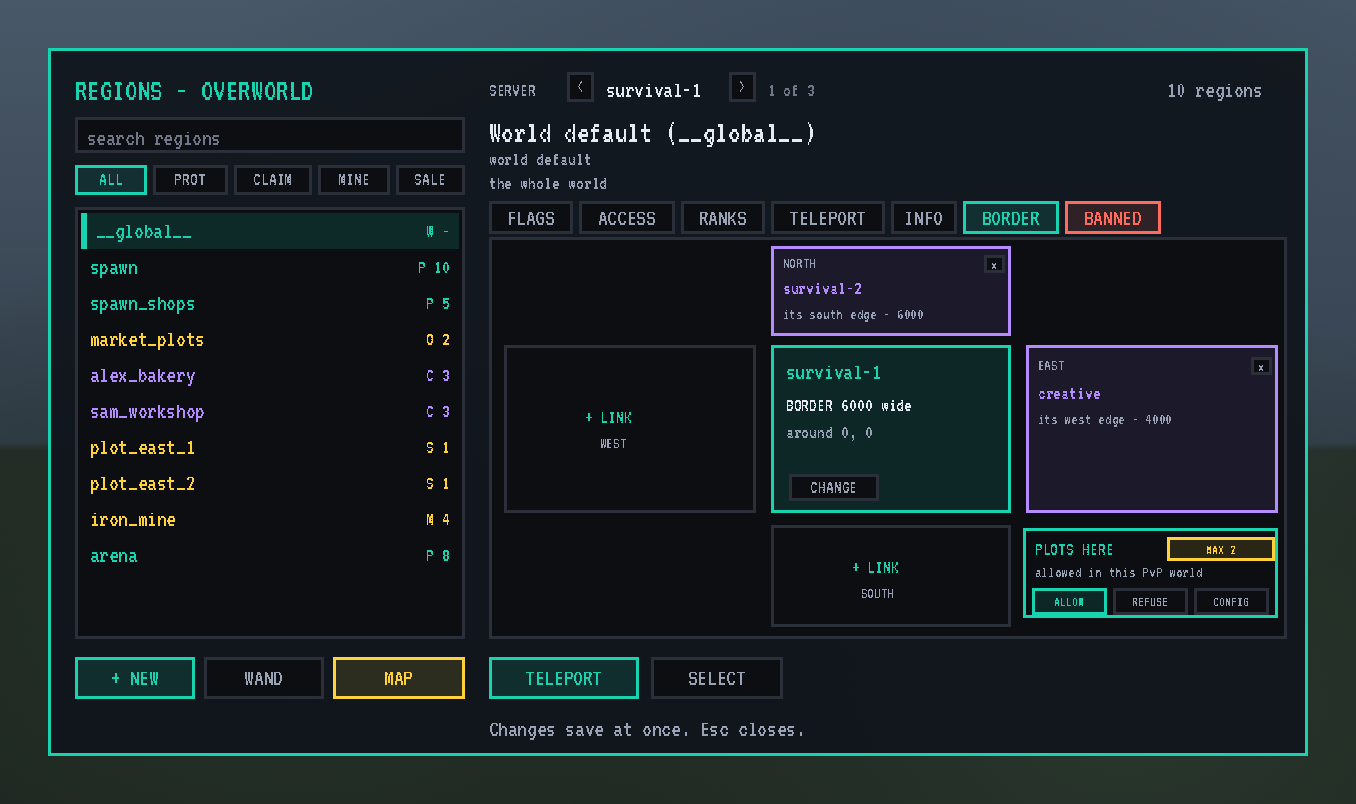
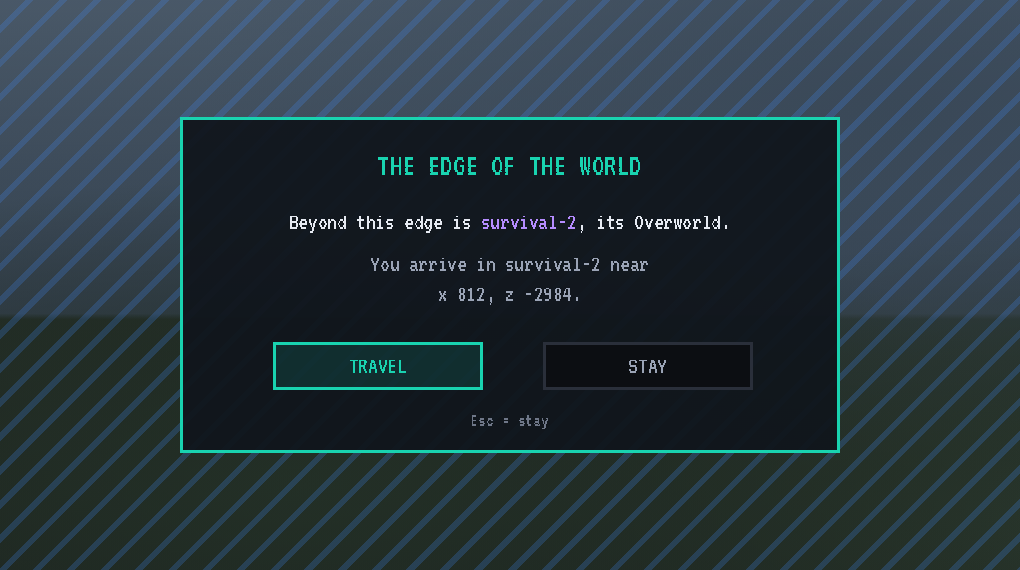
When a player reaches a linked edge, a window asks whether to travel:
- TRAVEL: BSP-Teleport carries them to the other server. They arrive at the matching point along its edge, 16 blocks inside, always on the ground under open sky.
- STAY: they stay put and aren’t asked again until they walk away and come back.
Working with the other BSP mods
BSP-Core (required)
- Money: claims are paid from the BSP-Core bank in Shatter Pieces, or in Shatter Coins from the inventory if you choose. Refunds go back the same way.
- The Land Office: BSP-Core’s land shop. Outline ground with the plot tool and it opens with the price, in pieces or coins; buy, enlarge or give up there. It also shows plots for sale and your neighbours’ claims, each plot’s banned count with a BANNED key, and for admins an ADMIN key that chooses which plots that office sells.
- Admins: BSP-Core’s admin list decides who runs Region Guard.
- Shatter Totems: regions never stop a steal near another player’s placed totem. BSP-Core’s Anti Totem zones and Region Guard regions work together for totem placing, teleports and homes.
BSP-Teleport (optional)
- Teleport rules: BSP-Teleport asks Region Guard’s
teleport-in,teleport-outandset-homeflags, so admins can keep teleports out of an arena or homes out of spawn. A player carrying a CARRY-banned item can’t teleport into that region. /rtp: stays inside Region Guard’s world border.- Cross-server moves: BSP-Teleport carries out cross-server region triggers and edge-link travel, and Region Guard lands the player on solid ground.
BSP-RankUp (optional)
- Ranks open land: RankUp’s ranks are LuckPerms groups, the same ones Region Guard’s rank gates read. Ranking up lets players into new regions and mines and raises how many claims they may own.
- The rank needed: a player turned back is told the rank they need on the ladder and how far they have to go.
- Server name: on a network, RankUp picks up Region Guard’s server name.
LuckPerms (optional)
- Groups: decide rank-gated regions, mines and claim limits.
- Editions: both the Forge mod and the Bukkit plugin on Mohist are supported. Without LuckPerms, everything else still works.
Commands
| Command | What it does |
|---|---|
/rg gui |
the admin screen |
/rg wand |
the Region Wand |
/rg define <id> (or /rg create <id>), /rg redefine <id>, /rg remove <id> |
make, move or delete a region from the wand outline; without an outline, define makes a region without corners yet |
/rg redefine <id> <x1 y1 z1> <x2 y2 z2> |
give a region typed corners |
/rg vfill <id>, /rg vfill |
stretch a region, or your wand outline, from the bottom to the top of the world |
/rg flag <id> <flag> <value> |
set a flag (clear removes it) |
/rg flag <id> deny-carry minecraft:tnt,@create |
banned blocks by command (also deny-place, deny-use, deny-break) |
/rg map (or /rg plotmap) |
the region map |
/rg plot backup <id>, /rg plot backups <id>, /rg plot restore <file> |
back up a plot’s blocks, list its backups, restore one |
/rg addowner, /rg removeowner, /rg addmember, /rg removemember |
owners and members |
/rg addrank, /rg removerank |
the LuckPerms groups that may enter |
/rg priority, /rg parent, /rg type, /rg info, /rg list |
region details |
/rg rename <id> <name> |
a new name, and the id that goes with it (“Market Hall” gives market_hall) |
/rg teleport <id> |
go to a region |
/rg border set <width> [x z], /rg border off, /rg border link ... |
the world border and edge links |
/rg mine ... |
fill table, interval, spawn, shell, reset |
/rg sale ..., /rg plotflags ... |
plots for sale and open areas |
/rg flag <plot> sale-group <name> |
put a plot in a sale group for the Land Offices (clear takes it out) |
/rg look <id> <part> <value> |
a plot for sale’s marker: the part is marker, colour, size, namesize or height; /rg look <id> shows its look |
/rg cointier <id> <tier> |
the coin tier a plot or open area is priced in (with claims.currency = "coins") |
/rg plotlimit <id> <number> |
how many plots one player may own inside a region (none removes the limit; <span style="text-decoration: underline;">global</span>: in the world) |
/rg claims pvp <rule> |
plots in this world when it counts as a PvP world: allow, deny or default; no rule shows the current one |
/rg trigger add <id> <cause> <destination> |
region triggers |
/rg claims wipe, /rg claims restore |
the per-world claim wipe |
/rg bypass |
switch your admin bypass off or on |
/rg storage, /rg servers |
shared storage status |
/claim gui, /claim tool, /claim list, /claim quote |
your claims, the plot tool, prices |
/claim add, /claim remove, /claim flag, /claim abandon |
members, rules, giving a claim up |
/claim banned [plot] |
what’s banned where you stand, or on a plot |
For developers
Other mods can use Region Guard through its public API (com.mrgregles.bsp_region_guard.api, version 8):
- Questions: ask whether a flag allows something at a spot; read flag values, region bounds and the world border.
- Extending it: register your own flags and exemptions.
- Claims and mines: work with claims (listings, per Land Office too, quotes, purchases, prices in pieces or coins) and mines.
- Player screens: open BANNED HERE or OFFICE PLOTS from your own screens (
api.client). - Messages: send messages to the other servers.
- Events: players entering and leaving regions, triggers, claims bought and abandoned, and mine resets.
Full reference in docs/API.md.
Early release: 0.6.0 is an early version and has not yet run on a large live network. Please report problems on the issue tracker.
Source: github.com/Build-Secure-Protect/BSP-Region-Guard · MIT licence · Made for Build Secure Protect
常见问题
BSP REGION GUARD 支持哪些 Minecraft 版本?
BSP REGION GUARD 支持 Minecraft Java 版 1.20.1,可用的加载器:Forge。下载时注意选择和你游戏版本一致的文件。
BSP REGION GUARD 怎么安装?
先用 PCL2 或 HMCL 启动器安装对应版本的 Forge,再把下载的 .jar 文件放进游戏目录的 mods 文件夹,重新启动游戏即可。开启了版本隔离的,mods 文件夹在 versions/版本名 下面。
Mrgregles 的其他作品
查看全部 →
Build Secure Protect
Inspired by the old Tekkit modpack Voltz. BSP or Build, Protect, Secure focuses on base building and raiding. Use tech to create your very own fortress then attack others to claim their precious resources.
BSP CORE
BSP (Build Secure Protect) core modpack that adds custom items, blocks, machines, functions and behaviours to the official BSP server.
BSP TELEPORT
A teleport, home, warp mod to be used with the BSP Modpack offical server allowing teleporting between all servers within the network.
BSP SERVER UTILITIES
Server utilities to help servers run rule screens, kick afk players, report admin actions to prevent abuse and more
评论
登录后评论和评分