
截图
介绍
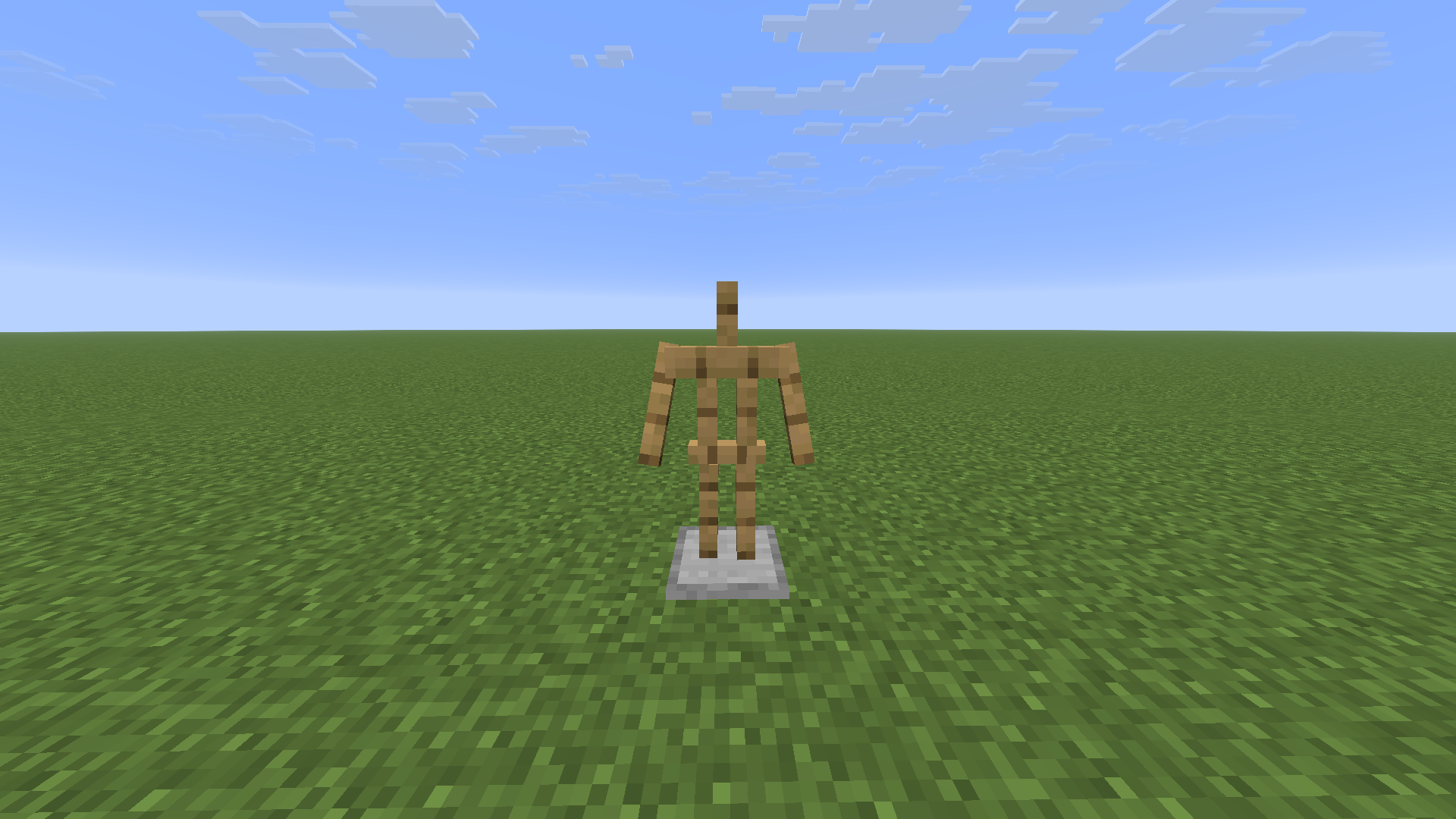
This project is making the Armor Stand has arms, so now after downloading and installing the data pack, you will be able to put your sword on the Armor Stand.
✨ Features
- Resemblance between Editions: The data pack makes Armor Stand has arms like Minecraft: Bedrock Edition.
- Low file size: The data pack size is less than 64 KiB making it easy and fast to download for very weak internets.
- Open Source: You can see the source code of the project to know how the project works.
- Wide Compatibility: Supports Minecraft Java Edition from version 1.13.x up to the latest snapshots.
🗒️ News & Updates
See the latest news about my projects:
📂 Source Code & Issues
GitLab (Source Code)
GitLab (Issues)
📥 Installation
Linux
Data Pack
World that already exists:
- Go to this location “~/.minecraft/saves/” (Make sure you are showing the hidden folders and files by pressing Left Ctrl + H).
- Choose the world folder you want to put the Data Pack into it.
- Open datapacks folder, then put the data pack.zip in the datapacks folder.
- Reload the world by /reload command or by Quit the world and rejoin it.
New World:
- Open Minecraft, then click on “Singleplayer”.
- Click on “Create New World”, then click “More World Options…”.
- Click on “Data Packs” button, then drag the data pack file into Minecraft.
- Click “Done” and “Create New World”.
MacOS
Data Pack
World that already exists:
- Go to this location “~/Library/Application Support/minecraft/saves/”.
- Choose the world folder you want to put the Data Pack into it.
- Open datapacks folder, then put the data pack.zip in the datapacks folder.
- Reload the world by /reload command or by Quit the world and rejoin it.
New World:
- Open Minecraft, then click on “Singleplayer”.
- Click on “Create New World”, then click “More World Options…”.
- Click on “Data Packs” button, then drag the data pack file into Minecraft.
- Click “Done” and “Create New World”.
Windows
Data Pack
World that already exists:
- Press Win + R, then type %appdata%, then press Enter.
- Open “Roaming” folder, then “.minecraft” folder, then open “saves” (Make sure you are showing the hidden folders and files by pressing Left Ctrl + Left Shift + period).
- Choose the world folder you want to put the Data Pack into it.
- Open datapacks folder, then put the data pack.zip in the datapacks folder.
- Reload the world by /reload command or by Quit the world and rejoin it.
New World:
- Open Minecraft, then click on “Singleplayer”.
- Click on “Create New World”, then click “More World Options…”.
- Click on “Data Packs” button, then drag the data pack file into Minecraft.
- Click “Done” and “Create New World”.
🛑 Deletion
Linux
Data Pack
- Go to this location “~/.minecraft/saves/” (Make sure you are showing the hidden folders and files by pressing Left Ctrl + H).
- Find the world folder that you put the Data Pack into it.
- Open datapacks folder, then remove the data pack.zip in the datapacks folder.
- Reload the world by /reload command or by quit the world and rejoin it.
MacOS
Data Pack
- Go to this location “~/Library/Application Support/minecraft/saves/”.
- Find the world folder that you put the Data Pack into it.
- Open datapacks folder, then remove the data pack.zip in the datapacks folder.
- Reload the world by /reload command or by quit the world and rejoin it.
Windows
Data Pack
- Press Win + R, then type %appdata%, then press Enter.
- Open “Roaming” folder, then “.minecraft” folder, then open “saves” (Make sure you are showing the hidden folders and files by pressing Left Ctrl + Left Shift + period).
- Find the world folder that you put the Data Pack into it.
- Open datapacks folder, then remove the data pack.zip in the datapacks folder.
- Reload the world by /reload command or by Quit the world and rejoin it.
Enjoy.
Important Thing!
I know this is a Minecraft Project and this project has Minecraft things but because my project is an open source, I will talk about this.
Starting 2027, a silent update, nonconsensually pushed by Google, will block every Android app whose developer hasn’t registered with Google, signed their contract, paid up, and handed over government ID.
For more information: https://keepandroidopen.org/.
常见问题
Not Enough Armor Stand Arms [NEASA] 支持哪些 Minecraft 版本?
Not Enough Armor Stand Arms [NEASA] 支持 Minecraft Java 版 1.13–26.3,共 51 个版本。下载时注意选择和你游戏版本一致的文件。
Not Enough Armor Stand Arms [NEASA] 怎么安装?
新建世界时在「数据包」里把下载的 .zip 拖进去;已有的存档,把文件放进存档目录下的 datapacks 文件夹,进游戏输入 /reload 即可生效。服务器同样放在世界目录的 datapacks 里。
评论
登录后评论和评分