
Resource Tree
Organize your resource packs into folders — drag & drop, navigate, color-code, rename, delete, create folders, search, sort, and manage each pack in-game with ease.
截图

介绍
Resource Tree adds folder navigation to Minecraft’s resource pack screen, so you can organize your packs into subfolders instead of scrolling through one massive list.

📁 Features
🌿 Folder Navigation
- Subfolders inside your
resourcepacksdirectory automatically appear in the resource pack screen - Click the → arrow or double-click a folder to navigate into it
- A ← Back entry appears at the top so you can navigate back up
- Each folder shows a pack count next to
<Folder>indicating how many packs are directly inside
🎨 Folder Options
- Right-click any folder to open a context menu
- Pick from 6 colors to color-code your folders: Default, Red, Blue, Green, Purple, and White
- Colors are saved and persist across game restarts
- Rename a folder directly inline
- Delete a folder (with confirmation if it contains files)

✅ Enable / Disable All
- Right-click a folder and click Enable All → to move all packs inside it to Selected at once
- Click Disable All ← to move them all back to Available
- Only affects packs directly inside that folder — nested subfolders are not affected
➕ New Folder
- Click the
+button next to the≡button to create a new folder in the current directory - Instantly enters rename mode so you can name it right away

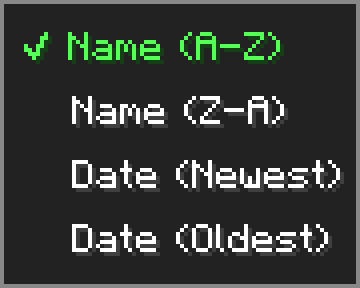
📊 Advanced Sorting ▫️NEW▫️
- Click the
⇅button next to the search bar to open the sort menu - Sort your packs by Name (A-Z), Name (Z-A), Date (Newest), or Date (Oldest)
- Sort setting is saved and persists across game restarts
- Folders always stay pinned to the top regardless of sort mode
🖱️ Drag & Drop ▫️NEW▫️
- Hold and drag any resource pack from the available list to move it into a folder
- A ghost preview follows your cursor while dragging
- Hover over a folder to highlight it as a drop target — release to move the pack inside
- Drag onto the ← Back entry to move a pack up one folder level
- Shift+left-click any resource pack to instantly move it to the Selected list
⚙️ Options Menu
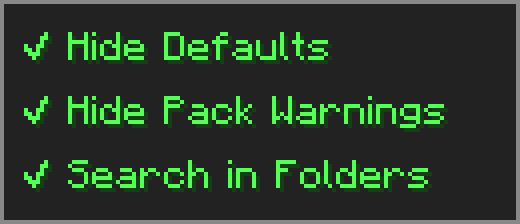
Click the ≡ button next to “Open Pack Folder” to open the options menu.
- Hide Defaults — hides High Contrast and Programmer Art from the available list
- Hide Pack Warnings — hides the red warning color on outdated resource packs
- Search in Folders — makes the search box look inside subfolders too
🔧 Compatibility
- ⚠️ Essential — dragging packs from Available to Selected may behave unexpectedly — use the arrow button or shift+click instead.
- ➕ Resourcify — works great for browsing and installing packs directly in-game.
常见问题
Resource Tree 支持哪些 Minecraft 版本?
Resource Tree 支持 Minecraft Java 版 1.21.11–26.1.2,共 4 个版本,可用的加载器:Fabric。下载时注意选择和你游戏版本一致的文件。
Resource Tree 怎么安装?
先用 PCL2 或 HMCL 启动器安装对应版本的 Fabric,再把下载的 .jar 文件放进游戏目录的 mods 文件夹,重新启动游戏即可。开启了版本隔离的,mods 文件夹在 versions/版本名 下面。运行环境:仅客户端。
Naw7 的其他作品
查看全部 →
Scroll Walk
Alt+Scroll to slow down. Total control over your walking speed.

Morphling
Shapeshift into mobs. Each morph matches vanilla sounds, abilities, and animations.
Morphling
Shapeshift into mobs. Each morph matches vanilla sounds, abilities, and animations.

Subtitles+
Replaces Minecraft’s subtitles with a customizable system that adds color‑coded sounds, sound icons, background options, and a drag‑and‑resize on‑screen editor.
评论
登录后评论和评分