
截图
介绍
中文介绍正在准备中,下面暂时显示原文。

VERSION 0.4.0 IS OUT!
CHECK THE CHANGELOG FOR DETAILS
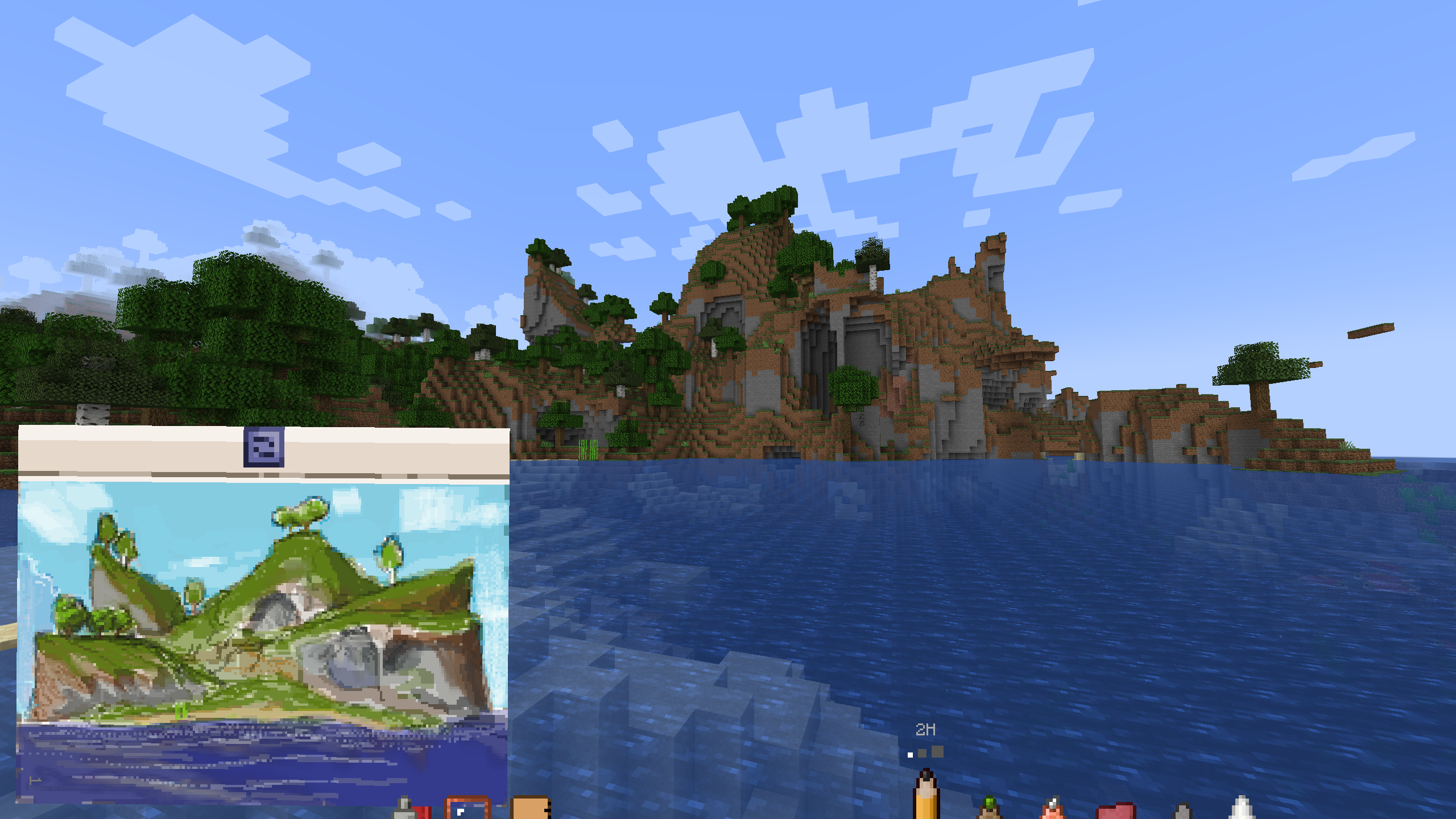
Did you ever wanted to draw your humble starter house? Or you stumbled upon a cool mountain, but you have nothing with you? Or maybe even you wanted to draw your lovely pet, but…ugh? No worries, I got you! Here’s THE sketchbook.
Seriously, why nobody ever did that? Heavily inspired by Xerca’s Joy of Painting
Addons:
Esquisse Canvas – infinite canvas for infinite imagination (justKleb, contact me please)
If you have any suggestions or you want to report a bug – feel free to email me
[email protected]
Key Features:
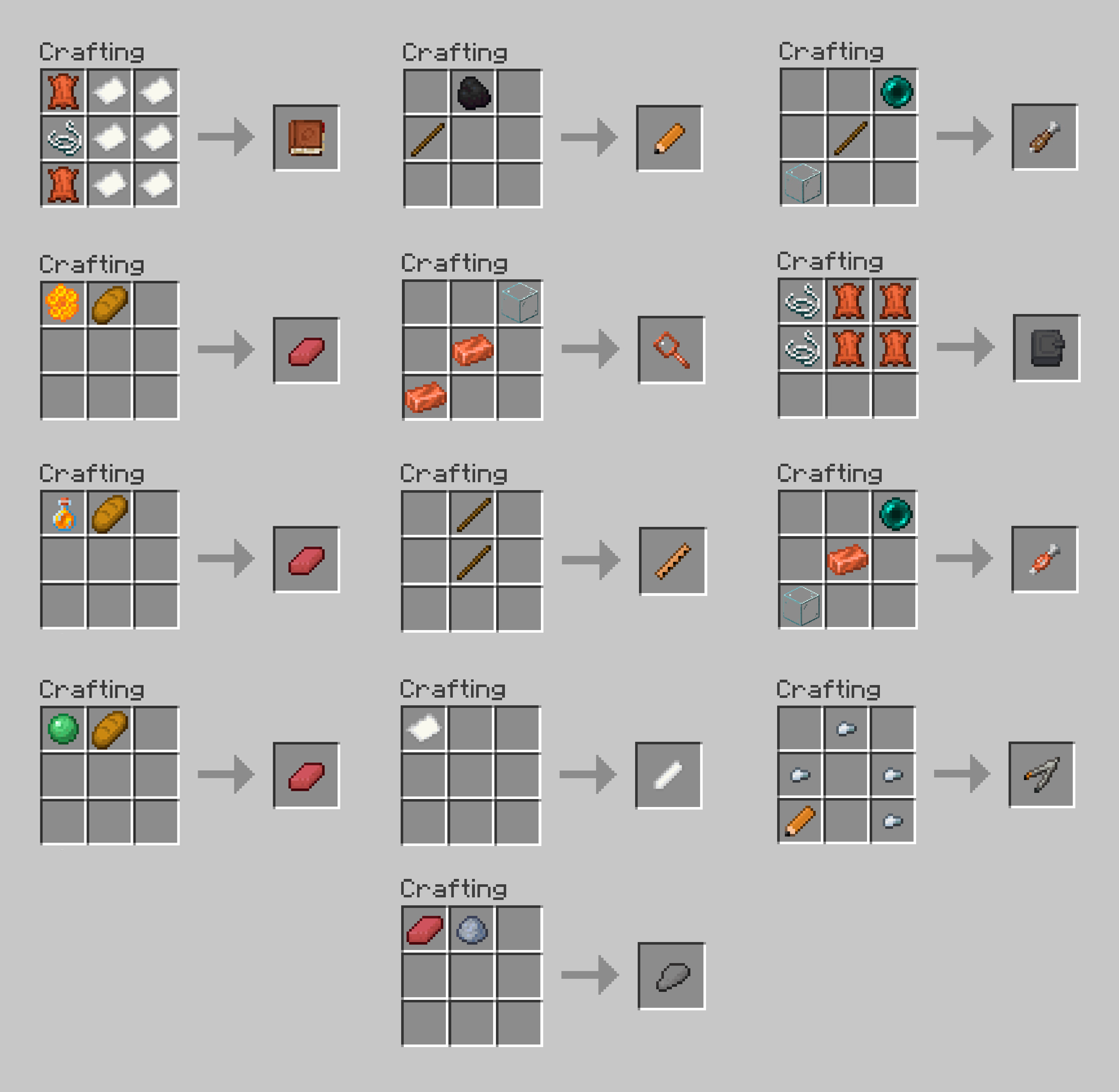
- Craft a Sketchbook and open a custom drawing interface!
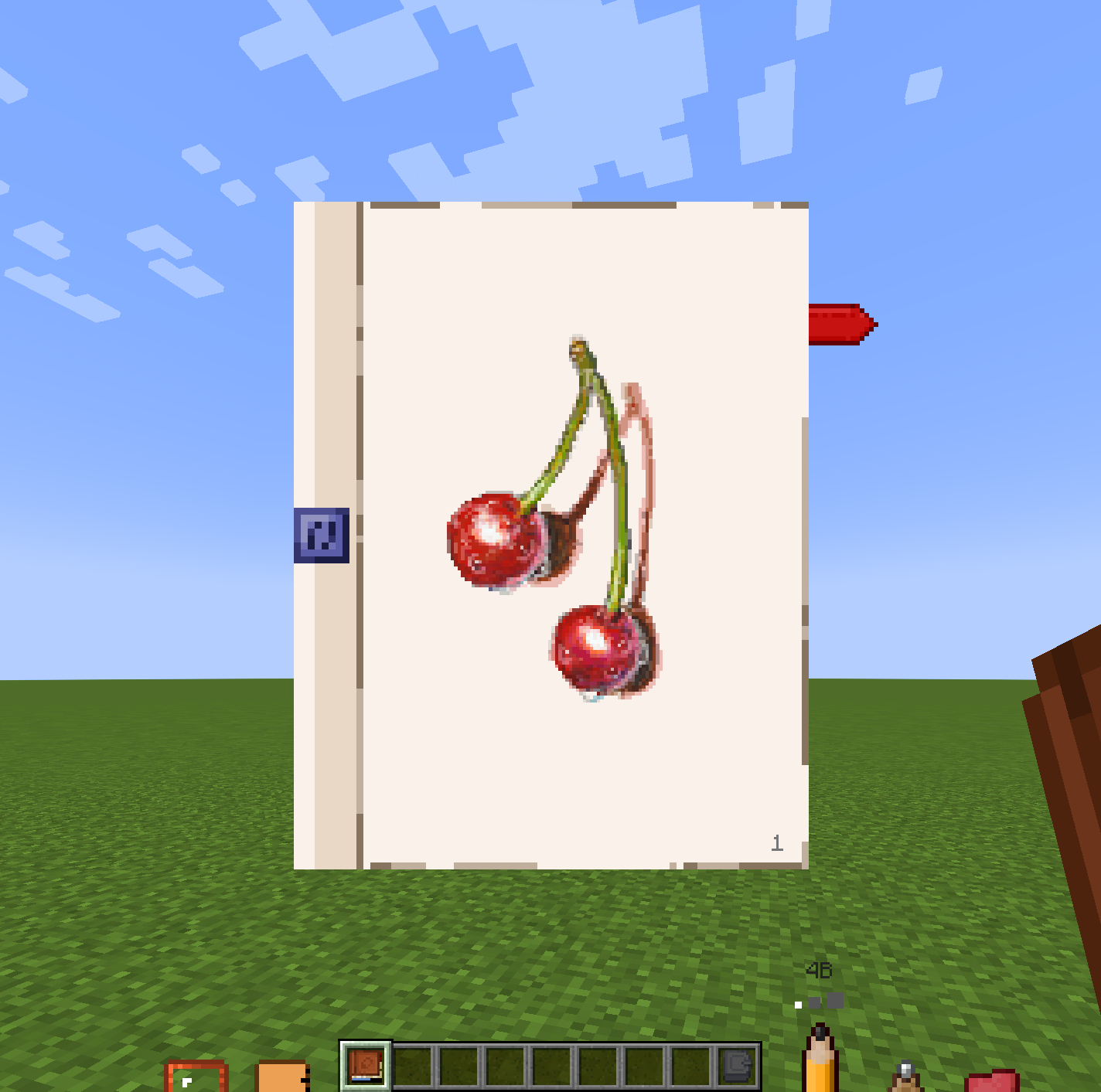
- Drawing Tools: Craft a pencil and eraser to draw! (There’s no joy without them…)
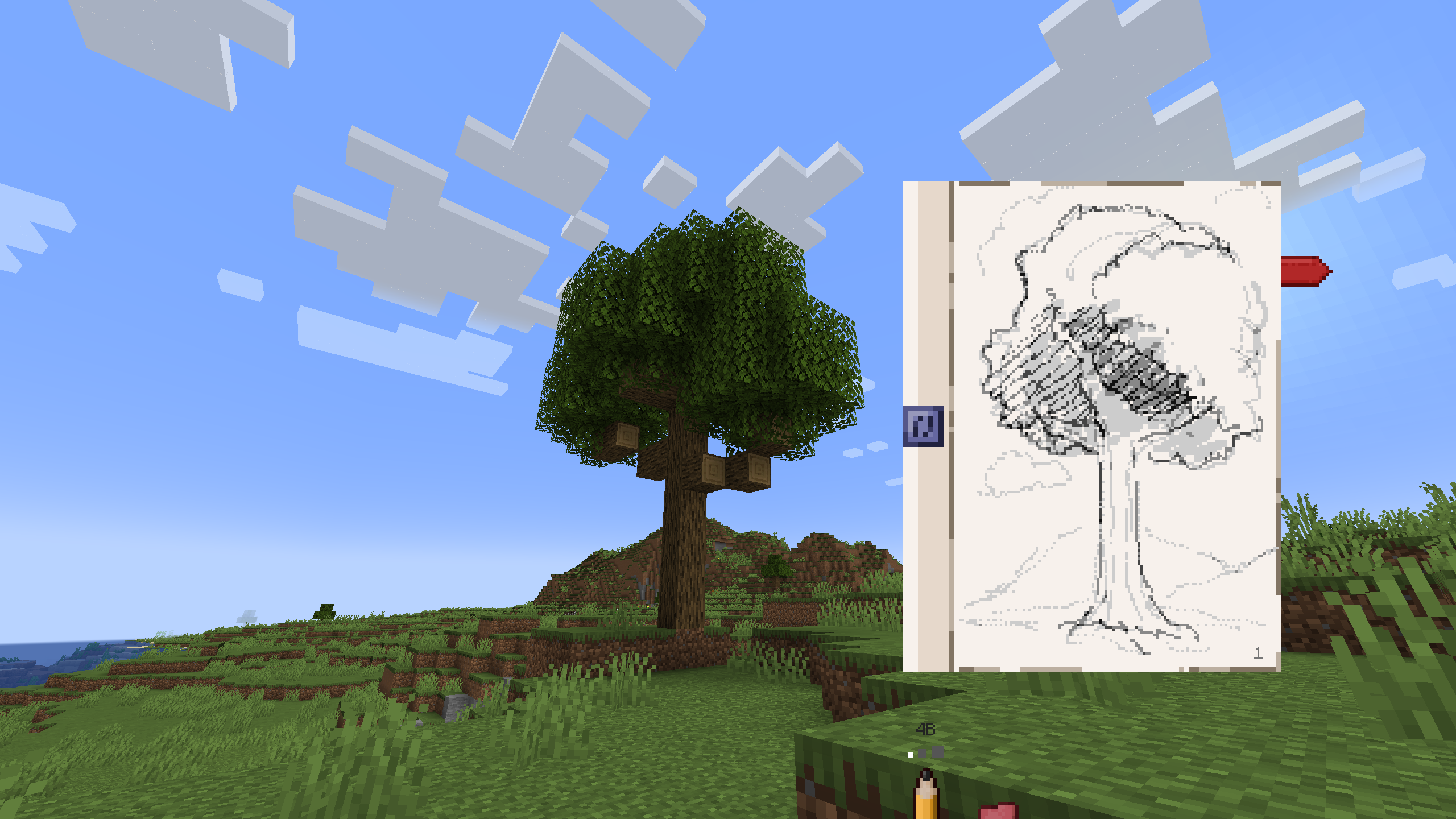
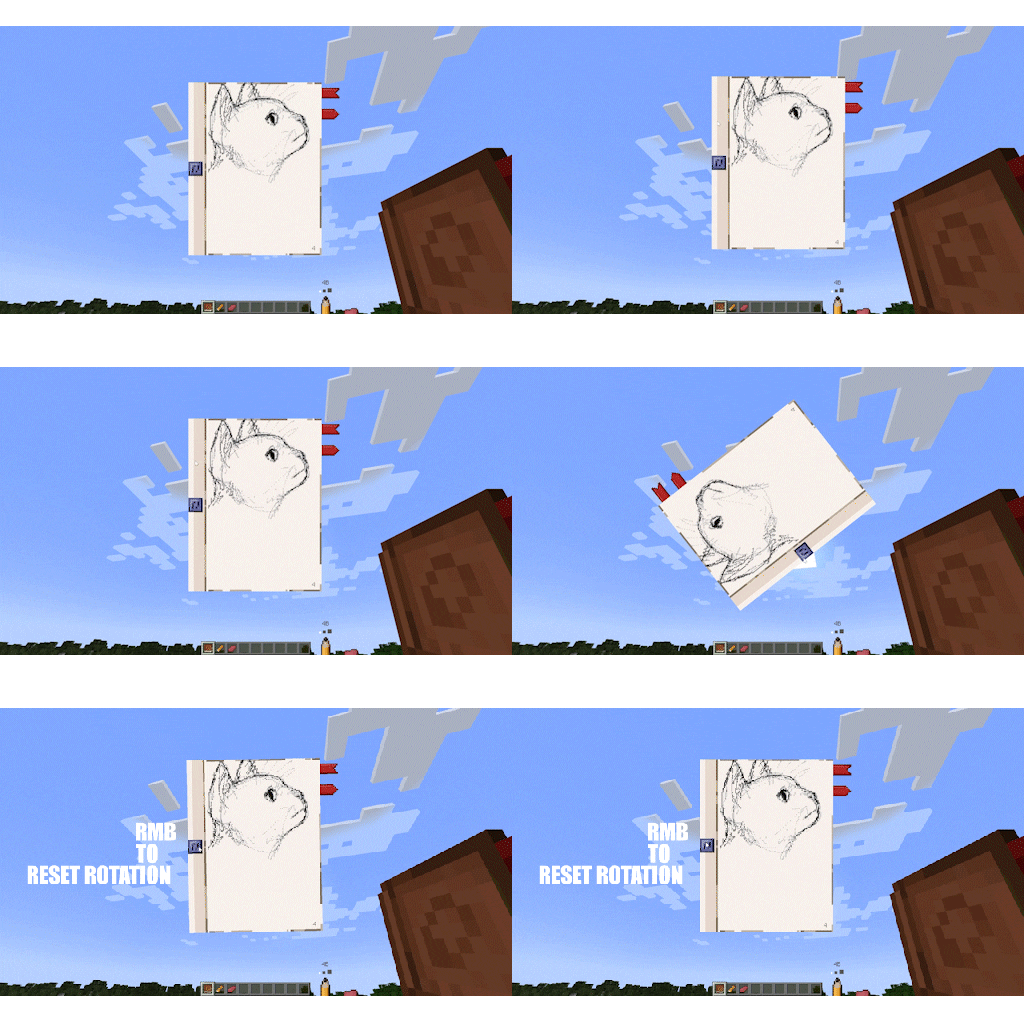
- Advanced Canvas: The drawing interface allows you to change your brush size, adjust the pencil hardness and even rotate or drag the sketchbook around your screen for maximum comfort.
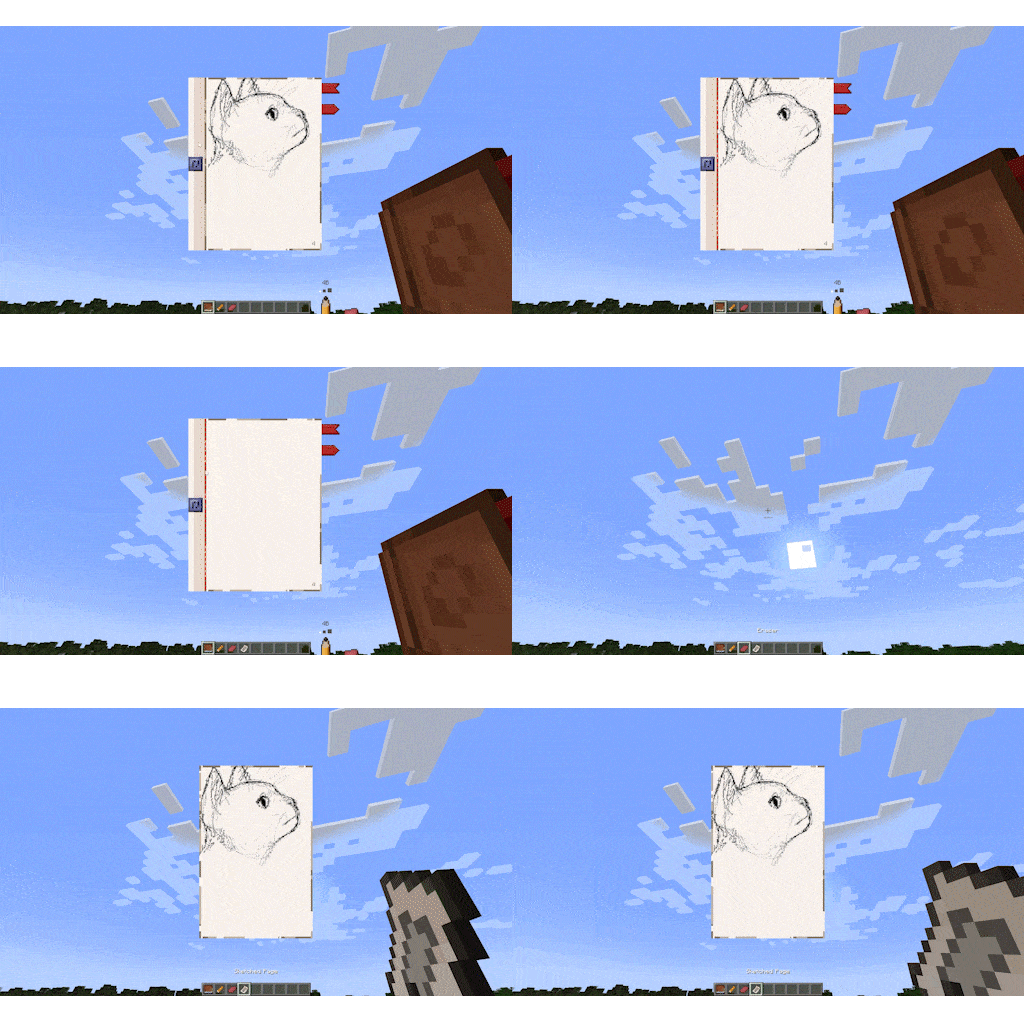
- Tear & Share: Proud of your masterpiece? Tear the page right out of your sketchbook! The torn page becomes a separate item that preserves your drawing, complete with a custom tooltip showing a thumbnail of your art
- Additional Tools: You can use ruler, drawing compass, etc. to enhance your precision!
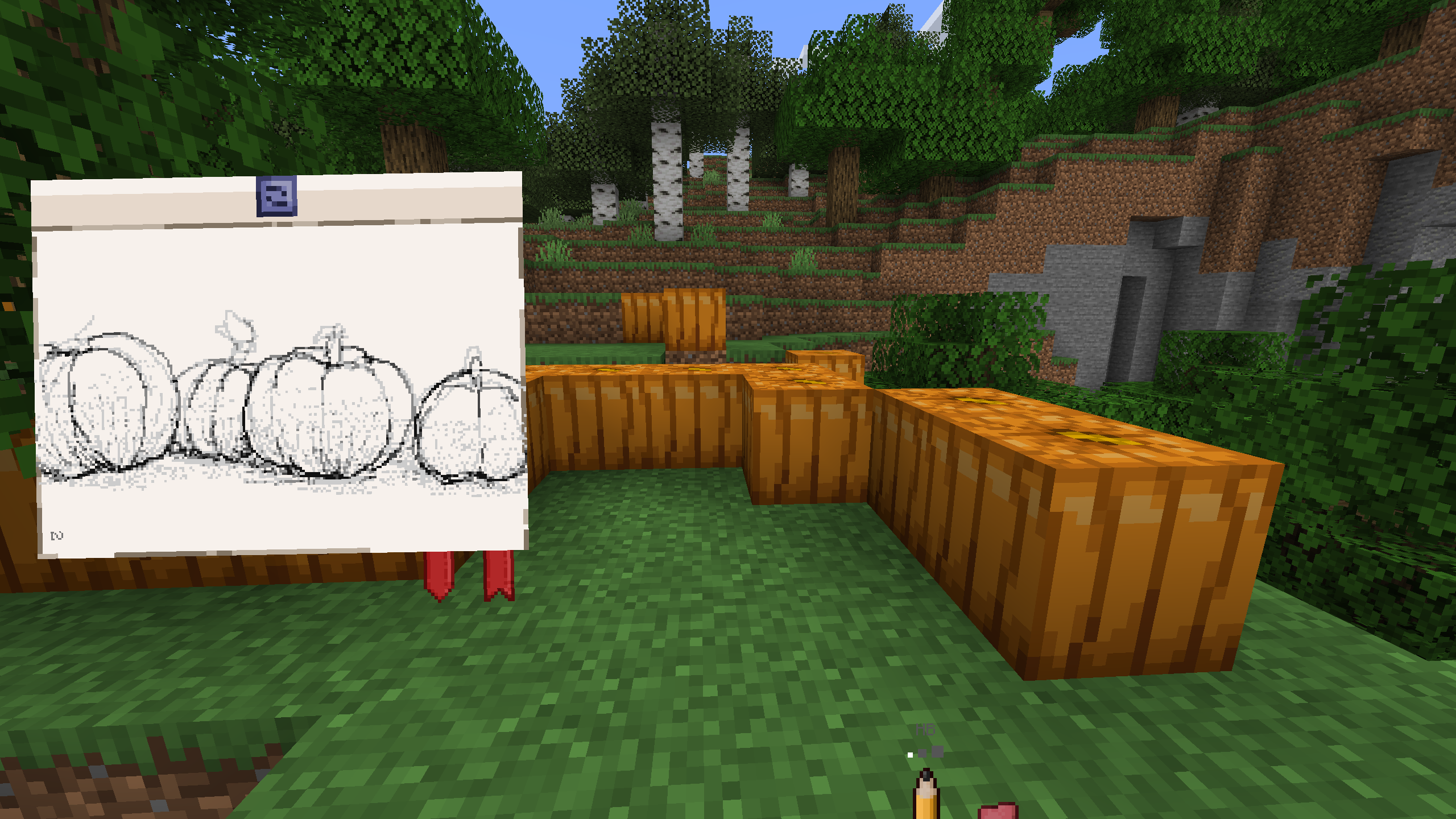
- Decorate Your World: You don’t have to keep your art in a chest. Shift + RMB on any wall with your sketch to hang it up like a painting! RMB on it to rotate
- _You can even make spooky notes like those in the woods left by that guy in a tuxedo_
Controls:

- _In inventory: grab an empty page/paper and RMB on the Sketchbook to restock with pages_
- Hold LMB on a spine (narrow part on the side) to move across the screen
- Hold LMB on a blue button to rotate the sketchbook. RMB to reset rotation
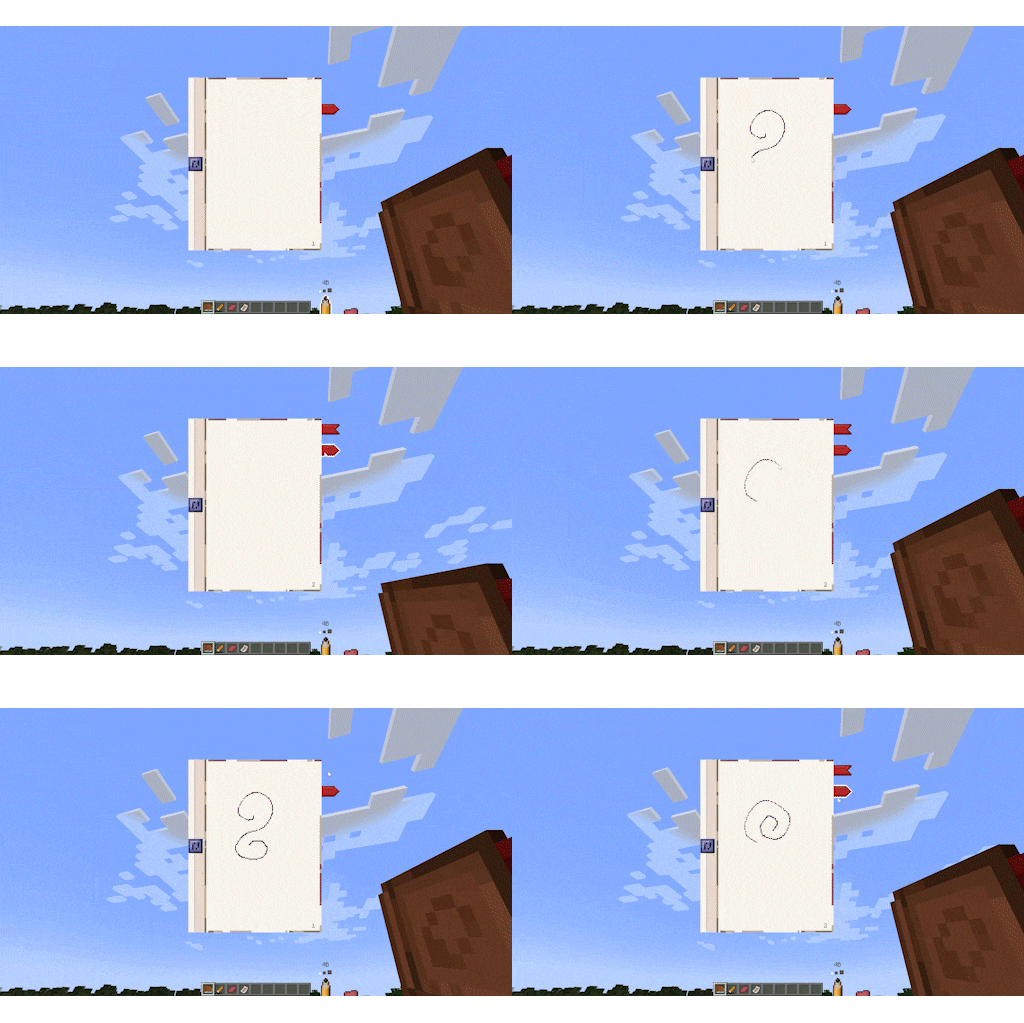
- RMB on the red dotted line in between to tear out a page
- LMB on the bookmarks to flip through

- B to select
- LMB to draw
- Mouse Wheel (MW) to change size: 1px, 2px, 3px
- Shift+MW (or RMB on it in the toolbar) to change hardness: 2H, HB, 4B

- _In inventory: grab a dye and RMB on Color Pencil to load it with corresponding color_
- C to select
- LMB to draw
- MW to change size: 1-3px
- Shift-MW (or RMB on it on the toolbar) to change hardness: 2H, HB, 4H
- LMB on any color swatch in a color palette on the right to choose (only loaded colors are shown)

- _In inventory: grab a dye and RMB on Color Marker to load it with corresponding color_
- V to select
- LMB to draw
- MW to change size: 2×5, 3×10, 4×15
- Shift-MW (or RMB on it on the toolbar) to change opacity: L, M, H
- LMB on any color swatch in a color palette on the right to choose (only loaded colors are shown)
- Alt+MW to rotate the brush with 15° increment

- E to select
- LMB to erase
- MW to change size: 1-3px

- W to select
- LMB to erase
- MW to change size: 1-3px
- Shift+MW to change hardness

- S to select
- LMB to smudge pixels
- MW to change size
- Shift+MW to change hardness

- R (or LMB on it on the toolbar) to call it in
- RMB or R again to dismiss
- Hold LMB to move it across
- Shift+LMB to rotate
- Shift+R to “quick-call”: press to create first anchor point, while holding place cursor anywhere to create a second one.

- LMB on it on the toolbar to toggle drawing with magnifying glass
- RMB to dismiss
- Hold Z to “quick-call” it. Release to dismiss

- D to select/dismiss
- Drag mouse to choose position/radius
- RMB to revert to previous state (Choosing radius -> Positioning -> Dismissing)
- Hold Shift+D to “quick-call” it. Release to dismiss

- Firstly, you need to carve desired stamp pattern. RMB with the item in hand. In opened window design your pattern (dark – transparent, bright – opaque), then name your stamp and apply.
- P to select/dismiss
- Alt+MW to rotate pattern
- Mouse Wheel to cycle between stamps in your inventory
常见问题
Esquisse 支持哪些 Minecraft 版本?
Esquisse 支持 Minecraft Java 版 1.21.1,可用的加载器:NeoForge。下载时注意选择和你游戏版本一致的文件。
Esquisse 怎么安装?
先用 PCL2 或 HMCL 启动器安装对应版本的 NeoForge,再把下载的 .jar 文件放进游戏目录的 mods 文件夹,重新启动游戏即可。开启了版本隔离的,mods 文件夹在 versions/版本名 下面。运行环境:客户端和服务端都要装。

评论
登录后评论和评分