
截图


介绍
Cloud sync for Minecraft worlds!
Sync and back up your worlds between multiple devices! Fully integrated into the Minecraft client for a seamless experience when loading, saving, and downloading worlds from the cloud.
How does it work?
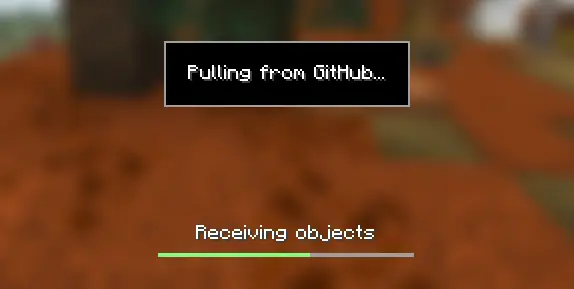
Worlds that you select are uploaded to a Git host of your choice as repositories. Every time you quit to the title screen, a commit of the current state of your world is created and pushed to the remote repository. Whenever the world is loaded, the mod will check if any new versions of the world are available in the cloud, and if so, they will be downloaded to your device.
Since this mod uses Git internally, it also means that only the files in your world save folder that you modify will be uploaded and downloaded each time, saving storage space and internet bandwidth.
How do I set it up?
There are several steps to setting up this mod, which include creating a personal access token for your chosen Git service, as well as choosing the worlds you would like to enable MineGIT for.
Video guide:
First-time setup
Many options are available to host your remote world storage, including GitHub, GitLab, Codeberg, or even self-hosting a Gitea or Forgejo instance! For beginners, I would recommend using GitHub as your service of choice. Assuming you’re using GitHub, you will need to generate a personal access token through the following steps:
- Create an account on GitHub if you do not have one already (https://github.com)
- Navigate to the page to create a personal access token
- Click
Generate new token - Enter any name (such as MineGIT) under
Token name - Scroll to
Expirationand set it toNo expiration(so that you do not have to repeat this process when the token expires) - Under
Repository accesschooseAll repositories - Under
Permissions, clickAdd permissionsand selectAdministrationandContents - Set
Accesson theAdministrationandContentslines toRead and write - Press
Generate tokenand copy the generated token to be pasted into Minecraft later (the generated token should start withgithub_pat_and be followed by a long string of letters and numbers)
Setting up in-game
Once the mod is installed and you are in-game, do the following steps to link your GitHub account with the mod:
- Click on the cloud button on the bottom left corner of the world creation or world selection screen (If the button does not appear, you have already previously linked your account; see the section below entitled ‘Reconfiguring account linking’)
- Enter your GitHub username and personal access token (PAT) that you created in the previous step on the new page that appears
- Press the button labeled
Test credentialsto make sure you’ve entered the information properly - You may now exit the screen and proceed to either enable sync for a world or clone an existing one
Reconfiguring account linking
If you have already previously set up account linking and would like to change settings afterwards, you have a couple of options to get back to the configuration screen:
- Configure through ModMenu: If you have ModMenu installed, simply find the mod in the mods list and open the configuration from there
- From the world clone screen: There is a button in the top right corner of the world cloning screen that will open the configuration screen
- From the world selection screen: By holding alt and clicking on the world sync button on the bottom left of the world selection screen, you will be brought back into the configuration screen
Enabling sync for a world
World syncing needs to be enabled individually for each world you would like to sync to your Git host. To enable sync for a world, do the following:
- Select a world on the world selection screen
- Press the cloud button in the bottom left of the screen labeled
Enable world sync - Confirm your decision on the next screen
This process will create a new repository named minegit_[world folder name] on your account, initialize a Git repository in your world save folder, and push its current state to the cloud. From this point forward, loading the world will pull the latest changes from your Git host, and exiting the world will push changes.
You can now download this world on another device to effectively sync changes between them through the next step: cloning.
Downloading a world on a different device (Cloning)
Cloning a world will download the exact state of the world as it was last saved to the cloud. Use the following steps to clone a world, assuming you are using GitHub:
- Navigate to github.com in a web browser
- Click on your profile picture in the top right corner and then
Repositories - Find the repository corresponding to the world you would like to clone and copy its name
- Back in Minecraft, click on the button with an arrow pointing downwards labelled in the bottom left corner of either the world selection screen or world creation screen
- Paste the name of the repository you copied earlier and press
Clone - You are now able to load the world like normal and have changes be synced across your devices!
Tips & Tricks
- If you want to exit a world without pushing it to the cloud (for example, if you wanted to restart Minecraft and load the same world without having to wait for changes to be pushed), you can hold
Altwhile clickingSave and Quit to Title. This will skip the pushing step. - You can roll back to previous versions of your world from the edit menu! This works because Git keeps a list of all of the world’s changes every time you save and quit.
- If you want to save some storage space taken up by the size of the Git repository on your computer, or make the world quicker to clone on other devices, use the
Prune Worldbutton in the edit world menu. This will delete all of the old versions of your world, leaving only the most recent one.
Report an issue
If you run into bugs, crashes, or simply have a suggestion on how to improve the mod, please feel free to open an issue on the mod’s issue tracker!
Please include the current Minecraft version, Fabric version, mod version, and any relevant game logs when submitting an issue.
常见问题
MineGIT 支持哪些 Minecraft 版本?
MineGIT 支持 Minecraft Java 版 1.0–26.3,共 109 个版本,可用的加载器:Fabric / Forge / NeoForge。下载时注意选择和你游戏版本一致的文件。
MineGIT 怎么安装?
先用 PCL2 或 HMCL 启动器安装对应版本的 Fabric / Forge / NeoForge,再把下载的 .jar 文件放进游戏目录的 mods 文件夹,重新启动游戏即可。开启了版本隔离的,mods 文件夹在 versions/版本名 下面。运行环境:仅客户端。
ModMonster 的其他作品
查看全部 →
Restore Beta Version Text
Bring the text that shows the current Minecraft version back to the top left corner of your screen for versions that don't have it!
Restore Beta Version Text
Bring the text that shows the current Minecraft version back to the top left corner of your screen for versions that don't have it!

MineDrive
Minecraft cloud save system using the power of Google Drive! | Fork of MineGIT
评论
登录后评论和评分