Screenshot Utilities
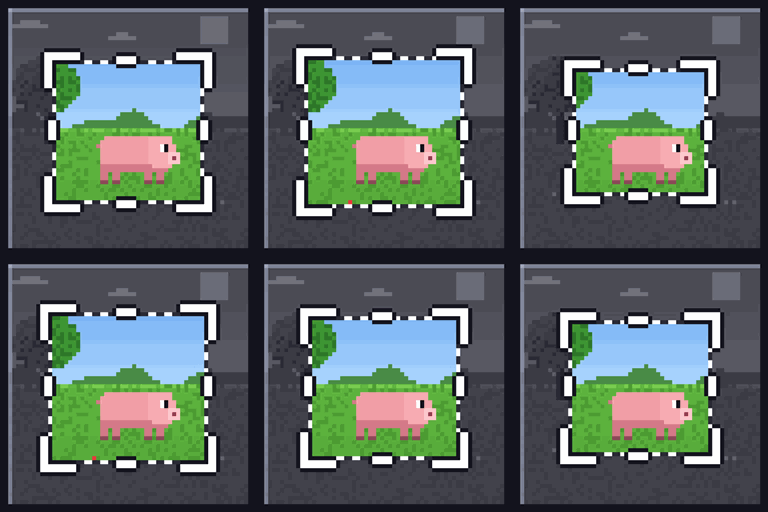
F2 still takes a screenshot, but now you get to do something with it. Crop it, copy it, take your map out of it, keep the pig in colour, and put your best shots on the main menu. Or turn the popup off and have F2 quietly do what you always want.
介绍
Screenshot Utilities
F2 still takes a screenshot, but now you get to do something with it. Crop it, copy it, take your map out of it, keep the pig
in colour, and put your best shots on the main menu. Or turn the popup off and have F2 quietly do what you always want.
After the shot
Press F2 and a popup shows your picture. The screenshot is already saved by then, and the original is never changed. Edits
save as new files next to it.
- Crop with a box you can drag and resize.
- Copy straight to the clipboard, ready to paste into Discord. Windows only for now.
- Hide HUD, or just parts of it. Take out the hotbar, chat or your map after the shot, with no retake.
- Erase anything the toggles can’t reach. Drag a box and the world shows through.
- Filters: black and white, or keep the colours you pick and turn the rest grey or blurred.
- Highlight an area to keep it in colour.
- Magic wand: click a mob and the whole mob is picked, even behind grass or a fence. Click anything else and it picks by
colour. - Zoom in with the scroll wheel to mark small things exactly.
- Retake with shader: see the same shot in another installed shader pack, with your edits kept. Needs Iris. On a server
the game doesn’t pause while the pack loads, so it asks first. Links to shader packs on CurseForge and Modrinth are in the
same list.
Gallery
Add your favourites to the gallery and they show as a slideshow on the main menu and loading screens. The gallery is a plain
folder, screenshots\gallery, so you can drop pictures in or take them out yourself. If it’s empty, those screens look like
vanilla.
Set it and forget it
Don’t want a popup? Turn it off. Then pick what F2 does for you:
- Always copy
- Always add to gallery
- Hide HUD
- Hide hand
- An Always hide list, so your map or chat never appears in a shot
On servers F2 never opens the popup. A small prompt shows up in the corner instead, and F4 opens the shot when you’re ready.
Good to know
- Client only. Install it on your own game, and the server doesn’t need it. You can join servers that don’t have it, unless a
server’s own rules block client mods. - Your pictures stay on your PC. The mod has no network code and never sends a picture anywhere.
- Works with Iris and shaders. Hide HUD keeps your shader look.
- HUD toggles work on vanilla’s HUD elements, and on most mods that add to it. Some mods share the Mod overlays toggle, and the
Erase tool covers anything else.
Questions
Does it work with my modpack? It should work with most NeoForge 1.21.1 packs. It has been played with Iris and Sodium,
Complementary Unbound, JourneyMap, Jade and FTB Chunks. If something breaks, please say which mods you use.
Mac or Linux? Not tested yet. Clipboard copy is Windows only for now.
Does it need a mod on the server? No.
Other versions? Fabric 1.21.1 and Forge 1.20.1 are planned next.
Credits
Made by Dewey.
常见问题
Screenshot Utilities 支持哪些 Minecraft 版本?
Screenshot Utilities 支持 Minecraft Java 版 1.21.1,可用的加载器:NeoForge。下载时注意选择和你游戏版本一致的文件。
Screenshot Utilities 怎么安装?
先用 PCL2 或 HMCL 启动器安装对应版本的 NeoForge,再把下载的 .jar 文件放进游戏目录的 mods 文件夹,重新启动游戏即可。开启了版本隔离的,mods 文件夹在 versions/版本名 下面。
DEWSTREAMING 的其他作品
查看全部 →
Create-O-Holics S1 Public Server Pack
为 Create-O-Holics 第一季公开服务器打造的整合包!

DewerSMP
一个基于 Cobblemon 的整合包,为 DEWSTREAM 的 YouTube 社区在 DewerSMP 服务器上构建

Holey Digsite – First Up
你将在一座小岛上醒来,手边只有一把铲子、一个淘金盘和一桶水。挖土、淘洗泥土寻找金属和宝石,在交易站出售它们,一步步升级,获得钻机、溜槽、传送带和熔岩锻炉。
Holey Digsite
一款受 Hydroneer 启发的采矿与淘洗自动化模组。
评论
登录后评论和评分