
Gearscope
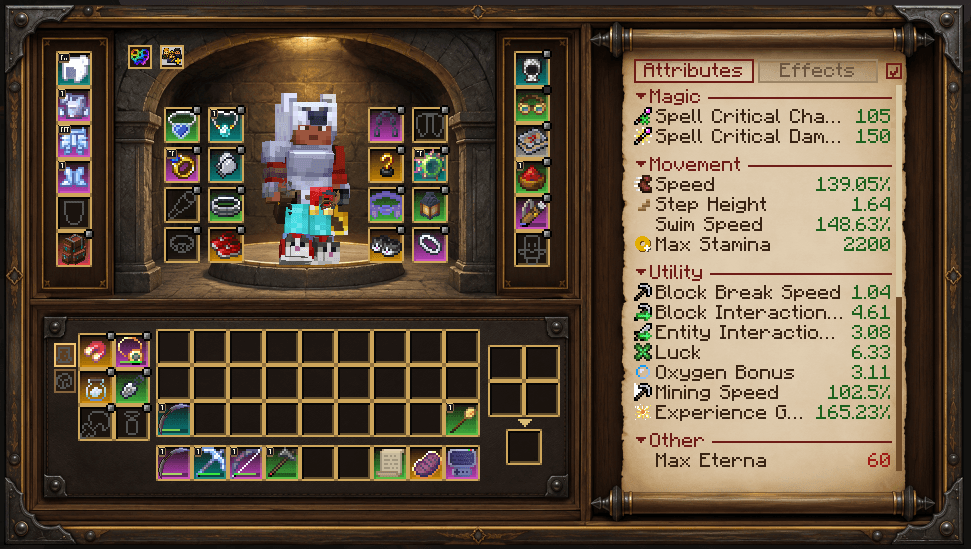
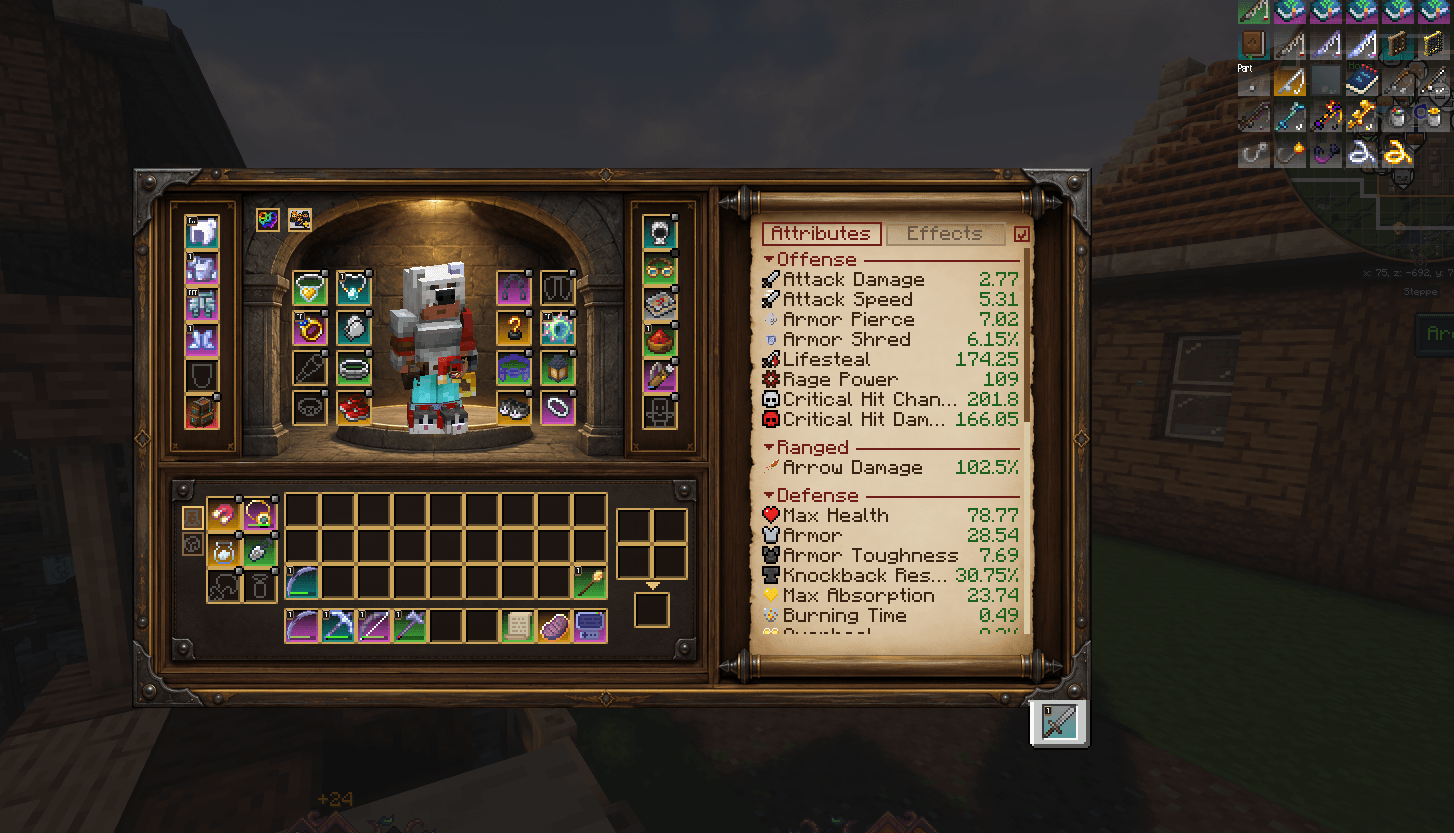
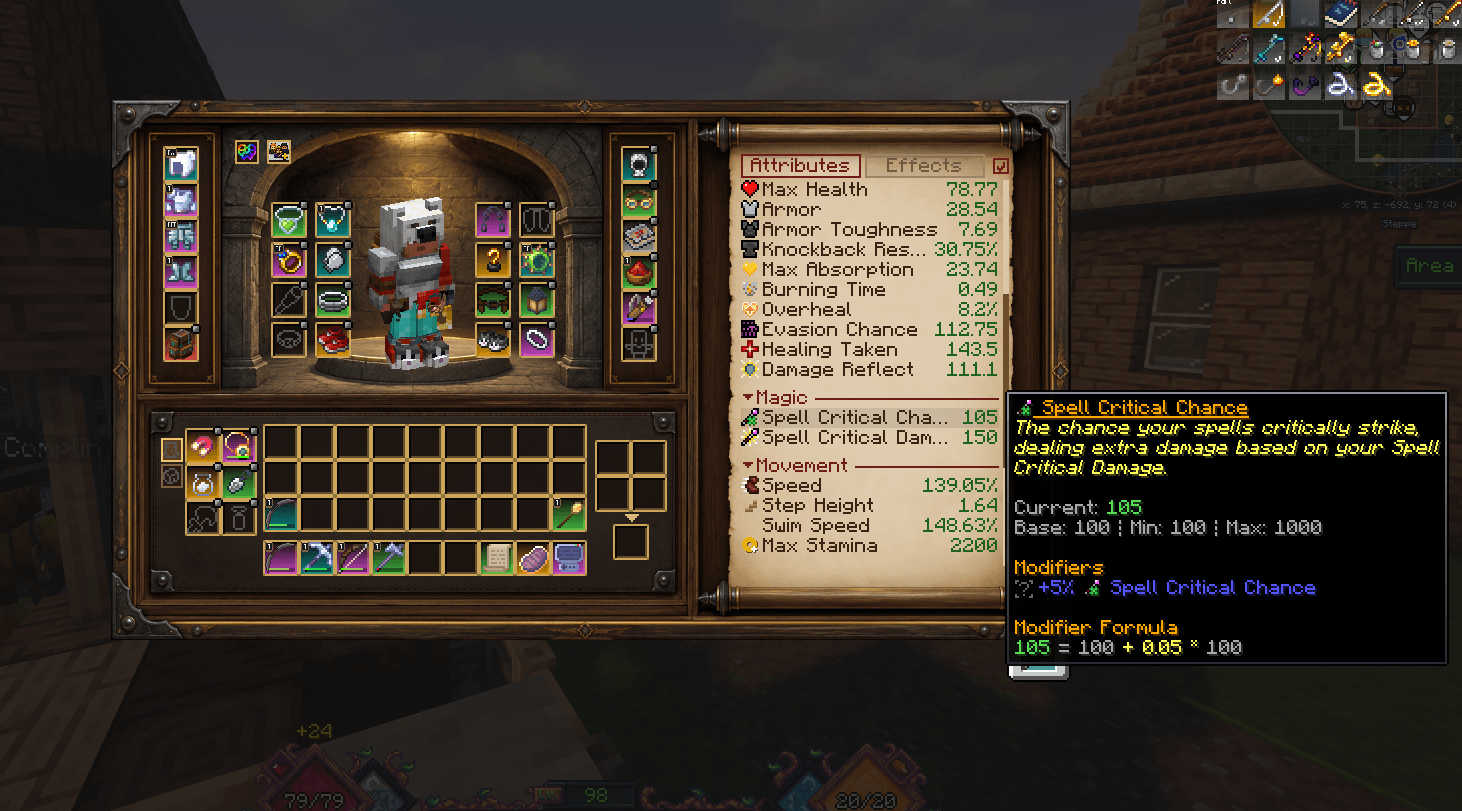
A classic RPG character screen next to your inventory: your hero on a pedestal, accessories placed around them, and all attributes grouped on a live-updating scroll.
截图
介绍
Gearscope
🛡️ See your whole hero at a glance. Gearscope adds a classic RPG character screen next to the vanilla inventory: your character on a pedestal, armor and accessories placed right where they belong, your full inventory with crafting — and every attribute, active effect and damage resistance you have, neatly laid out on a parchment scroll and updated live while you change your gear.
🔎 Overview
| Parameter | Specification |
|---|---|
| 🎮 Minecraft | 1.21.1 |
| ⚙️ Modloader | NeoForge |
| 🖥️ Side | Client & Server (required on both) |
| 🤝 Works with | Accessories (incl. Curios via the Accessories Compatibility Layer), Accessorify, Apotheosis, Apothic Attributes, Better Party, JEI, Polymorph, Quark, RarityCore, Sophisticated Backpacks, Spell Power (and add-ons like More RPG Library), Spell Engine, Mouse Tweaks, Inventory Sorter — all optional |
⚔️ The Character Screen
Open it with its own key binding (unbound by default, see Controls → Gearscope); the same key closes it again. The vanilla inventory on E stays exactly as it is — Gearscope is an alternative, not a replacement. Want Gearscope on E? Move the vanilla inventory to another key (e.g. Shift+E) and turn on closeContainersWithKey, so E still closes chests and other containers.
- Your real character stands on a pedestal in the middle and follows your mouse. Everything you wear shows up on the model right away.
- Armor and off hand sit in the carved wooden strip on the left, with the back slot (e.g. a backpack) right below.
- Accessories are placed around the character where they belong, in four rows on both sides of the niche — necklace and cape at the shoulders, rings and gloves at the hands, belts and charms at the waist, shoes and anklets at the feet. Slot types with two slots get one place on each side. A second strip on the right holds hat, face and wrist slots.
- Everything else goes into group tabs next to your inventory (tools, info, storage, arrows …) — scroll through the tabs with the mouse wheel. Unknown slots from other mods land in an “Other” tab, so nothing gets lost.
- Only slots you can use — like Accessories’ own screen, slot types that no item in your pack fits into are hidden (Accessories’ “Show Unused Slots” switch brings them back). A slot that holds an item is always shown.
- Full inventory, hotbar and 2×2 crafting — move items freely, shift-click, double-click, hotbar keys, everything you’re used to.
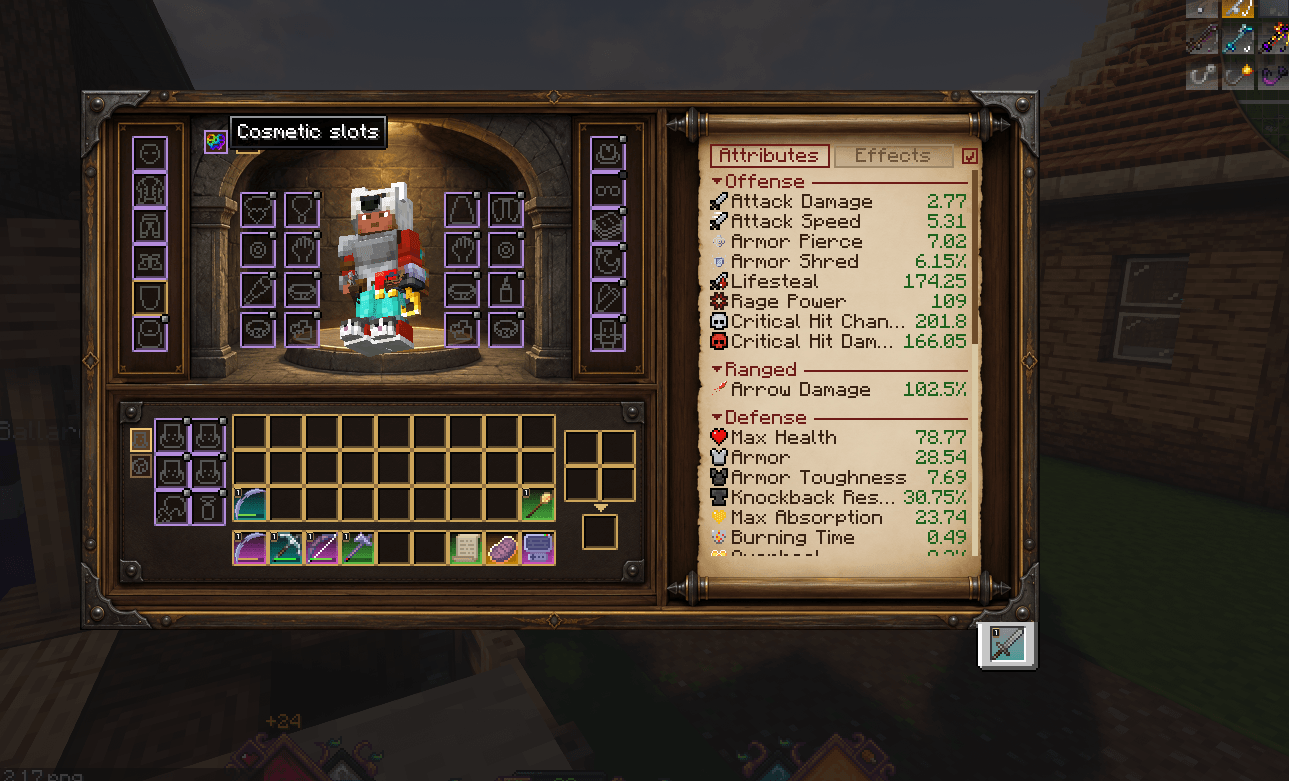
- Cosmetic mode — one button switches all accessory slots (and cosmetic armor) to their cosmetic variants. Cosmetic slots get a violet frame so you always know which mode you’re in.
- Show or hide on your character — every accessory slot has the small switch from Accessories’ screen in its top right corner: hide that hat without taking it off.
📜 Attributes on a Scroll
- Every attribute you have, grouped into Offense, Ranged, Defense, Magic, Movement, Utility and Other. Ready-made groups cover vanilla, Apothic Attributes, Artifacts, Spell Engine / Spell Power, More RPG Classes, L_Ender’s Cataclysm and more.
- Live values — equip a ring and watch the numbers change. Better than base is green, worse is red (even for attributes where lower is better).
- Collapsible groups and a “hide unchanged” checkbox — both remembered.
- Attribute icons from resource packs are picked up automatically (same icon path as Apothic Attributes).
- With Apothic Attributes installed, hovering a line shows the familiar detailed tooltip: description, base/min/max, every modifier with its source and the full formula. Attributes hidden in Apothic’s config stay hidden in Gearscope too.
✨ Active Effects
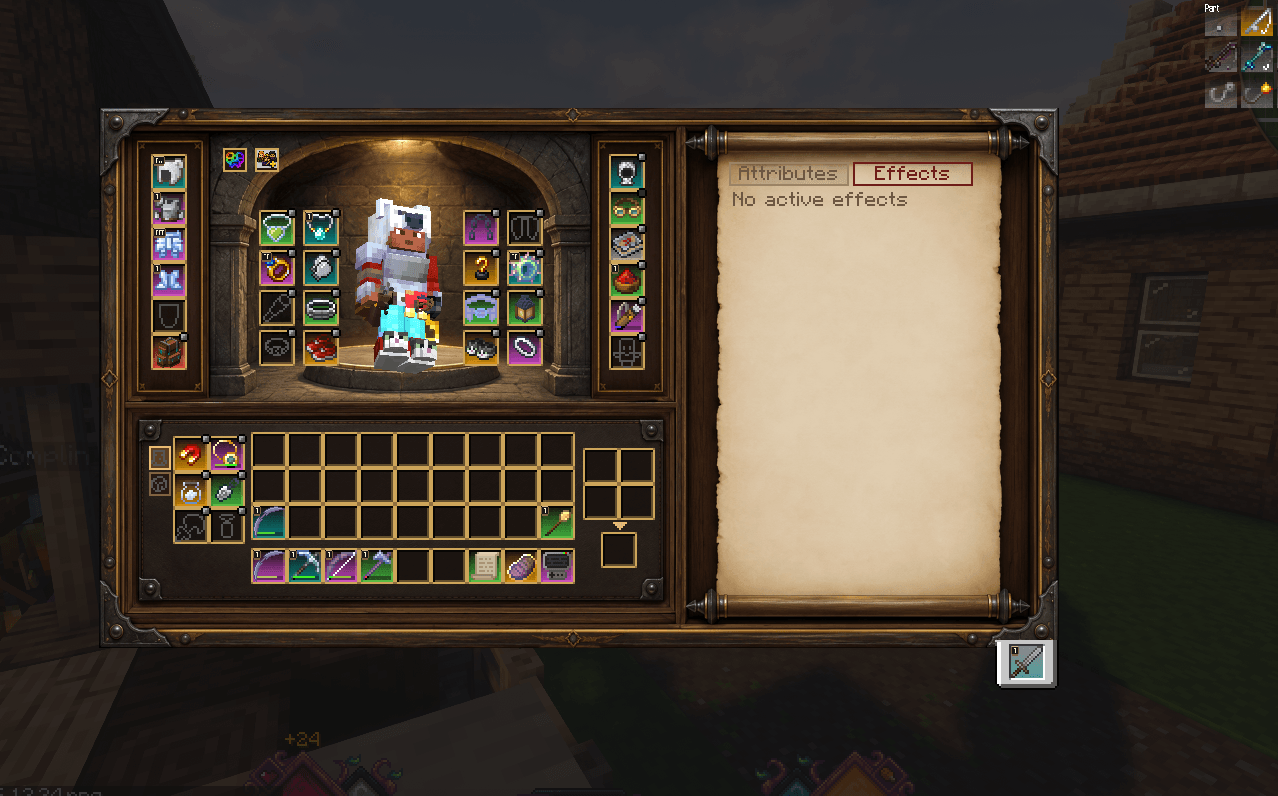
Your potions and buffs are right there too — icon, name with level and remaining time (∞ for infinite effects), green for beneficial and red for harmful effects, and a tooltip with the effect’s description if a resource pack provides one. Choose how they’re shown in the client config:
- Tabs (default) — an “Effects” tab next to “Attributes” and “Resists” at the top of the scroll, with a small counter of active effects.
- Group — an “Effects” group at the top of the attribute list, collapsible like the others.
- Top — a row of effect tiles above the Gearscope frame (switches to the tabs automatically if there’s not enough room above the frame).
- Off — no effect display.
🛡️ Resistances
How much damage does your gear really block? Gearscope shows the total damage reduction per damage type — Physical, Projectile, Fire, Explosion, Lightning, Fall and Magic, plus Spells when Spell Power is installed.
- Calculated like the server does it — reductions multiply instead of adding up (10 % + 8 % + 5 % = 21.3 %, not 23 %).
- Sources: Apotheosis damage reduction affixes and gems (custom affixes of that type from datapacks are found automatically), Spell Power’s spell resistance, the vanilla fall damage multiplier and Spell Engine’s “Damage Taken”.
- Spell schools (Arcane, Fire, Frost, Soul, Lightning) are combined into one “Spells” row and only listed separately when their values differ. Schools of add-ons such as More RPG Library (Water, Earth, Air, Nature) are picked up automatically.
- Icons — each row shows the same attribute icon your icon resource packs use in the attribute list (e.g. RPG Series Icons); without such a pack a fitting item or effect icon is used.
- Tooltip for every row: what it covers, every source with its share (e.g. “Chestplate – Runed: 10 %”) and how they combine. Apotheosis reductions on accessories are listed in grey — Apotheosis only applies them to hands and armor.
- Live — swap a chestplate and the numbers update right away.
- Shown as a “Resists” tab between “Attributes” and “Effects” (default) or as a “Resistances” group at the top of the scroll. When the tabs don’t fit as text, the active tab shows icon and name, the others only their icon (sword, shield, potion) with the name on hover. Modpacks can change the tab order in layout.json.
🤝 Mod Compatibility
- Accessories — all slot types are read at runtime, so it works with every Accessorify slot mode and with Curios slots through the Accessories Compatibility Layer. Slot counts can change while the screen is open (e.g. an item that adds a ring slot) — Gearscope rebuilds itself without losing the item on your cursor.
- JEI — click the crafting arrow to see crafting recipes, and use the + button to move 2×2 recipes straight into the grid.
- Polymorph — the recipe selection button appears next to the crafting result.
- Sophisticated Backpacks — right-click a backpack (or use its key) in any Gearscope slot, including the back slot, to open it; closing the backpack brings you right back to Gearscope.
- Mouse Tweaks — drag features work, the scroll-wheel tweak is turned off in Gearscope (it doesn’t play well with accessory slots).
- Inventory Sorter — middle-click sorts your inventory; armor, off hand, crafting and accessory slots are left alone.
- Quark — Expanded Item Interactions work in Gearscope too: swap armor, put items into shulker boxes, and right-click a shulker box in your inventory or hotbar to open it right there (Quark’s config switches and “invert clicks” apply). Closing it brings you back to Gearscope.
- Accessorify — right-click a shulker box in the shulker slot or an equipped ender chest to open it, just like Accessorify’s own selection widget. Left-click still takes it out; closing brings you back to Gearscope.
- Better Party — the party button sits next to the cosmetic button (it follows Better Party’s “inventory button” setting and icon) and opens the party screen; closing it brings you back to Gearscope.
- Apotheosis, Spell Power, Spell Engine — their damage reductions show up in the resistance display; Spell Power add-ons (e.g. More RPG Library) add their schools automatically.
- RarityCore — Gearscope’s icons (tabs, resistance rows) are drawn without RarityCore’s rarity background; real item slots keep it.
🎨 Made for Modpacks
Everything is data-driven and can be changed with a resource pack — no code needed:
assets/gearscope/gearscope/layout.json— positions of every area, slot and button.assets/gearscope/gearscope/slot_places.json— which accessory slot type goes to which place around the character. Some places are left free for your own slot types (outer shoulder places, three spots in the right strip). All place names are listed in the layout docs.assets/<namespace>/gearscope/attribute_groups.json— which attribute belongs to which group. Files from all packs are merged, so you only need to add your own entries.assets/gearscope/gearscope/resistances.json— which damage types the resistance display shows, groups like “Spells” (also filled automatically from a damage type tag), an icon per row and which attributes count as sources (resistance docs).- Texts are normal lang keys — packs can override the resistance descriptions to explain their own setup (e.g. when spell damage also counts as Magic in your pack).
- Background, slot frames and icons can be replaced like any other texture.
📐 Small Windows
Gearscope needs a 480×270 GUI area. If it doesn’t fit at your GUI scale (e.g. GUI scale 4 on a 1080p window), it temporarily lowers the GUI scale while the screen is open and restores it afterwards. Can be turned off in the config.
📌 Good to Know
- Required on client and server. Gearscope is a real container screen, so the server needs it too.
- Cosmetic armor uses Accessories classes that are not part of its official API. If a future Accessories update changes them, Gearscope turns cosmetic armor off and logs it once — your game keeps running.
- Quark: Quark’s sorting buttons are not added to Gearscope (use Inventory Sorter instead).
- Resistance values are calculated on your client the same way the server applies them. Spell Power’s resistance uses your client’s Spell Power config — if the server uses different settings, the spell values shown can differ.
- Wildcard items: some mods tag items to fit into every accessory slot (e.g. Curios items tagged
curios:curio). In Accessories’ own screen that makes every slot type count as used; Gearscope ignores such items for this check by default, so empty slot types like anklets stay hidden. The items themselves still fit into every visible slot.
⚙️ Configuration
config/gearscope-client.toml: effect display mode, resistance display (mode, 0 % rows, separate spell schools, where resistance attributes appear), tab style, automatic GUI scaling, closing other containers with the Gearscope key, hidden attributes (supportsnamespace:*and!exceptions — works with or without Apothic Attributes), “hide unchanged” and collapsed groups.config/gearscope-common.toml:ignoreWildcardItemsForUsedSlots(default on) — turn it off to show exactly the slots Accessories’ own screen shows.
🙏 Credits
- The attribute tooltip and value colors are adapted from Apothic Attributes by Shadows_of_Fire (MIT).
- Built on the Accessories API by Wispforest (MIT); the cosmetic slot handling follows Accessories’ own slots.
- Inspired by Character Not Container by CappleApple (idea only, no code used).
- With Better Party installed, its party button uses Better Party’s own textures, loaded from Better Party at runtime — Gearscope doesn’t ship any of them.
- License texts of the adapted code are included in the mod jar (
THIRD_PARTY_NOTICES.md). - Gearscope is an unofficial companion and not affiliated with any of these mods.
- Source code on GitHub under the MIT license. Bug reports and suggestions are welcome in the issue tracker or in the comments.
常见问题
Gearscope 支持哪些 Minecraft 版本?
Gearscope 支持 Minecraft Java 版 1.21.1,可用的加载器:NeoForge。下载时注意选择和你游戏版本一致的文件。
Gearscope 怎么安装?
先用 PCL2 或 HMCL 启动器安装对应版本的 NeoForge,再把下载的 .jar 文件放进游戏目录的 mods 文件夹,重新启动游戏即可。开启了版本隔离的,mods 文件夹在 versions/版本名 下面。
Drehverschluss 的其他作品
查看全部 →
ImmersiveRPG&MineColonies
沉浸式、富有挑战性的 RPG 生存,包含职业、Boss 和模拟殖民地——针对长期存档和高渲染距离进行优化。

JourneyMap Extra InfoSlots
Adding some new JourneyMap InfoSlots to display information from other mods.

Fresh Colonists
Gives MineColonies citizens & settlers a Fresh Animations-style walk cycle, bending knees, and blinking eyes.

Modern Enchantments Limiter
Limits how many enchantments an item can carry, with configurable base limits, rarity bonuses, and per-tag overrides.
评论
登录后评论和评分