
截图
介绍
Action Menu
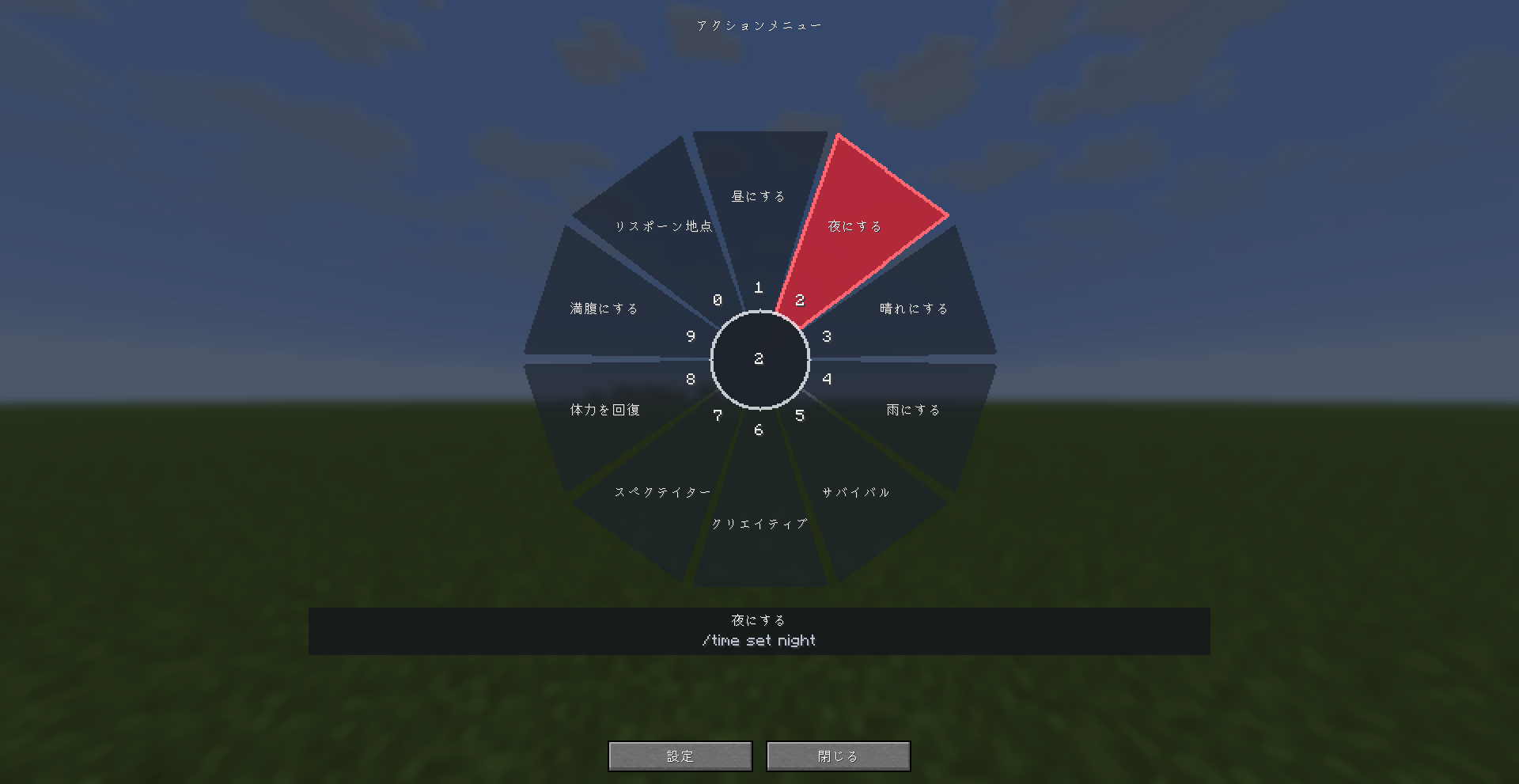
Action Menu puts your favorite Minecraft commands and chat messages in a customizable radial menu. Organize shortcuts into pages, give each button a name, and run up to 10 commands or messages in sequence without typing them every time.
Choose 1–20 buttons per page, with 10 by default, and customize colors, sizes, opacity, and background images.
Recommended GUI Scale: 3 or lower. Depending on your resolution and window size, higher GUI scales may make the wheel smaller and its labels crowded.
Two Ways to Use the Menu
- Click Mode — default: Press R to open the wheel. Left-click an action to run it, or press R again to close. You can also press Enter to run the highlighted action, or use 1–9 and 0 to run the first ten visible actions.
- Hold Mode — optional: Hold R, select an action, and release R to execute it once. Scroll or use 1–9 and 0 to change the selection. Press Esc, or release with no action selected, to cancel.
Both modes use your configured menu key or mouse button. Select actions by direction, even beyond the visible edge of the wheel, or scroll through them with wraparound.
Open Settings → Menu Preferences to change the button count, control mode, and menu binding. Keyboard keys, the middle mouse button, and mouse side buttons are supported.
Opening settings or an editor cancels the pending Hold Mode action. Release the menu key before typing in an editor.
Commands and Chat Messages
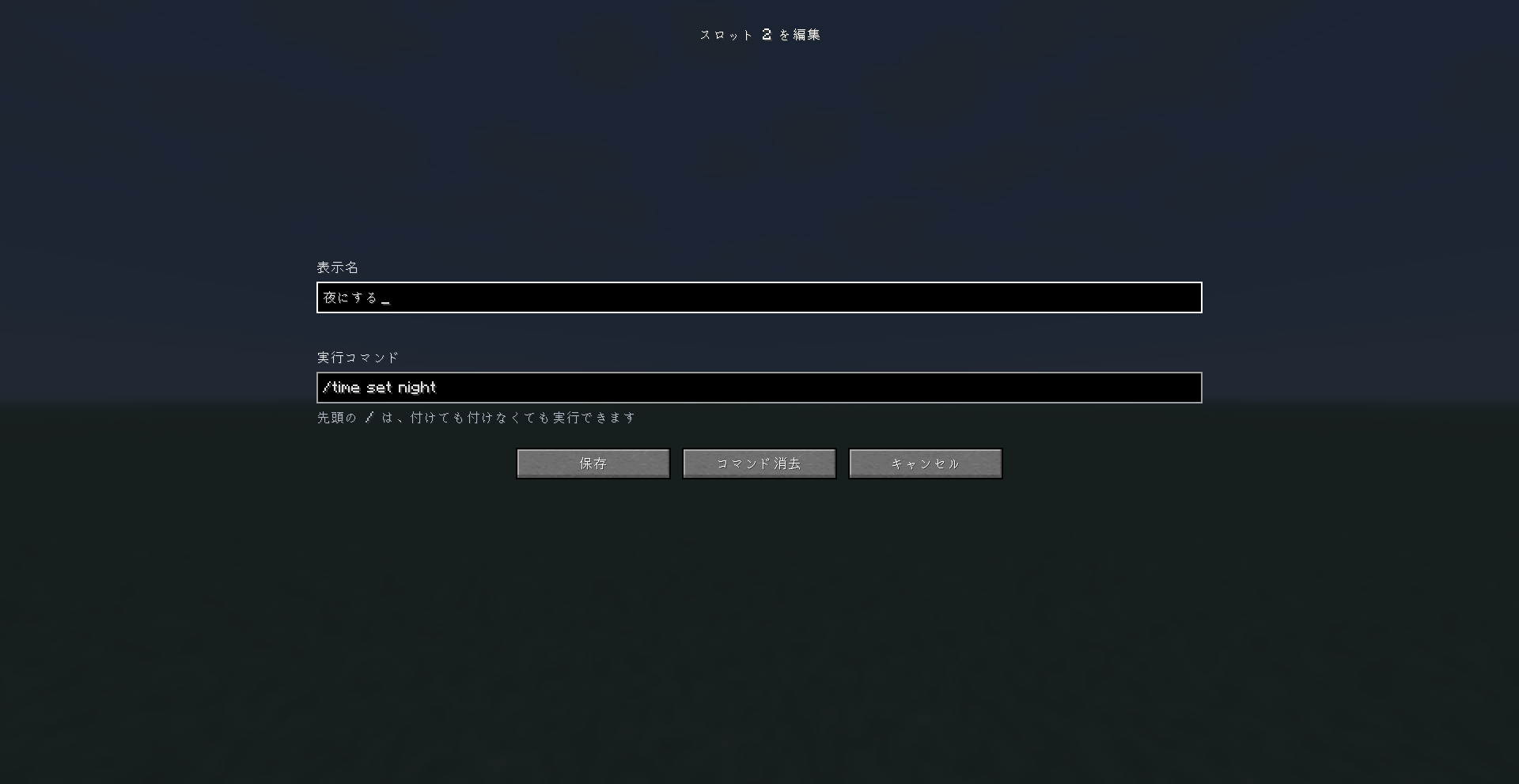
Right-click any button to edit its display name, entries, Chat mode, and send interval.
- Register up to 10 entries per button.
- Add, remove, and reorder entries. Nonempty entries are sent from top to bottom, one at a time.
- Leave Chat mode OFF to send commands. The leading
/is optional, and WorldEdit-style commands such as//copyare supported. - Turn Chat mode ON to send every entry as ordinary chat text.
- Set the interval between entries from 0.1 to 10 seconds, with 0.5 seconds as the default.
- View sending progress and press the menu key while sending to open the option to stop remaining entries.
Only one sequence runs at a time. Disconnecting or changing worlds cancels unsent entries. Stopping does not undo actions already sent.
Action Menu controls send order and timing; it does not wait for server-side operations to finish. A rejected command does not automatically stop later entries. Allow a longer interval for operations that need more time.
Organize Shortcuts into Pages
Keep separate menus for building, everyday use, server shortcuts, and more.
- Start with Menu1 and Menu2, and rename them as you like.
- Switch using the arrows above the wheel or the Left/Right arrow keys.
- Click the page name or open Settings → Pages to manage pages.
- Add blank pages, duplicate existing pages, and reorder them using each row’s ▲/▼ buttons.
- Keep up to 10 available pages, with at least one always retained.
- Archive a page to hide it while preserving all its settings. Restore it later, even after restarting Minecraft.
- Permanently delete unwanted pages after confirmation.
- The last active page is remembered across restarts.
Button counts, entries, send intervals, appearance, and backgrounds are independent per page. The menu binding and Click/Hold mode are shared.
Reducing a page’s button count preserves hidden actions. Increasing the count restores them. Resetting a page affects only that page.
Switching pages clears the selection. In Hold Mode, select an action again before releasing the menu key.
Customize the Appearance
Open Settings → Appearance to personalize your wheel.
- Colors: Edit the global base color, selection highlight, or individual button colors. Individual buttons can inherit the global color or use their own.
- Free color picker: Choose colors with a hue bar and saturation/brightness palette, or enter HEX and RGB values. Presets and before/after samples are also available.
- Live preview: On wider layouts, click buttons in the preview to select them for color editing and compare normal and highlighted appearances.
- Wheel opacity: 0–100%, with 65 as the default.
- Wheel size: 50–150%, fitted to the available screen area.
- Wheel text size: 50–200%, with compact numbered labels when needed.
- Background images: Use a local PNG or JPEG with independent 0–100% opacity.
Previews never execute commands. Save applies appearance changes, Cancel discards them, and Defaults prepares the original appearance without resetting commands or controls.
Import a background by dropping a file onto the Appearance screen or entering its path and selecting Import image. Reuse previous imports through Background → Saved images.
Images retain their aspect ratio and are processed locally without being uploaded. Imports support files up to 16 MiB, 16,384 pixels per edge, and 64 megapixels total, and are resized to a maximum edge of 2,048 pixels.
Imported copies are stored in config/actionmenu-backgrounds. Reusing an image does not create another copy, and removing it from a page does not delete the imported file.
Help When You Need It
Press ? to toggle help mode. Green indicates that help is enabled.
Hover over buttons, input fields, or wheel slots for approximately 0.4 seconds to read an explanation. Editing, saving, and executing actions remain available while help is on.
The interface and contextual help support English and Japanese.
Installation and Compatibility
For Action Menu 2.7.0, install the JAR in your client’s mods folder with:
- Minecraft Java Edition 26.3
- Fabric Loader 0.19.5 or newer
- Fabric API 0.161.0+26.3 or newer for Minecraft 26.3
- Java 25 or newer
Action Menu is client-side only. No server installation is required. Commands follow the normal permissions of your world or server.
Replace the previous Action Menu JAR rather than keeping multiple versions installed. For Minecraft 26.2, use the matching older release.
Existing 2.2.0 settings migrate automatically into the first page, preserving saved actions and appearance. A second page starts with ten blank buttons. The legacy configuration is backed up before the first page-format save.
Settings are stored in config/actionmenu.json. When moving installations, copy this file together with config/actionmenu-backgrounds.
日本語
Action Menuは、よく使うMinecraftのコマンドやチャットメッセージを、カスタマイズ可能な円形メニューから実行できるModです。用途ごとにページを分け、各ボタンに名前を付けて、毎回入力することなく最大10件のコマンドやメッセージを順番に送信できます。
ボタン数は1ページあたり1~20個、初期設定は10個。色・大きさ・不透明度・背景画像も変更できます。
MinecraftのGUIスケールは3以下を推奨します。 解像度やウィンドウサイズによっては、4以上でホイールが小さくなり、文字が窮屈に表示される場合があります。
2種類の操作モード
- Click Mode — 初期設定: Rキーでメニューを開き、ボタンを左クリックして実行します。Rキーをもう一度押すと閉じます。選択中の操作はEnterキーでも実行でき、1~9・0キーで最初の10個を直接実行できます。
- Hold Mode — 任意設定: Rキーを押している間メニューを表示し、操作を選んでからRキーを離すと1回実行します。ホイールや1~9・0キーでも選択できます。Escキー、または何も選択せずにキーを離すとキャンセルします。
どちらも、設定したメニューキーやマウスボタンで操作できます。ホイールの外側でも方向で選択でき、マウスホイールでは先頭と末尾を循環して選べます。
設定 → 操作設定から、ボタン数・操作モード・メニューのキー割り当てを変更できます。キーボード、マウスの中ボタン、サイドボタンに対応しています。
Hold Modeで設定や編集画面を開くと、保留中の実行は解除されます。編集画面ではメニューキーを離してから入力してください。
コマンドとチャットメッセージ
ボタンを右クリックすると、表示名・送信内容・チャットモード・送信間隔を編集できます。
- 1ボタンにつき最大10件登録できます。
- 項目の追加・削除・並べ替えに対応。空欄以外を上から1件ずつ送信します。
- チャットモードOFFではコマンドとして送信します。先頭の`/`は省略でき、`//copy`などのWorldEdit形式にも対応しています。
- チャットモードONでは、登録内容をすべて通常のチャット文章として送信します。
- 送信間隔は0.1~10秒で設定でき、初期値は0.5秒です。
- 送信中は進行状況を表示。メニューキーを押すと、残りの送信を中止する画面を開けます。
複数の送信処理は同時に実行しません。切断やワールドの切り替え時は、未送信の項目を破棄します。中止しても、すでに送信した操作は取り消されません。
送信順と間隔を管理する機能であり、サーバー側の処理完了を待つ機能ではありません。コマンドが拒否されても後続の送信は続きます。時間のかかる操作には、長めの間隔を設定してください。
ページで用途ごとに整理
建築用・普段用・サーバー用など、用途に合わせてメニューを分けられます。
- 初期状態はMenu1・Menu2の2ページ。名前は自由に変更できます。
- ホイール上部の矢印、またはキーボードの左右キーで切り替えます。
- ページ名をクリックするか、設定 → ページ管理から管理画面を開けます。
- 空ページの追加、既存ページの複製、各行の**▲/▼ボタン**による並べ替えに対応しています。
- 使用できるページは最大10ページ。最低1ページは残ります。
- 保管すると、全設定を保持したまま非表示にできます。Minecraftを再起動した後でも復元できます。
- 不要なページは、確認画面を挟んで完全に削除できます。
- 最後に使用したページは再起動後も記憶します。
ボタン数・送信内容・送信間隔・外観・背景はページごとに独立しています。メニューのキー割り当てとClick/Hold Modeは全ページで共通です。
ボタン数を減らしても、非表示になった操作は保持されます。数を戻すと再び使用できます。ページの初期化は、そのページだけに適用されます。
ページを切り替えると選択は解除されます。Hold Modeでは、改めて操作を選択してからメニューキーを離してください。
外観のカスタマイズ
設定 → 表示設定から、ホイールの見た目を変更できます。
- ボタン色: 全体の基本色・選択時の強調色・各ボタンの個別色を編集できます。個別色は全体色を引き継ぐか、独自の色を指定できます。
- 自由カラーパレット: 虹色の色相バーと、鮮やかさ・明るさのパレットで色を選択できます。HEX・RGB入力、プリセット、変更前後の色見本にも対応しています。
- ライブプレビュー: 広いレイアウトでは、プレビュー上のボタンをクリックして編集対象を選び、通常時と選択時の見た目を比較できます。
- ホイールの不透明度: 0~100%。初期値は65です。
- ホイールの大きさ: 50~150%。画面内の使用可能な範囲に収まるよう調整されます。
- ホイール内の文字サイズ: 50~200%。必要に応じてコンパクトな番号表示を使用します。
- 背景画像: ローカルのPNG・JPEGを使用でき、不透明度を0~100%で個別に設定できます。
プレビューからコマンドが実行されることはありません。保存で外観の変更を適用し、キャンセルで破棄します。初期表示では、コマンドや操作設定を変更せず、外観を初期状態へ戻す下書きを作成します。
背景画像は、表示設定画面へファイルをドロップするか、ファイルパスを入力して画像を取り込むことで追加できます。過去の画像は背景画像 → 取り込み済みから再利用できます。
画像は縦横比を保持し、外部へアップロードせずローカルで処理します。取り込み上限は16 MiB・1辺16,384ピクセル・合計64メガピクセルで、長辺が2,048ピクセルを超える場合は縮小します。
取り込んだコピーは`config/actionmenu-backgrounds`に保存されます。再利用時にコピーは増えず、ページから背景を解除しても画像ファイルは削除されません。
ヘルプモード
?ボタンでヘルプモードをON/OFFできます。緑色がONの状態です。
ボタン・入力欄・ホイールのスロットに約0.4秒カーソルを当てると説明が表示されます。ヘルプ中でも、編集・保存・操作の実行は通常どおり行えます。
画面表示とヘルプは英語・日本語に対応しています。
導入と対応環境
Action Menu 2.7.0のJARを、以下の環境でクライアントの`mods`フォルダへ配置してください。
- Minecraft Java Edition 26.3
- Fabric Loader 0.19.5以上
- Fabric API 0.161.0+26.3以上(Minecraft 26.3用)
- Java 25以上
クライアント専用Modのため、サーバーへの導入は不要です。コマンドの実行には、ワールドやサーバーで通常必要となる権限が適用されます。
更新時は古いAction MenuのJARと入れ替え、複数バージョンを同時に配置しないでください。Minecraft 26.2では、対応する旧リリースをご利用ください。
2.2.0の既存設定は、登録内容や外観を保持して1ページ目へ自動移行します。2ページ目は空の10ボタンで作成されます。ページ形式で初めて保存する前に、旧設定のバックアップを作成します。
設定は`config/actionmenu.json`に保存されます。別の環境へ移す際は、`config/actionmenu-backgrounds`フォルダと一緒にコピーしてください。
常见问题
Action Menu 支持哪些 Minecraft 版本?
Action Menu 支持 Minecraft Java 版 26.2–26.3,共 2 个版本,可用的加载器:Fabric。下载时注意选择和你游戏版本一致的文件。
Action Menu 怎么安装?
先用 PCL2 或 HMCL 启动器安装对应版本的 Fabric,再把下载的 .jar 文件放进游戏目录的 mods 文件夹,重新启动游戏即可。开启了版本隔离的,mods 文件夹在 versions/版本名 下面。
评论
登录后评论和评分