
Custom Player Totems
Converting your Totem of Undying into a 2d/3d variation of your Player skin, with up to 100 custom skin slots
截图
介绍
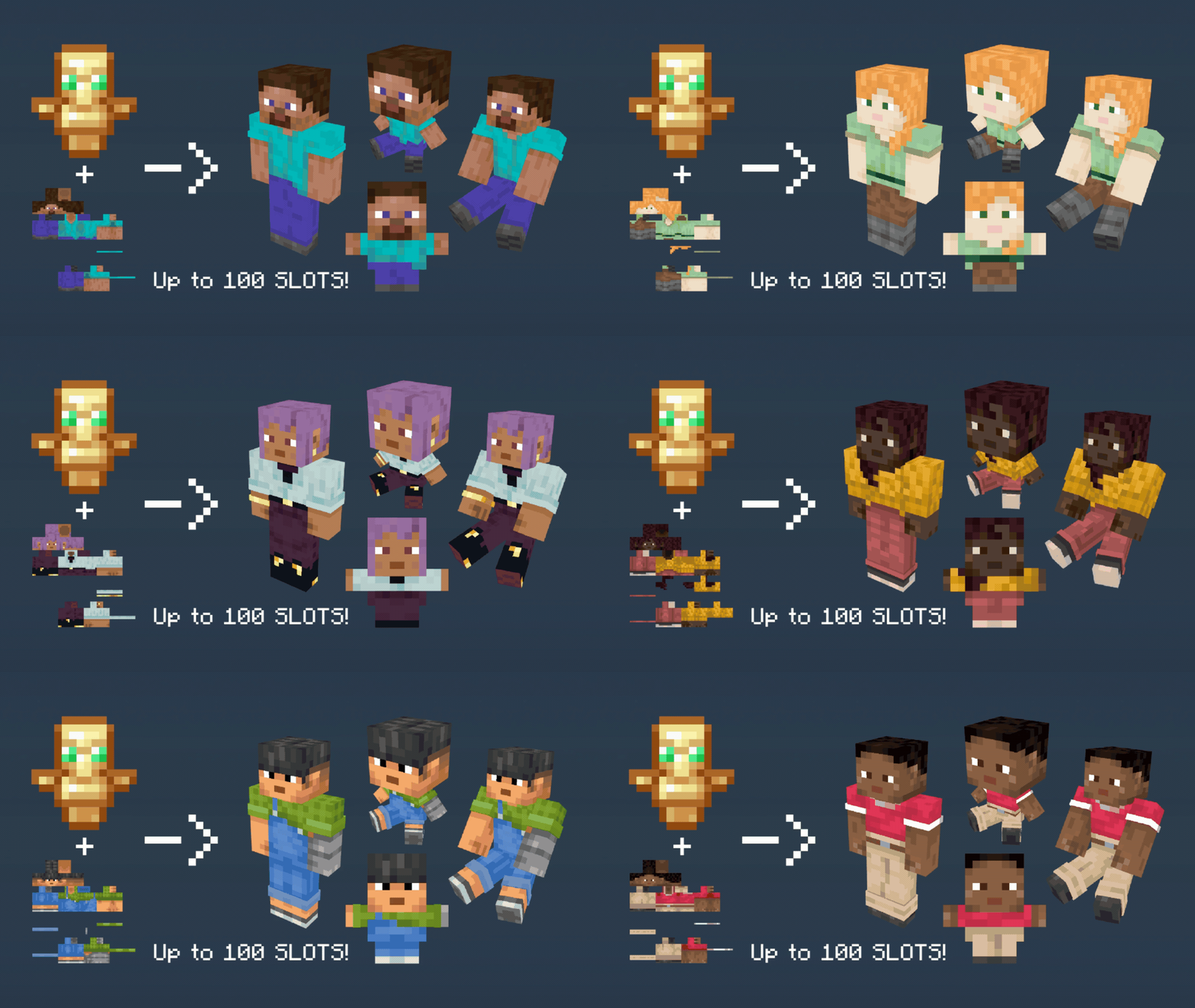
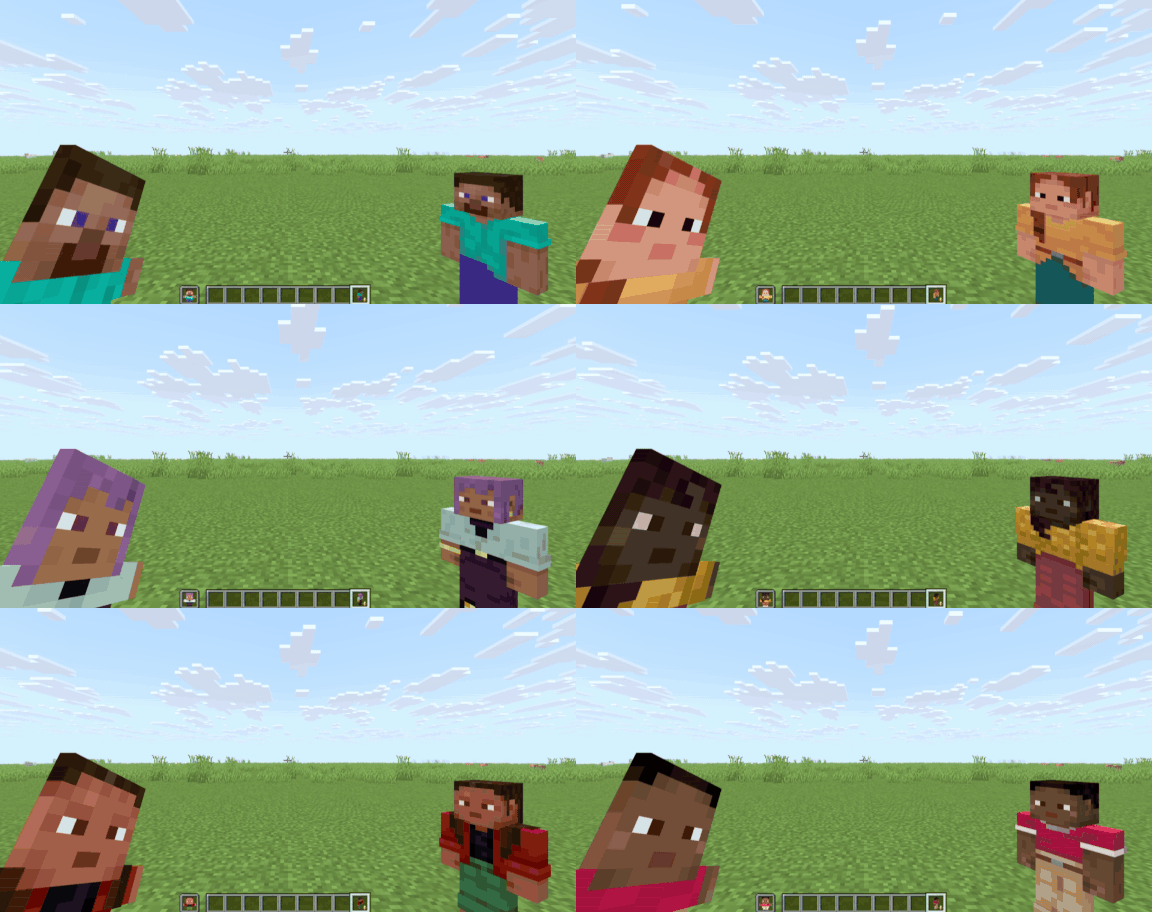
This resource pack will turn your Totem of Undying into a different customized player skin by renaming it with an anvil.
Features:
- This Resource pack works on 100% Vanilla.
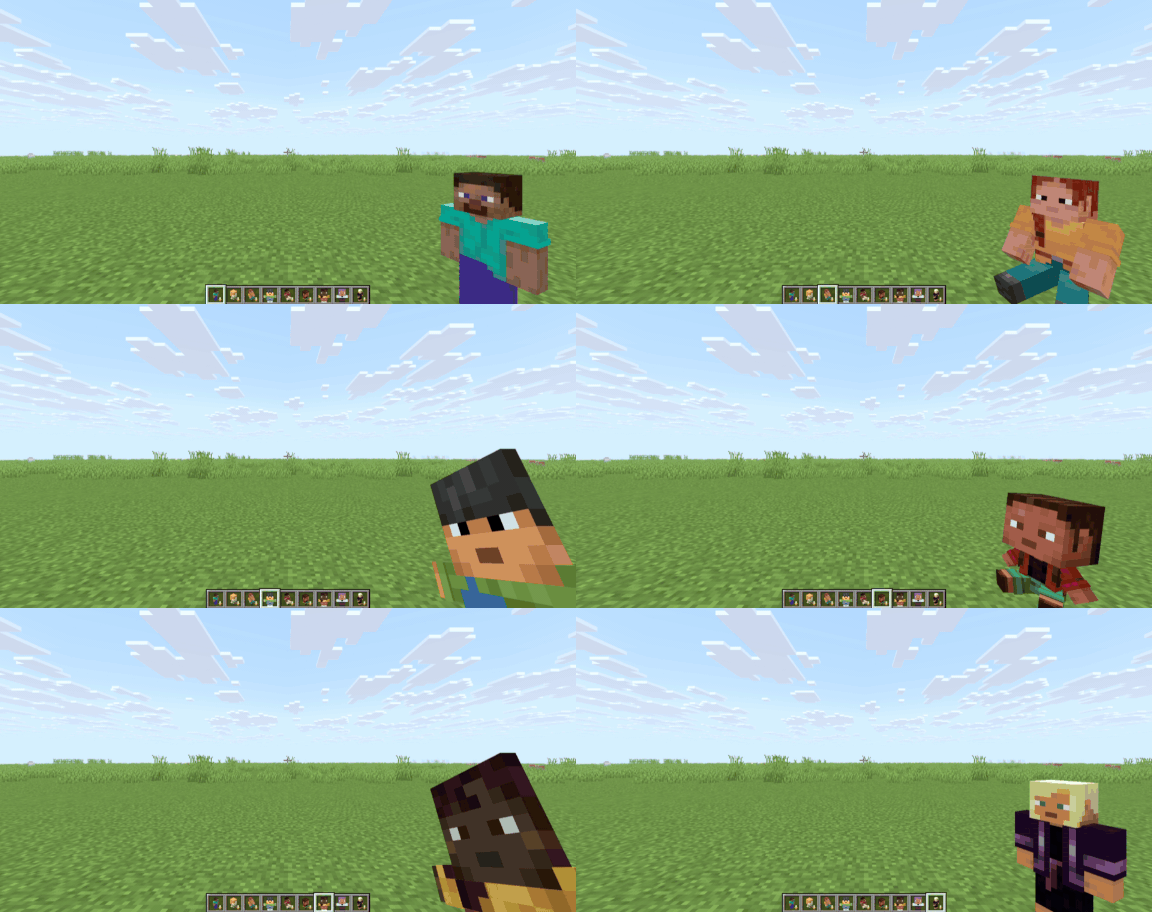
- You can put multiple customized skins in a pack, up to 100.
- Supports Wide and Slim Player Skin Types.
- It has different models for your player skin.
- It has a Totem Name and Skin List in-game by renaming a PAPER so you don’t need to open the file to find your skin.
FEATURED Images
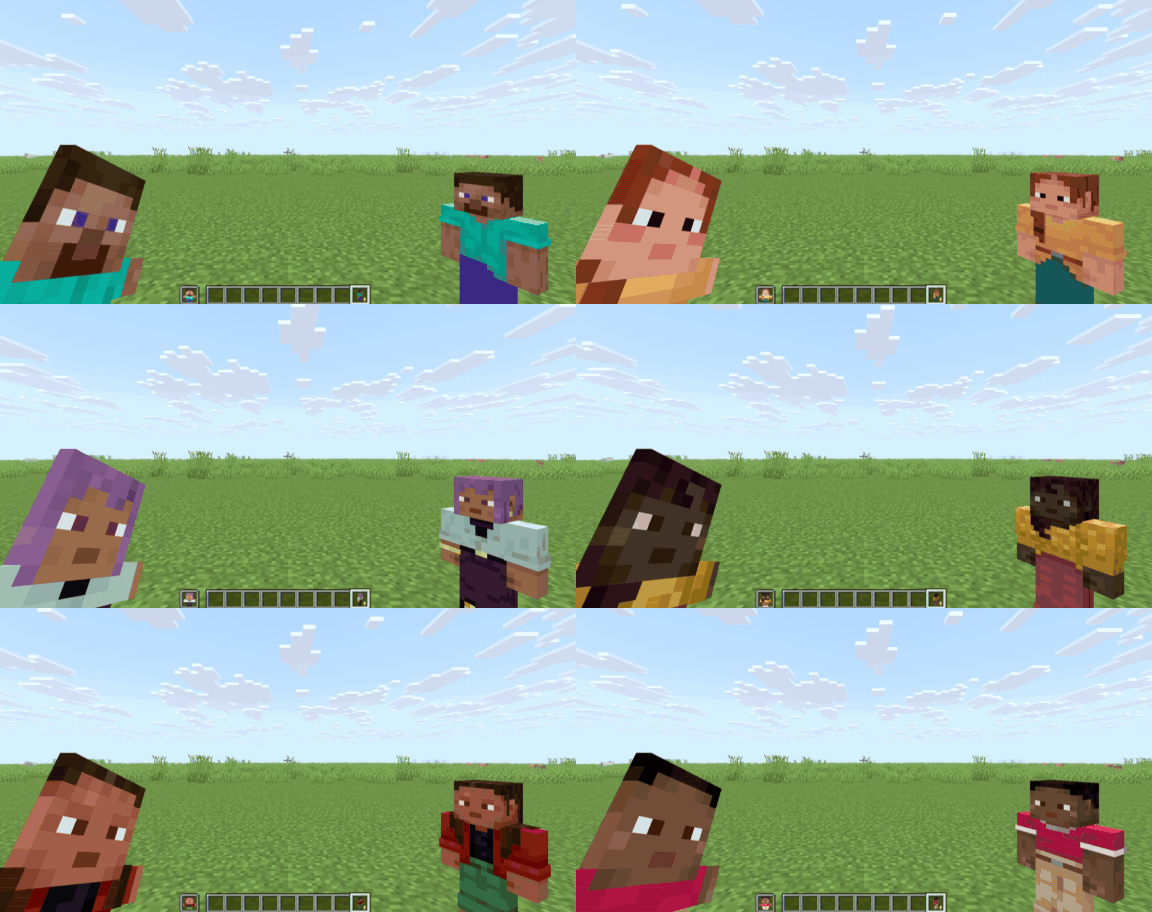
You can find more in the Gallery.
How to Use:
- Use an Anvil to rename the Totem of Undying to Whatever Customized Player Totems you want.
- To rename, it depends on what model you want and what skin you apply; for example, you can rename the Totem of Undying to “
player 1`to change the totem into a Steve standing model or`player 2`if you want the Alex skin _(the number on the name`1`and`2“ represents the skin slot on the pack, which are Steve and Alex by default)_. - You can change the model by renaming the Totem of Undying to “
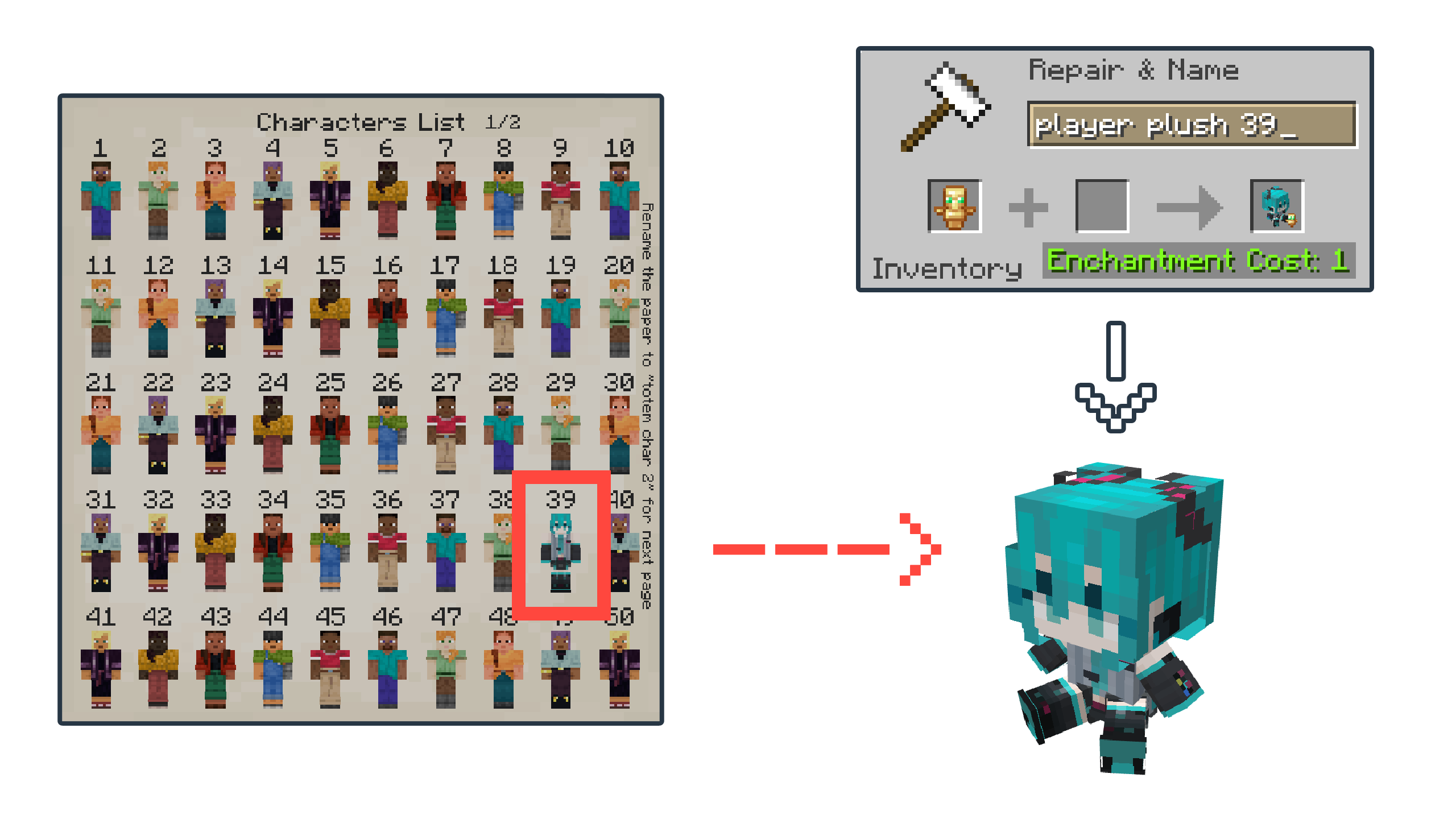
player plush 3`to turn into an Ari plush model,`player totem 1`for the Steve 2D totem model, and`player sit 8`for the Sunny Sitting model _(the numbers`3`and`8“ on the name are for Ari and Sunny skin by default)_. - If the skin is built for a slim type model, you can add “
slim`to the name, for example,`player 5 slim`,`player sit 4 slim`, and`player plush 7 slim`_(the number`5`,`4`, and`7“ on the name are for Kai, Efe, and Noor skin by default)_.
| Totem Names | Sample Item | Has Slim Variant? |
| :——–: | :——–: | :——–: |
|“ player 1 `|<img src="https://cdn.modrinth.com/data/cached_images/f24762f705c59c9a62087def93ce5ddc901bb87f.png" alt="player 1 item" width="25%" height="25%">|YES|<br>`
| player totem 1 `|<img src="https://cdn.modrinth.com/data/cached_images/08a314a9162642f8610746c35e6fc1c00f76806c.png" alt="player totem 1 item" width="25%" height="25%">|NO|<br>`
| player plush 1 `|<img src="https://cdn.modrinth.com/data/cached_images/25e1005178204f3c64b96036e291ada63f2901d4.png" alt="player plush 1 item" width="25%" height="25%">|YES|<br>`
| player sit 1 “|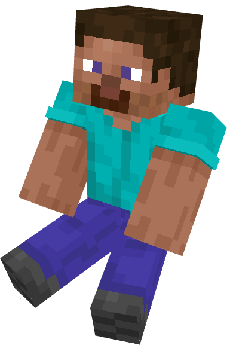 |YES|
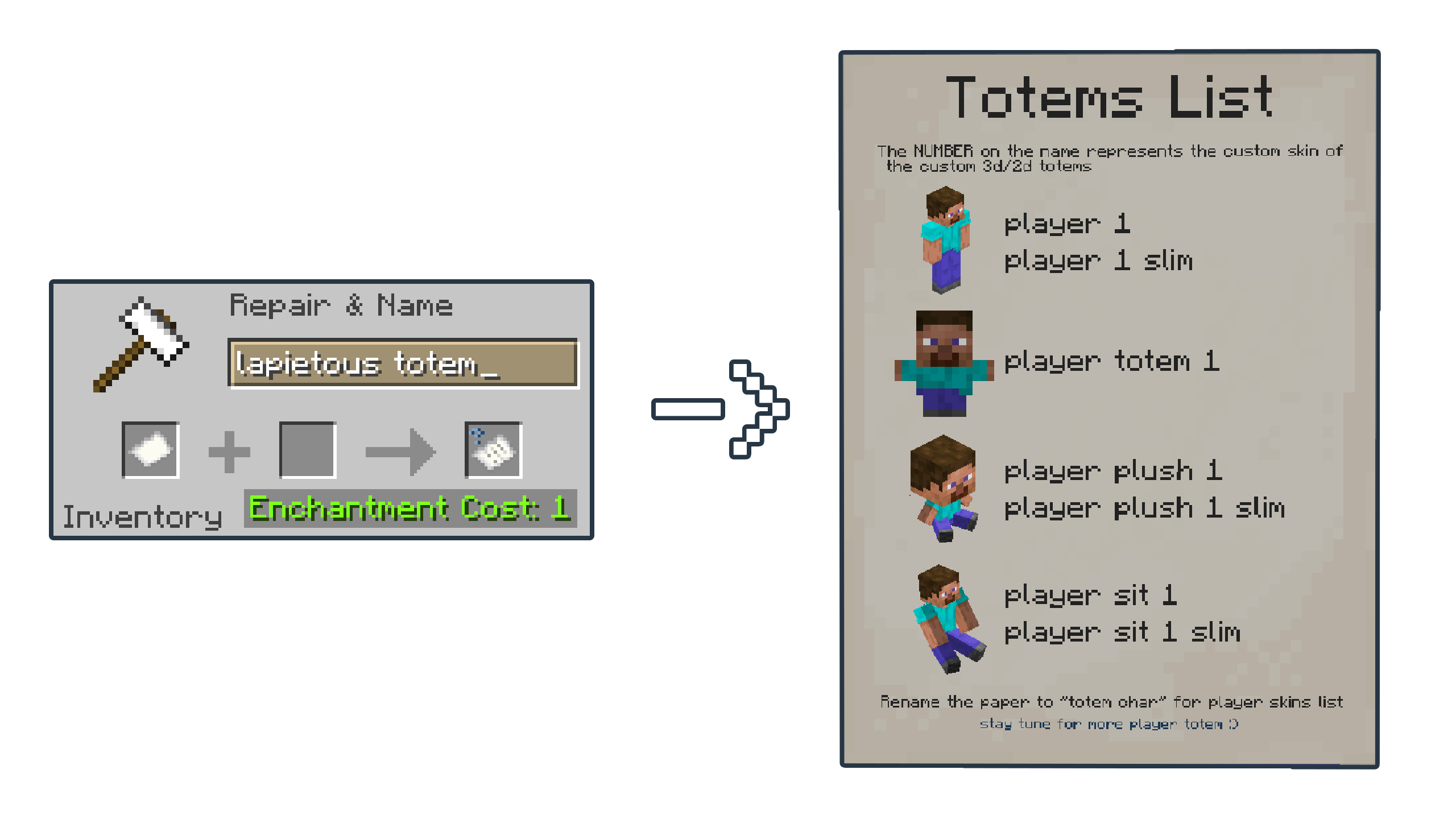
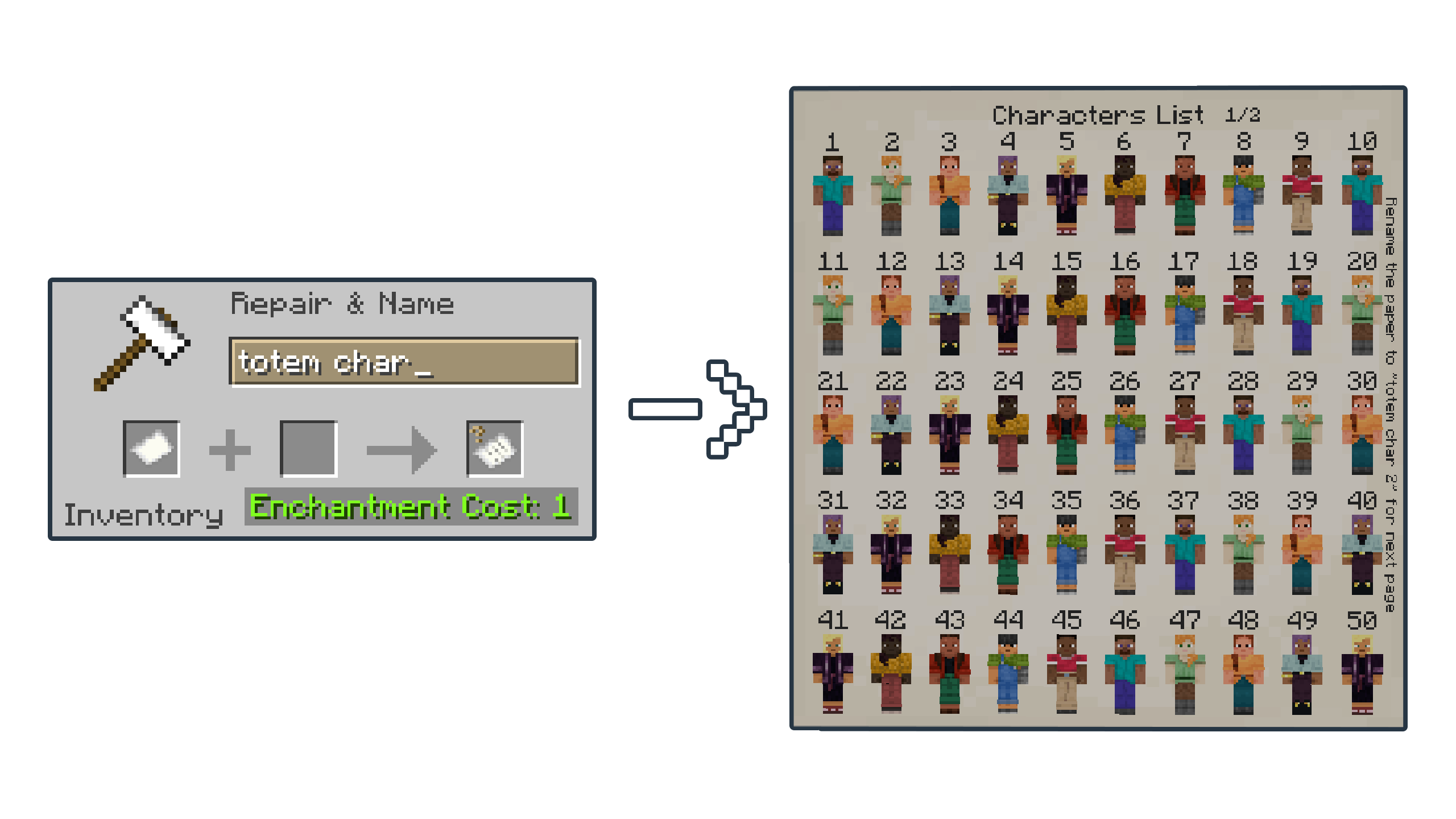
- If you forgot the Totem’s names or if you want to see the Skin list, you can rename the Paper to “
lapietous totem`for the Totem's name and`totem char`for the skins list _(the skin list has two pages, so add a number like this`totem char 2“ for the second page)_.
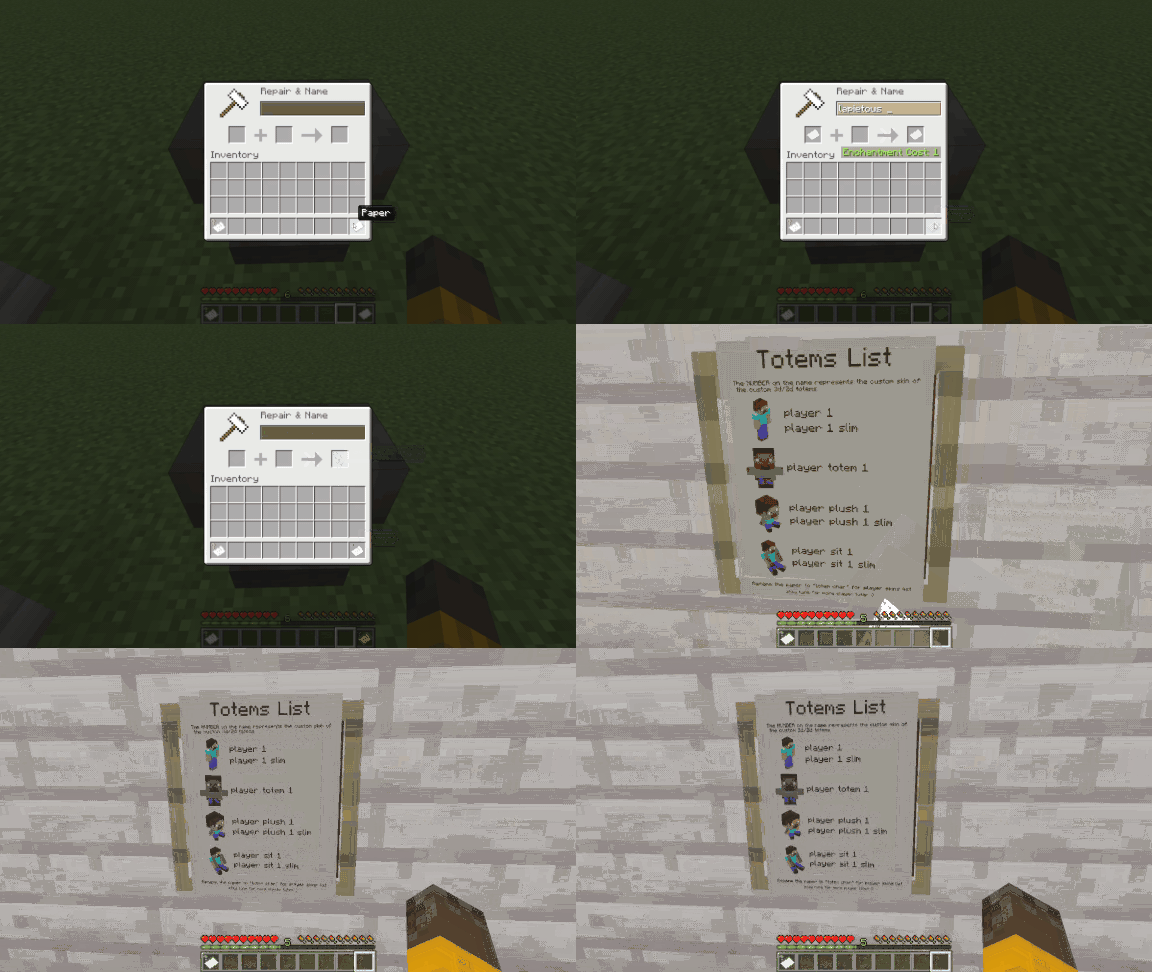
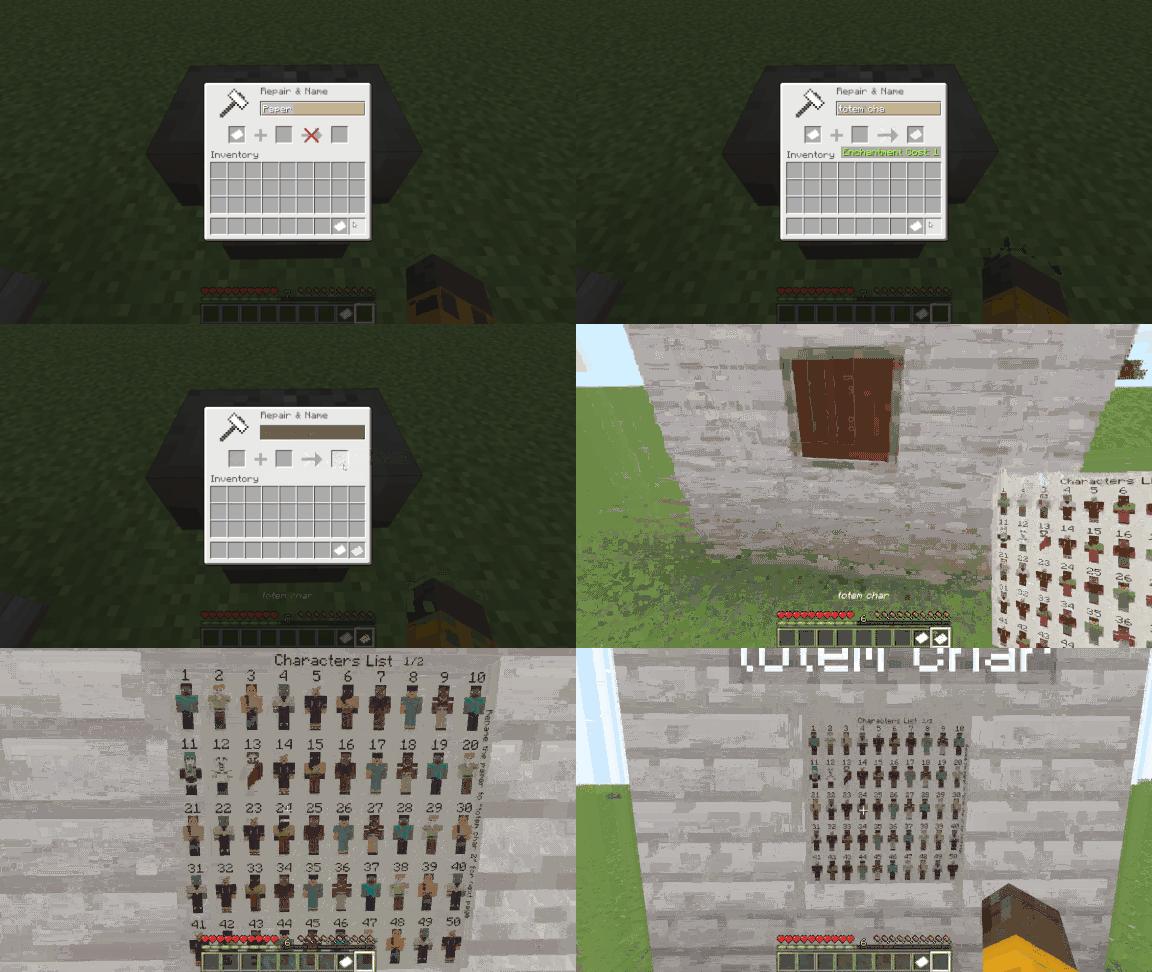
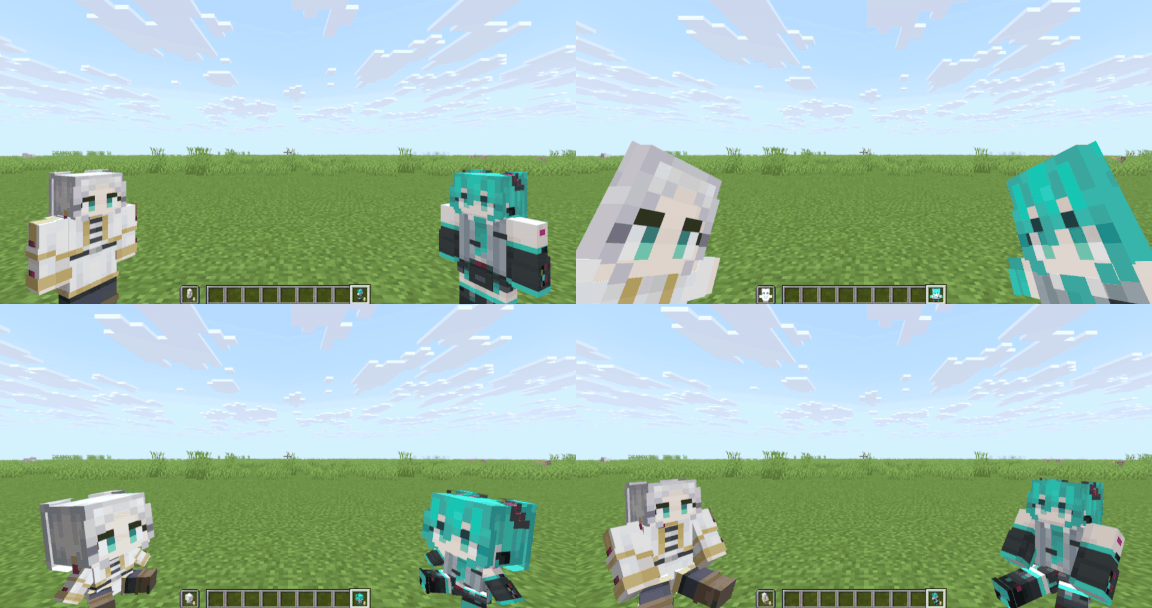
- You can customize the Skins By Replacing the default skin with your Skin by editing in the Resource Pack.
HOW TO APPLY YOUR CUSTOM SKIN
- Disable the resource pack.
- Rename your custom skin image file to the slot number you want to replace, for Example: “
11.png`,`1.png`,`39.png“.
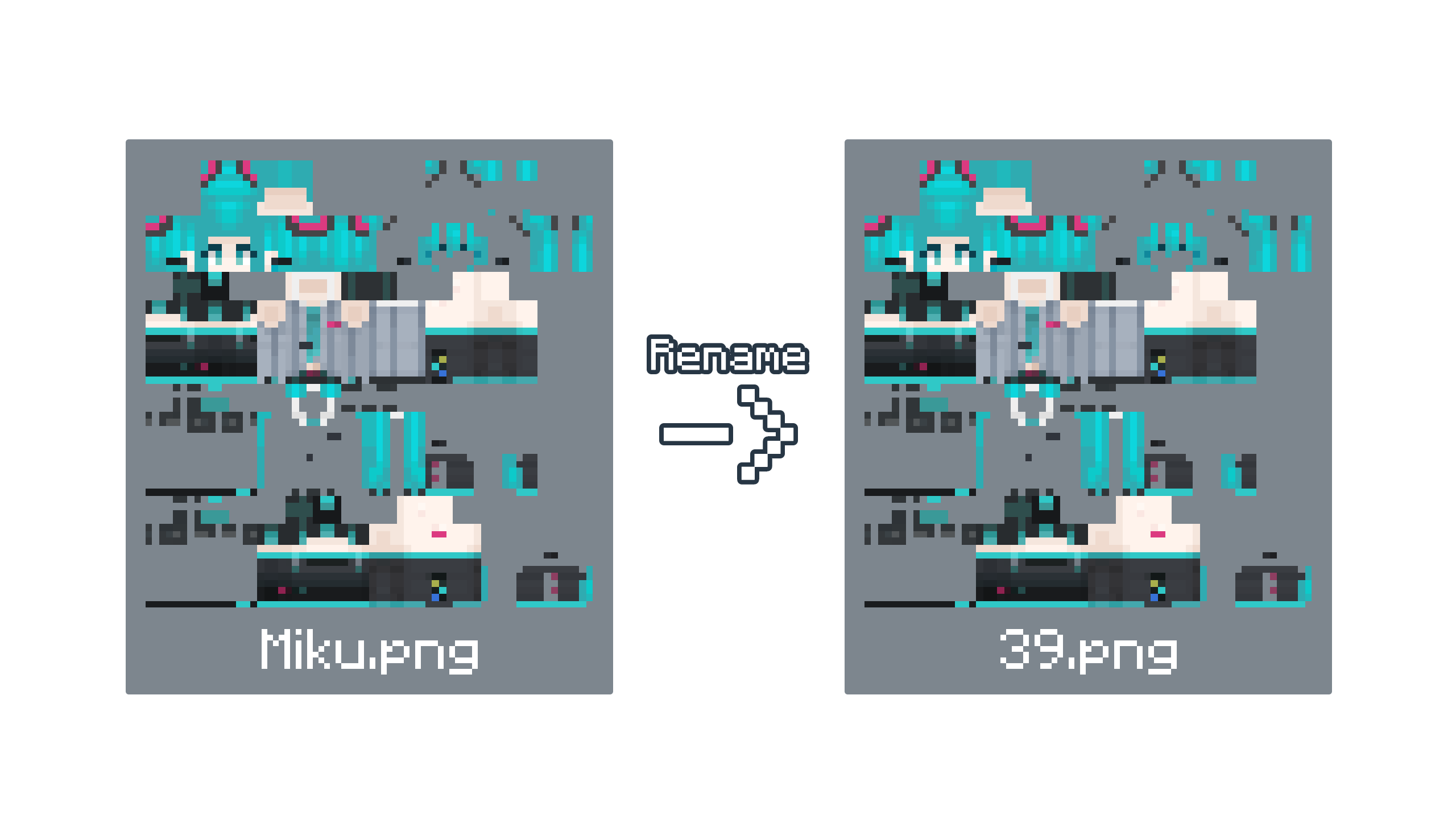
- Go to the Resource Packs Folder by pressing “Open Resource Pack Folder” in the Minecraft resource pack settings.
- Find the “
Custom Player Totems [x.x].zip“ and open the file. - Go to this Location “
\assets\customplayertotems\textures\item\skins`and copy and paste your custom skin image file _(renamed to the slot number)_ to the`skins“ folder; it will prompt or automatically replace the default image file with your customized skin image. Alternatively, you can delete the default skin image file and then place your customized skin image.
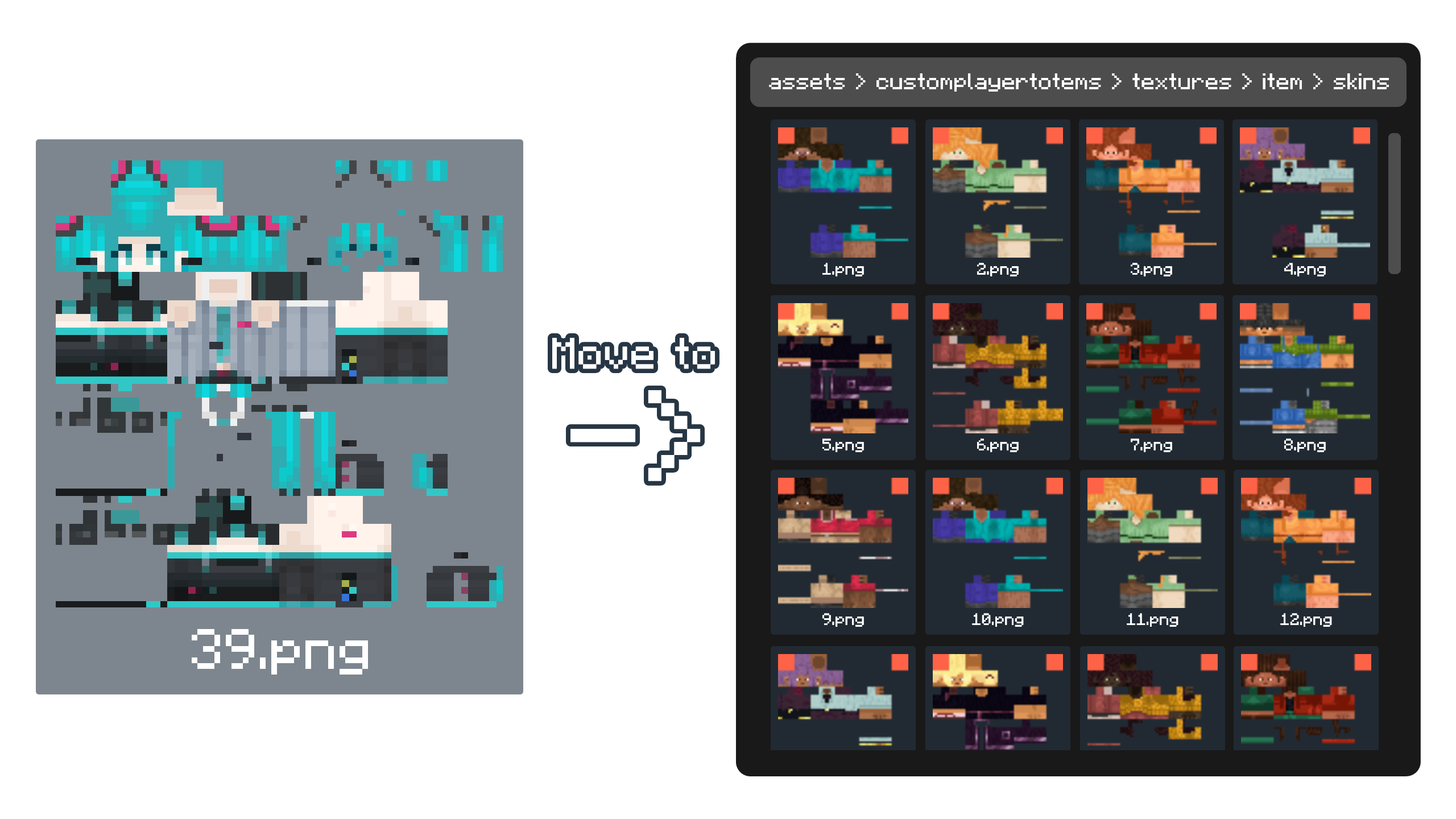
- After Customizing, enable the resource pack.
- Sample Image Below on how to get your customized player totem ingame.
HOW TO HIDE OR REMOVE THE SMALL TOTEM ICON
- Disable the resource pack.
- Go to the Resource Packs Folder by pressing “Open Resource Pack Folder” in the Minecraft resource pack settings.
- Find the “
Custom Player Totems [x.x].zip“ and open the file. - Go to this Location “
\assets\minecraft\models\lapietous“. - Find the “
totem_icon.json`and rename it whatever you want, or just rename it to`no_totem_icon.json“ or delete the file if you want to remove it permanently. - Find the “
totem_icon_invisible.json`and rename it to`totem_icon.json“. - Enable the resource pack, and the mini totem icon should be gone.
HOW TO TRANSFER CUSTOMIZED SKINS TO A NEW VERSION
- Disable the OLD and NEW resource packs.
- Go to the Resource Packs Folder by pressing “Open Resource Pack Folder” in the Minecraft resource pack settings.
- Find the Old Pack (“
Custom Player Totems [old].zip`) with your custom Skins and find the New Fresh Version Pack (`Custom Player Totems [new].zip“) and Open Both files. - On the Old Pack (with customs skins), Go to this Location “
\assets\customplayertotems\textures\item`and copy the`skins“ folder. - On the New Pack, Go to this Location “
\assets\customplayertotems\textures\item`and paste the`skins“ folder that you copied, it will prompt or automaticaly replace with your custom player skins. - Enable the NEW resource pack.
Additional Info:
- This pack has not been tested on mods like Punchy!.
- I will add more models and features in future updates.
You can also see the Resource Pack on:


常见问题
Custom Player Totems 支持哪些 Minecraft 版本?
Custom Player Totems 支持 Minecraft Java 版 1.21.4–26.3,共 13 个版本。下载时注意选择和你游戏版本一致的文件。
Custom Player Totems 怎么安装?
把下载的 .zip 文件(不用解压)放进游戏目录的 resourcepacks 文件夹,进游戏后在「选项 → 资源包」里把它移到右边启用。
Lapietous 的其他作品
查看全部 →
Animated 3D Wind Charge | Compatible with Punchy!
Turning Wind Charge (item) into an Animated 3D
Animated 3D Wind Charge | Compatible with Punchy!
Turning Wind Charge (item) into an Animated 3D

Totems Pack
A collection of 3d Models for Totem of Undying, including animated ones
评论
登录后评论和评分