
Screenshot Plus
Browse, crop and delete your screenshots in-game, and choose where new ones are saved.
截图
介绍
ScreenshotPlus
Browse, crop and delete your screenshots without ever leaving the game.
Press F2, and the screenshot quietly lands in a folder you’ll probably never open. Want to check if the shot came out right? Alt-tab, dig through the screenshots folder, open an image viewer, come back.
ScreenshotPlus brings your screenshots into Minecraft. Open the gallery with a single key, flip through your shots, crop the good part, delete the bad ones, and pick where new screenshots get saved.
Features
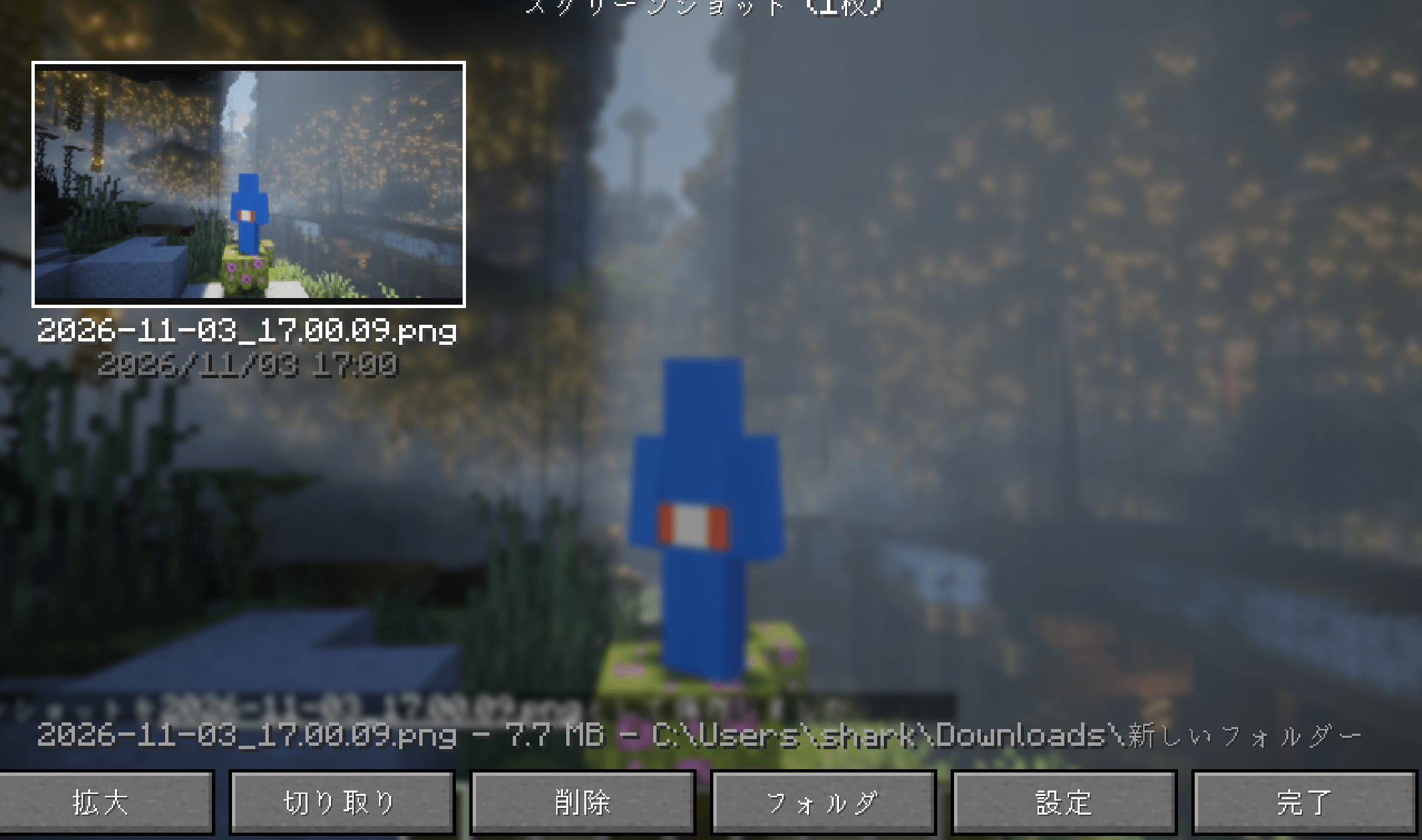
- In-game gallery. Press F6 to see all your screenshots as thumbnails, newest first. Scroll with the mouse wheel or move around with the arrow keys.
- Full-size viewer. Open any screenshot to see it as large as your screen allows, along with its resolution, file size and date. Use the arrow keys or the buttons to step through them one by one.
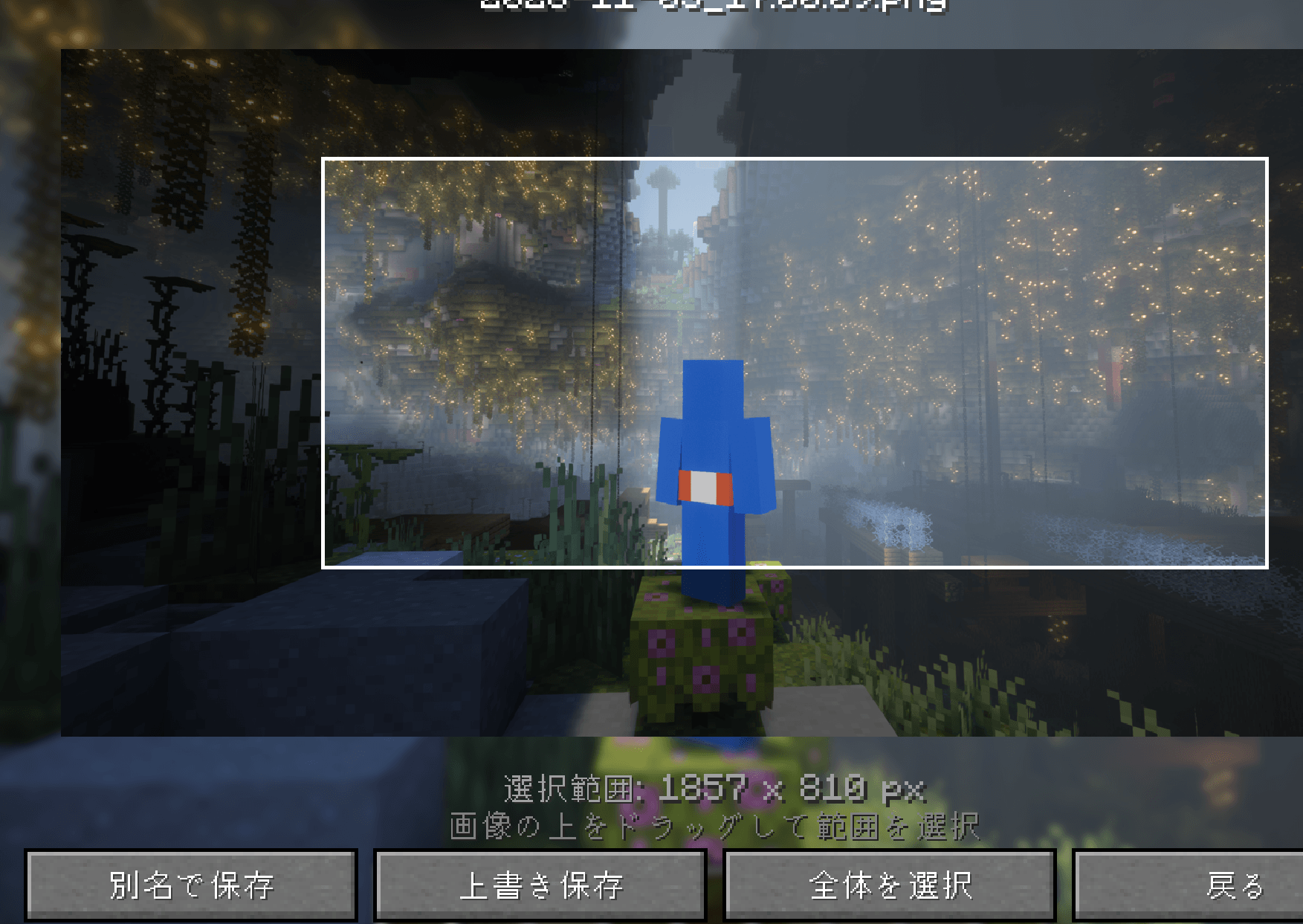
- Crop. Drag over the image to select an area, then save it as a new file or overwrite the original. Cropping always uses the original full-resolution image, so nothing gets blurry.
- Delete. Remove screenshots you don’t want, with a confirmation prompt so you don’t lose one by accident.
- Choose your save folder. Send new screenshots anywhere you like, using either a full path or a folder inside your game directory. Leave it blank to keep the default.
- Per-world folders. Optionally sort screenshots into subfolders named after the world or server you took them in.
- Instant preview. A small thumbnail of every new screenshot pops up in the corner of the screen and fades out after a few seconds. You can set how long it stays, or turn it off.
- Open the folder. One click opens the screenshot folder in your file explorer.
- Old screenshots stay visible. Even after you change the save folder, the gallery still shows what’s in the default screenshots folder.
- Doesn’t freeze your game. Images load in the background, so a folder with hundreds of screenshots opens smoothly.
- 16 languages: English, Japanese, Simplified Chinese, Traditional Chinese, Korean, German, French, Spanish, Brazilian Portuguese, Russian, Italian, Polish, Dutch, Turkish, Ukrainian and Indonesian.
- Client-side only. Install it on your client. Servers don’t need it.
How to use
| Open the gallery | F6 (change it in Controls) |
| Move between screenshots | Arrow keys, or the mouse wheel in the gallery |
| Open a screenshot | Double-click it, or press Enter |
| Delete the selected screenshot | Delete |
| Refresh the gallery | F5 |
Settings such as the save folder and preview time are under Settings in the gallery. On Forge and NeoForge, you can also open the gallery from the config button in the Mods list.
Loader differences
- Forge / NeoForge: The chat message you get after taking a screenshot also reminds you which key opens the gallery.
- Fabric: Requires Fabric API. The chat message stays as it is in vanilla, so the gallery reminder isn’t shown, and the corner preview appears a moment after the screenshot is saved.
Good to know
- Deleting is permanent. Deleted screenshots skip the recycle bin, so double-check before you confirm.
- Only PNG files are shown in the gallery.
- On Fabric, screenshots that other mods save under their own file names are not moved to your custom folder.
- Settings are stored in
config/screenshotplus/config.json.
常见问题
Screenshot Plus 支持哪些 Minecraft 版本?
Screenshot Plus 支持 Minecraft Java 版 1.20.1–26.3,共 12 个版本,可用的加载器:Fabric / Forge / NeoForge。下载时注意选择和你游戏版本一致的文件。
Screenshot Plus 怎么安装?
先用 PCL2 或 HMCL 启动器安装对应版本的 Fabric / Forge / NeoForge,再把下载的 .jar 文件放进游戏目录的 mods 文件夹,重新启动游戏即可。开启了版本隔离的,mods 文件夹在 versions/版本名 下面。
NEKOZAME_Garo 的其他作品
查看全部 →
SleepAnyway
即使附近有怪物,也可以睡觉

WeatheringBlocks
世界中的方块会随时间自然老化——石头会在脚下开裂,圆石会在雨中长出苔藓,湿海绵则会在阳光下晾干。

EffectTimerHUD
在 HUD 的每个药水效果图标下方显示剩余持续时间。

InventoryHUD
一眼查看整个物品栏——战斗中不用再打开背包。
评论
登录后评论和评分