
LitematicaOitaBlockHighlighter
Highlights specific placed blocks in your active Litematica schematic
截图
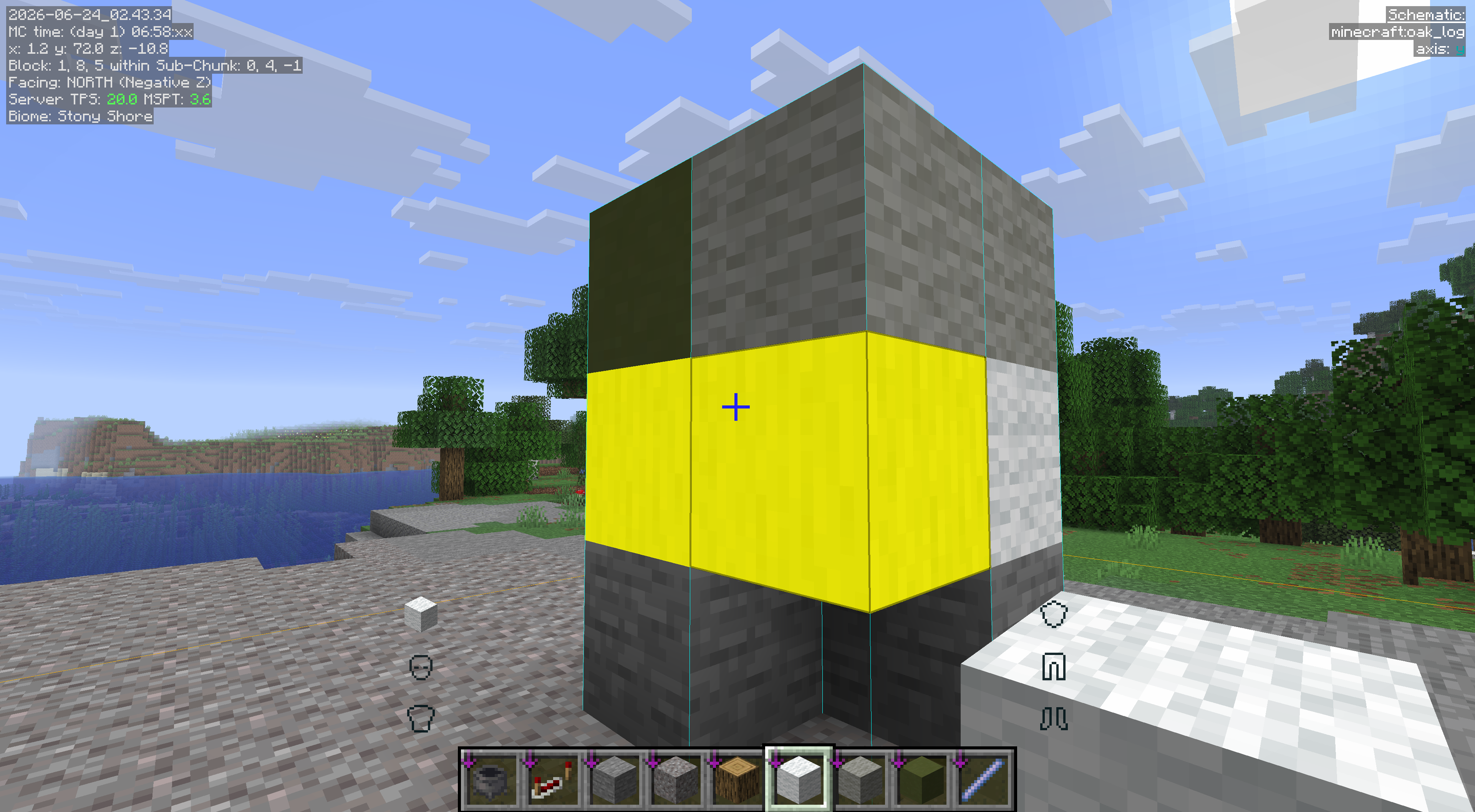
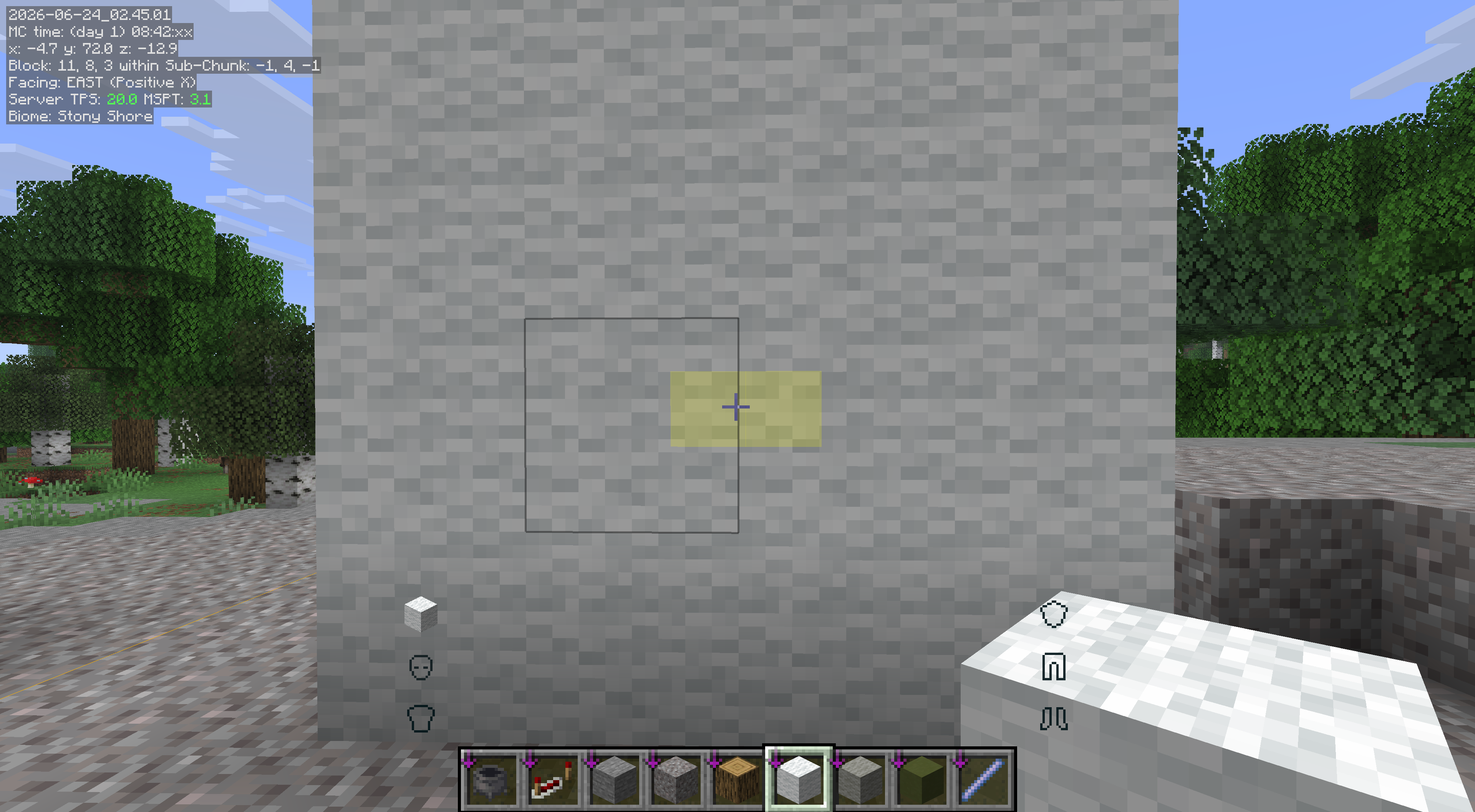
介绍
Litematica Oita Block Highlighter
Litematica Oita Block Highlighter is a client-side Fabric mod that extends Litematica by adding a per-block highlight overlay directly onto your schematic placements.
When building from a Litematica schematic, it can be difficult to quickly locate all instances of a specific block type — especially in large or complex builds. This mod solves that problem by letting you select any blocks you care about and rendering a colored semi-transparent overlay on every matching block that has already been placed in the world.
✨ Features
Block Highlight Overlay
Selected blocks that exist in both the schematic and the real world are highlighted with a filled, semi-transparent colored overlay. Adjacent blocks of the same highlight group share faces seamlessly — only exposed faces are drawn, keeping the visual clean and uncluttered.
faint ghost overlay (always-on)
In addition to the standard depth-tested overlay, a faint ghost overlay is drawn through walls so you can spot highlighted blocks even when they are hidden behind other blocks. The through-wall overlay uses 25% of the normal opacity to remain subtle.
Block Selector GUI
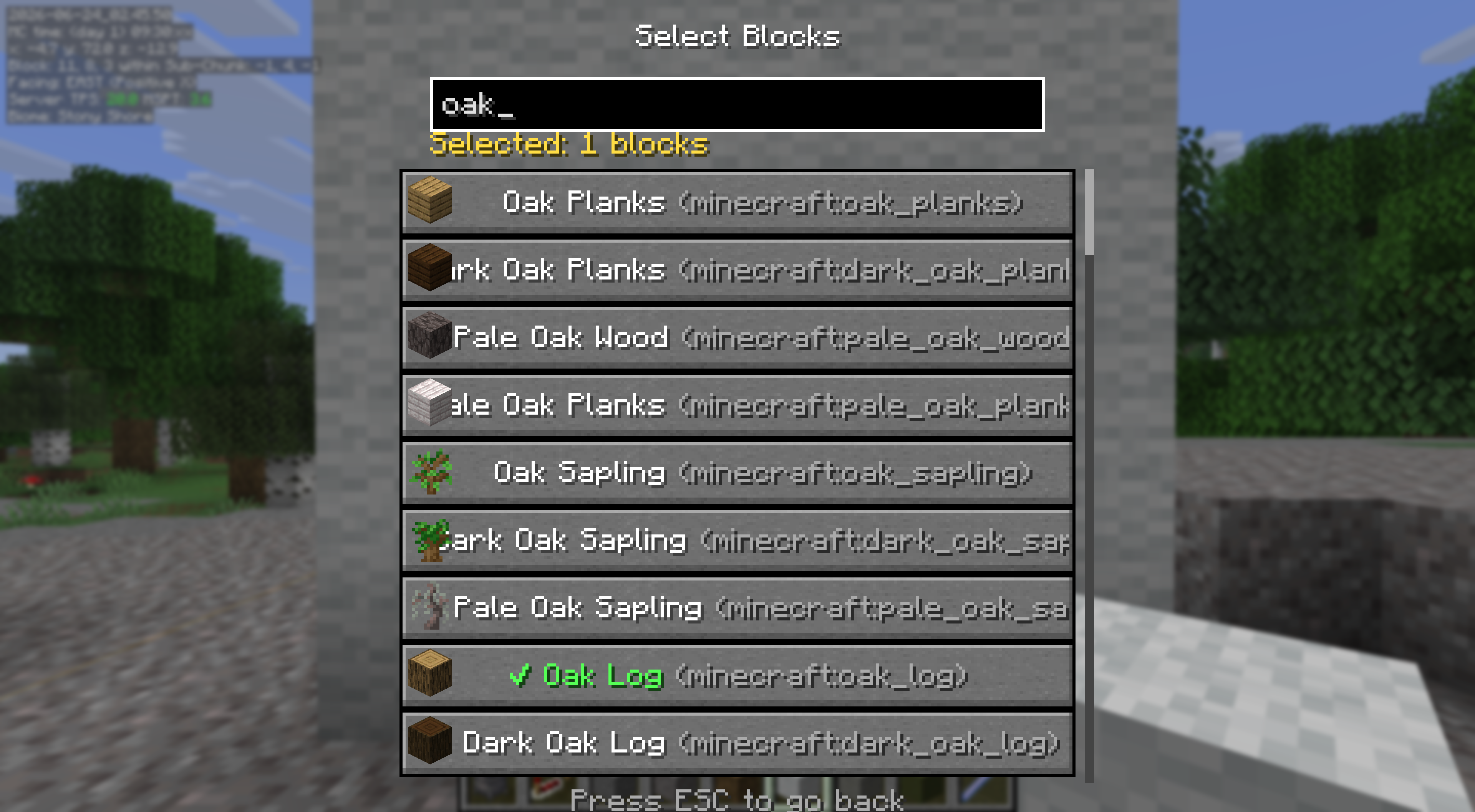
Open a searchable block list (up to 500 results) that shows every block available in the game registry, complete with block icons, translated names, and registry IDs. Click any entry to toggle it on or off. A green checkmark (✔) indicates currently selected blocks. The selection count is always shown at the top.
Settings Screen
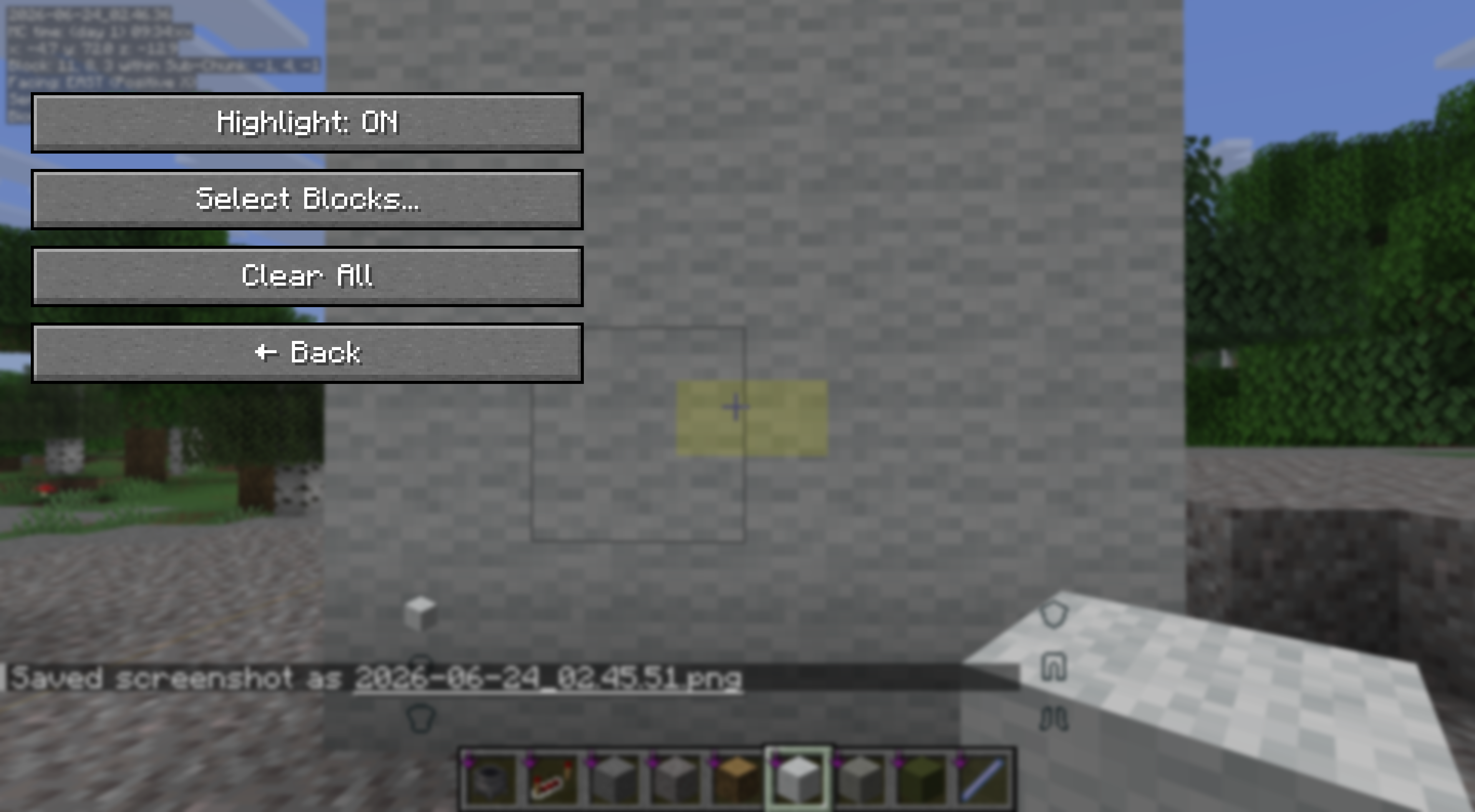
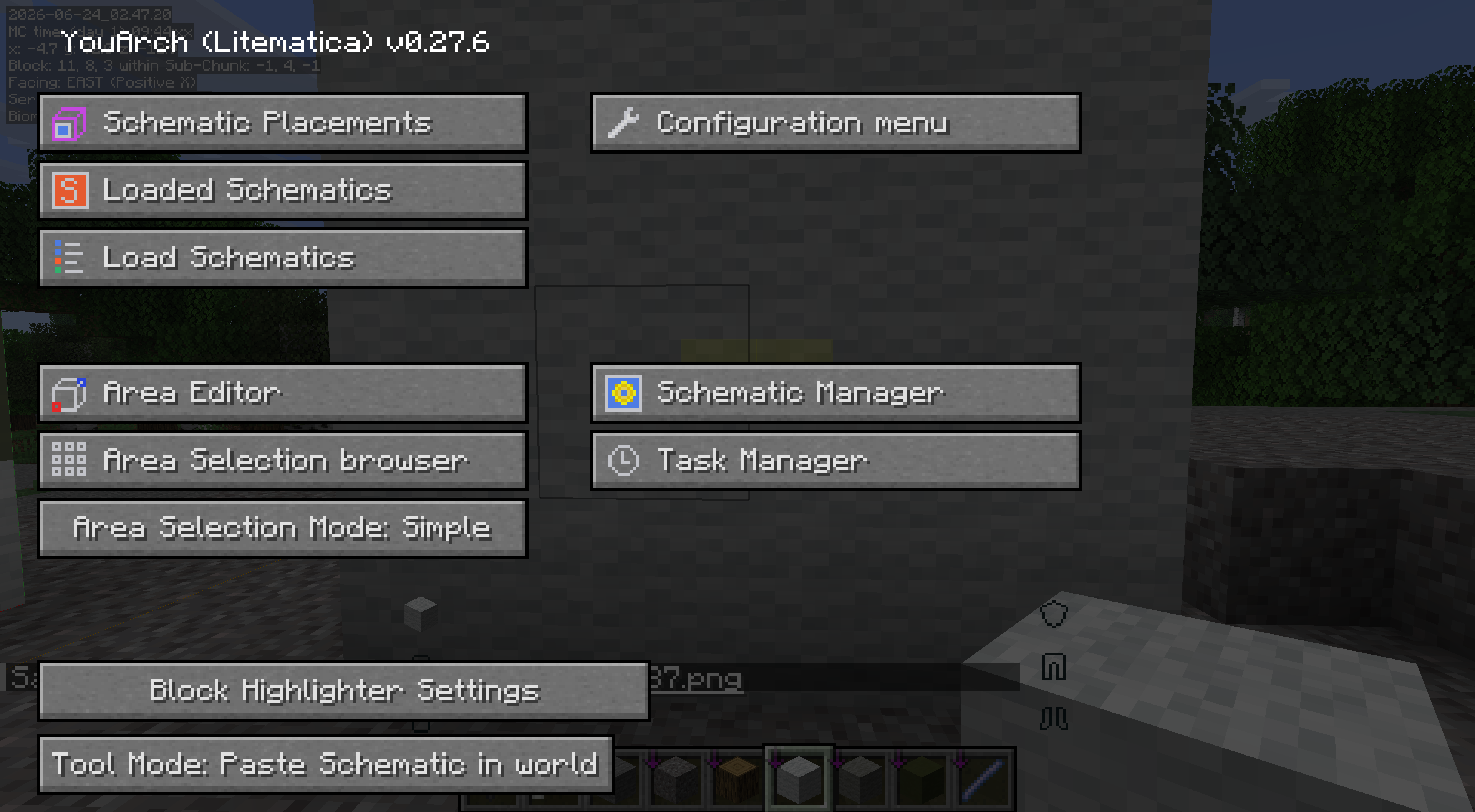
A dedicated settings screen (accessible from Litematica’s main menu or via the Ctrl + H keybind) lets you:
Toggle the entire highlight system on or off
Open the block selector
Clear all selected blocks at once
Persistent Configuration
All settings — selected blocks, enabled state, and highlight color — are saved to config/litematica_kakucyou.json and restored automatically on next launch.
🎮 How to Use
Load a schematic in Litematica and select a placement.
Press Ctrl + H (default) to open the Block Highlighter settings, or click the “Block Highlighter Settings” button added to Litematica’s main menu.
Click “Select Blocks…” to open the block selector.
Search for and click the blocks you want to highlight.
Close the GUI — highlighted blocks will appear in-world immediately.
📦 Requirements
・Fabric Loader
・Fabric API
・Litematica
・MaLiLib
常见问题
LitematicaOitaBlockHighlighter 支持哪些 Minecraft 版本?
LitematicaOitaBlockHighlighter 支持 Minecraft Java 版 26.1.2,可用的加载器:Fabric。下载时注意选择和你游戏版本一致的文件。
LitematicaOitaBlockHighlighter 怎么安装?
先用 PCL2 或 HMCL 启动器安装对应版本的 Fabric,再把下载的 .jar 文件放进游戏目录的 mods 文件夹,重新启动游戏即可。开启了版本隔离的,mods 文件夹在 versions/版本名 下面。运行环境:仅客户端。
tunapiyo 的其他作品
查看全部 →
IkkatsuResourcePackKun
Toggling all the selected resource packs at once!

Shuffle My Stuff
Adds a small button to your inventory and chests that randomly shuffles their contents. Client-side.
Shuffle My Stuff
Adds a small button to your inventory and chests that randomly shuffles their contents. Client-side.
评论
登录后评论和评分